 English
 Español
 Tiếng Việt
 Deutsch
 Français
 Português
 Polski
 Nederlands
 Italiano
 Svenska
 Norsk
 Dansk
 Suomi
 Čeština
 हिन्दी
 العربية
Optional client access to forms, scans and GPS tracking
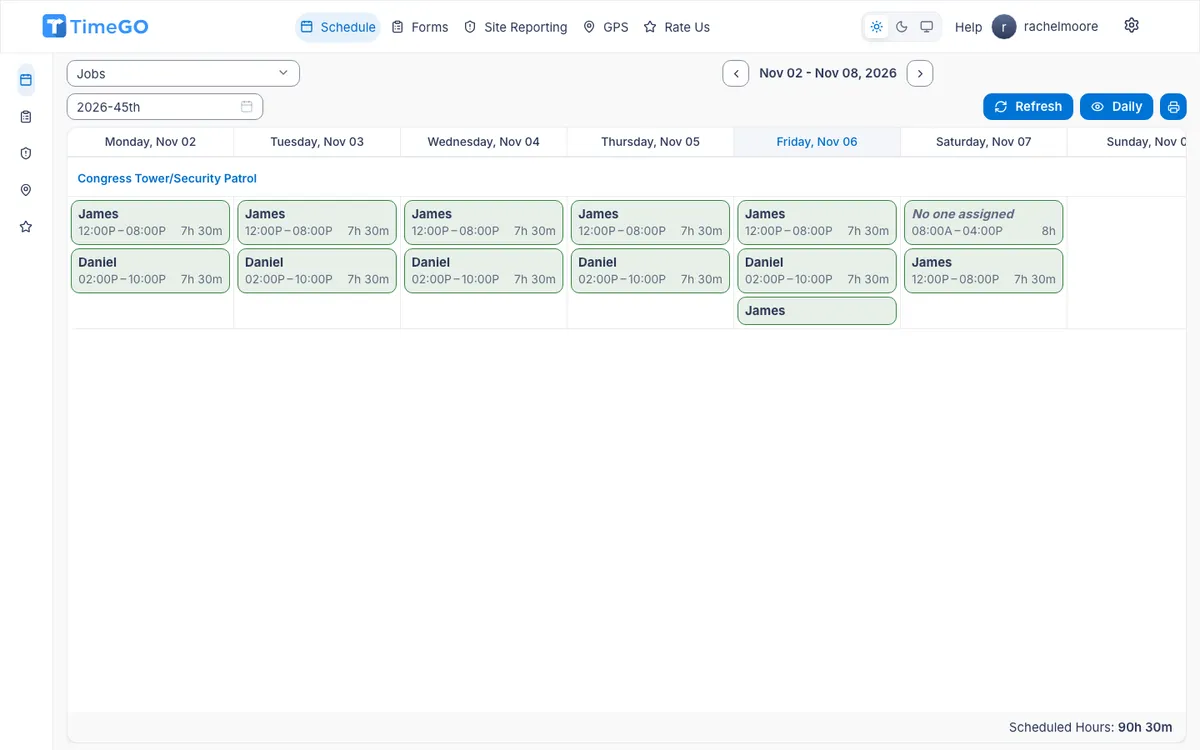
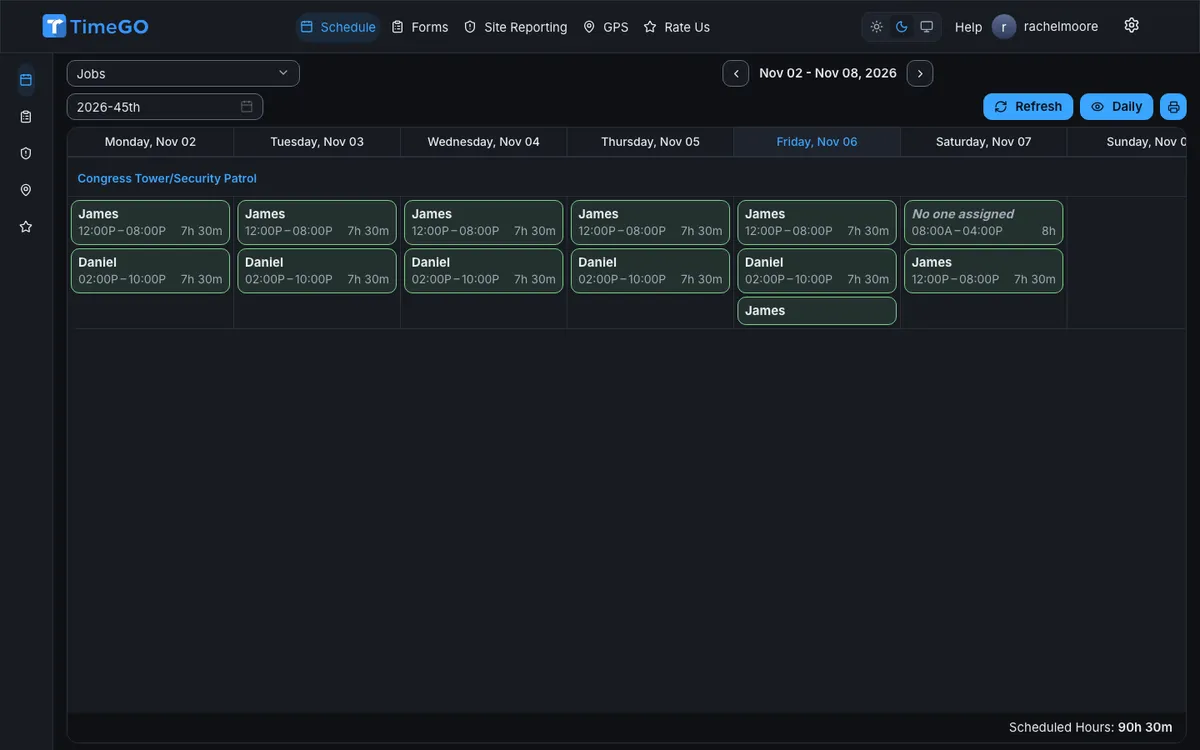
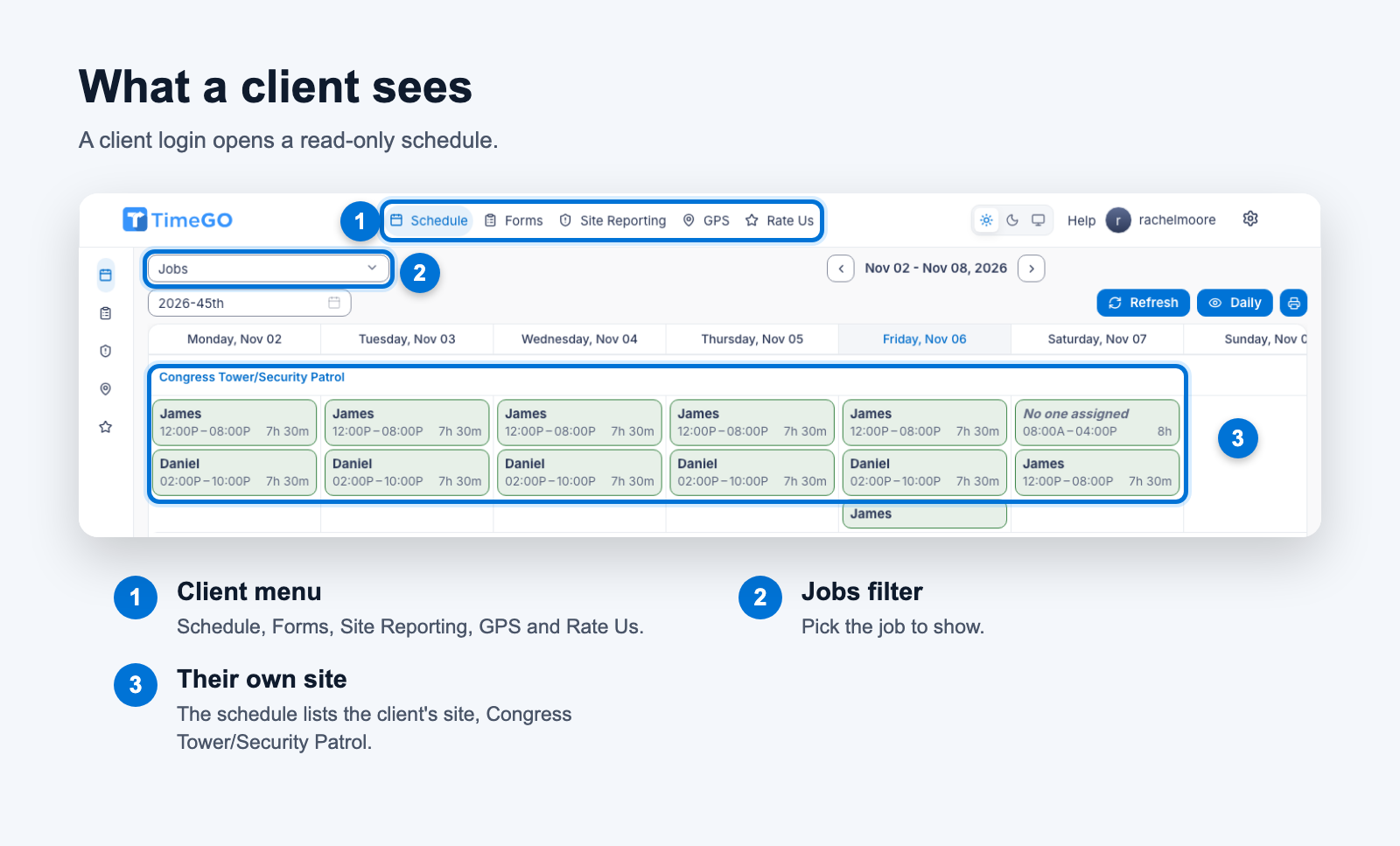
Give a client a login. It always shows a read-only schedule of the client's locations; you choose what else they see.

What it does
A client login always shows a read-only schedule of the client's locations. Form results, checkpoint scans and GPS tracking show only if you allow them. Clients, locations and contacts are set up in the web dashboard.
How it works
Set up the client
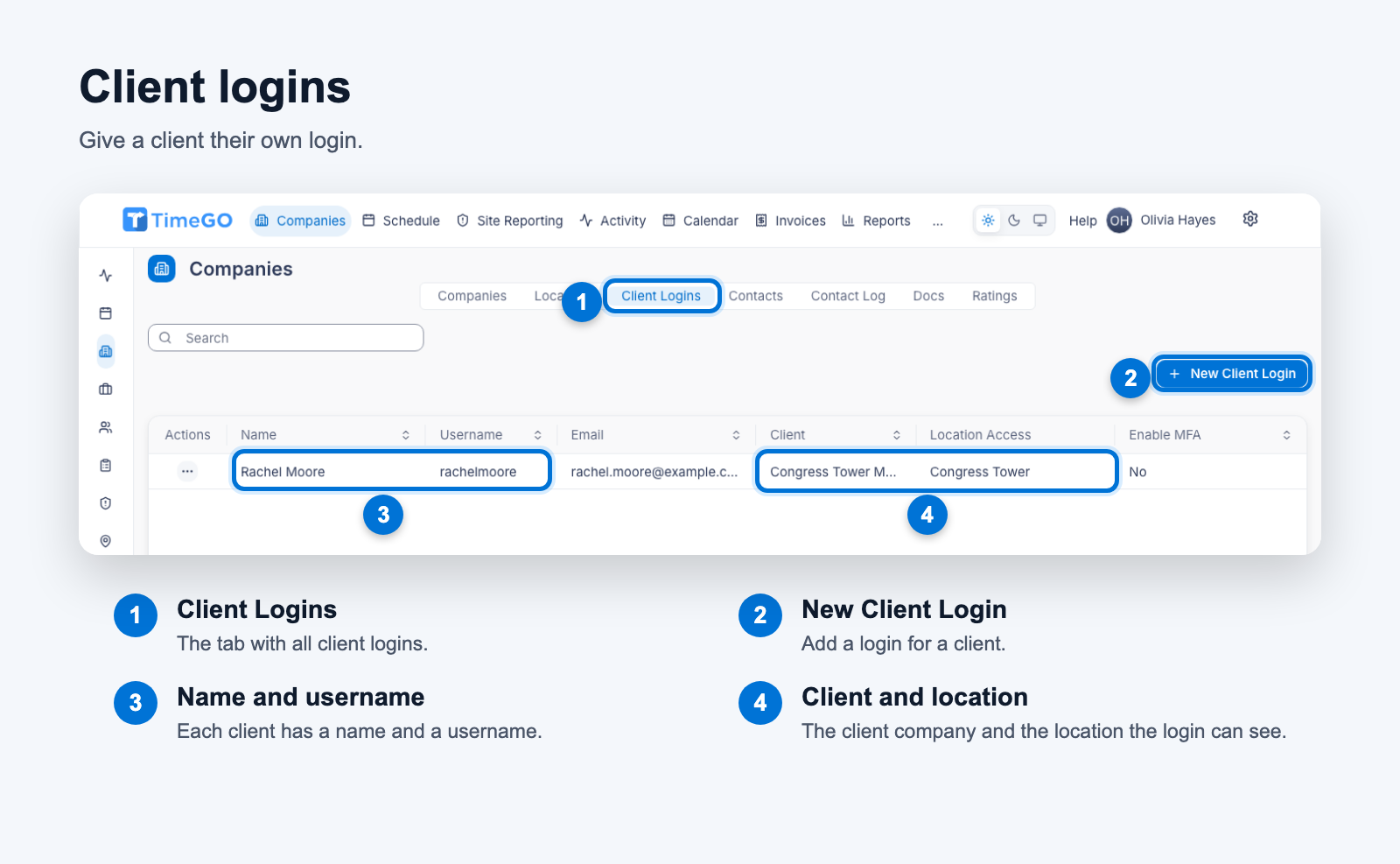
In the dashboard, add the client, its locations and its contacts.
Crews do the work
In the app, employees fill in your custom forms, clock in and scan checkpoints. GPS tracking records the route during the shift.
Give the client access
Create the client login and switch on only what the client should see.
See it in TimeGO
Common situations
A client asks for proof of the tour
Every scan is time-stamped.
A client asks where the crew went
The route is recorded during the shift.
A client wants the completed forms
The client reads the completed forms.
Who it helps
Frequently asked questions
What can a client see?
The schedule of their locations, read-only. With your permission also form results, checkpoint scans and GPS tracking.
Do I have to show a client anything beyond the schedule?
No. Form results, checkpoint scans and GPS tracking are off until you allow them.
Can a client see the GPS route?
Only if you allow it.