Skip to content

A to-do list app for your team, with repeats, due dates and photo proof

Make a list once and it starts fresh every day, week or month. Give each task a due date and a person, and your team ticks it off on the phone with a note or a photo.

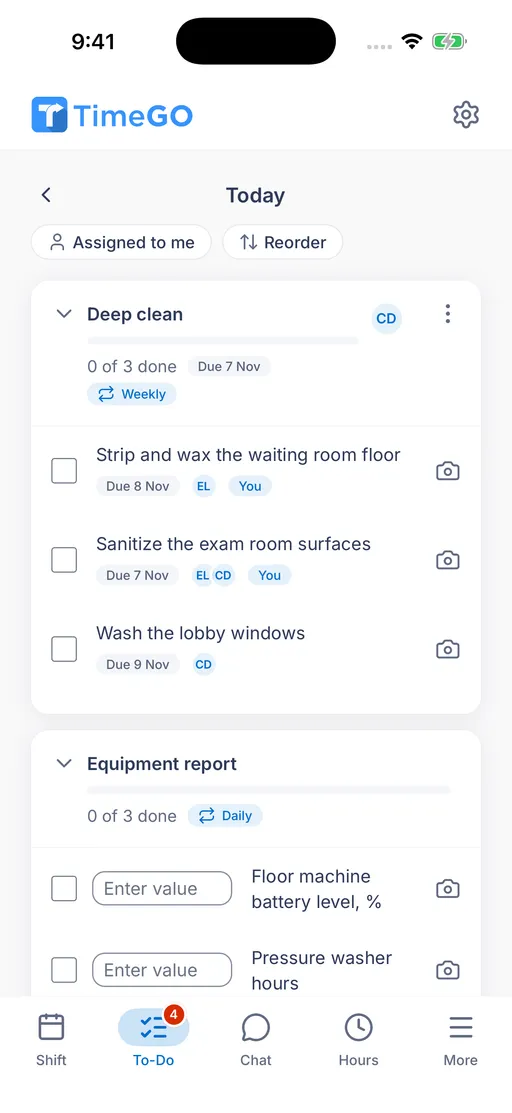
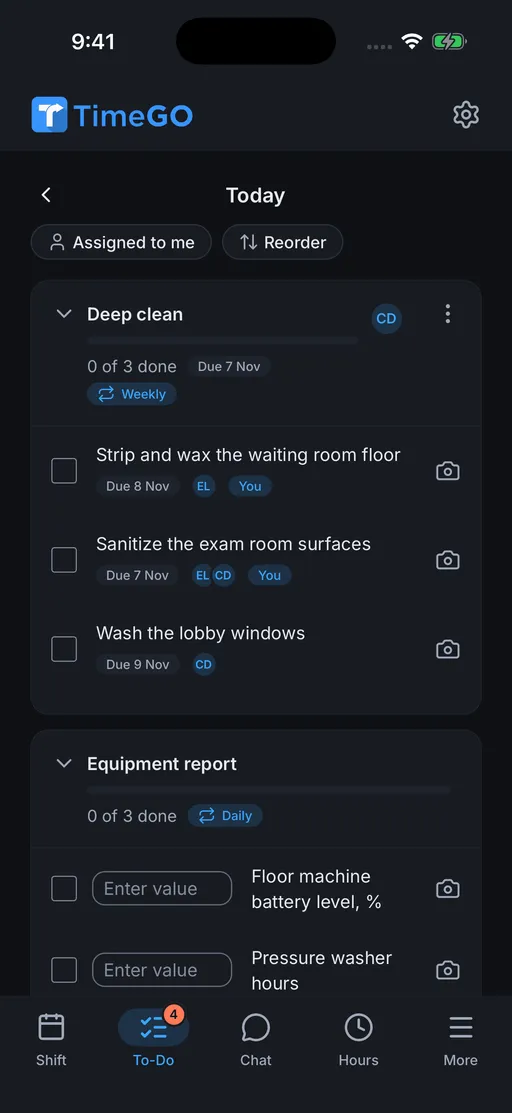
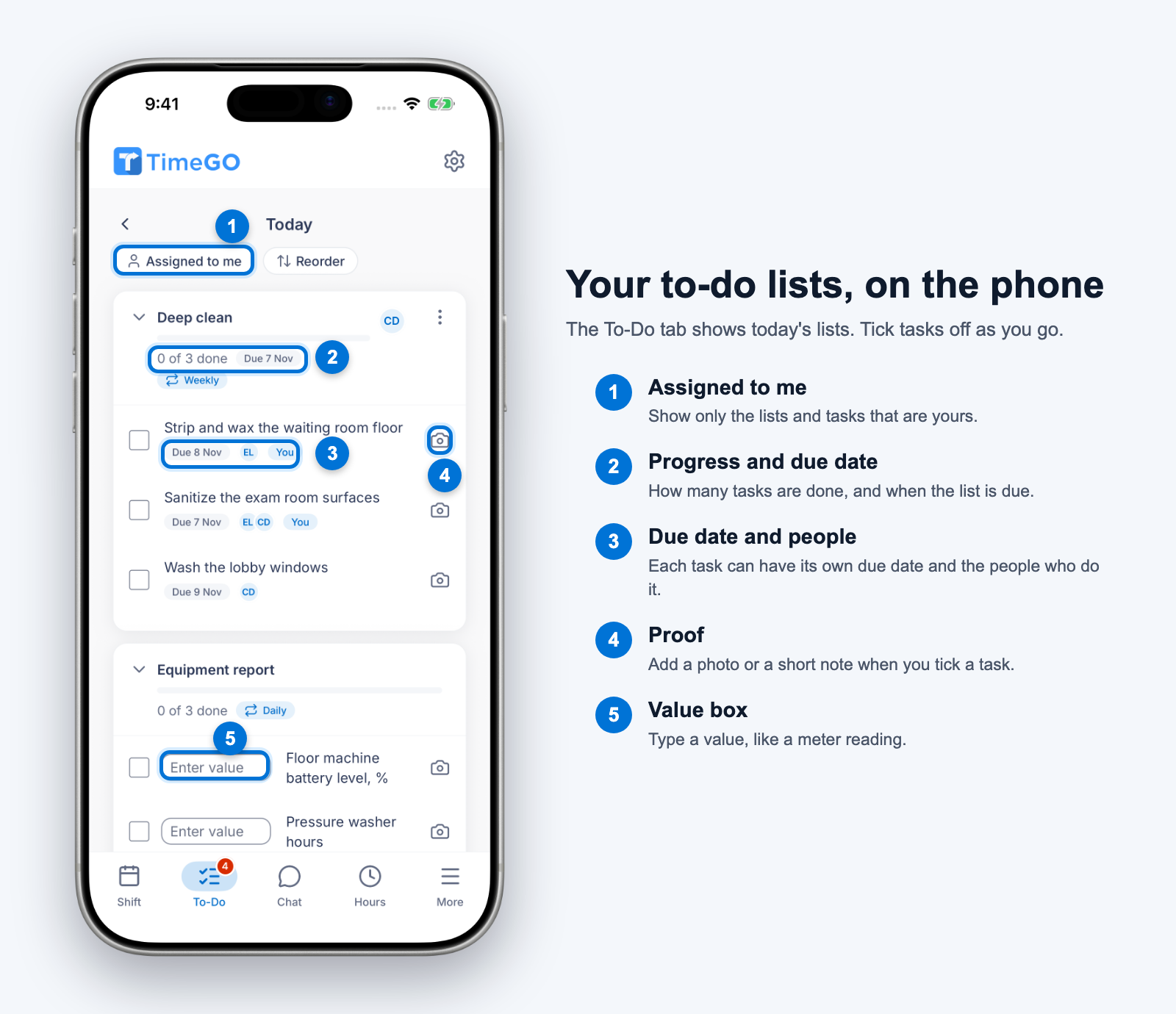
The To-Do tab of the TimeGO app for today, with the Assigned to me filter, a Deep clean list whose tasks show due dates and people, and an Equipment report list with Enter value boxesThe To-Do tab of the TimeGO app for today, with the Assigned to me filter, a Deep clean list whose tasks show due dates and people, and an Equipment report list with Enter value boxes

What it does

TimeGO to-do lists are the tasks your team works through. A list runs once or repeats every day, week or month; the ticks clear, the tasks stay, and every day is kept in history. Each task can have a due date, the people who must do it and a box for a value such as a meter reading. On the phone people tick tasks off, add a note or a photo as proof, and can show only their own tasks. You choose who may edit a list on the phone.

How it works

  1. Make the list

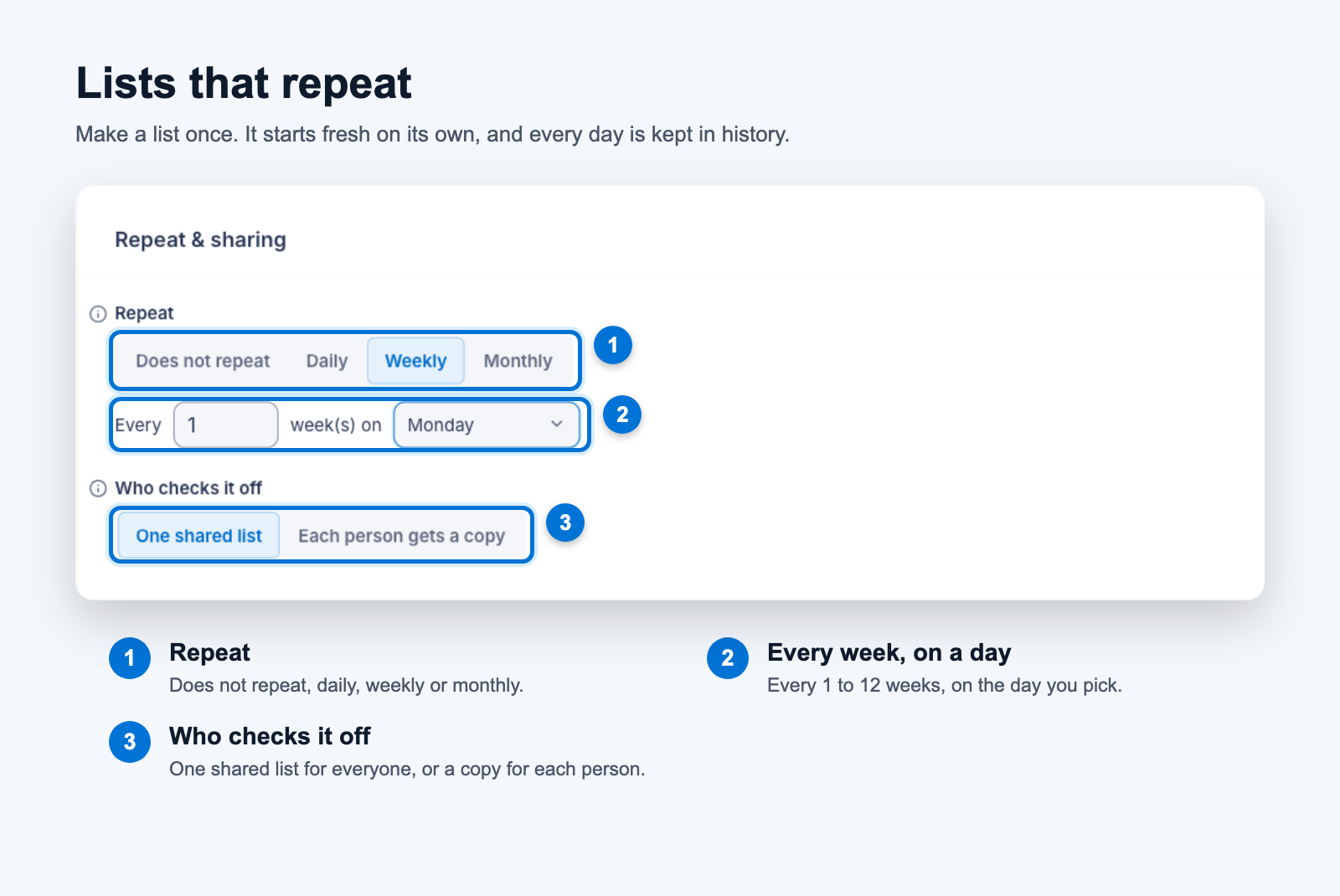
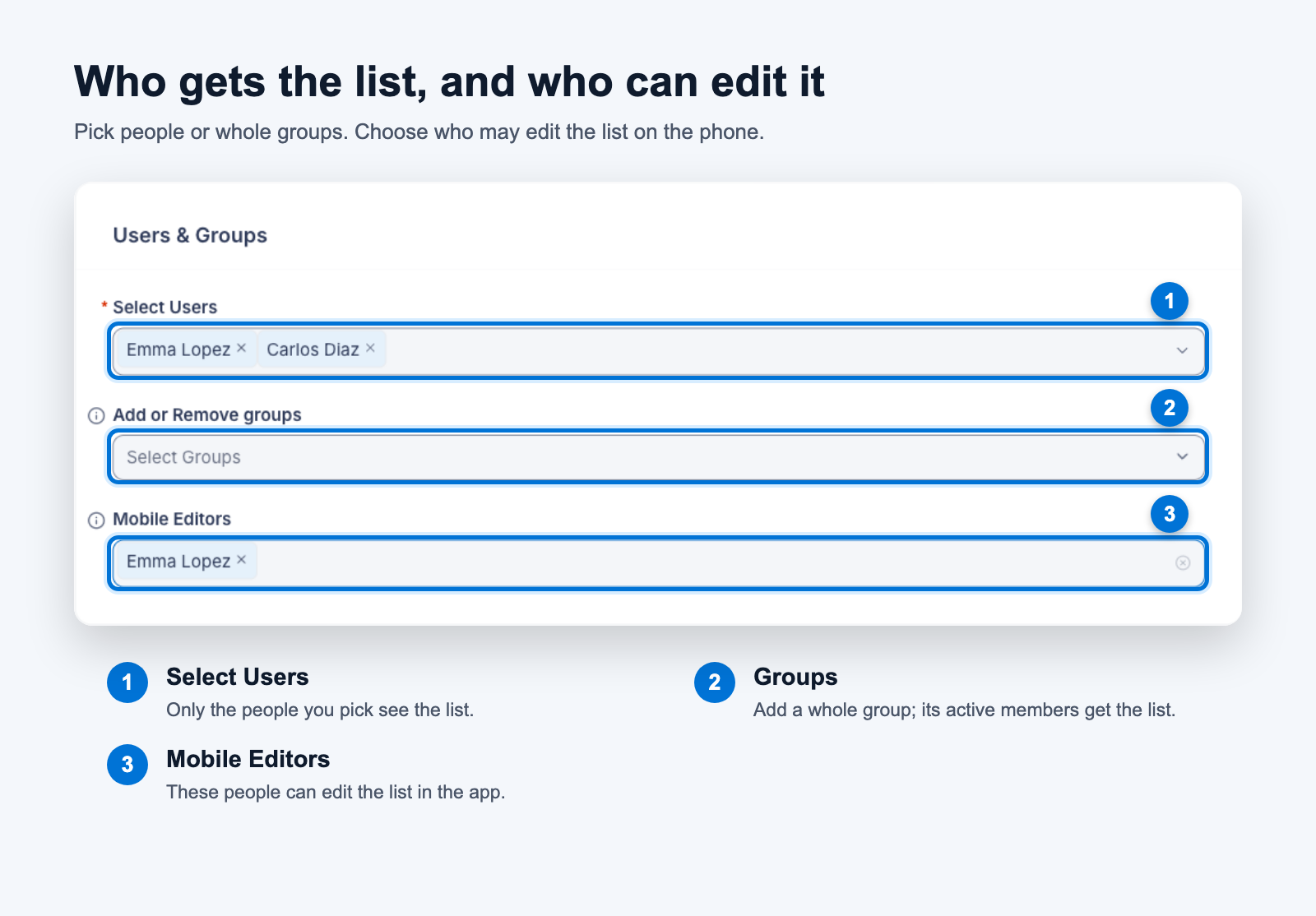
    In the web dashboard, name the list, pick the people or groups who get it and choose how it repeats. Make one shared list for everyone, or give each person their own copy.

  2. Add the tasks

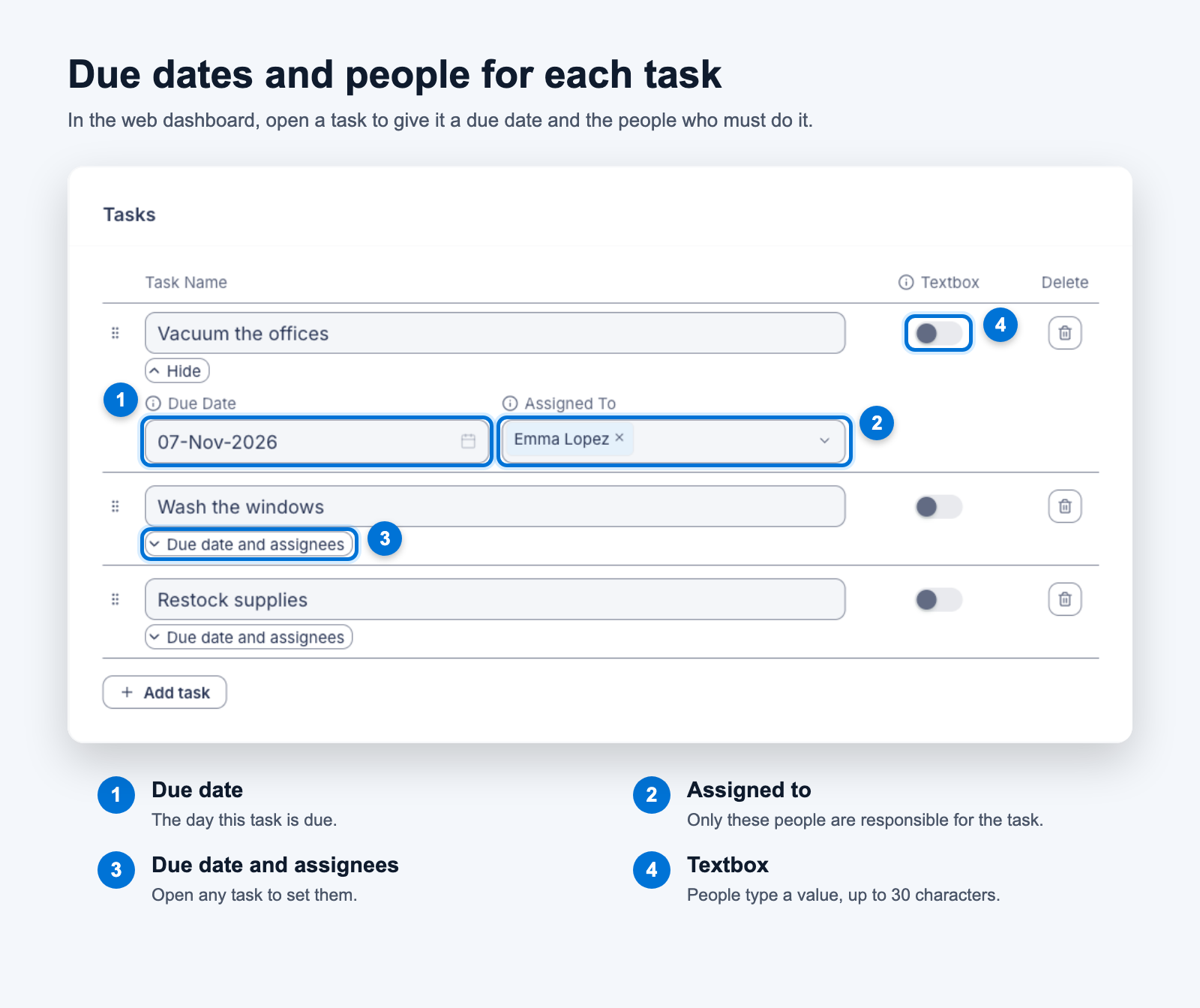
    Write the tasks. Give a task a due date and the people it is for, or add a box where they type a value of up to 30 characters.

  3. Tick it off on the phone

    On the To-Do tab people tick tasks, type values and add a short note or a photo as proof. Assigned to me shows only their own tasks.

  4. Look back at any day

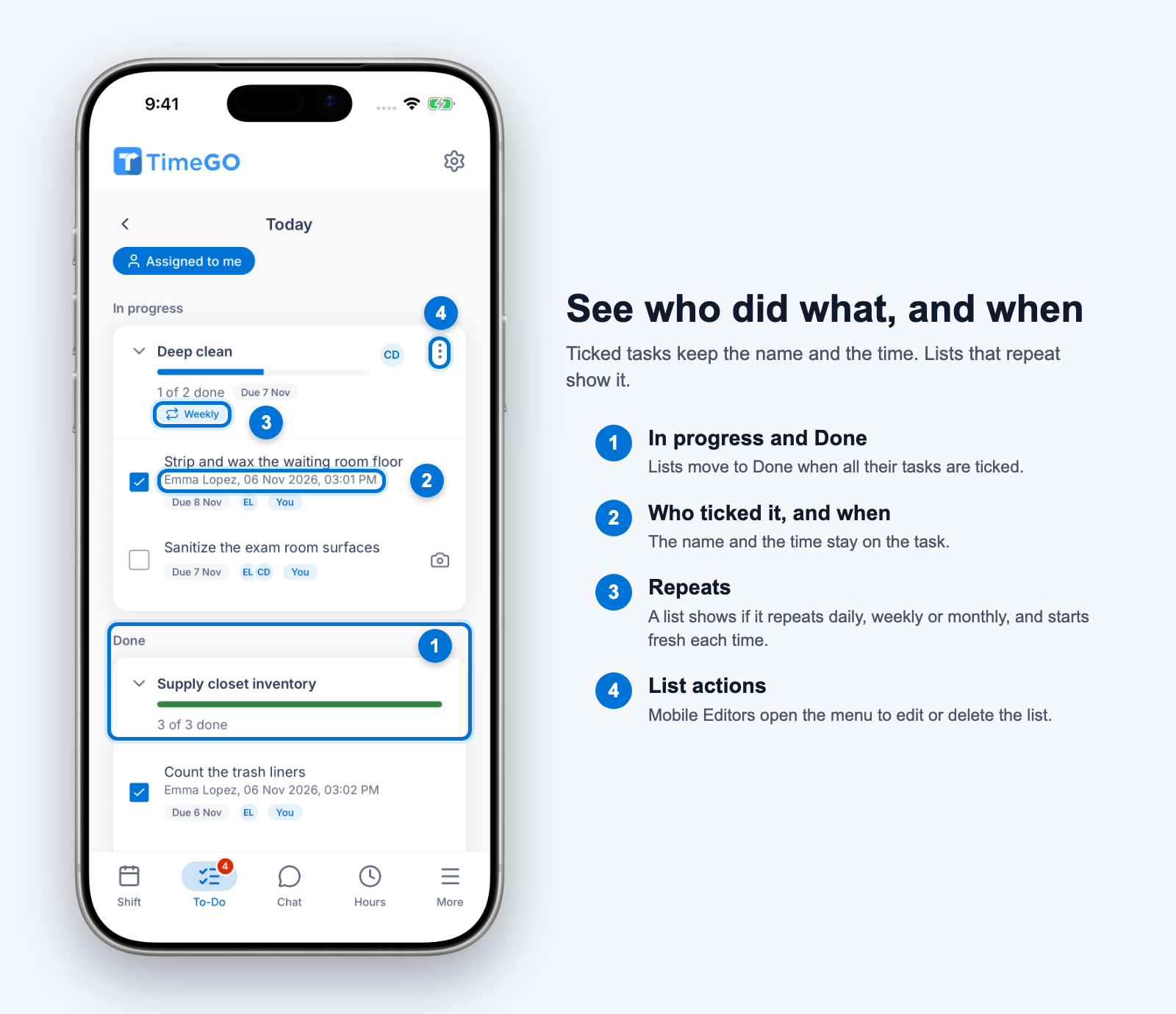
    Past days stay in the app, read-only. In the dashboard a manager can correct a past tick with a reason, and the change is recorded.

See it in TimeGO

Common situations

  • The same opening routine every morning

    Make the list once and set it to repeat daily. It starts fresh at midnight in your company's time zone, and yesterday stays in history.

  • Who was supposed to restock the supplies?

    Each task can name the people who must do it and a due date, so nobody has to guess.

  • Show the job was really done

    When people tick a task, they can add a short note or a photo of the result.

  • A supervisor changes the list on site

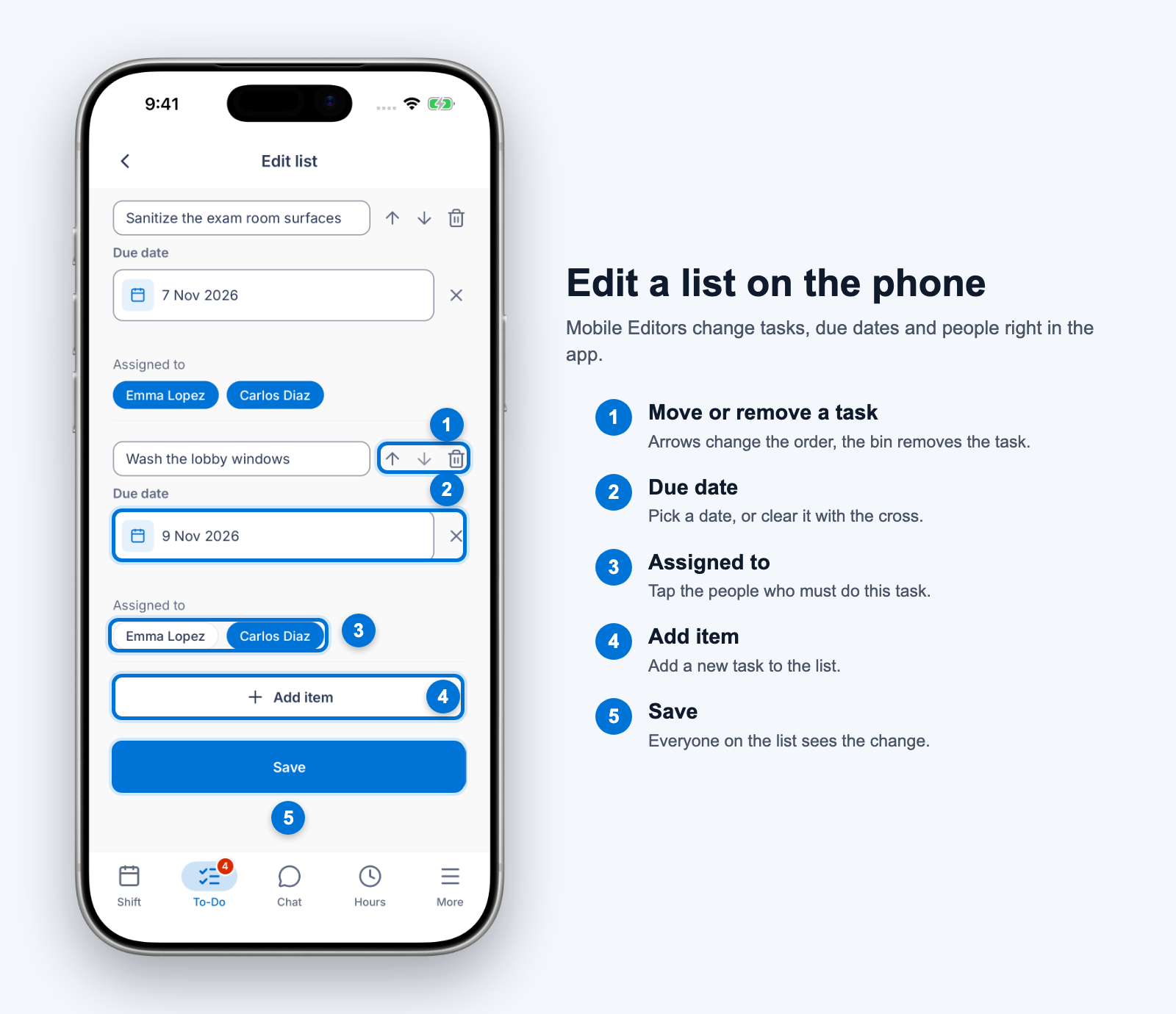
    Make them a Mobile Editor of the list. They change tasks, due dates and people right in the app.

The team's app and your dashboard

In the app

  • Tick tasks off, type a value and add a note or a photo as proof.
  • Assigned to me shows only the lists and tasks that are yours.
  • Go back to earlier days and see what was done, read-only.
  • Put your lists in the order you work through them.
  • Mobile Editors change the title, tasks, due dates and people on the phone.

In the dashboard

  • Send a list to selected people and to whole groups.
  • Repeat it daily, weekly on a chosen day, or monthly on a chosen date.
  • Give every task its own due date and people.
  • Copy a list to reuse it as a template for the next site.
  • Correct a past tick with a reason that is kept in the record.

Who it helps

Frequently asked questions

Can a to-do list repeat every day?

Yes. A list can repeat daily, weekly on a chosen day (every 1 to 12 weeks) or monthly on a chosen date. At midnight in your company's time zone the ticks clear, the tasks stay, and the finished day is kept in history.

Can I give a task to one person and a due date?

Yes. Every task can have its own due date and the people who must do it. Assigned to me in the app then shows each person only their tasks.

Can people add proof that a task is done?

Yes. When they tick a task they can add a short note of up to 200 characters or a photo.

Who can change a list on the phone?

The people you pick as Mobile Editors for that list. They can change the title and note, add, edit, delete and reorder tasks, and set due dates and people. Owners and managers can also create a new list in the app.

Does everyone get the same list?

You choose. One shared list means everyone ticks the same list and sees each other's ticks. A copy for each person means everyone has their own list and their own ticks.

Where are the to-do lists for a shift?

A shift's to-do list sits under the timer on the Shift tab of the app, and it can mark tasks as required. The To-Do tab holds everyone's other lists.

Step-by-step guides

More features