Skip to content

Security guard management software with guard tour

The client asks about the 2 AM round.You show the scans.

Officers scan QR, NFC or GPS checkpoints on the round. You open the night on the map and see every scan with its time next to the officer's route.

  • Officers scan, you read the times
  • Works at posts with no signal
  • Client login you control

A sample night patrol at one postSample data

09:00 AM

Site geofenceCongress Tower1Front Desk Office2Main Entrance3Parking Garage4Server Room

4 / 4 checkpoints scanned

Office dashboard

  1. Clocked in · Congress Tower
  2. Front Desk Office · QR
  3. Main Entrance · NFC
  4. Parking Garage · GPS
  5. Server Room · NFC

Client login

Congress Tower

  • 4 / 4 checkpoints scanned
  • Route on the map

Shown to the client when you allow it

The officer clocks in at the post. The officer clocks in on the phone with GPS. The start time is on record before the first round.

Every stop is scanned and stamped. At each stop the officer scans a QR code or an NFC tag, or reaches a virtual GPS point. The scan gets its time.

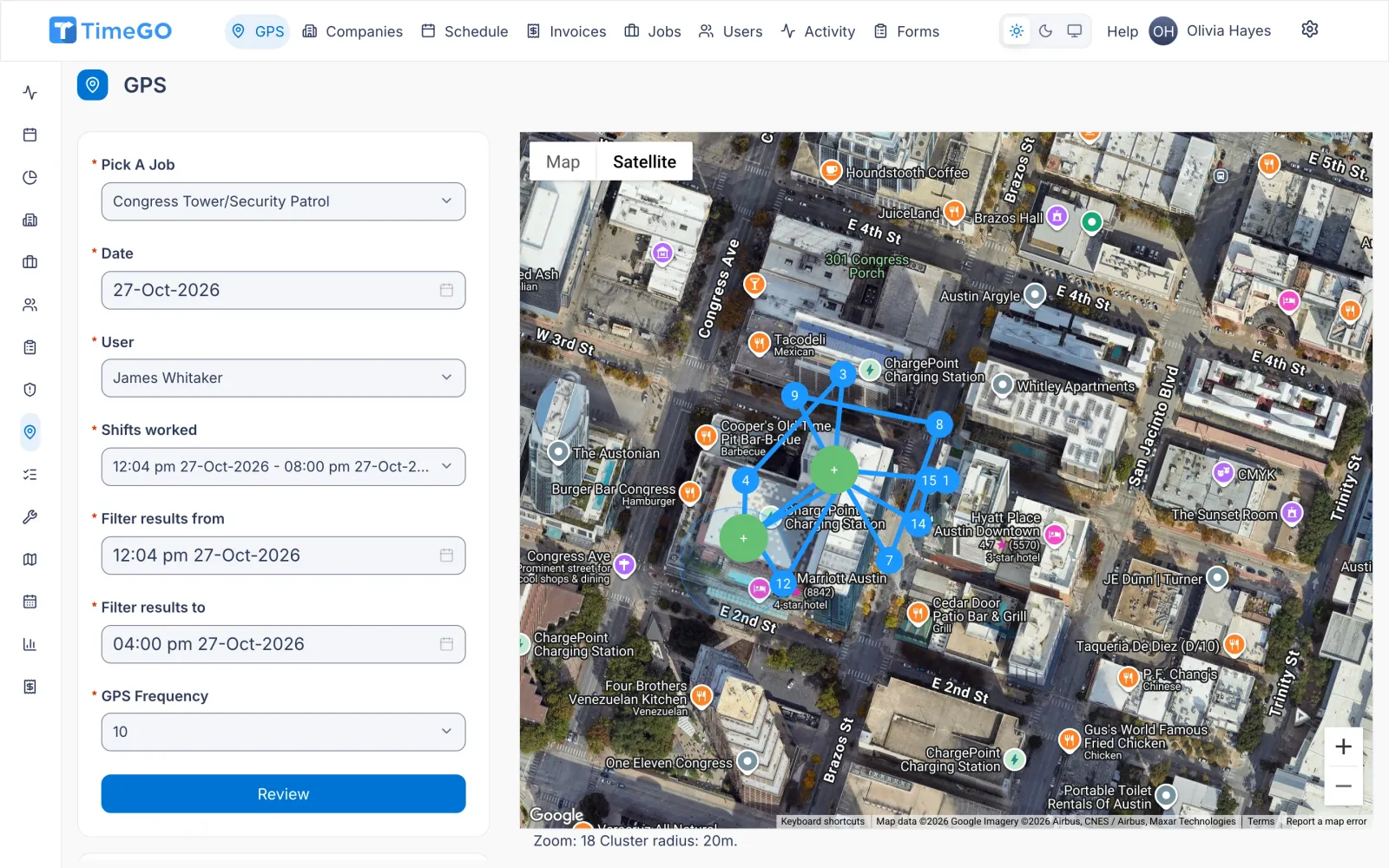
In the morning, open the night on the map. Pick the job, the day and the officer. The map shows the route, the checkpoints and every scan with its time.

The client sees its own site, and what you allow. Scans, forms and GPS tracking show in the client's login only after you switch them on for that client.

  • 3 kindsof checkpoint, a QR code, an NFC tag or a GPS point
  • 1 minuteafter a scheduled shift starts, a missed clock-in shows as an alert
  • Offlineclock-ins and scans are kept on the phone and sync later
  • 1 loginfor each client, showing only what you switch on

Watch

See it before you book a call

Short videos of TimeGO at work. Press play.

  • Product intro

    TimeGO Intro

    Watch on YouTube

    A short introduction to TimeGO, from our own YouTube channel.

The night, twice

The client calls at 9 AM. Was the 2 AM round done?

Paper log and phone calls

  1. 01:00 AM

    The officer signs the paper log

    The sheet stays at the post. The office learns the shift started when someone brings the sheet in.

  2. 02:00 AM

    The round happens, or it does not

    Nobody in the office can see the round. You trust that the officer walked every stop.

  3. 04:30 AM

    A supervisor phones the post

    The officer picks up. The call does not tell you where the officer is standing.

  4. 07:00 AM

    The officer goes home

    The times on the sheet are written from memory. Hours for payroll wait for the paper.

  5. 09:00 AM

    The client calls

    The client asks for proof of the 2 AM round. You have a sheet and the officer's word.

OutcomeAt 9 AM the client gets a sheet and your word. Your morning goes to phone calls with officers.

TimeGO on the same shift

  1. 01:07 AM

    Start of shift, on record

    At Congress Tower the officer clocks in with GPS on the phone, and the start time is on record.

  2. 02:19 AM

    The round, scanned stop by stop

    A QR code at the Front Desk Office, an NFC tag at the Main Entrance and a virtual GPS point in the Parking Garage.

  3. The route is drawn as the officer walks

    The phone records the GPS route during the shift, so the walk sits on the map next to the scans.

  4. 07:00 AM

    Clock-out sends the hours to the timesheet

    The shift lands in the timesheet with the punches as they happened, ready to build the client's invoice.

  5. 09:00 AM

    The client asks, you open the map

    You show the scans and the route for that night. The client can see them in its own login if you allow it.

OutcomeAt 9 AM you read the client every scan time and show the route.

Product tour

From the schedule to the invoice, the six jobs of a guard company

Schedule the posts

Every post covered, every officer on one schedule

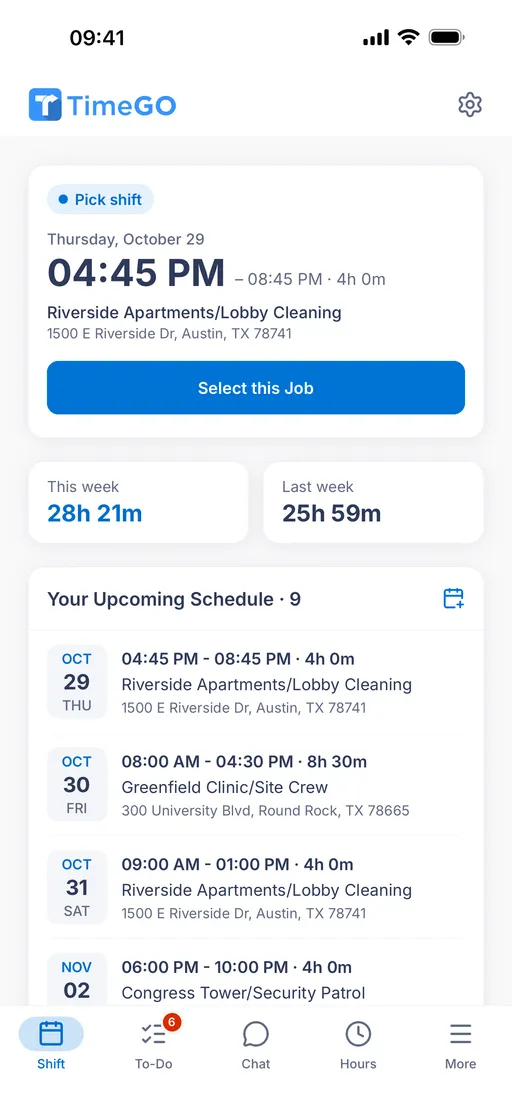
  • Build the week for every post in the dashboard and see the scheduled shifts next to the hours actually worked.
  • Change a shift and the officer gets it in the app, then confirms or declines.
  • Each shift shows a color-coded status on the schedule.
How scheduling works
The Schedule tab of the TimeGO app with the officer's shifts for the weekThe Schedule tab of the TimeGO app with the officer's shifts for the week

Clock in at the post

Officers clock in at the post. You can refuse a clock-in from anywhere else.

  • Put a geofence around each post and turn on Prevent clocking in while outside Geofence. The app then refuses a clock-in made outside it.
  • The route of the shift is recorded. Review it on the map during the shift or after.
  • At a post with no signal, clock-ins and GPS points wait on the phone and sync when it is back online.
How GPS time clock works
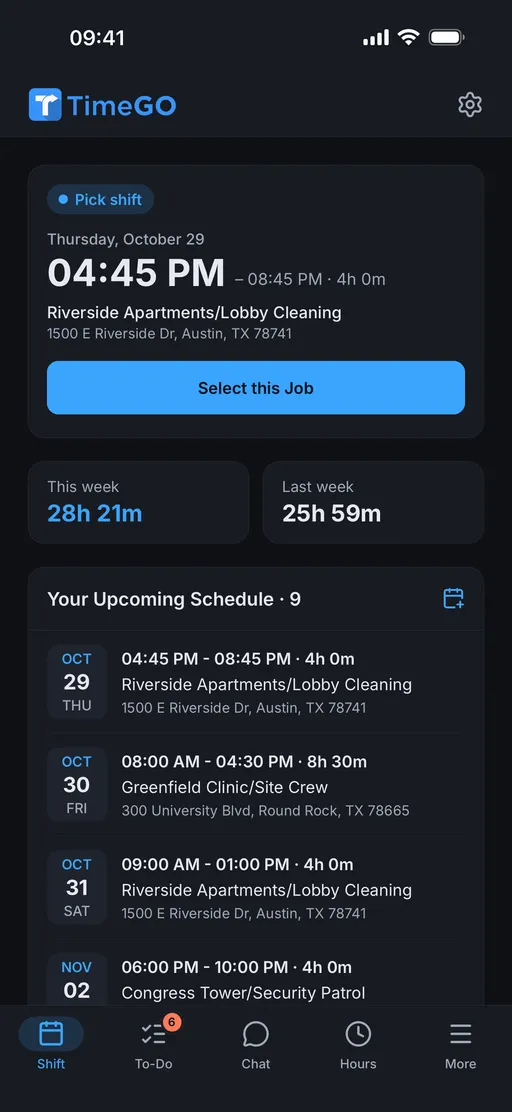
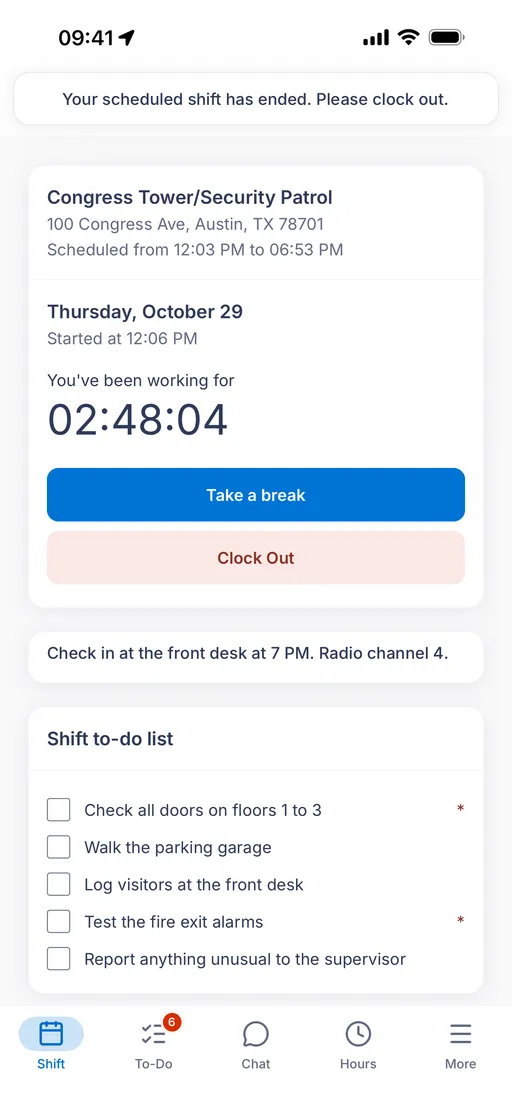
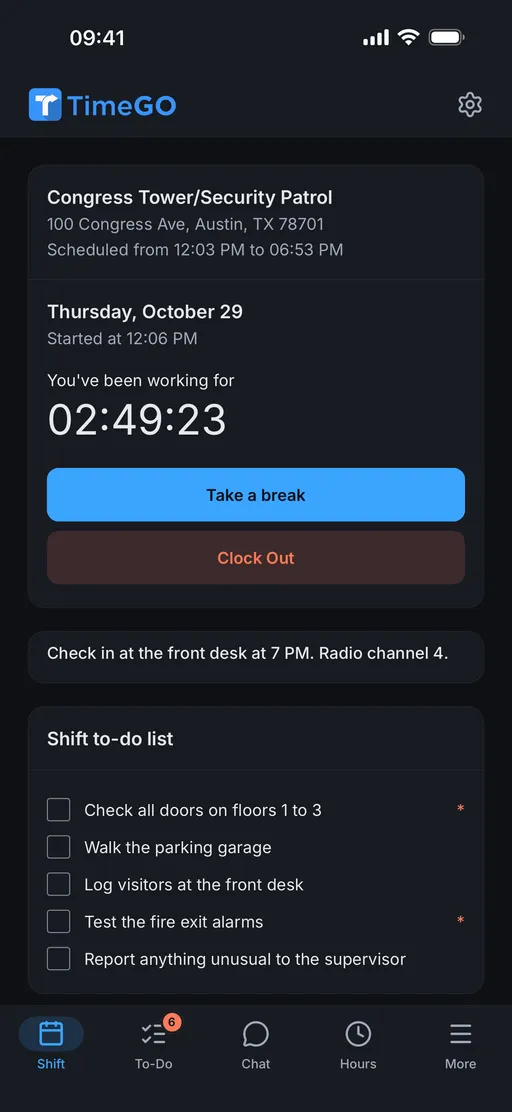
The Shift tab during a shift at Congress Tower with the running timer, the Take a break button and the Clock Out buttonThe Shift tab during a shift at Congress Tower with the running timer, the Take a break button and the Clock Out button

Prove the round

Show the client every scan with its time

  • Give each stop on the round a QR code, an NFC tag or a virtual GPS point. Every scan is stamped with its time.
  • On the dashboard map you see the checkpoints, the scans and the officer's route in one view.
  • When you choose, the client sees the scans in its own login.
How patrol checkpoints work
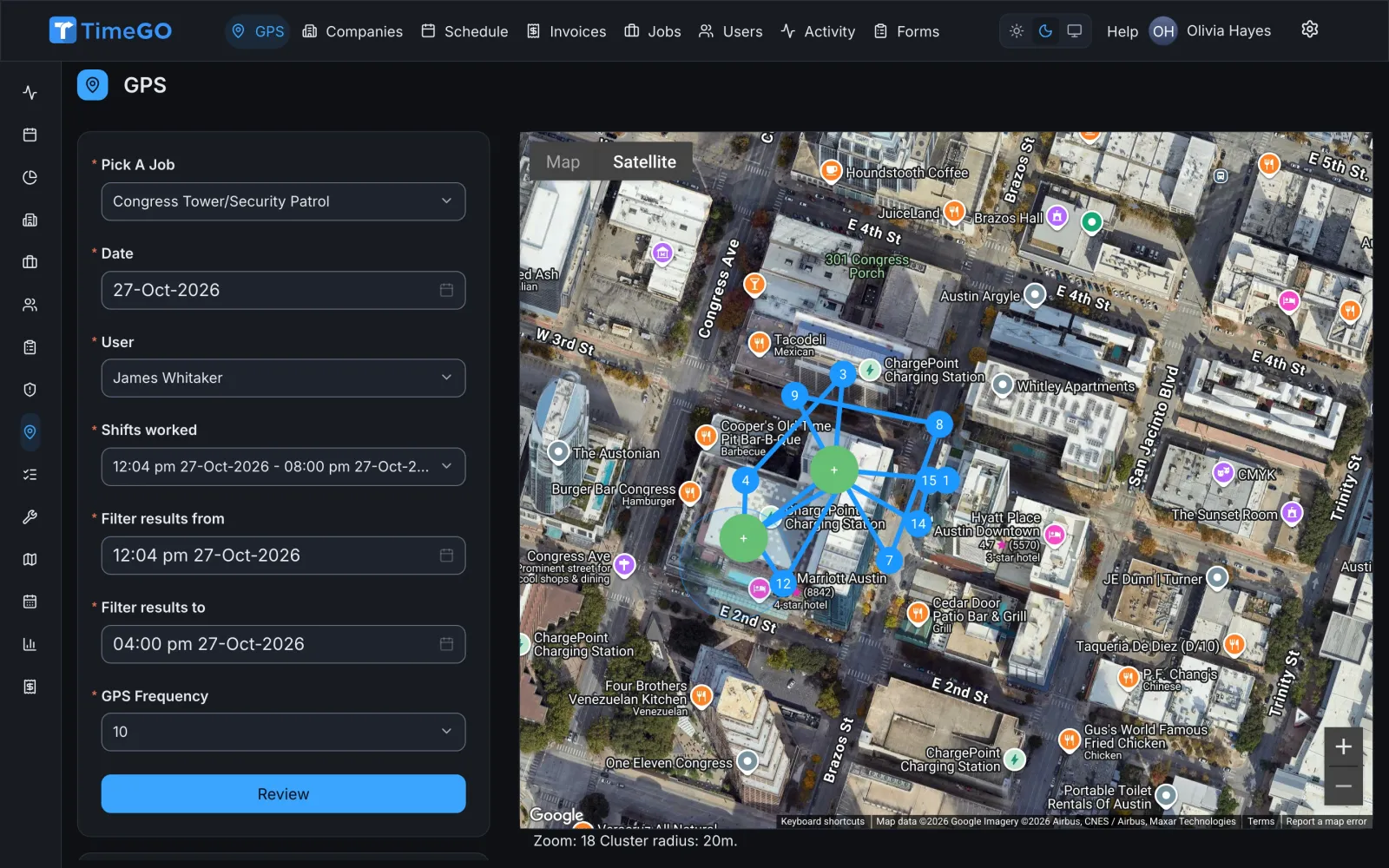
The TimeGO GPS page with a security officer's patrol route as numbered points on a satellite map of Congress TowerThe TimeGO GPS page with a security officer's patrol route as numbered points on a satellite map of Congress Tower

Reports and incidents

Daily reports and incident forms, filled in on the phone

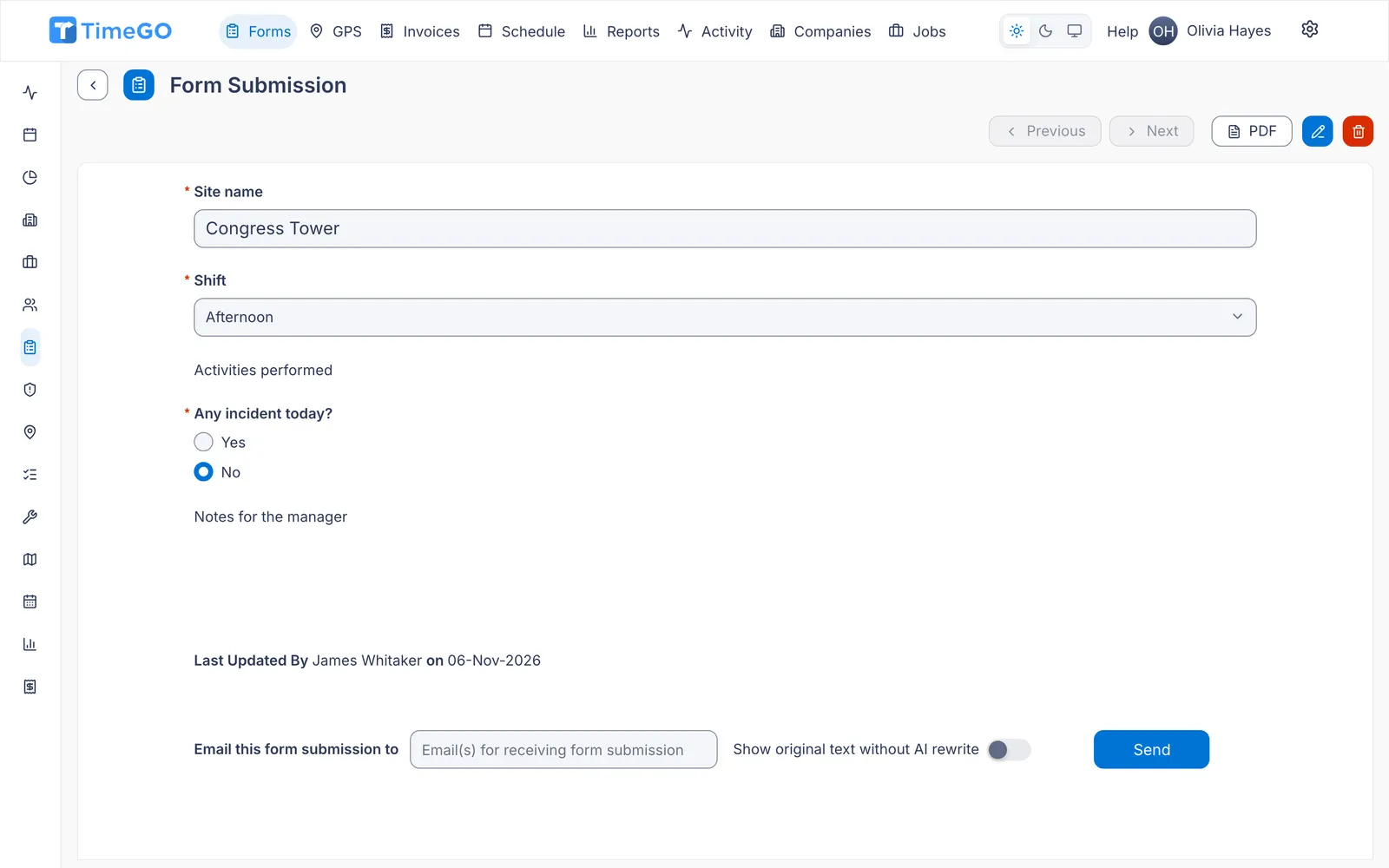
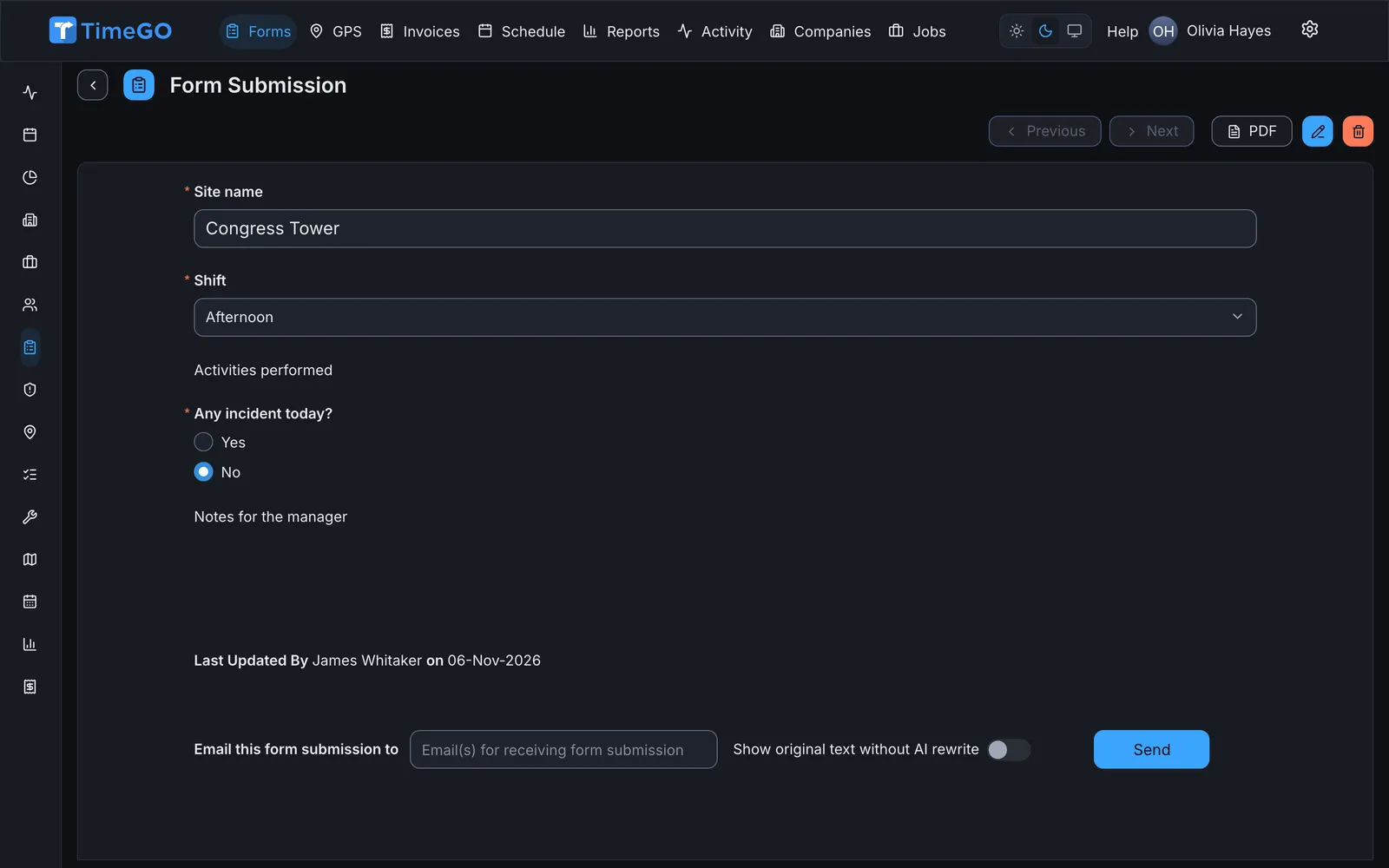
  • Build your daily activity report and incident form in the form builder.
  • Officers add photos, documents and a signature on the phone. You read the result in the dashboard.
  • Turn your post orders into a to-do list that shows on the officer's Shift tab.
How custom forms work
A submitted Daily Activity Report for Congress Tower in the web dashboard, with the site, the shift and the incident answerA submitted Daily Activity Report for Congress Tower in the web dashboard, with the site, the shift and the incident answer

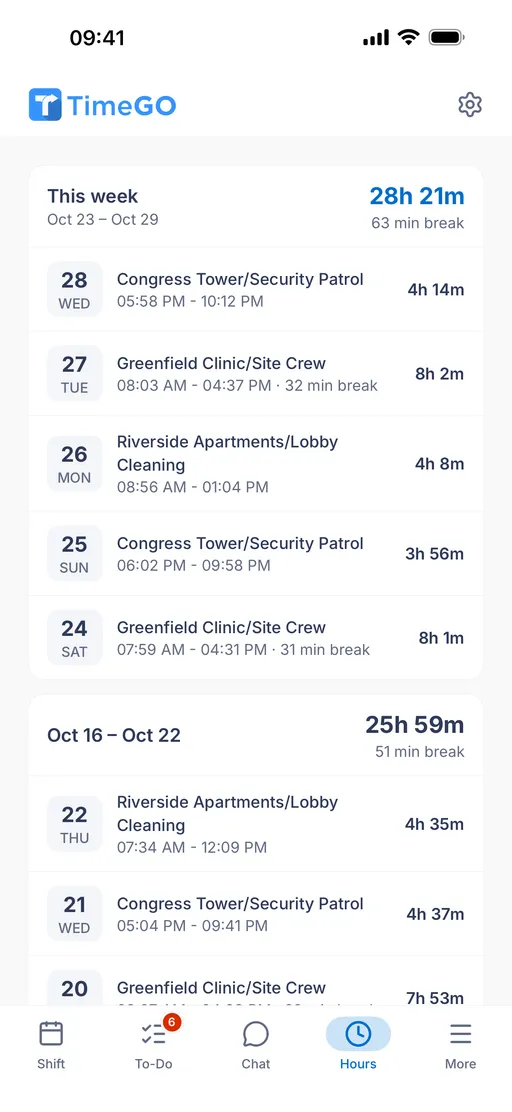
Hours and payroll

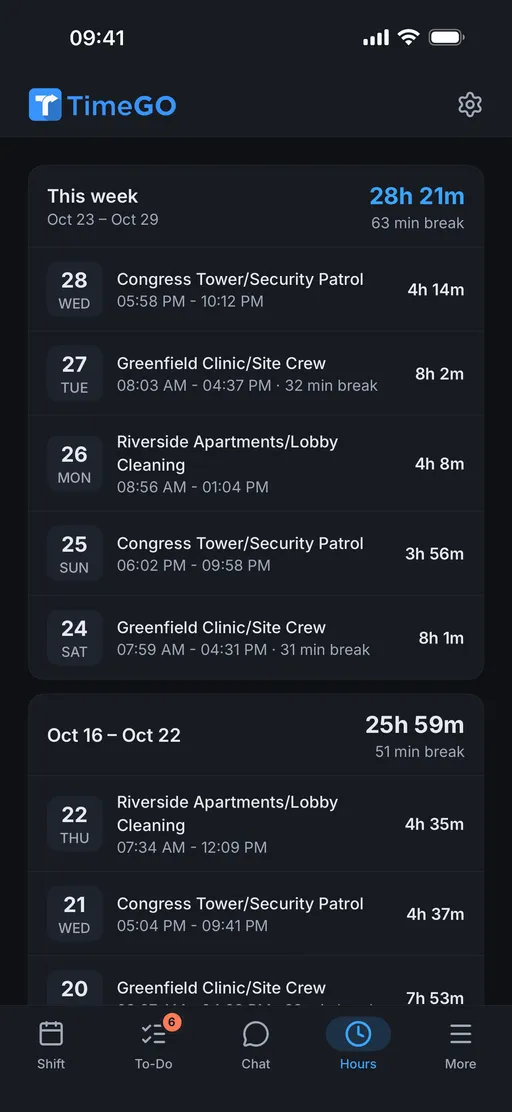
Hours ready for payroll when the period closes

  • Clock-out puts the shift in the timesheet with the punches as they happened.
  • Auto clock-out shows the officer when the shift will end, and the officer can ask for 15 more minutes.
  • Export to Excel or a QuickBooks Desktop file. Sync to QuickBooks Online or Xero on the Pro plan.
How timesheets and payroll works
The Hours tab of the TimeGO app with the officer's worked hours by dayThe Hours tab of the TimeGO app with the officer's worked hours by day

Bill the client

Invoice each client from the hours its posts worked

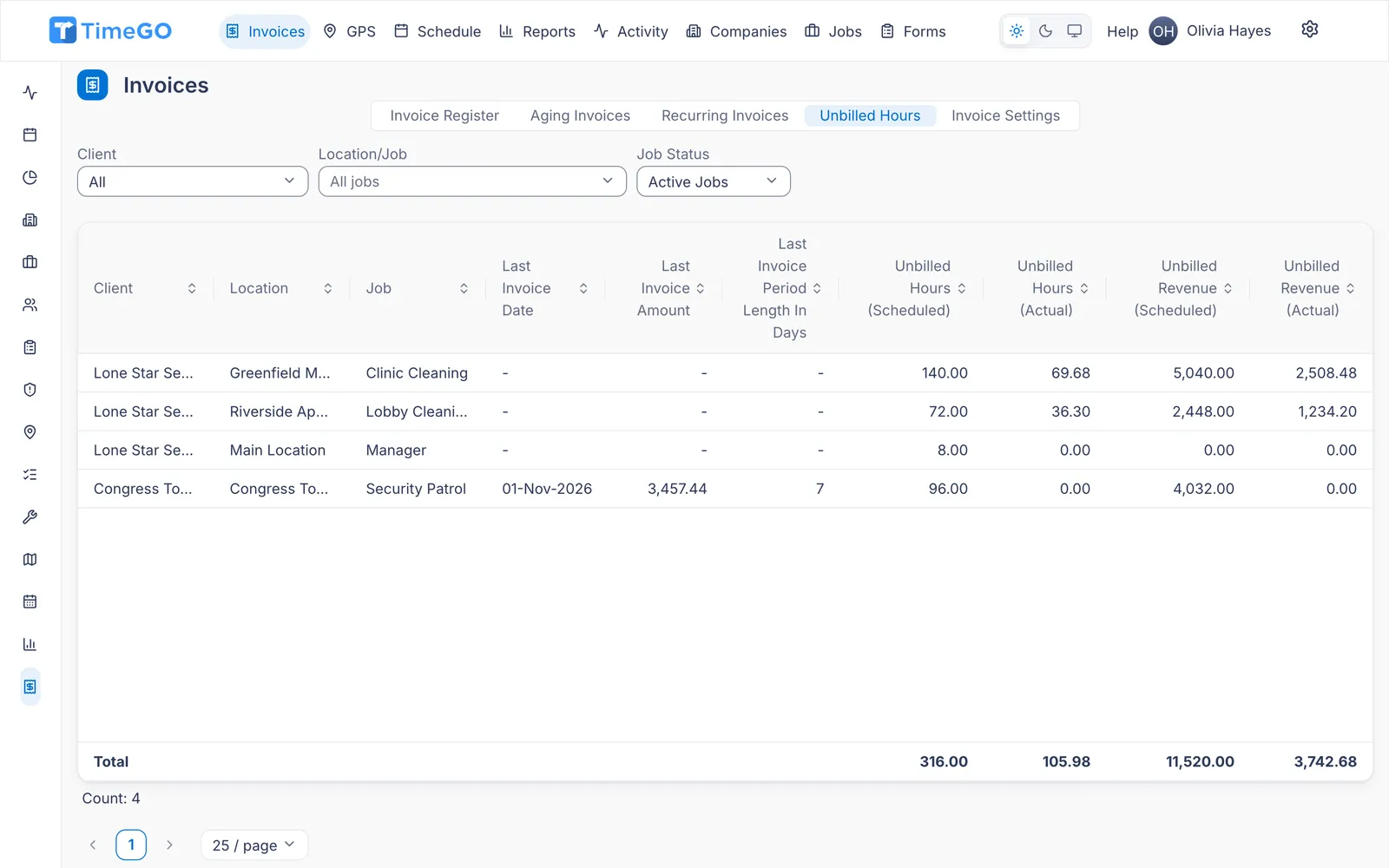
  • Pick a post and a date range and build the invoice from the tracked hours.
  • The client gets the invoice as a PDF by email.
  • The Summary by Job report shows the hours of each post.
How invoices work
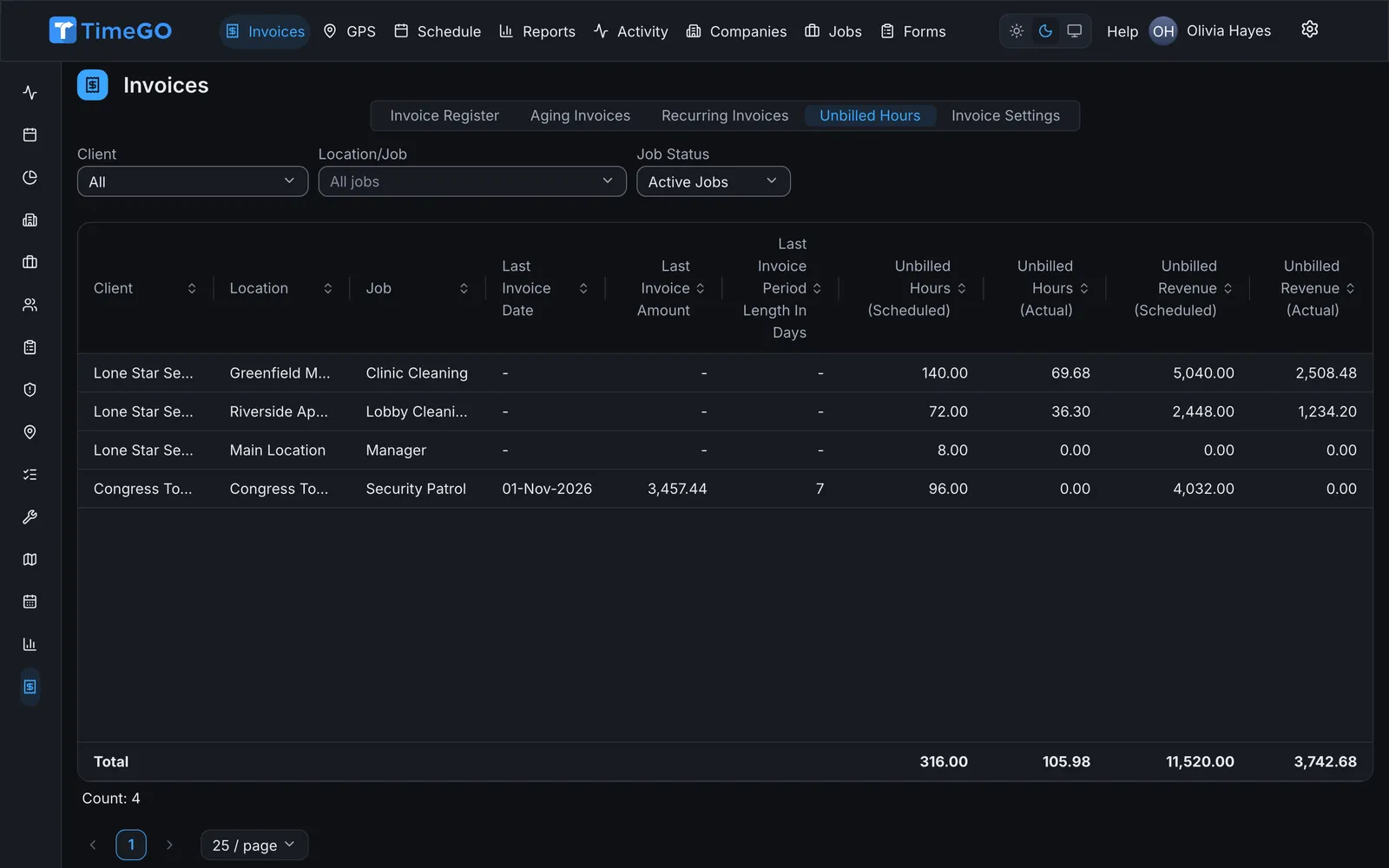
The Unbilled Hours tab of Invoices, with scheduled and actual hours and revenue for each job since its last invoiceThe Unbilled Hours tab of Invoices, with scheduled and actual hours and revenue for each job since its last invoice

The mobile app

One app for the officer

Officers do the whole shift in one app on the phone, on iOS or Android.

  • Clock in with GPS

    The clock-in is recorded with GPS. A geofence can refuse a clock-in made away from the post.

  • Scan a checkpoint (QR, NFC or GPS)

    Scan a QR code or an NFC tag, or reach a virtual GPS point. Each scan gets its time.

  • Fill in the daily report

    Add photos and a signature, then send it. You read it in the dashboard.

  • Works without signal and syncs later

    Clock-ins, GPS points and scans wait on the phone and sync when the signal is back.

The Shift tab of the app during a shift at Congress Tower Security Patrol, with the running timer, Take a break, Clock Out and the shift to-do listThe Shift tab of the app during a shift at Congress Tower Security Patrol, with the running timer, Take a break, Clock Out and the shift to-do list

Client login

What your client sees

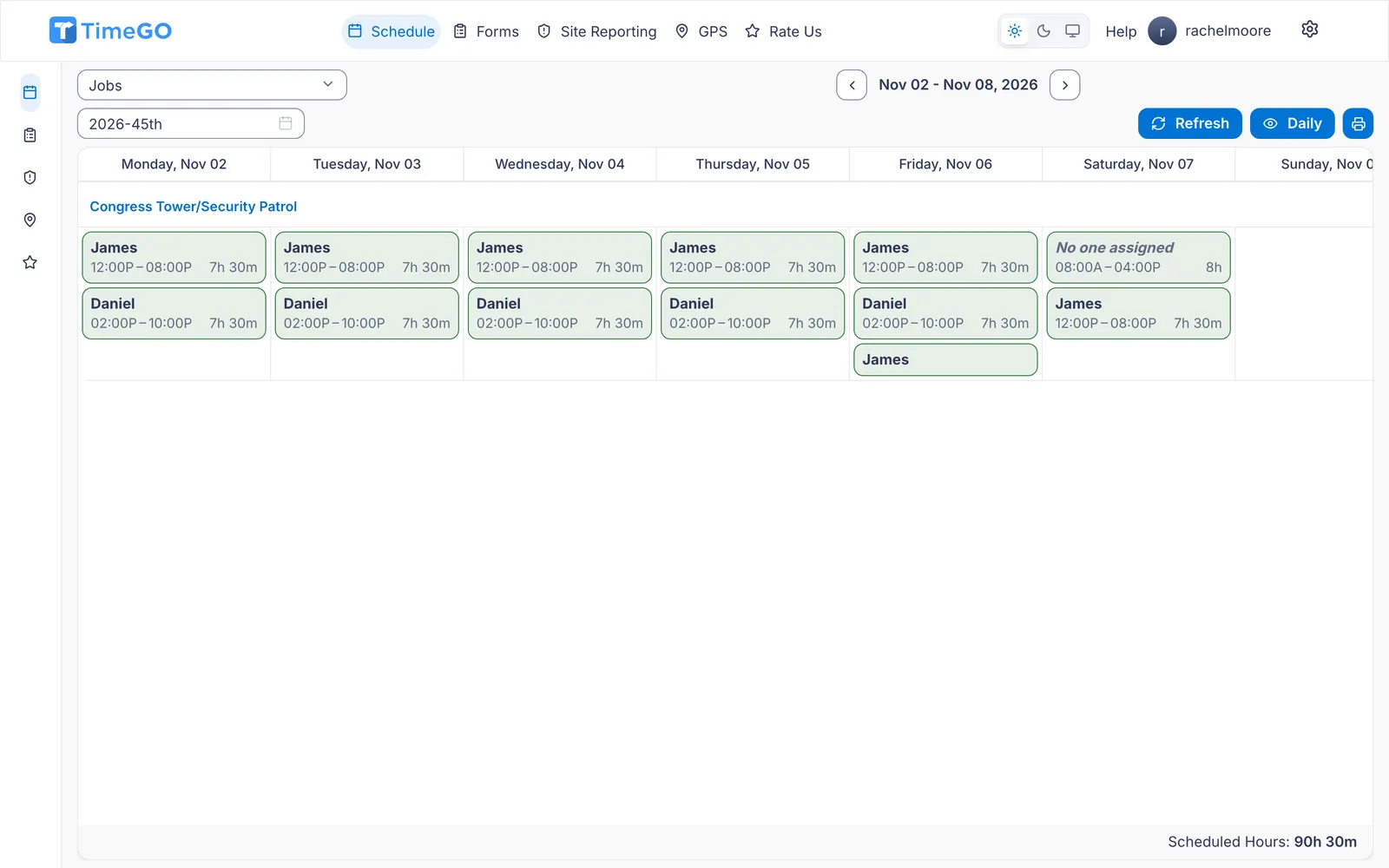
  • The client login shows a read-only schedule of that client's own sites.
  • Scans, forms and GPS tracking show there only after you switch each one on for that client.
  • The client sees nothing of your other clients.
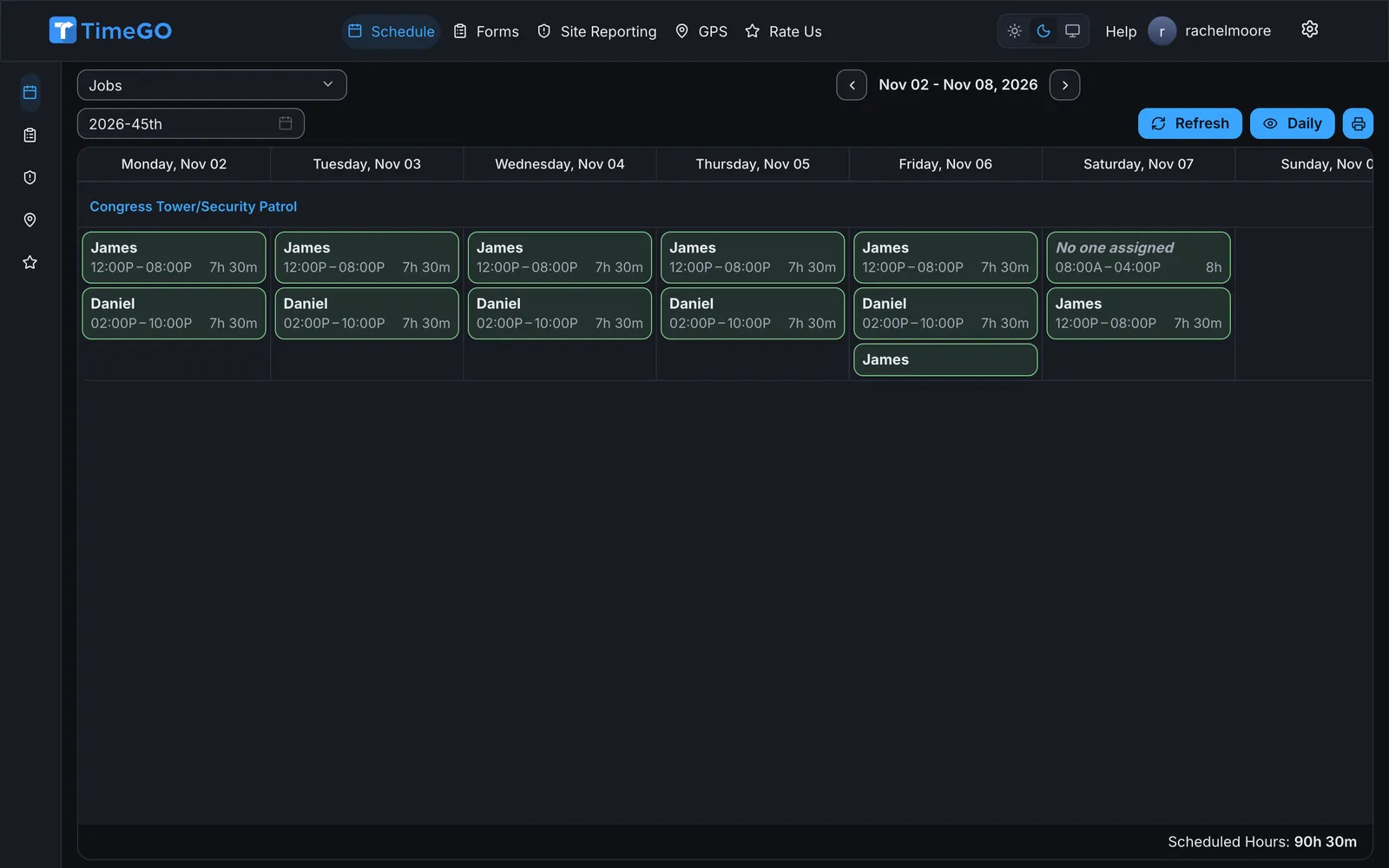
The client login's weekly schedule for the Congress Tower security patrol, with James's and Daniel's shiftsThe client login's weekly schedule for the Congress Tower security patrol, with James's and Daniel's shifts

Who sees what

What each person in your company sees

  • Owner

    All your posts from one dashboard

    • Schedule every post and see the shifts and the actual hours on one screen.
    • Bill each client from the hours its posts tracked.
  • Supervisor

    Review the night in the morning

    • Review each scan and the GPS route on the map, during the shift or after it.
    • See a missed clock-in alert one minute after a shift starts with nobody clocked in.
    • Approve, adjust or decline the real finish time an officer reports after auto clock-out.
  • Officer

    One app on the post

    • Start the shift at the post with GPS, and end it with clock-out.
    • Scan the QR codes, NFC tags and GPS points on the round.
    • Send the daily report or an incident form with photos and a signature.
    • Read the app in English, Spanish or Vietnamese.
  • Client

    The proof you choose to share

    • Sees a read-only schedule of the sites that belong to that client.
    • You decide per client whether it sees scans, forms and GPS tracking.

Getting started

Start with TimeGO in four steps

  1. Send us your clients and posts

    For every client, add its posts, contacts and a geofence around each post. Send us your list and we help load it.

  2. Put checkpoints on the round

    Mark each stop on the round with a QR code or an NFC tag, or add a virtual GPS point. Build your daily report and incident form in the form builder.

  3. Build the schedule

    Enter the shifts for each post in the dashboard and send them with Notify. Officers install the app and see their shifts there.

  4. Run the first shift

    Officers clock in at the post and scan the round. Check the route and every scan on the map, and the shift is already in the timesheet.

You control who sees and changes what

  • Permissions by location, position or group

    Limit a manager to one location, one position or one group.

  • A client sees only what you switch on

    Scans, forms and GPS tracking stay hidden from a client until you switch them on.

  • Real punches stay on record

    If you round time, the shift details still keep the punches as they happened.

  • You approve changed finish times

    After an auto clock-out, the officer reports the real finish time. You approve, adjust or decline it.

Export your hours or sync them to

  • Excel export
  • QuickBooks Desktop file
  • QuickBooks Online
  • Xero

Free templates

Free templates and guides

From the blog

All posts

Before you book

Frequently asked questions

Can I make officers clock in only at the post?

Yes. Each post has a geofence around it. Turn on Prevent clocking in while outside Geofence for the job, and the app refuses a clock-in made outside it. The Time Spent Outside Geofence report shows how long an officer was away from the post.

Can I run many client sites from one account?

Yes. Add each client with its sites and contacts once, then schedule, track and bill by site. Permissions can limit a manager to a location, a position or a group.

How do I prove that a patrol was done?

Give every stop on the round a checkpoint. Each scan is time-stamped, and the dashboard shows which checkpoints were scanned and when, next to the officer's GPS route.

Can officers send incident reports with photos?

Yes. Officers complete the incident form on the phone, attach photos and documents, and sign it. You read the completed forms in the dashboard.

What happens when an officer has no signal?

Clock-in, clock-out, GPS and checkpoint scans work without signal and sync later, so a basement post or a remote site does not stop the round.

Can my client see the patrol data?

Only if you allow it. The client login shows a read-only schedule of that client's own sites. Forms, scans and GPS tracking stay hidden until you switch them on for that client.

Can TimeGO remind me when a guard license expires?

TimeGO reminds the employee, not the manager. Add the expiry date to the license in the employee's record and tick Send reminder. Managers get no reminder, so check the Docs tab when you need to.

How is TimeGO different from a general time clock app?

It is built around the round. Checkpoints by QR code, NFC tag or GPS point, the scans next to the officer's GPS route on one map, a login for each client, and invoices built from the hours of each post.

What do officers and managers use?

Officers work in the TimeGO app on iOS or Android. Everything on the office side happens in the web dashboard.

Next step

See a night patrol on your own posts

In a demo we show scheduling, GPS clock-in, checkpoints and the client login with your own posts and shifts.

TimeGO for other industries