Skip to content

Time tracking software for staffing agencies

Time tracking for staffing agencies that place workers at client sites

Offer a shift and the worker confirms or declines it. A no-show at the client shows in a minute. Each client gets the hours of the people you placed, and your payroll uses the same hours.

  • Workers confirm or decline shifts
  • A no-show shows in a minute
  • We help load your clients

A sample placement for one tempSample data

04:00 PM

Placement at the client

Client site

4 / 4 tasks done

Inside the geofence

Sign in with the client's site leadTo do
Stage the inbound palletsTo do
Load the outbound trailers at dock 3To do
Tally the returned palletsTo do

Office dashboard

  1. Clocked in · Ray T.
  2. Placement at the client · 4 / 4
  3. Alert, one temp not clocked in

Hours at Eastside Distribution

Eastside Distribution Center

  • Ray T. in 05:52 AM, out 02:30 PM
  • Late clock-ins are on the Tardy Report

One invoice from the tracked hours

Ray took the shift and is on site. Ray confirmed the shift you offered. At the client's gate Ray opens the app and punches in, and GPS checks the spot.

He works the client's list. The tasks of the shift are on the phone. Ray ticks each one as the client's crew needs it done.

You know who showed up. One of your temps never punched in. The alert reached you at 06:01 AM, in time to send a replacement. Late starts also sit in the Tardy Report.

The client's hours are ready. The same hours go to payroll for your workers and into one invoice for this client, emailed as a PDF.

  • Confirmworkers accept or decline each shift you offer in the app
  • 1 minutefrom the start time to your alert when nobody has punched in
  • Expiryreminders for a licence or certificate before it runs out
  • 1 invoiceper client from tracked hours, emailed as PDF

Watch

See it before you book a call

Short videos of TimeGO at work. Press play.

  • Product intro

    TimeGO Intro

    Watch on YouTube

    A short introduction to TimeGO, from our own YouTube channel.

A placement day at a client

Three temps were due at the client at 06:00 AM. Two came.

Texts, calls and a spreadsheet

  1. 05:00 PM

    You offer the shift by text

    Some workers answer, some do not. You keep the replies in your head and in a thread.

  2. 06:20 AM

    The client calls you

    The site lead says one of your people is not here. You find out from the client, twenty minutes late.

  3. 08:00 AM

    You check who is certified

    The forklift card of the temp you send is in a folder somewhere. You hope it has not expired.

  4. 04:00 PM

    The client wants proof

    You send a screenshot of the texts. The client counts the hours its own way.

  5. Friday is spent on two lists

    You key hours into payroll for the workers and again into an invoice for the client.

OutcomeThe client learns about the no-show before you do, and you build payroll and the invoice twice.

TimeGO on the same day

  1. 05:00 PM

    The shift is offered in the app

    Each worker sees the shift and confirms or declines. The schedule shows the status by colour.

  2. 05:52 AM

    Two temps clock in at the client

    Both open the app at the client's gate and punch in, with GPS checking the site.

  3. 06:01 AM

    One minute in, an alert

    The third temp has not clocked in. You get the alert on the web and in the app, and you call a replacement.

  4. 08:00 AM

    The certification cards are on file

    Each worker's documents and licence expiry date are on the employee record.

  5. Payroll and the invoice share one set of hours

    You export the period for the workers and build the client's invoice from the same hours.

OutcomeYou find the gap at 06:01 AM, not when the client calls, and one set of hours pays the workers and bills the client.

Product tour

From the offered shift to the client's invoice, the jobs of a staffing agency

Clients and sites

Every client and every site in one place

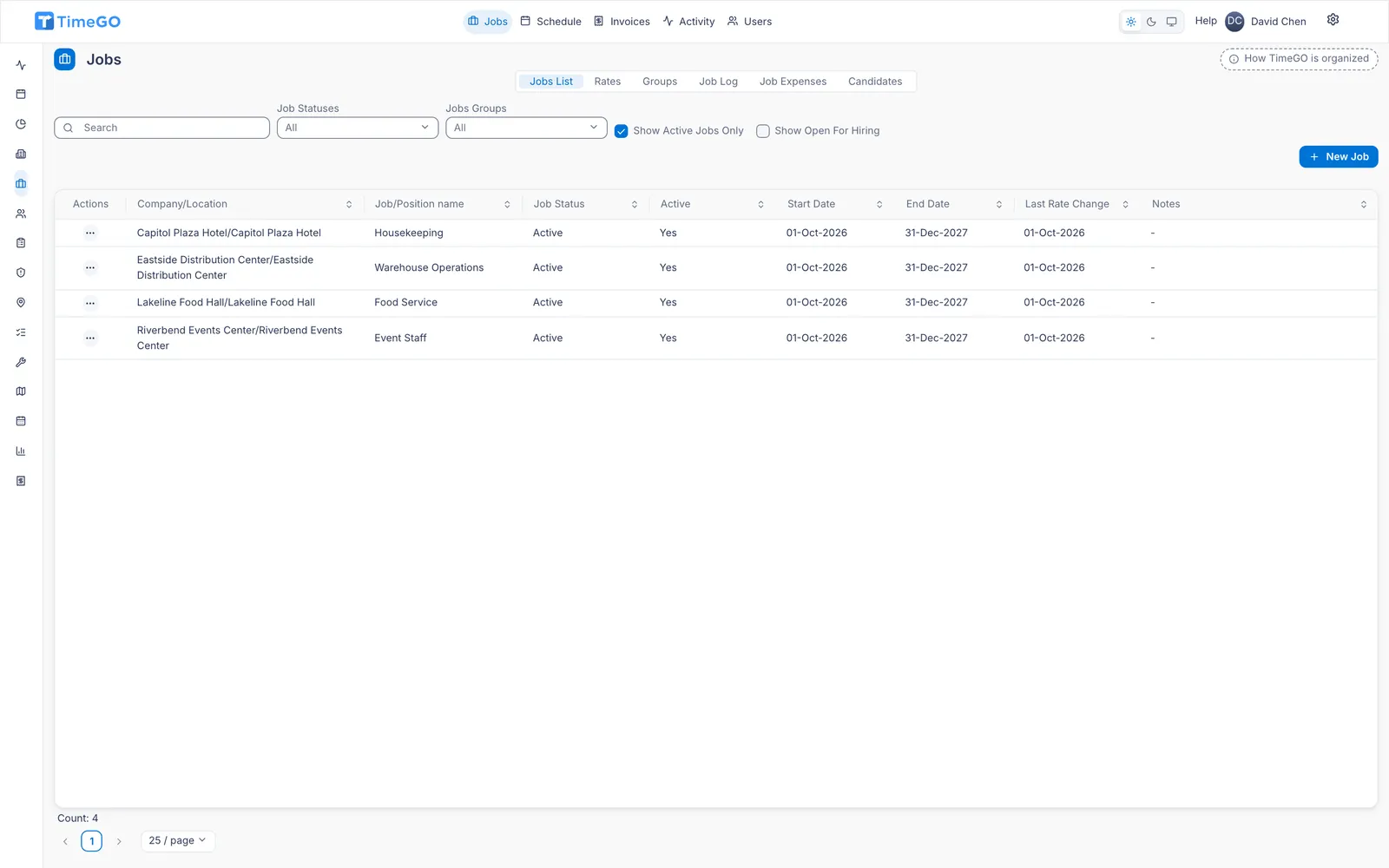
  • Add each client with its locations and a contact for each location.
  • Each site has its own geofence, so a clock-in is checked against the right address.
  • The hours of a placement stay under the client it was for.
How scheduling works
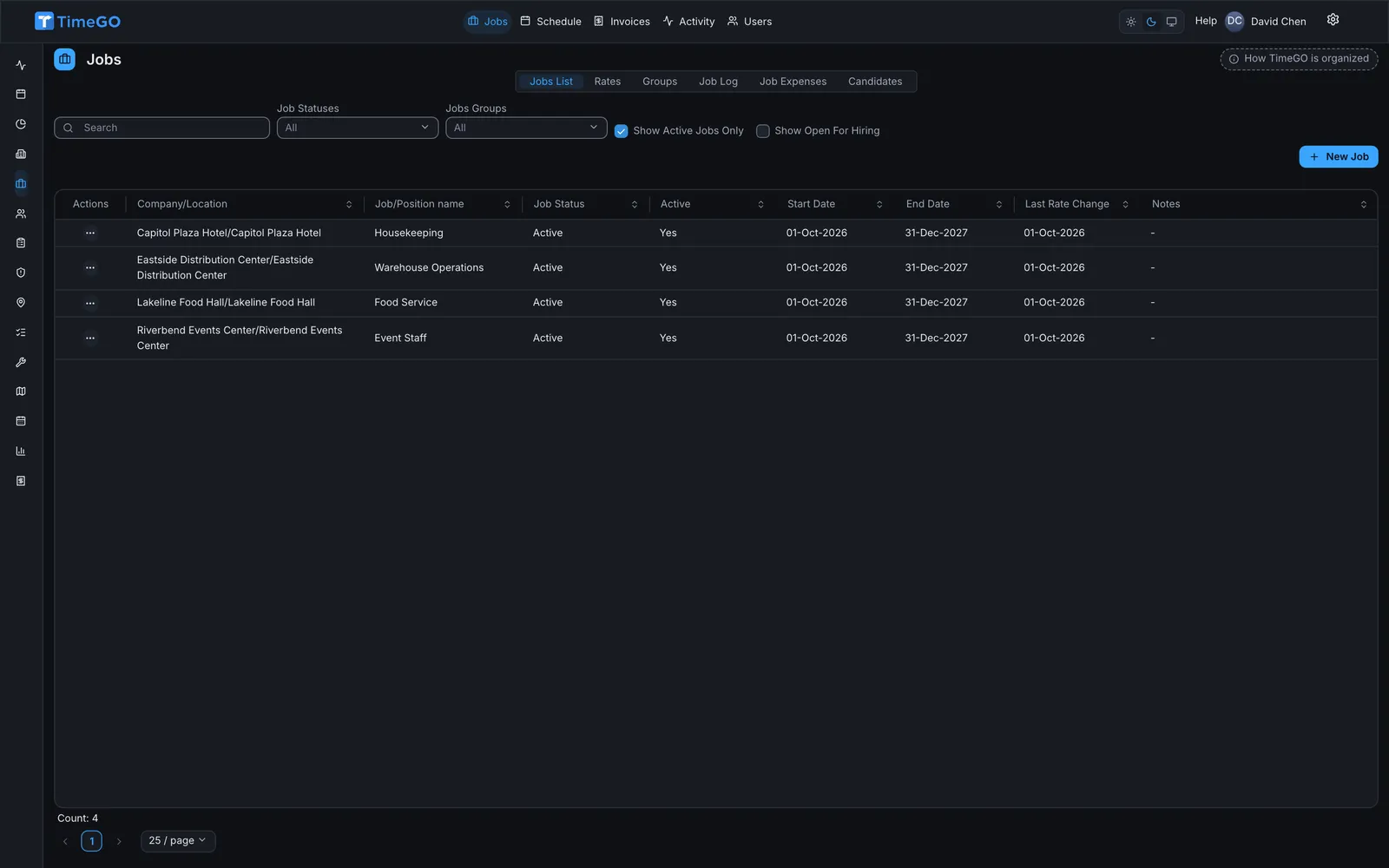
The Jobs page of the web app listing every client site and job with its status and datesThe Jobs page of the web app listing every client site and job with its status and dates

Offer the shift

The worker says yes or no in the app

  • A worker gets the shift on the phone and confirms or declines it.
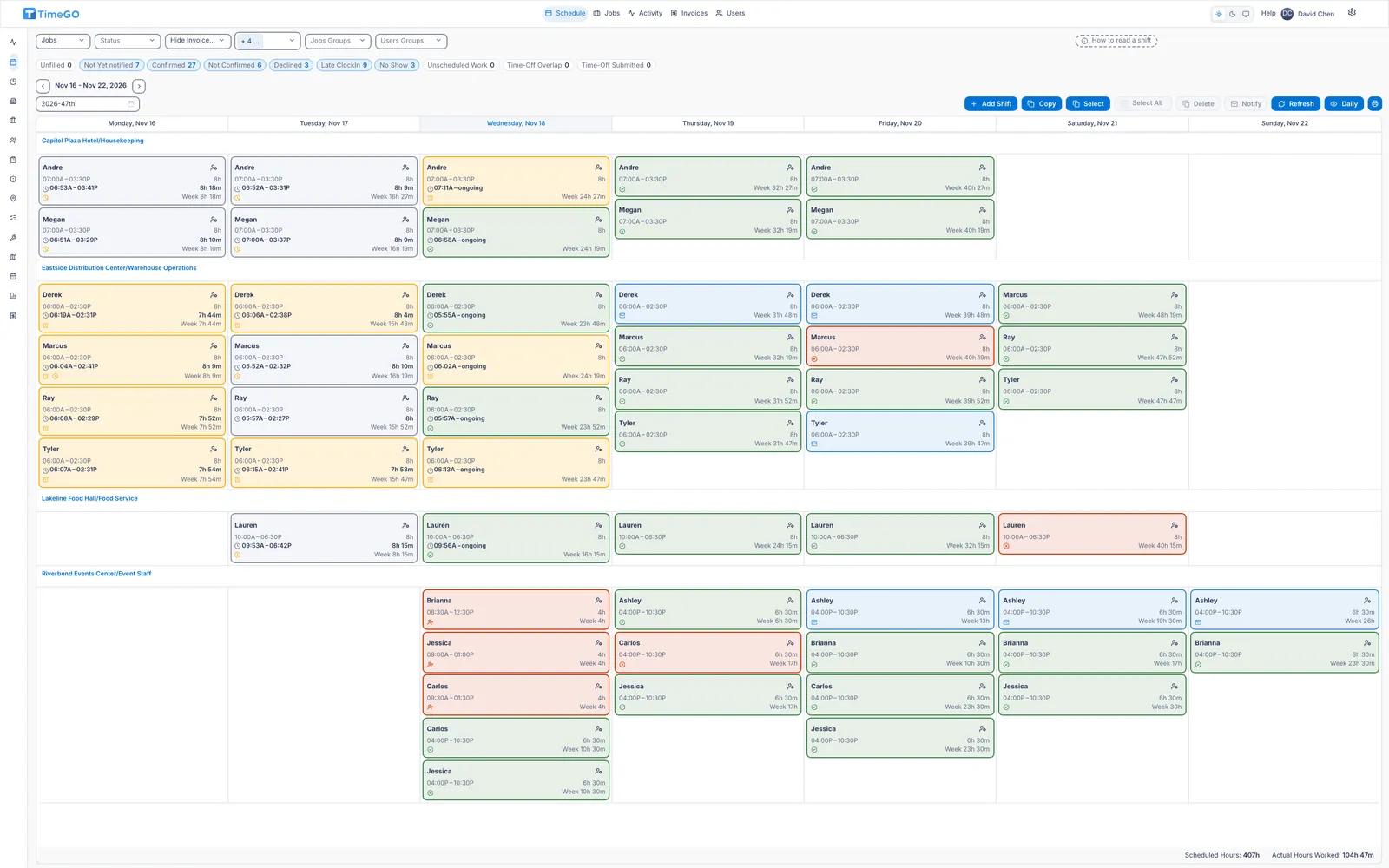
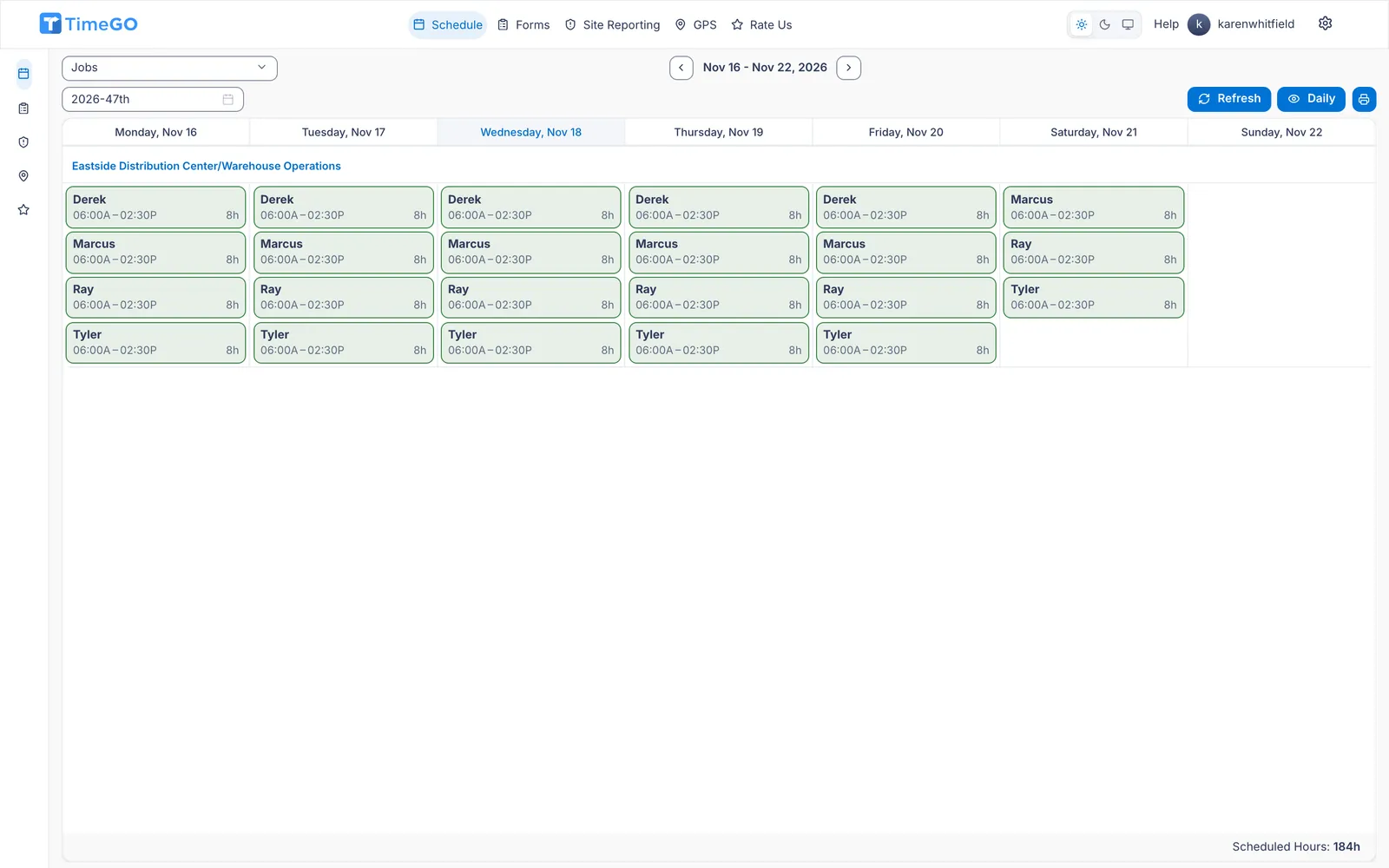
  • The schedule colours each shift by status, so an open or unconfirmed one stands out.
  • Time-off requests go to a manager for approval before you schedule.
How scheduling works
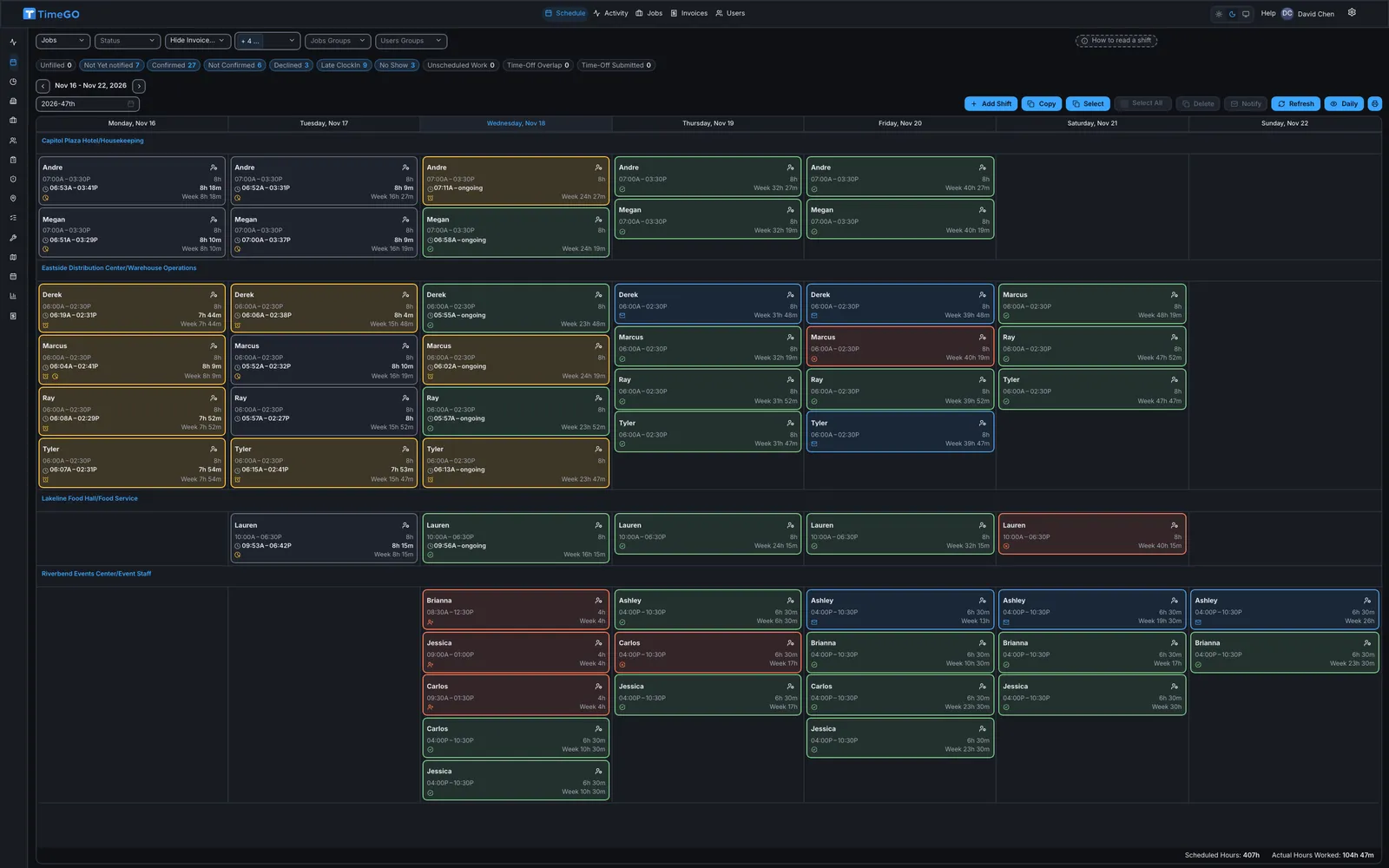
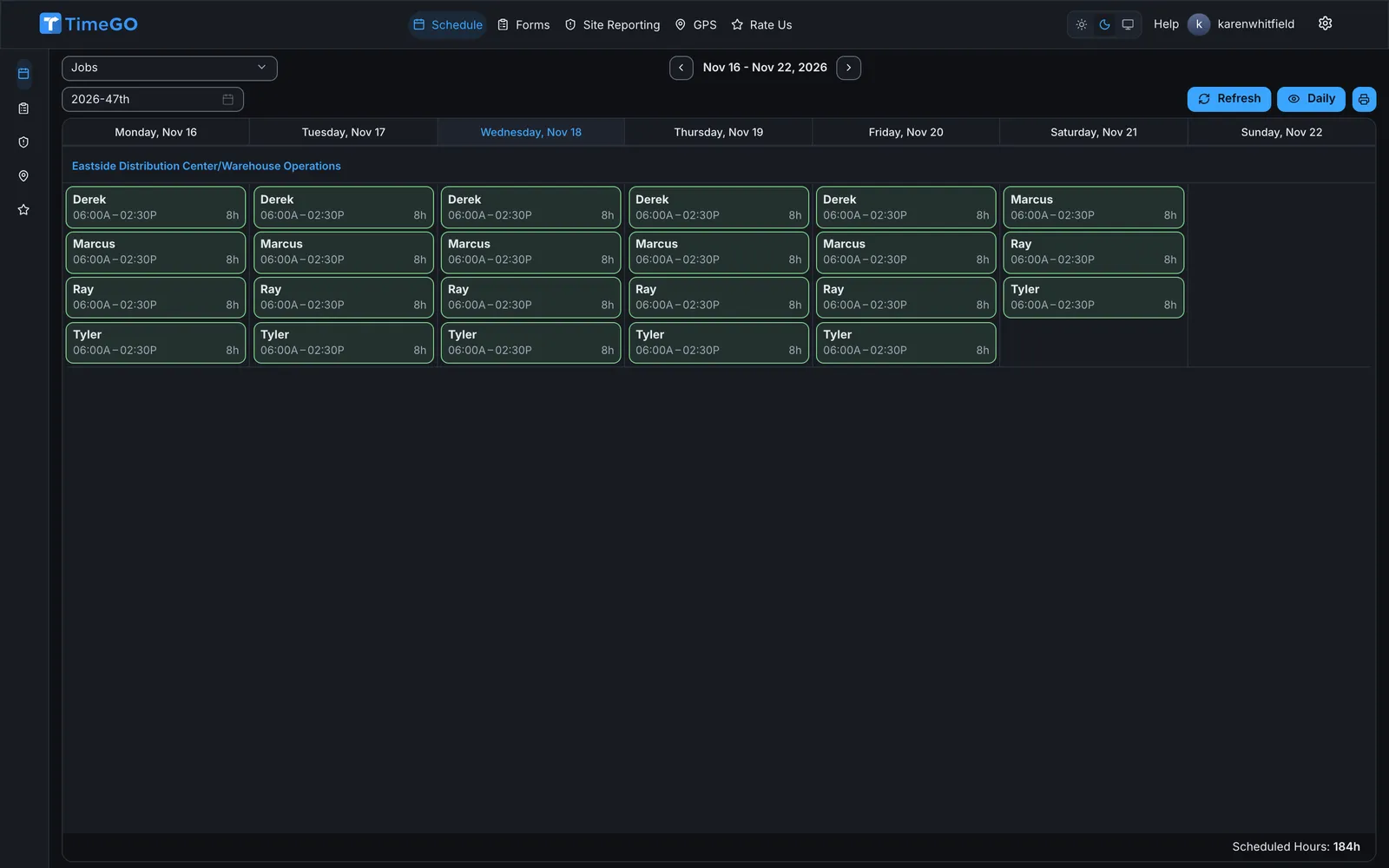
The week schedule grouped by client site, with shifts coloured as confirmed, not confirmed and declinedThe week schedule grouped by client site, with shifts coloured as confirmed, not confirmed and declined

A no-show in a minute

Know about the gap before the client does

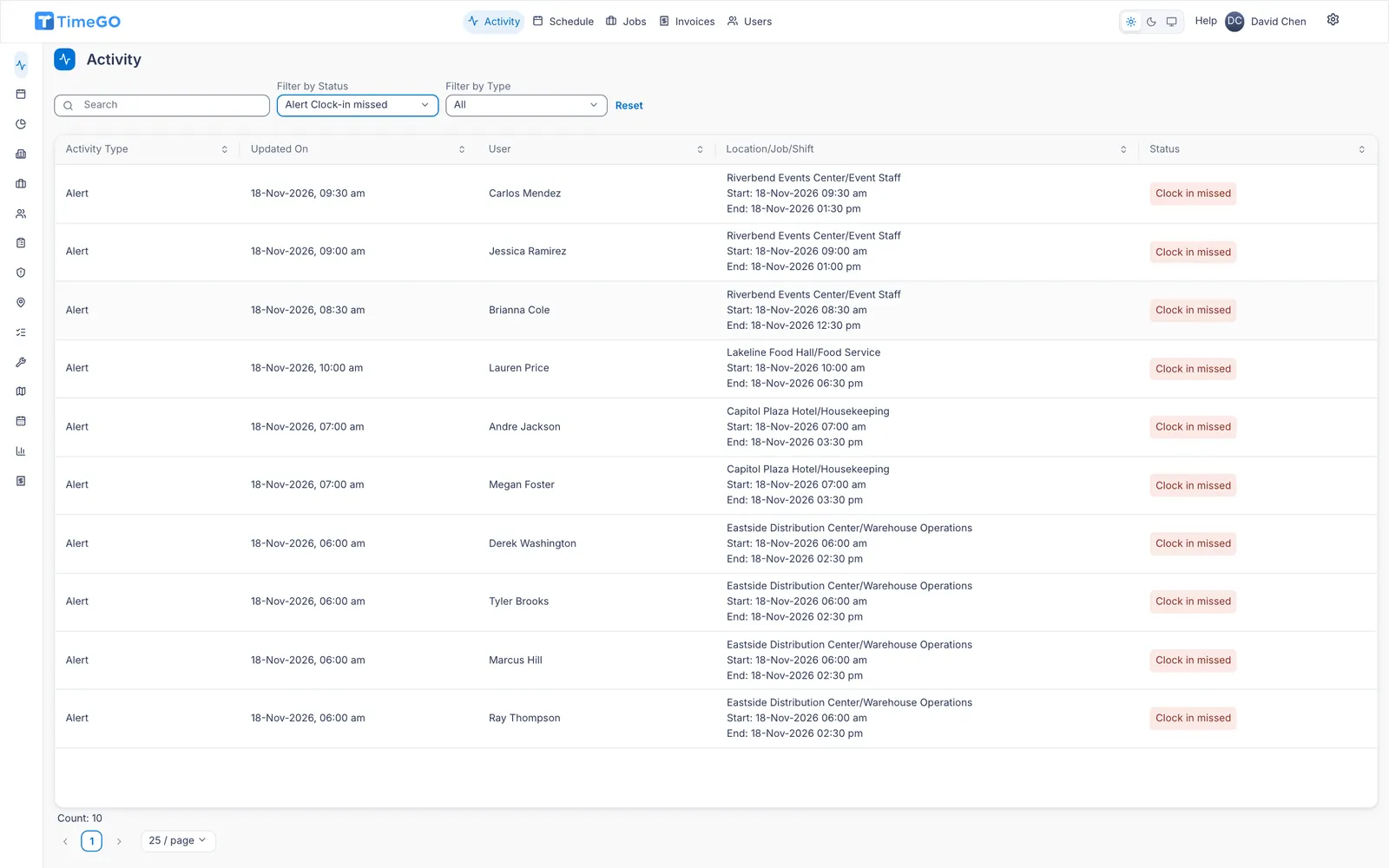
  • If a temp has not punched in a minute after the start time, you get an alert.
  • The alert reaches the web app and the app.
  • The Tardy Report adds up each worker's late shifts and minutes.
How GPS time clock works
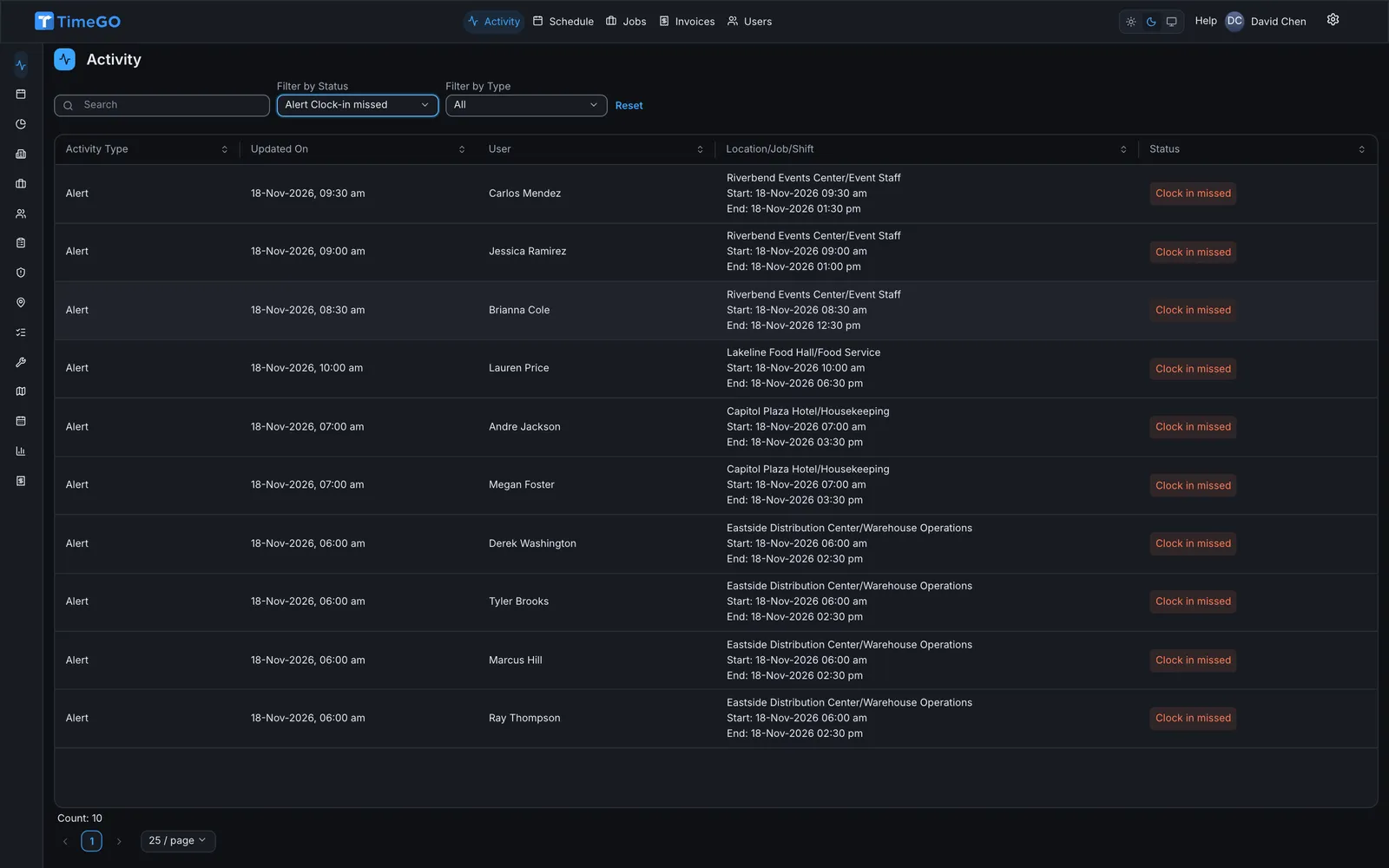
The Activity page of the web app filtered to Clock in missed alerts, each with the worker, the client site and the shift timesThe Activity page of the web app filtered to Clock in missed alerts, each with the worker, the client site and the shift times

Certified workers only

Check the licence before you place the person

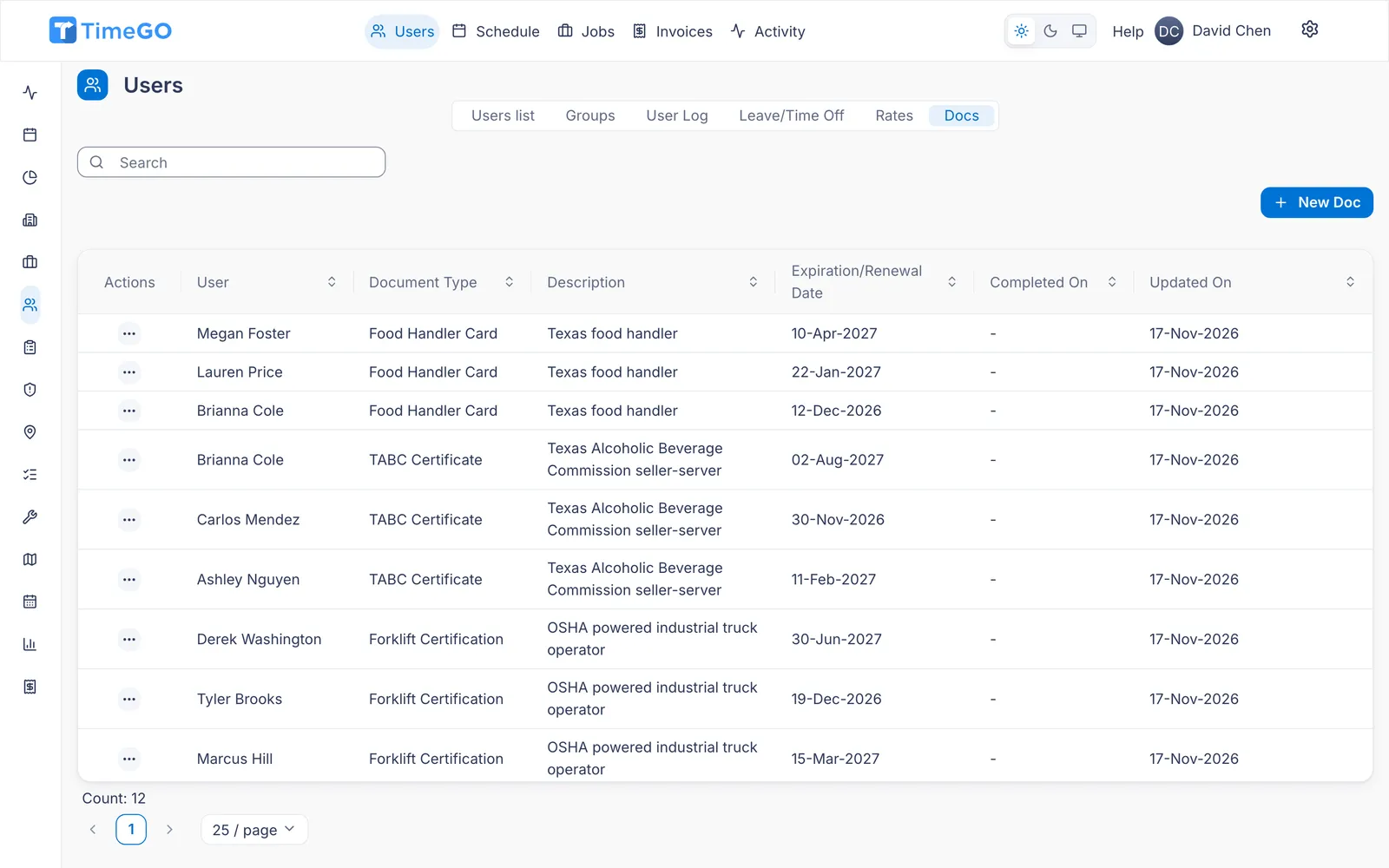
  • Each worker has a record with documents such as a forklift card or a food handler card.
  • Set the expiry date and the worker gets a reminder before it runs out.
  • Open the record before you send someone to a client who asks for it.
How employee records work
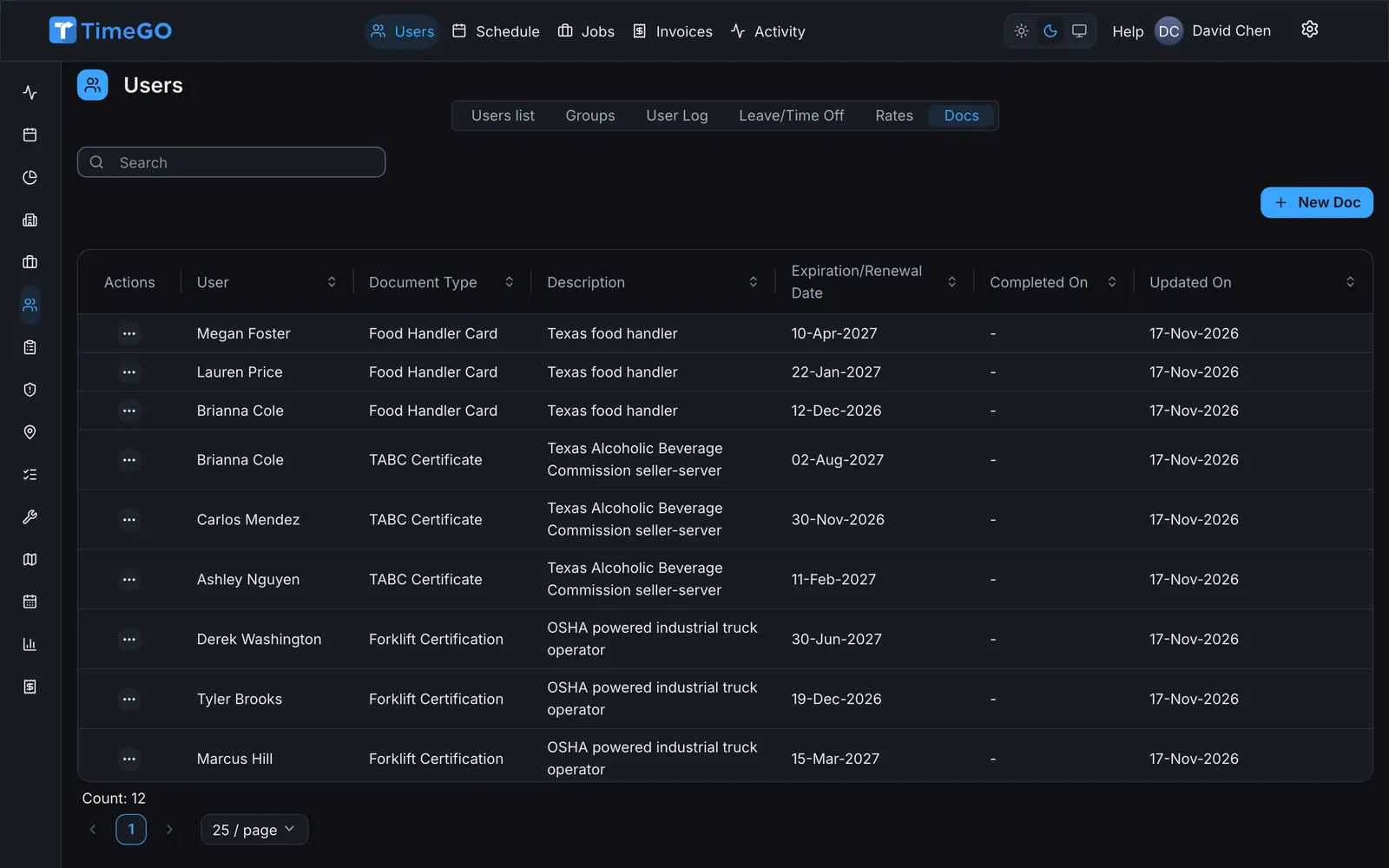
The Docs tab of Users with forklift, TABC and food handler documents of the workers and their expiry datesThe Docs tab of Users with forklift, TABC and food handler documents of the workers and their expiry dates

What the client sees

Give each client a view of its own sites

  • A client logs in and reads the schedule of its own sites, and edits nothing.
  • Your client sees no form results, scans or GPS routes unless you turn them on for it.
  • Client A cannot open the sites of client B.
How client access works
The client login view of TimeGO with a read-only week of shifts at one client's own siteThe client login view of TimeGO with a read-only week of shifts at one client's own site

Pay and bill

Pay the workers and bill each client from the same hours

  • Timesheets hold the punches as they happened. Send the period to payroll with an Excel or QuickBooks export, or sync Xero.
  • Make the client's invoice from the hours its placed workers tracked, then email the PDF.
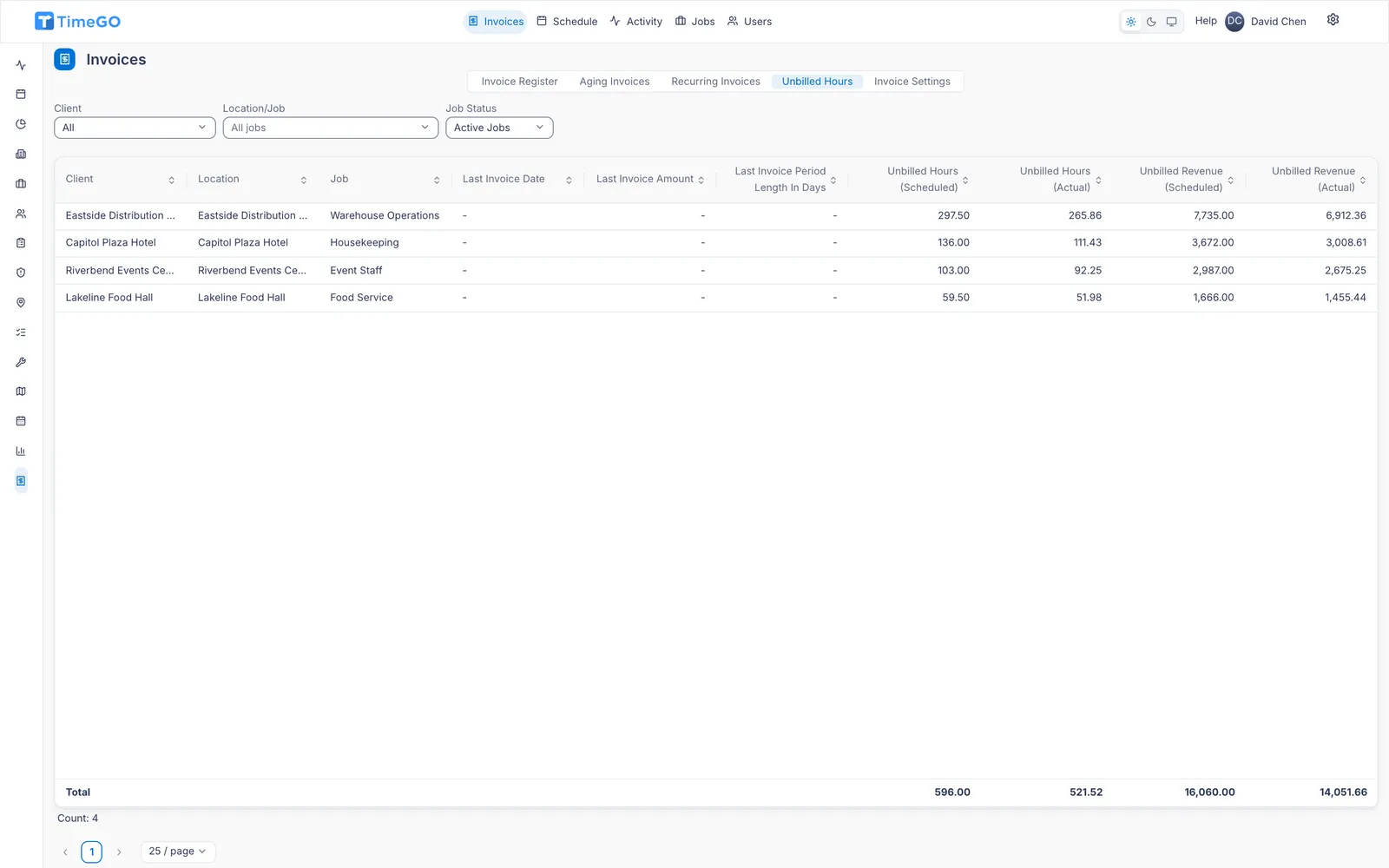
  • Before billing, open Summary by Job for the hours on each client job.
How invoices work
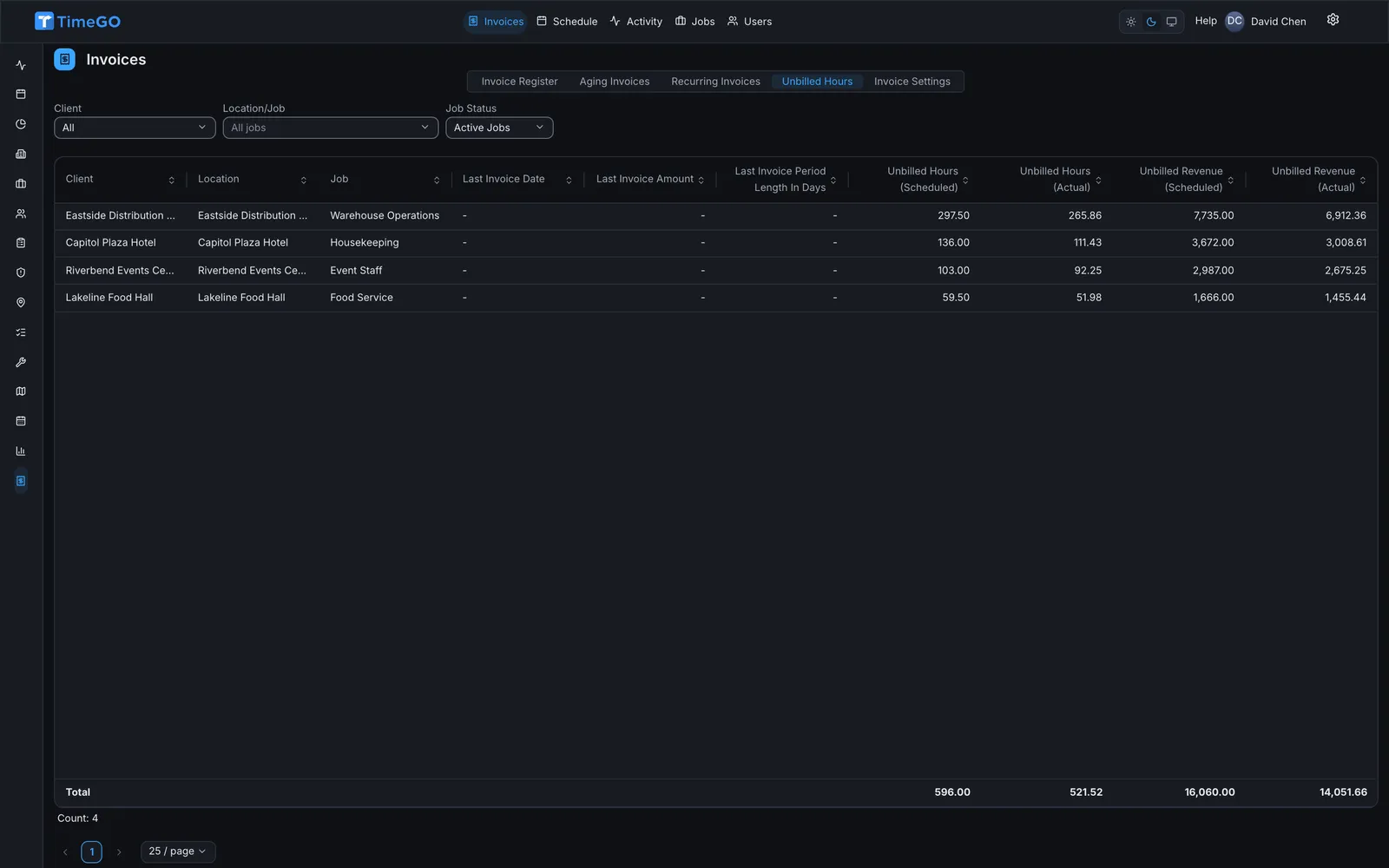
The Unbilled Hours tab of the Invoices page with each client, location and job, the unbilled hours and the unbilled revenueThe Unbilled Hours tab of the Invoices page with each client, location and job, the unbilled hours and the unbilled revenue

Who sees what

Owner, coordinator, worker and client

  • Owner

    Every client and every placement in view

    • See all client sites and the shifts placed at each.
    • Pay the workers and bill the clients from one set of hours.
  • Coordinator

    Cover the gap while the shift is young

    • Know within a minute when a placed temp has not punched in.
    • Check a worker's certificates before you place them.
    • See only your own clients when the owner limits you to them.
  • Temp worker

    Take the shift, show up, clock in

    • Confirm or decline the shifts you are offered.
    • Punch in when you reach the client's site, log your break, punch out at the end.
    • Get a reminder before your certificate expires.
    • Use the app in English, Spanish or Vietnamese, whichever you read best.
  • Client

    The schedule of its own sites

    • Reads the schedule of its own sites and cannot change it.
    • Want a client to see form results, scans or GPS routes too? That is your call for each client.

Getting started

Start with TimeGO in four steps

  1. Enter your client list

    Enter each client with its locations and contacts. We help load your data.

  2. Offer the shifts

    Build the schedule. Workers confirm or decline in the app.

  3. Watch the first minute

    Turn on the late clock-in alert and cover a no-show while the shift is young.

  4. Pay and bill from the same hours

    Export the period for payroll and email each client its invoice.

Each client sees its own sites, each coordinator its own clients

  • A client login covers its own sites

    Read-only schedule. Anything beyond it, such as form results or routes, is off until you turn it on for that client.

  • A coordinator sees only their clients

    Pick the locations, positions or groups a coordinator may work with.

  • The punch on record is the real one

    If you round time, only the totals move. Open a shift and the real punches are still there.

Send your hours to

  • Excel export
  • QuickBooks Desktop file
  • QuickBooks Online
  • Xero

From the blog

    • Payroll and billing

    Time tracking for staffing agencies with many sites

    Track hours for workers placed at many client sites: a GPS clock-in at each site, one timesheet for every placement, then payroll and the client's invoice.

    • Clock-in and scheduling

    How to schedule event staff and confirm every shift

    Staff an event so silence is never mistaken for a yes: one schedule, a confirm or decline from every worker, GPS clock-in at the venue and hours after.

    • Payroll and billing

    Should you round employee time to 6 or 15 minutes?

    Six minutes, 15 minutes or no rounding at all: what each choice does to the hours you pay, what TimeGO rounds and leaves exact, and what to check first.

All posts

Before you book

Frequently asked questions

Can workers accept or decline the shifts I offer?

Yes. The offer arrives in the app and the worker taps confirm or decline. The schedule colours each shift by status.

How fast will I know a placed worker did not show up?

One minute after a scheduled shift starts with no clock-in, an alert appears in the web app and in the app.

Where do I find a temp's forklift or food handler card and its expiry date?

Yes. Documents live on the employee record, and TimeGO reminds the employee before a licence or certificate expires.

What does my client see?

The schedule of its own sites, to read only. Form results, scans and GPS routes are off by default. Turn them on for a client if you want it to see them.

Can one set of hours pay my workers and bill my client?

Yes. Timesheets feed payroll exports and the QuickBooks Online or Xero sync. The client's bill uses the same tracked hours, and you email it as a PDF. You need the Pro plan for invoices and the sync.

Can I set up a venue for a single event?

Yes. A venue is a location under a client, with contacts and a geofence. Workers punch in at the venue, and GPS checks it.

Can a coordinator see only some of my clients?

Yes. Give a coordinator only the locations, positions or groups you name.

Next step

See your own clients and placements in TimeGO

In a demo we load two of your clients with their sites and walk through an offered shift, a late alert and the client's hours.

TimeGO for other industries