 English
 Español
 Tiếng Việt
 Deutsch
 Français
 Português
 Polski
 Nederlands
 Italiano
 Svenska
 Norsk
 Dansk
 Suomi
 Čeština
 हिन्दी
 العربية
A shift scheduling app for teams at one site or many
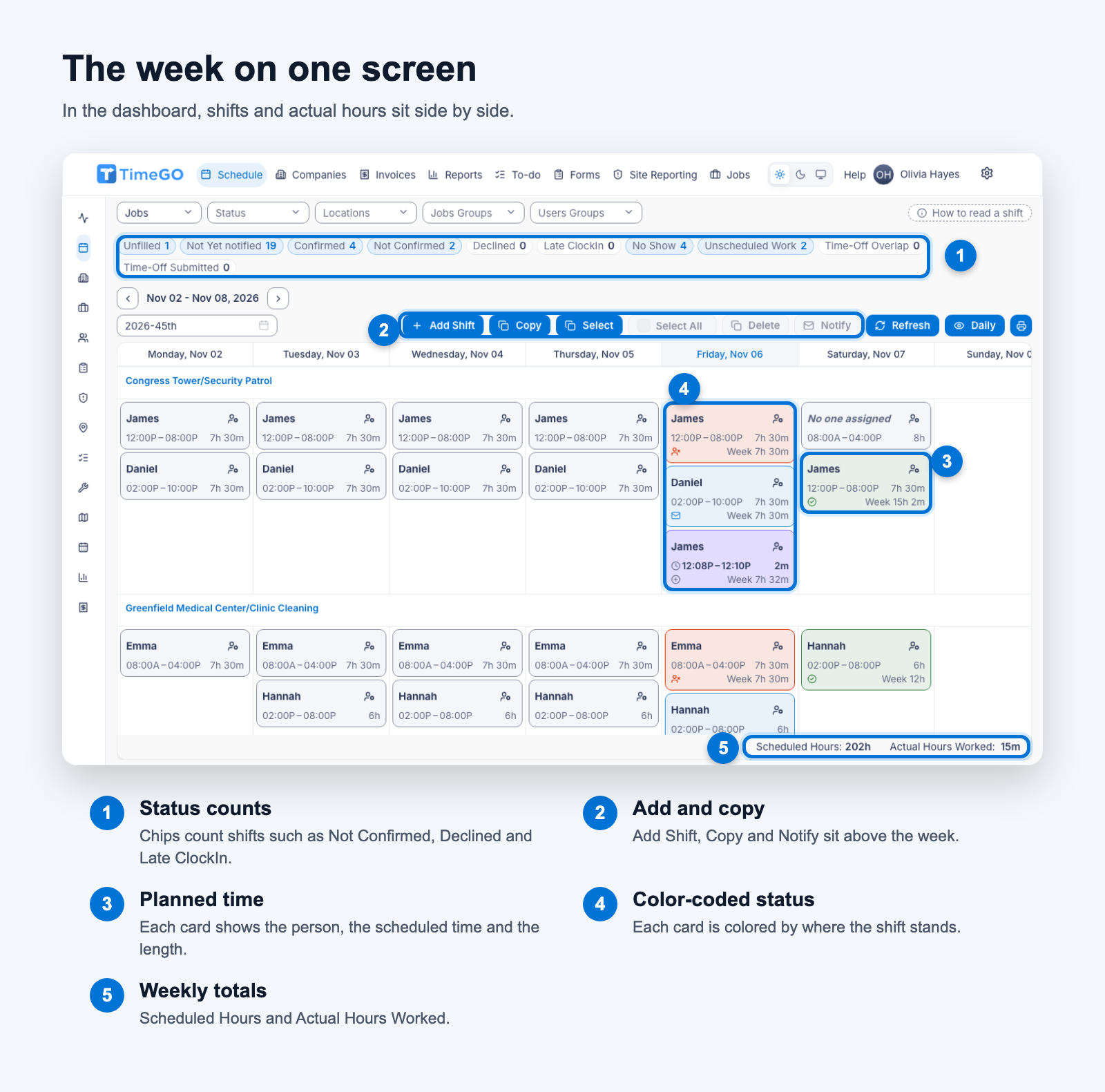
Shifts and actual hours sit on one screen with color-coded status. Employees confirm or decline changes in the app, and a manager approves time off.


What it does
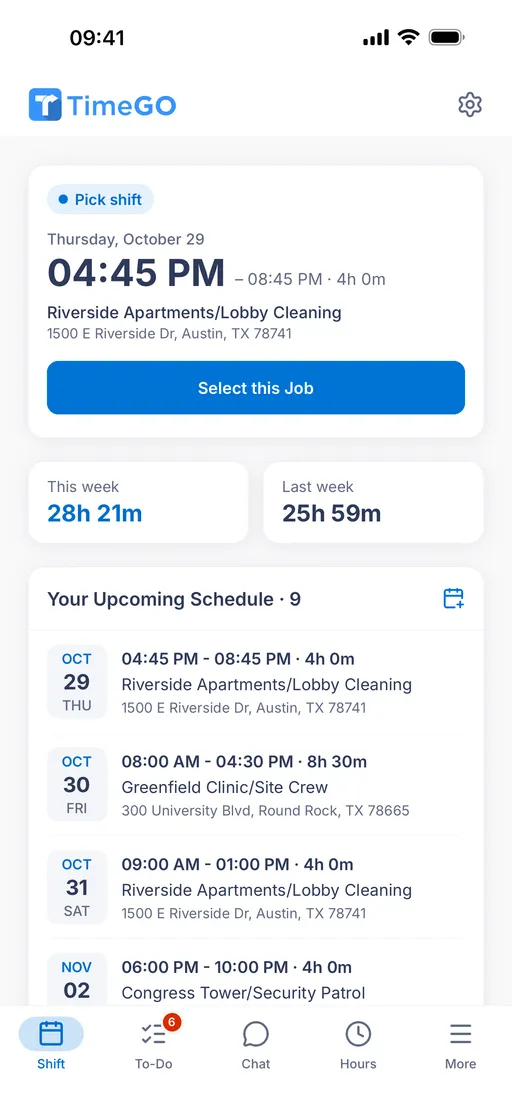
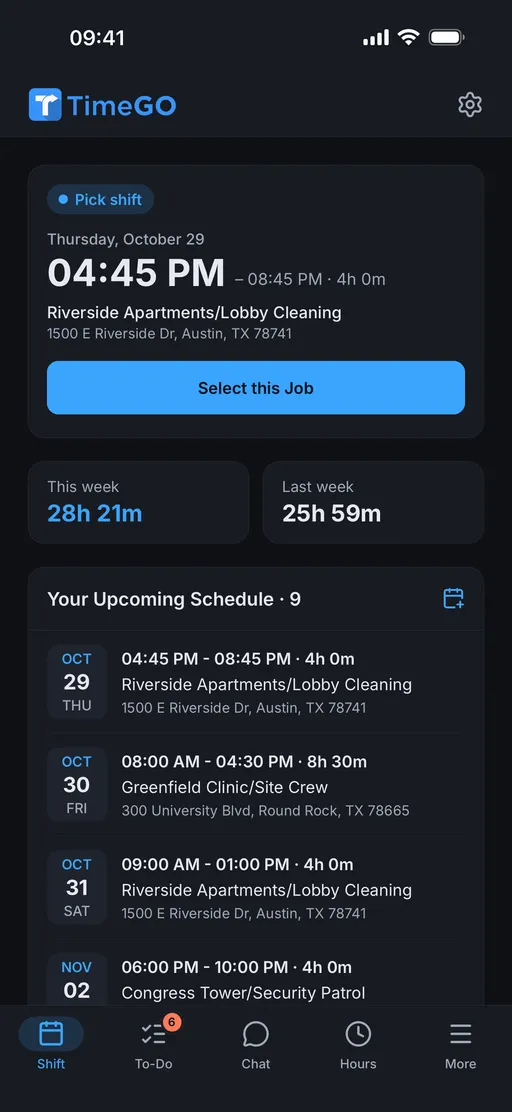
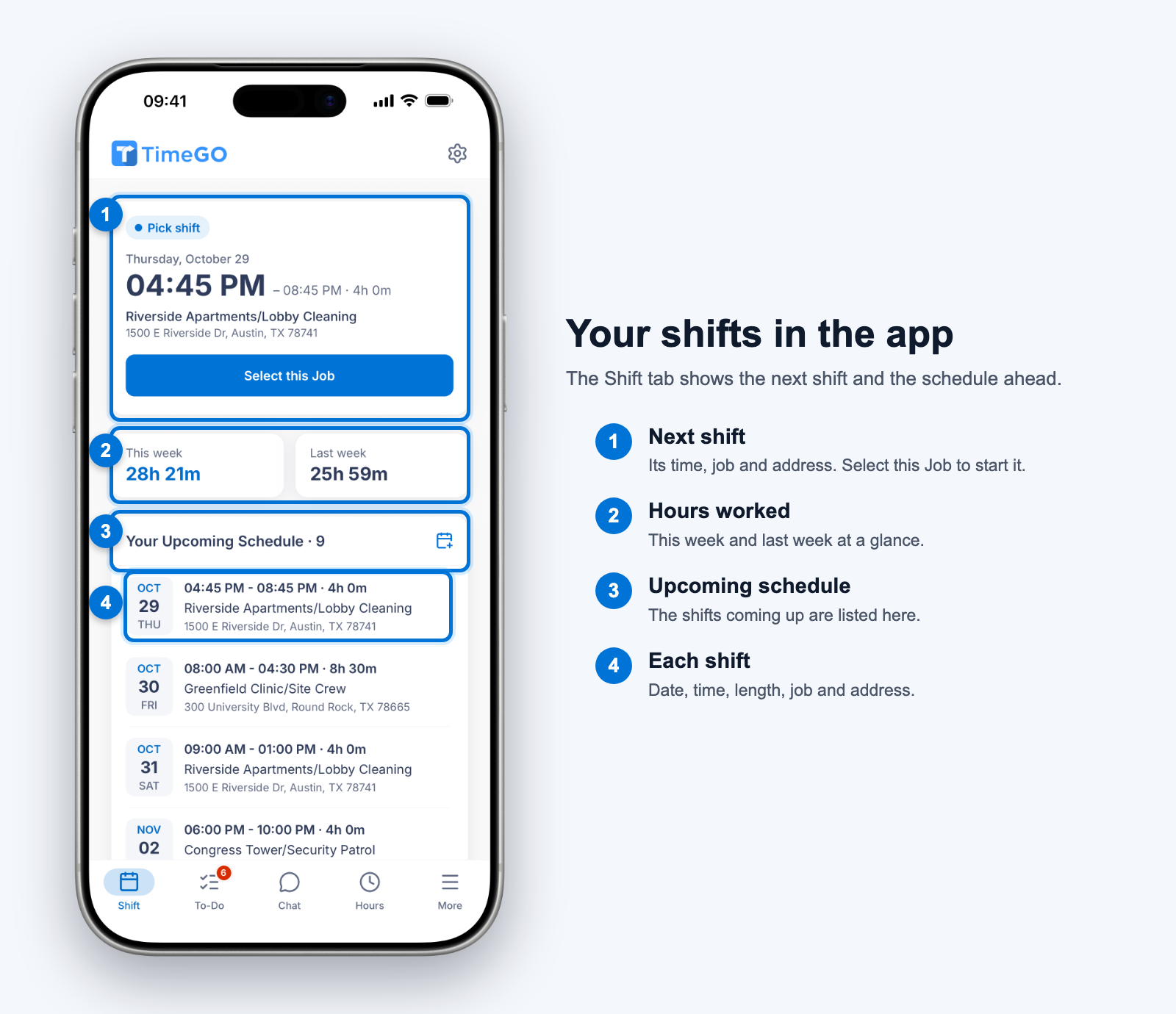
In the web dashboard, a manager builds one schedule for every site and sees the hours actually worked next to the planned ones. In the app, employees see their upcoming shifts and confirm or decline changes. Time-off requests go to a manager, who approves or declines them.
How it works
Build the schedule
In the dashboard, put shifts on the schedule for each location.
Employees confirm in the app
Employees see their upcoming shifts on the phone. When a shift changes, they confirm or decline the change.
Check each shift's status
In the dashboard, color-coded status shows where each shift stands, next to the hours that were actually worked.
Handle time off
Time-off requests go to a manager for approval, and approved time off shows on a calendar.
See it in TimeGO
Time off
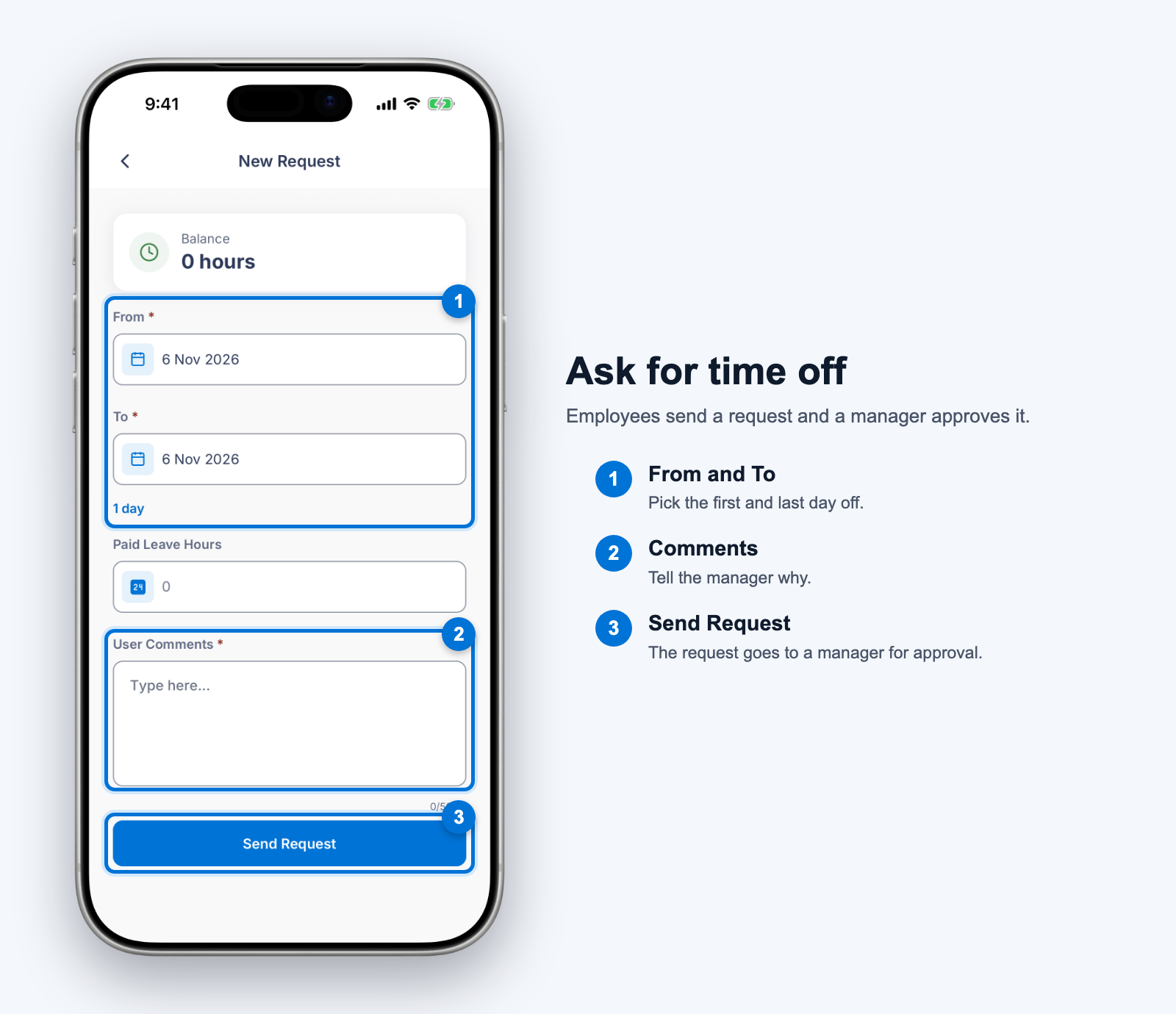
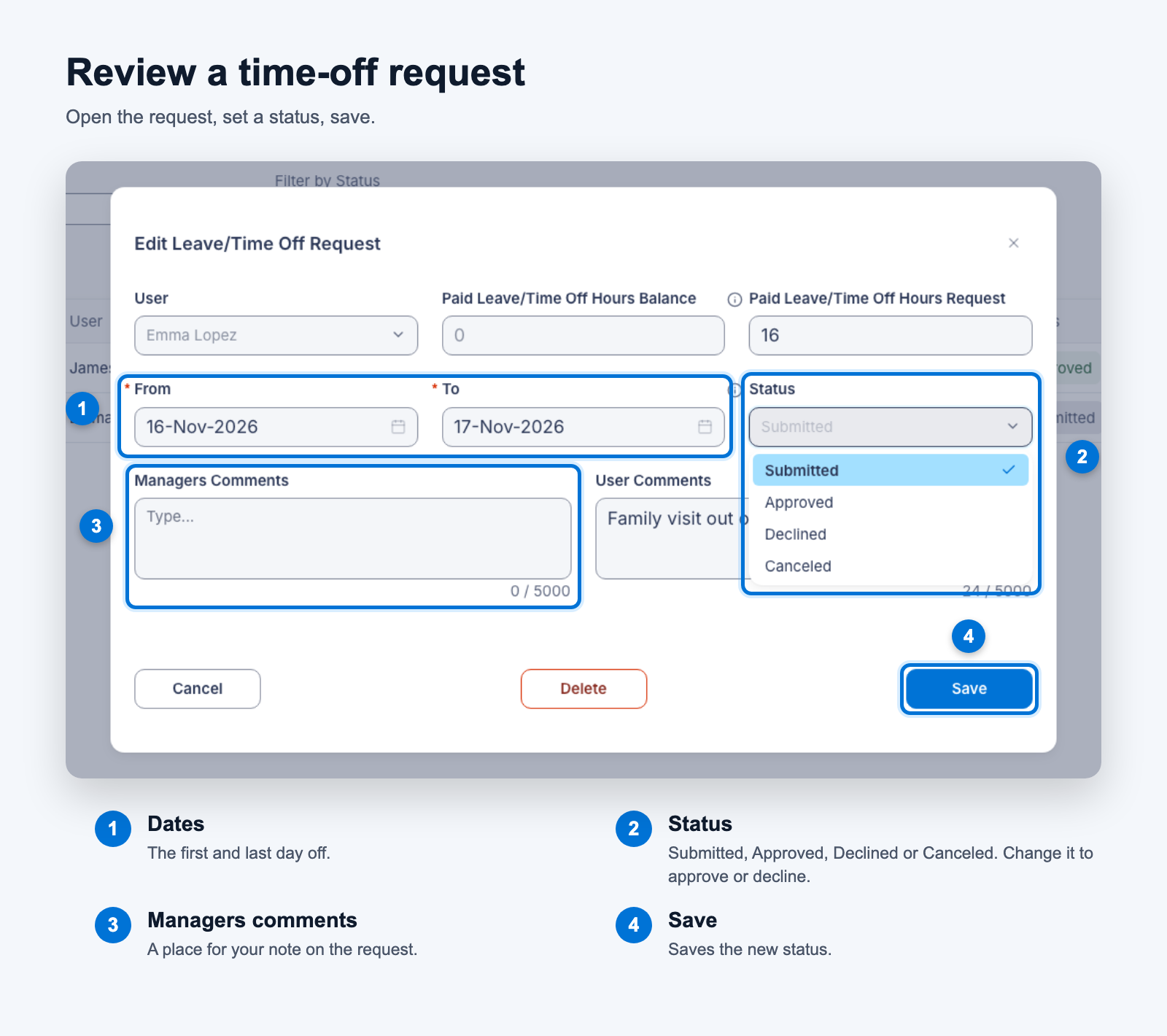
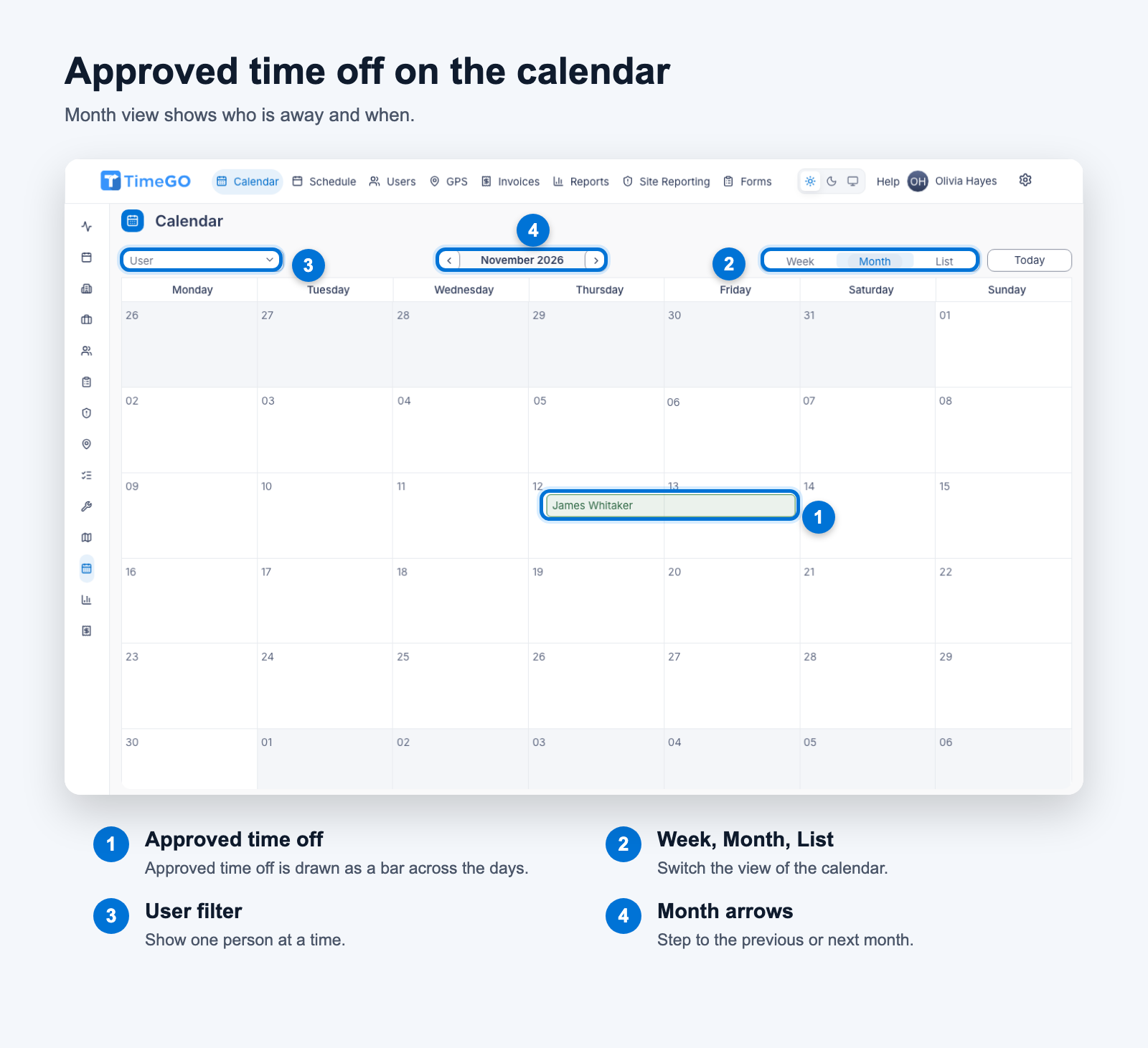
An employee sends a time-off request in the app. A manager opens it in the web dashboard, sets the status to Approved or Declined and can leave a comment, and the employee gets a push notification. Approved time off is drawn as a bar on the calendar, in Week, Month or List view, with a filter for one user, so you see who is away before you build the schedule. Nothing is approved until the manager decides.
Who it helps
Frequently asked questions
Can I schedule employees across several sites in one place?
Yes. In the web dashboard every shift goes on one schedule.
Can employees see their shifts on their phones?
Yes. The Shift tab of the employee app shows the upcoming schedule and the hours worked this week and last week.
Can employees confirm or decline a shift change?
Yes. When a shift changes, the employee confirms or declines the change in the app.
Can I compare scheduled hours with the hours worked?
Yes. In the dashboard, shifts and actual hours are on one screen, so you see the plan next to what was worked.
Does the schedule connect to clock-in and timesheets?
Employees clock in with GPS in the same app, and each shift lands in the timesheet, ready to export to payroll.
Who approves time-off requests?
A manager or a business admin, in the web dashboard under Users, Leave/Time Off.
What does the employee see after the manager decides?
A push notification when the request is approved or declined.
Can I see time off for one person?
Yes. The calendar has a user filter and Week, Month and List views.