 English
 Español
 Tiếng Việt
 Deutsch
 Français
 Português
 Polski
 Nederlands
 Italiano
 Svenska
 Norsk
 Dansk
 Suomi
 Čeština
 हिन्दी
 العربية
Dashboard
2 min read
How to add a shift
Add a shift on the Schedule page, then use Notify so the employee sees it in the app.
Steps
- 1
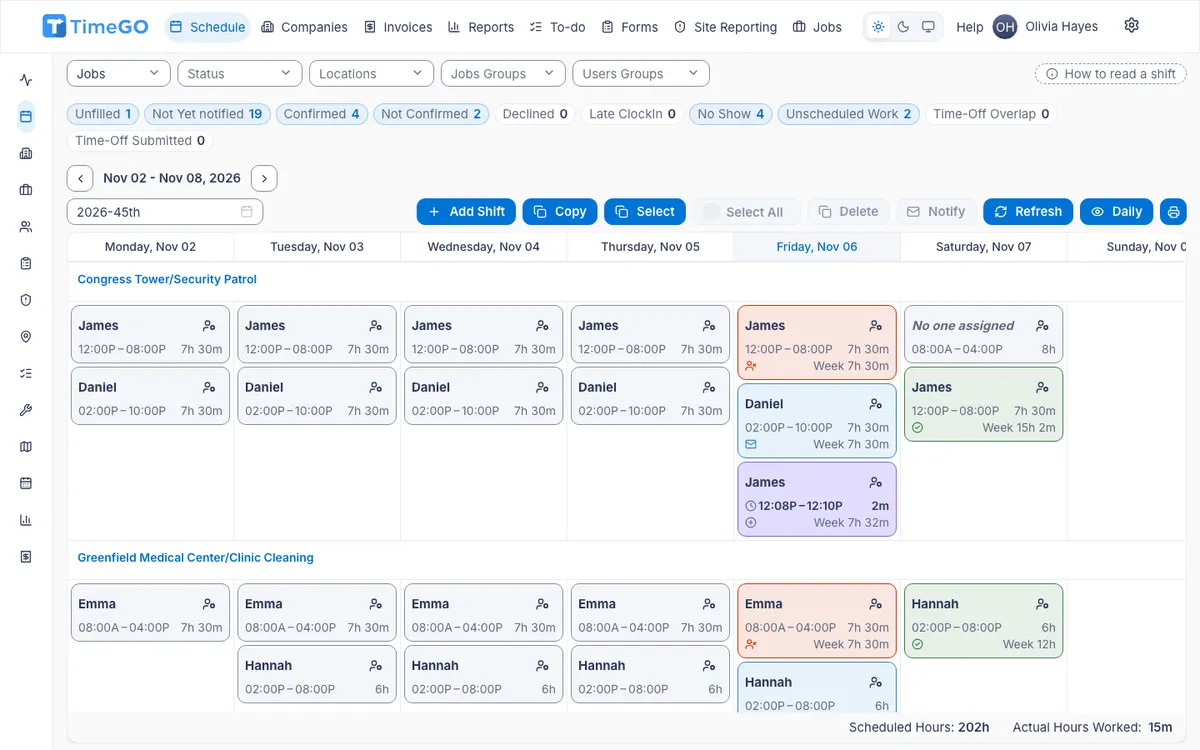
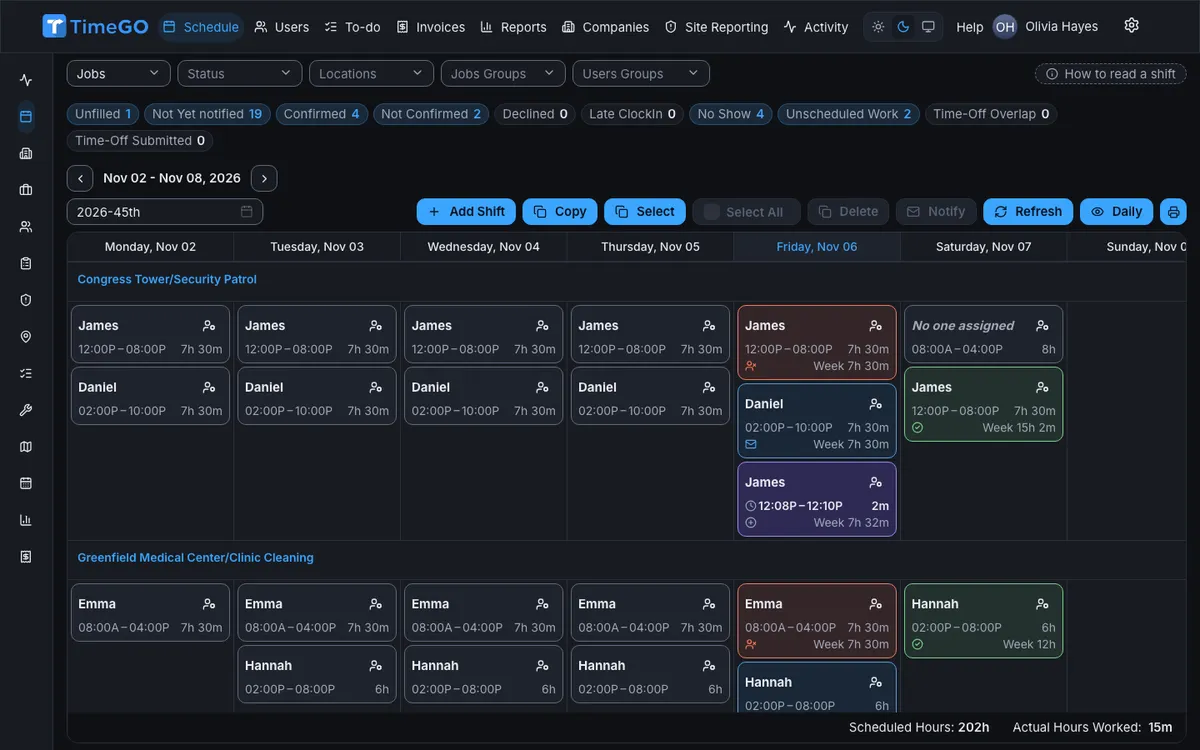
Click Schedule, then use the week picker to open the week of the shift.
- 2
Click Add Shift.
- 3
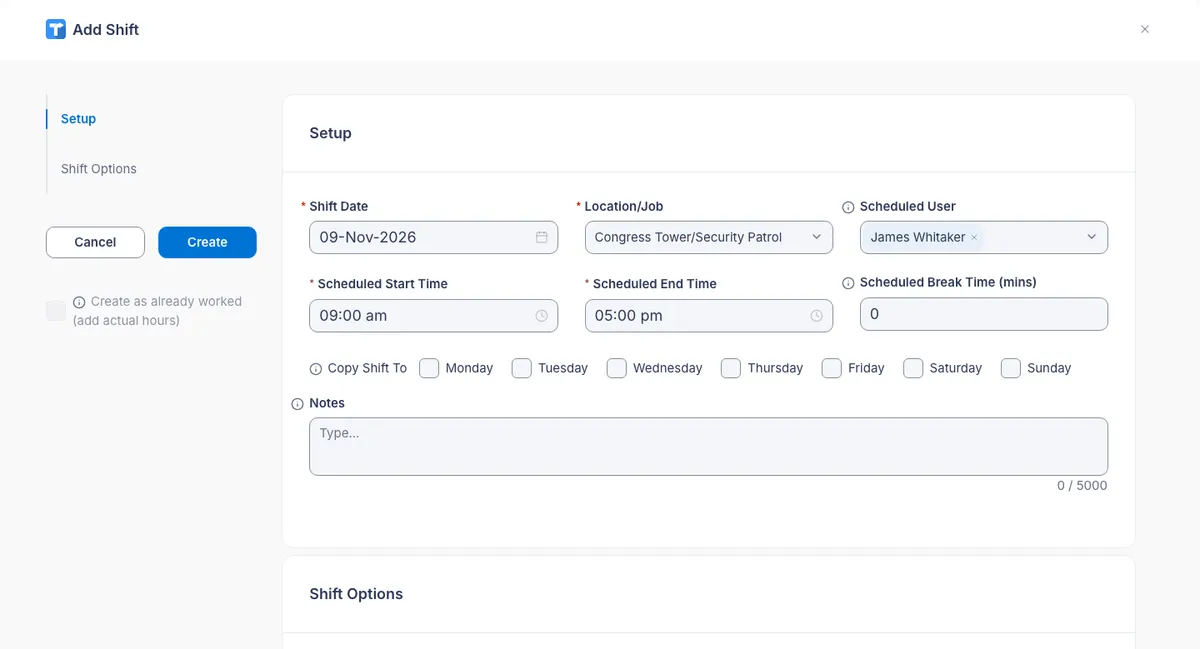
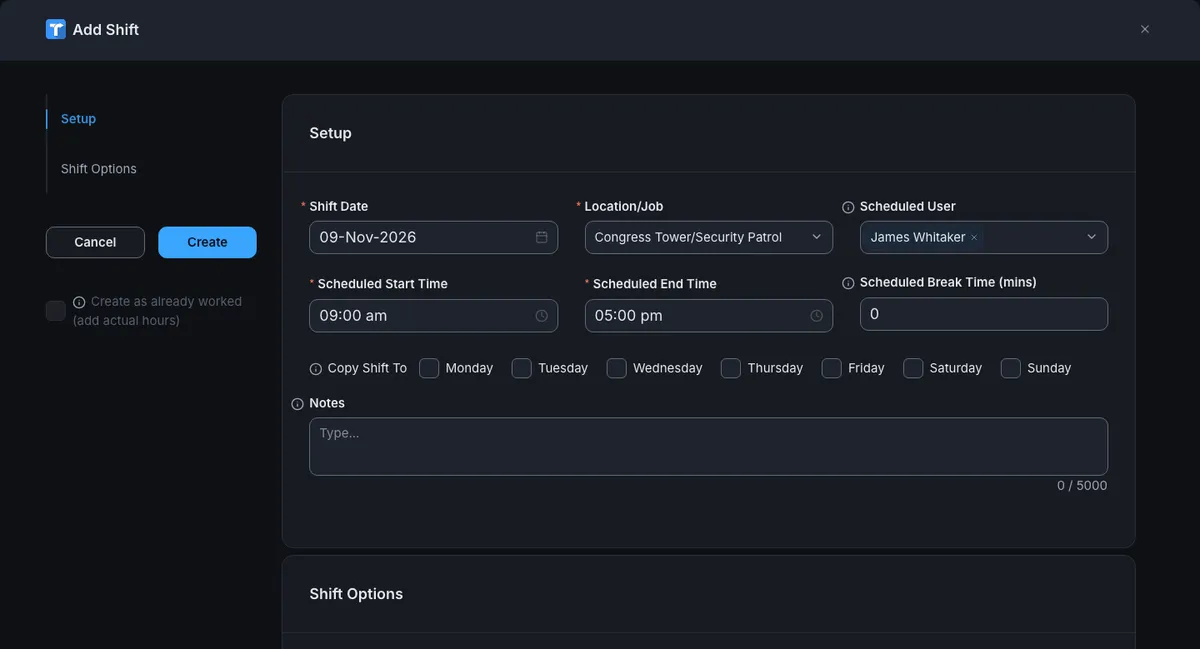
Fill in Shift Date, Location/Job, Scheduled Start Time and Scheduled End Time. Pick a Scheduled User, or leave it empty for an unfilled shift. Scheduled Break Time (mins) and Notes are optional.
- 4
Click Create.
- 5
Click Notify, choose All future shifts, Current week or Current and next week, pick the users, then click Notify in the window.

If it does not work
You cannot add an employee to a shift in the past.
Use a shift date that is not in the past.
Good to know
- Employees see a new shift only after you send it with Notify. The same applies after you move a shift or change its Scheduled User. Other edits to a shift they already have arrive without Notify.
- To put the same shift on other days of the same week, tick those days under Copy Shift To before you click Create. The copies need Notify too.
- The app warns when the new shift overlaps another shift for that user, but it still saves the shift. The employee then confirms or declines the shift in the app.
About the feature: More about Scheduling