 English
 Español
 Tiếng Việt
 Deutsch
 Français
 Português
 Polski
 Nederlands
 Italiano
 Svenska
 Norsk
 Dansk
 Suomi
 Čeština
 हिन्दी
 العربية
Dashboard
1 min read
How to approve time off
Approve or decline an employee's time-off request in the web dashboard.
Steps
- 1
Click Users, then open the Leave/Time Off tab.
- 2
Find the request, open its Actions menu and click Edit Request.
- 3
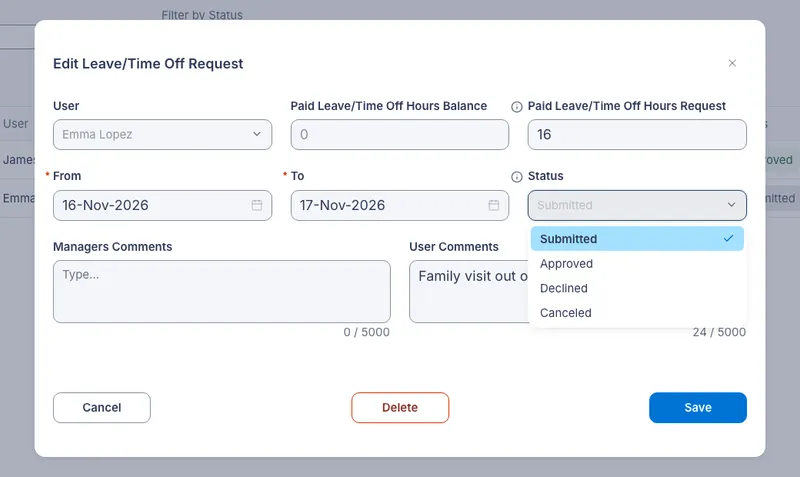
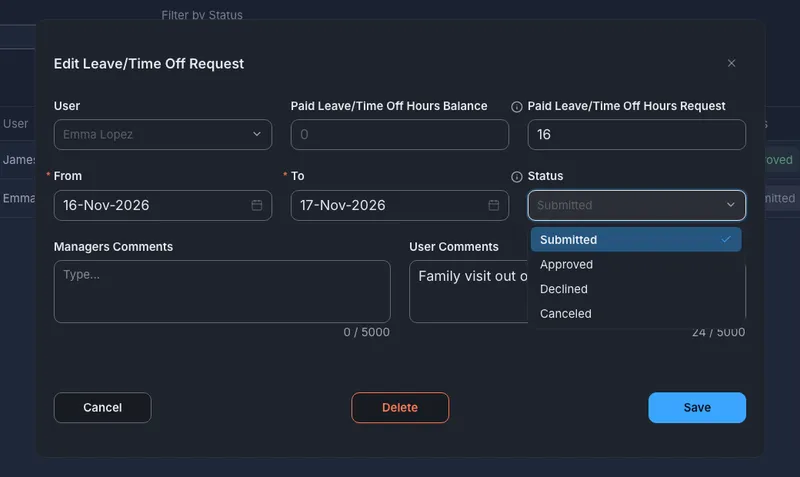
In the Edit Leave/Time Off Request window, set Status to Approved or Declined. Add a note in Managers Comments if you need to.
- 4
Click Save.

Good to know
- When you approve or decline, the employee gets a push.
- When an employee submits a request, that employee’s managers get a push. The company’s notification recipients and the employee’s supervisor, if one is set, get an email.
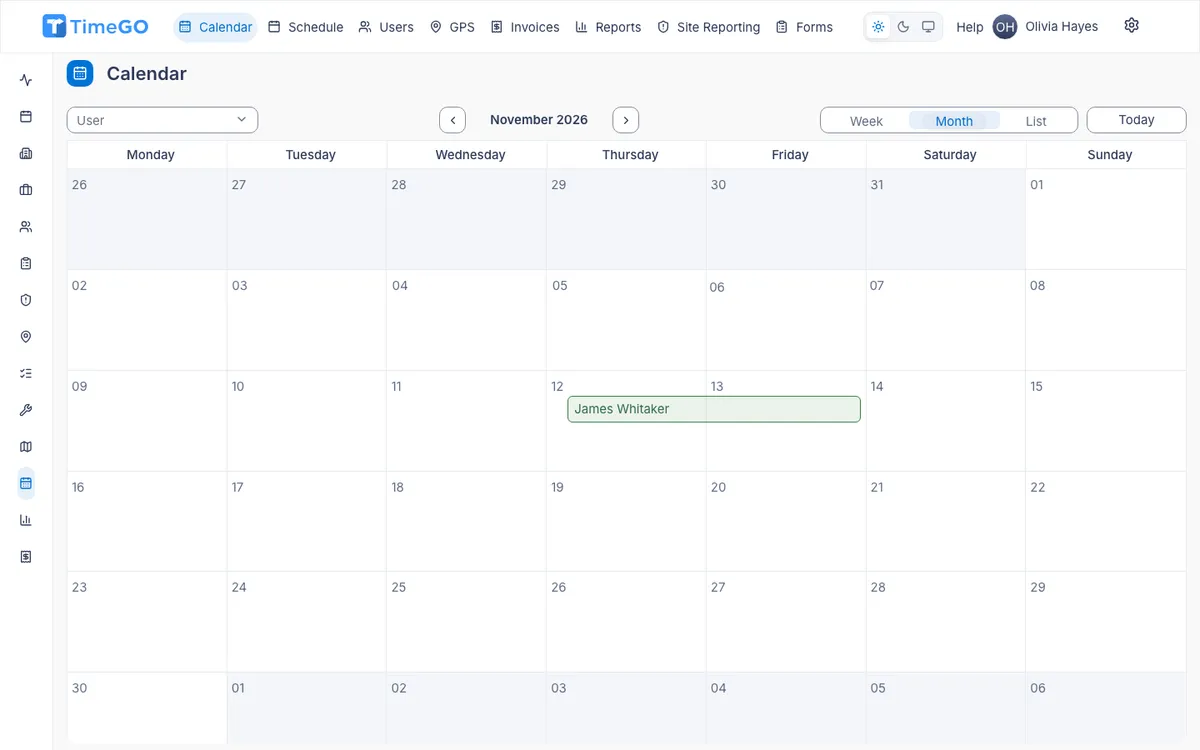
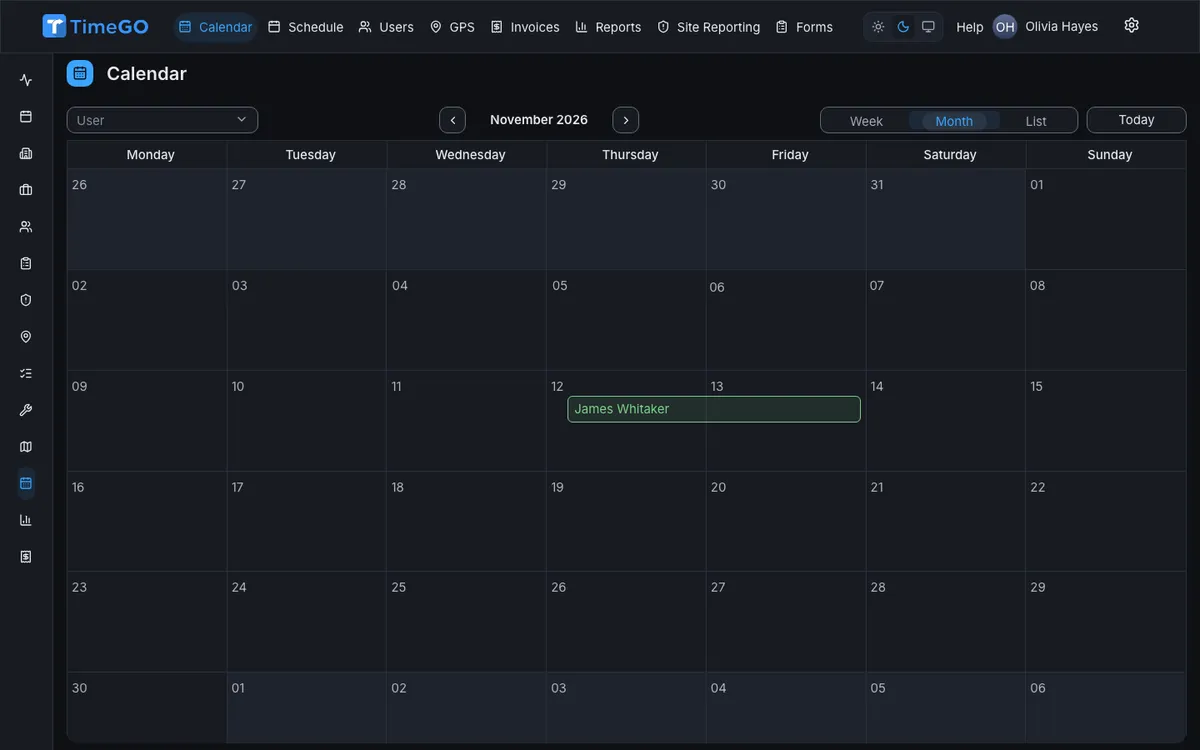
- Approving subtracts the requested paid hours from the user’s balance and flags overlapping shifts in the Schedule.
About the feature: More about Scheduling