 English
 Español
 Tiếng Việt
 Deutsch
 Français
 Português
 Polski
 Nederlands
 Italiano
 Svenska
 Norsk
 Dansk
 Suomi
 Čeština
 हिन्दी
 العربية
Phone app
1 min read
How to confirm or decline a shift
Confirm or decline the shifts your manager sent you, from the Shift tab of the app.
Steps
- 1
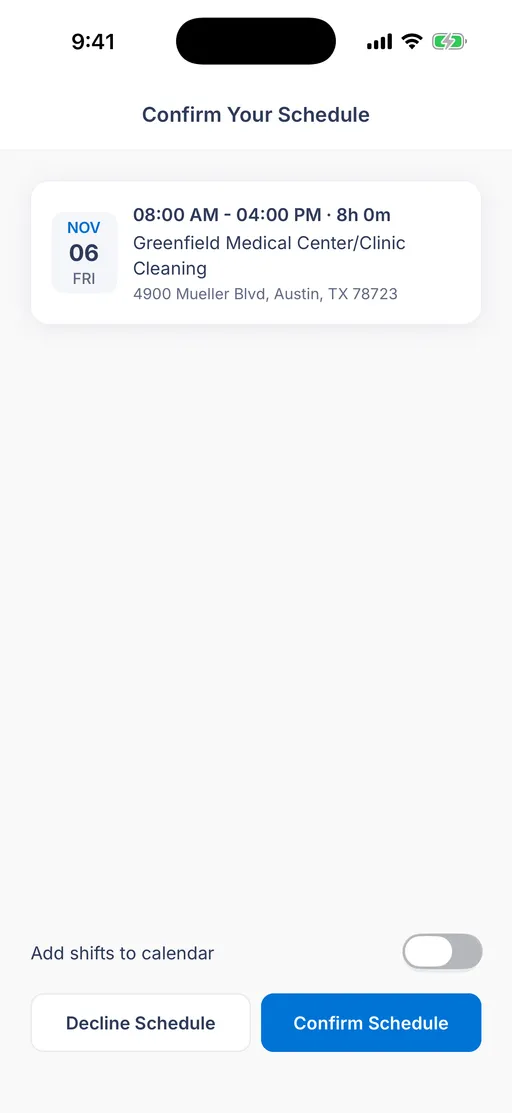
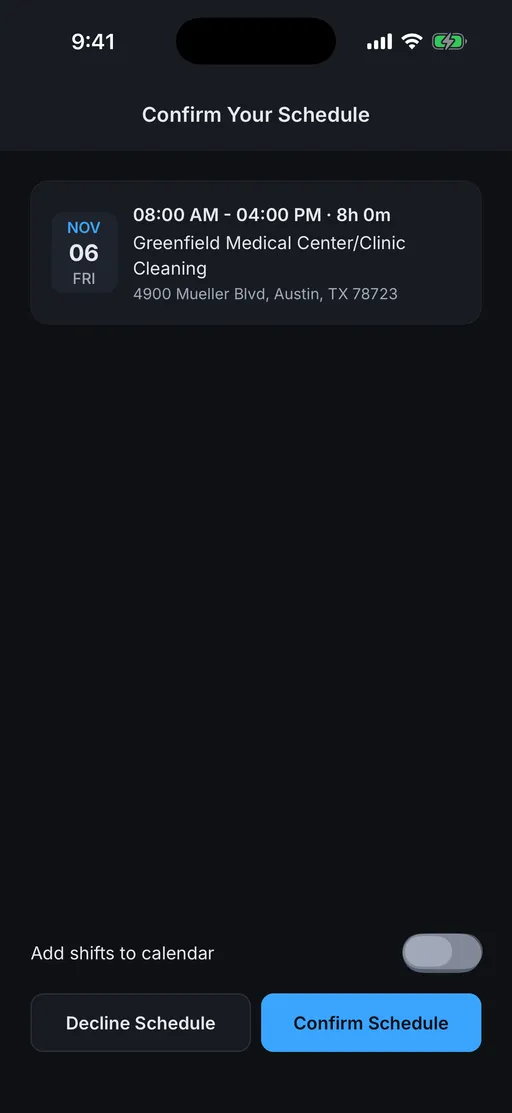
Open the Shift tab and find the Confirm Your Schedule screen. It lists the shifts your manager sent you.
- 2
Tap Confirm Schedule to accept them, or Decline Schedule to turn them down.


If it does not work
You do not see a new or changed shift in the app
Ask your manager to send it to you with Notify on the web dashboard.
Good to know
- Your manager adds the shifts on the web dashboard. You see a new shift only after your manager sends it with Notify. The same applies after your manager moves a shift or gives it to someone else. Other changes reach your app straight away.
- Confirming sets your shift start reminder for each confirmed shift.
- Declined shifts are hidden from your app.
About the feature: More about Scheduling, More about Mobile app