 English
 Español
 Tiếng Việt
 Deutsch
 Français
 Português
 Polski
 Nederlands
 Italiano
 Svenska
 Norsk
 Dansk
 Suomi
 Čeština
 हिन्दी
 العربية
2 min read
How to clock in and out with GPS
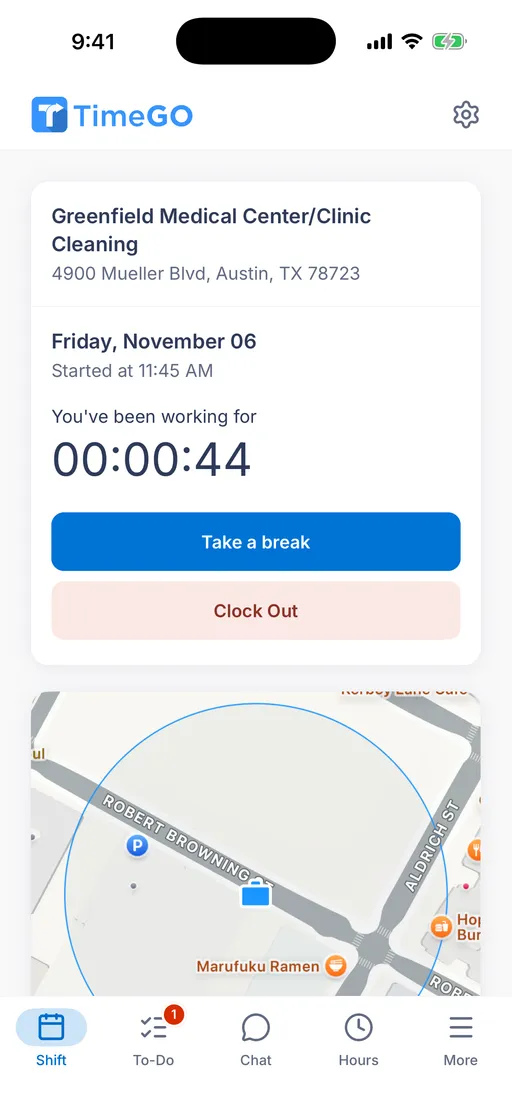
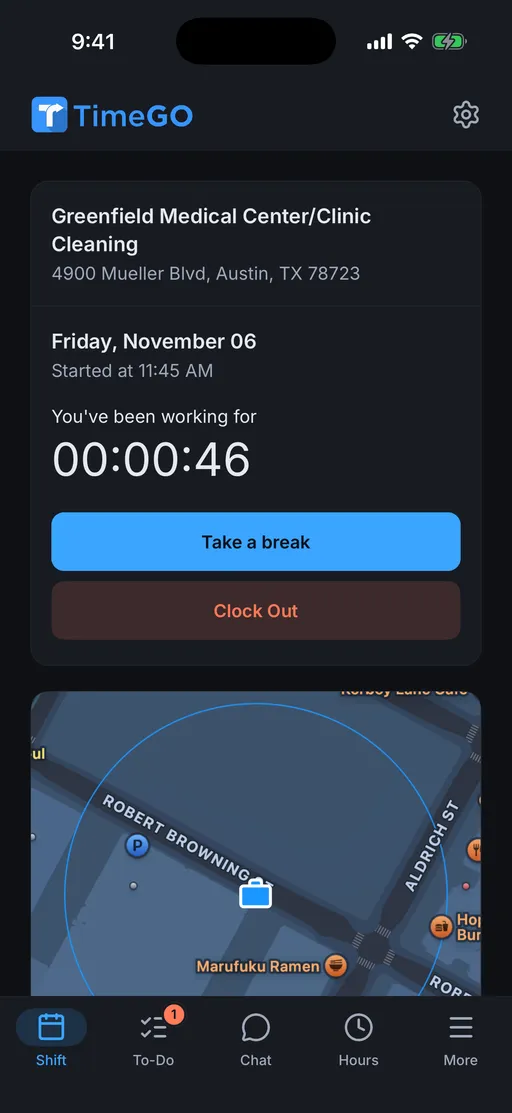
Clock in to your job from the Shift tab, and clock out when your shift ends.
Steps
- 1
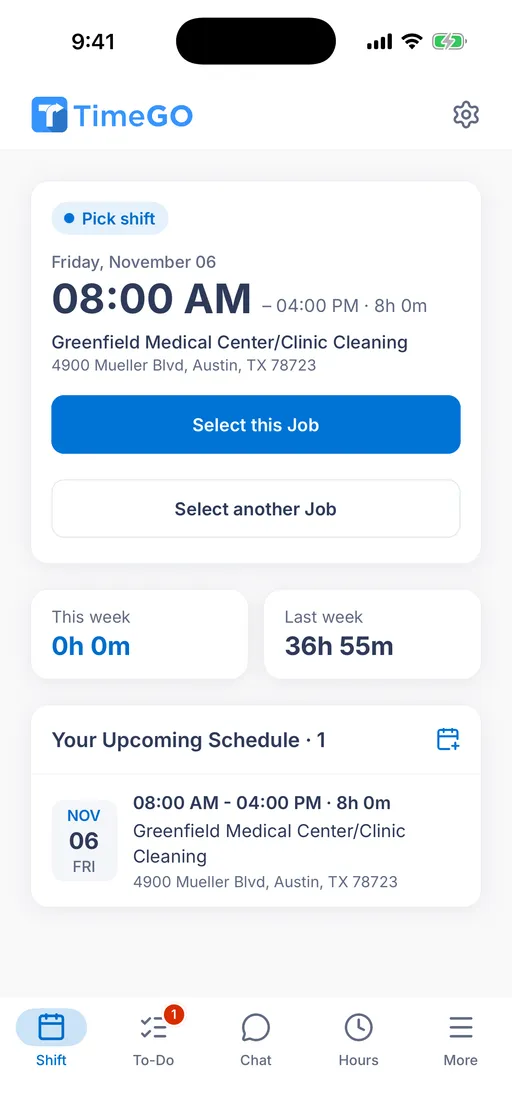
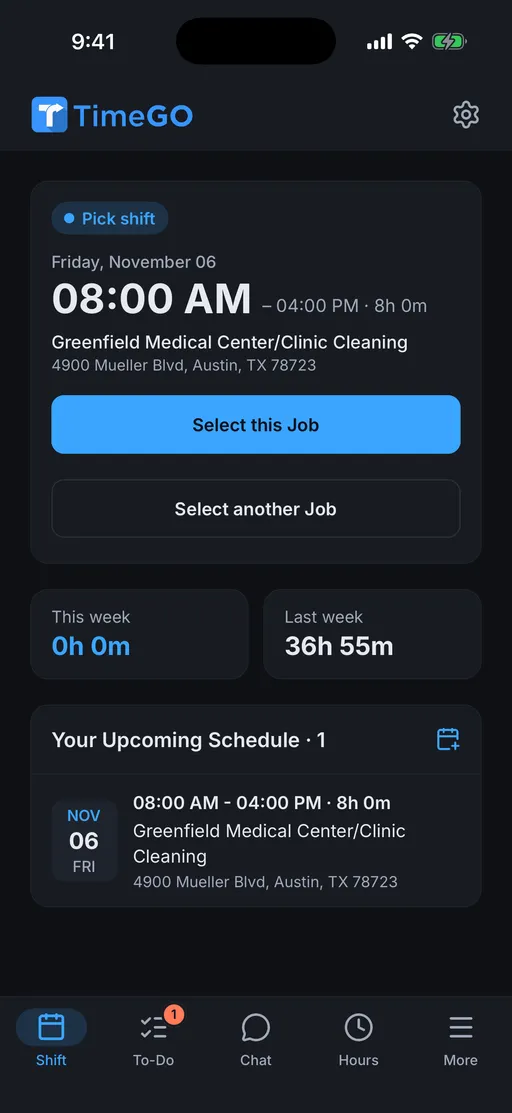
In the Shift tab, tap Select this Job on your shift.
- 2
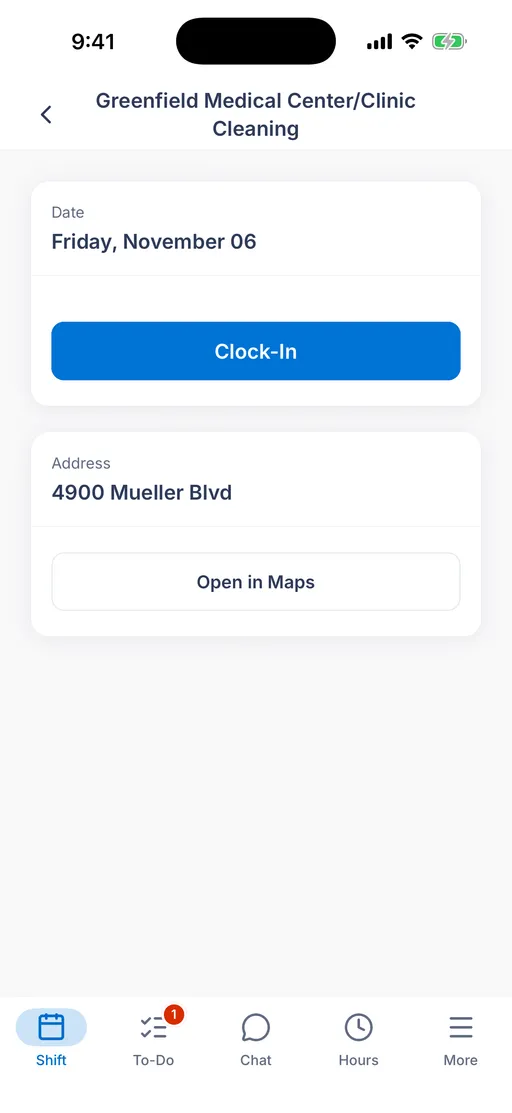
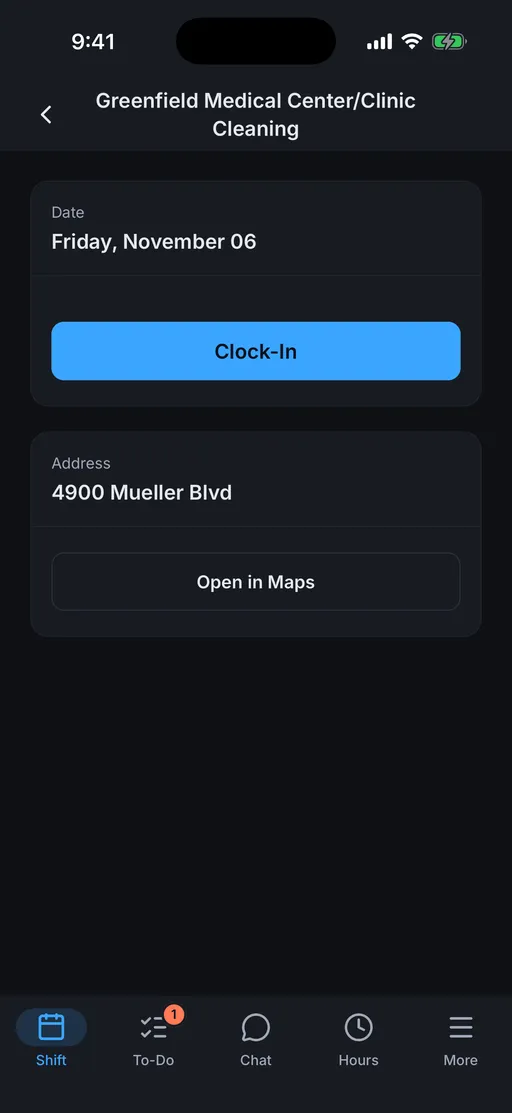
On the job screen, tap Clock-In. If the app asks for location, choose "Always and turn on Precise Location" on iPhone or "Allow all the time" on Android.
- 3
When your shift ends, tap Clock Out.


If it does not work
Enable location services to clock in
Turn on location services on your phone, then tap Clock-In again.
Cannot clock in outside the job radius
Go to the job site, then tap Clock-In again. The job radius is the area around the site.
Unable to clock in without location permissions
Allow location for TimeGO on your phone, then tap Clock-In again.
You were clocked out during your shift
Turn on location services and allow location for TimeGO on your phone.
Cannot Clock-in before Shift start time. Please try again later.
You tapped too early. Wait until the shift start time and tap Clock-In again.
Good to know
- If the job has GPS on, the app uses your phone’s location when you clock in.
- With no signal, tap Clock-In as usual. The app sends the clock-in later with the time it happened.
- On iPhone, closing the app stops GPS tracking during the shift.
About the feature: More about GPS time clock, More about Mobile app