Skip to content

Construction time clock app with GPS for crews

A construction time clock app that shows the hours of every job

Crews clock in with GPS at the job site, even in a basement with no signal. You see who is on which job, the hours each job took and the foreman's daily report with photos.

  • Who is on which job, on a map
  • Hours per job
  • A punch that survives a basement

A sample day on one job siteSample data

04:30 PM

Tasks for units 4 and 5

Shift list

4 / 4 tasks done

Inside the geofence

Walk the site, check fence and signsTo do
Frame the interior walls, units 4 and 5To do
Stack the lumber and clean upTo do
Fill in the daily report with photosTo do

Office dashboard

  1. Clocked in · Luis G.
  2. Tasks for units 4 and 5 · 4 / 4
  3. Daily report, with photos

Summary by Job

Maple Court Townhomes, Phase 2

  • Maple Court Townhomes, Phase 2
  • Hours of every worker on the job

Ready to export for payroll

Luis clocks in at Maple Court. He taps Clock in on the phone inside the job site geofence. The basement has no signal, so the punch waits on the phone and goes up later.

The tasks are ticked, the report is filed. The crew ticks the task list for the shift. The foreman fills in the daily report with photos and a signature before they leave.

The day is on your screen before the foreman calls. Each job on the map lists the crew on it. The shift shows the real start and the hours so far.

Hours land on the right job. The hours are filed under the job, with the real punch times.

  • Map viewwith a pin for every job and the crew listed on it
  • Offlineclock-in, clock-out and GPS work in a basement and sync later
  • By jobSummary by Job totals what each job took in hours
  • Real finishwith auto clock-out on, you approve the real finish

Watch

See it before you book a call

Short videos of TimeGO at work. Press play.

  • Product intro

    TimeGO Intro

    Watch on YouTube

    A short introduction to TimeGO, from our own YouTube channel.

A day on two job sites

Two crews, two sites, one phone that keeps ringing

Sheets, texts and phone calls

  1. 06:30 AM

    The foreman writes down the crew

    Names and start times go on a sheet on the tailgate. One crew is at Maple Court, the other across town.

  2. 11:00 AM

    You call to find out who is where

    A new job starts next week and you need to know who can move. The answer is a guess.

  3. 03:00 PM

    A man forgot to clock out

    The sheet says 3:00 PM for everybody, and nobody remembers who left at two.

  4. 05:00 PM

    The daily report is a text

    Photos arrive with no job on them. Next month nobody can say which wall they show.

  5. Next month you bid from memory

    Nobody can say how many hours the last job took, so the new price is a hunch.

OutcomeThe hours of a finished job are in a pile of paper, and the next bid rests on memory.

TimeGO on the same day

  1. 06:27 AM

    Each crew clocks in on its own job

    Each crew clocks in at its own job, inside the fence you drew. The start of each worker is on record.

  2. 11:00 AM

    You open the map

    Every pin on the map lists the crew working there. No call to the foreman.

  3. 01:40 PM

    The foreman files the report

    The foreman fills in a form on the phone, adds photos and gets a signature. Each one is tied to a job and a date.

  4. 03:00 PM

    The open shift closes at its set time

    With auto clock-out turned on, a shift left open ends at its set time. The worker gives the true finish and you approve it.

  5. The job has its hours

    Summary by Job shows the hours each job took, so the next bid starts from a real number.

OutcomeEvery job has its hours, its photos and its reports, and you did not chase anyone.

Product tour

What a construction owner needs from one screen

Who is on which job

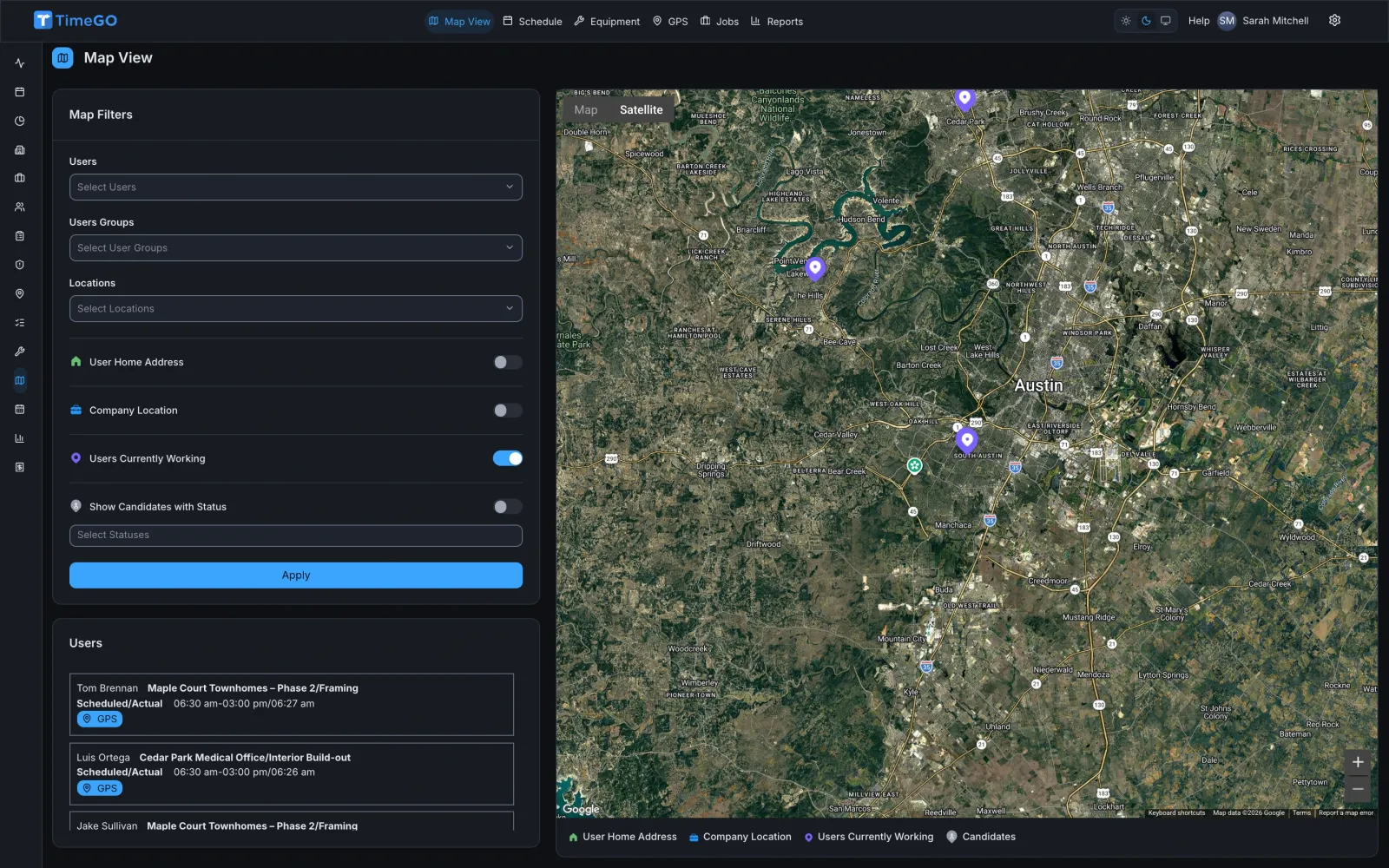
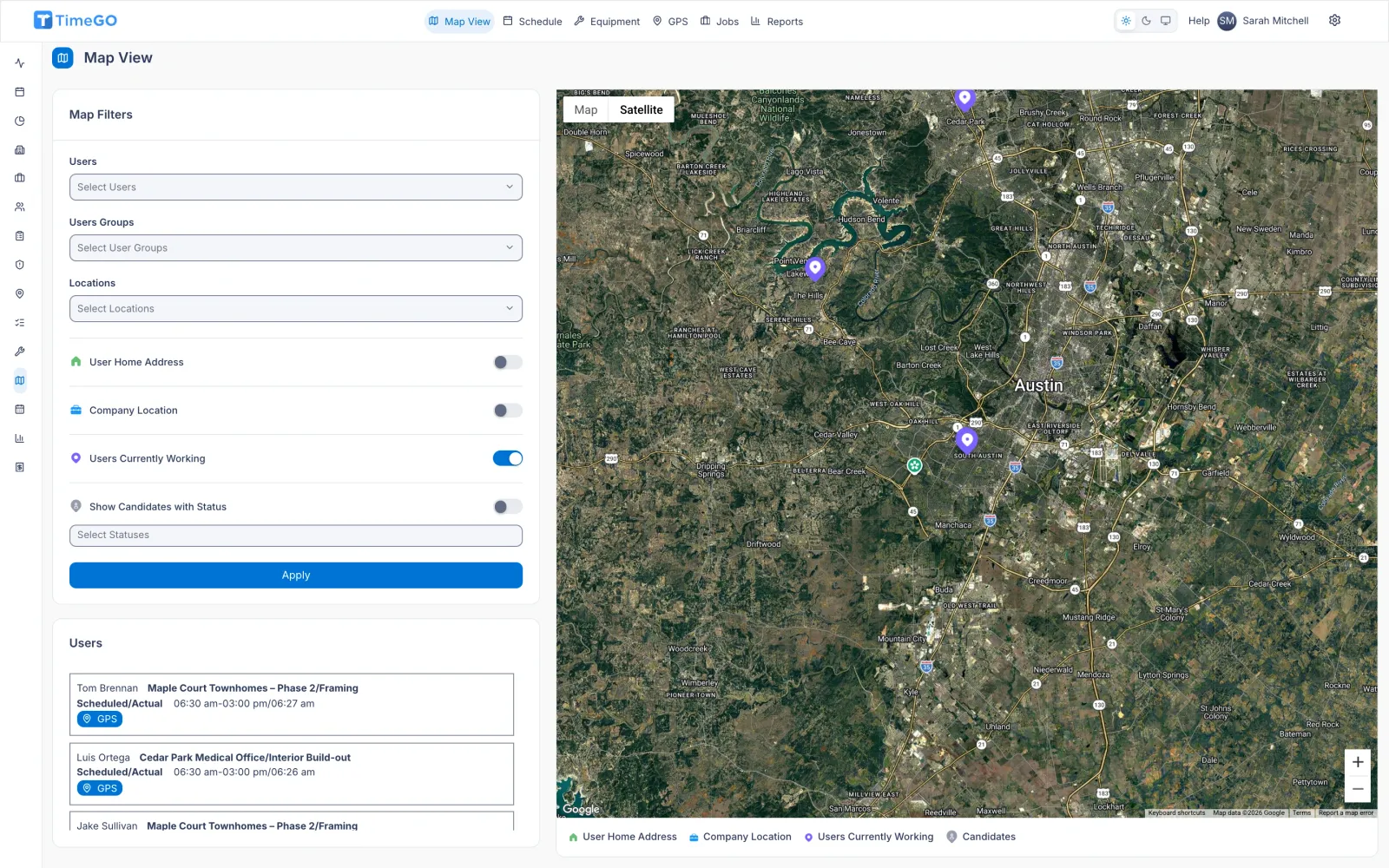
Open the map and see every job site

  • Every job site is a pin, and the crew on it is listed beside it.
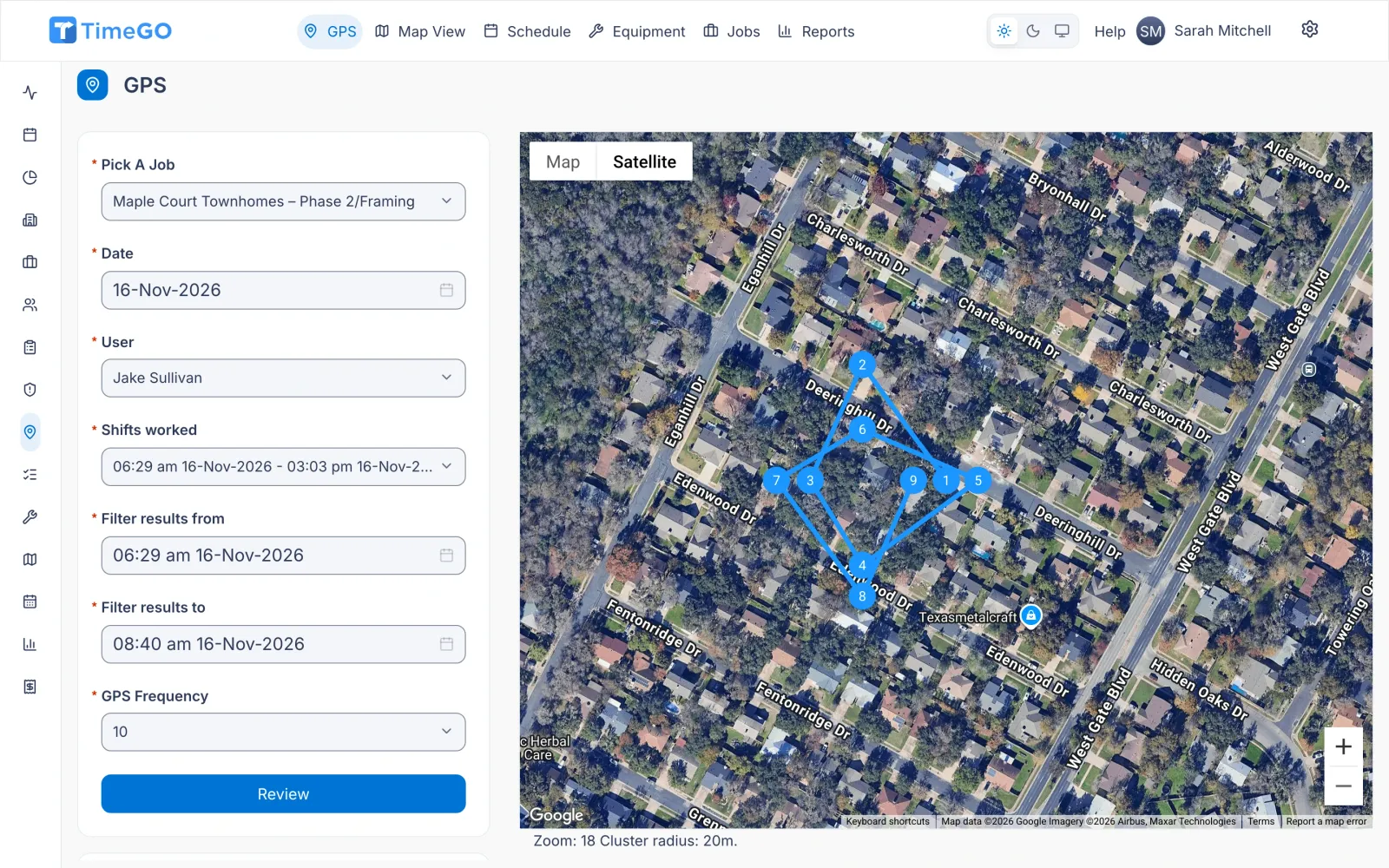
  • Pick the job, the day and the worker to see the GPS route of a shift on the map.
  • Time Spent Outside Geofence tells you how long a hand was off the job during the shift.
How GPS time clock works
The Map View of the web app with the job sites around Austin and the list of workers on shift at each jobThe Map View of the web app with the job sites around Austin and the list of workers on shift at each job

Clock in on the job

A punch from a basement still counts

  • Set the fence of each job around its lot. Turn on Prevent clocking in while outside Geofence and a punch from the street is refused.
  • Down in a basement the phone keeps the punch and the GPS points until a bar of signal comes back.
  • No clock-in a minute after a shift starts? An alert tells you.
How GPS time clock works
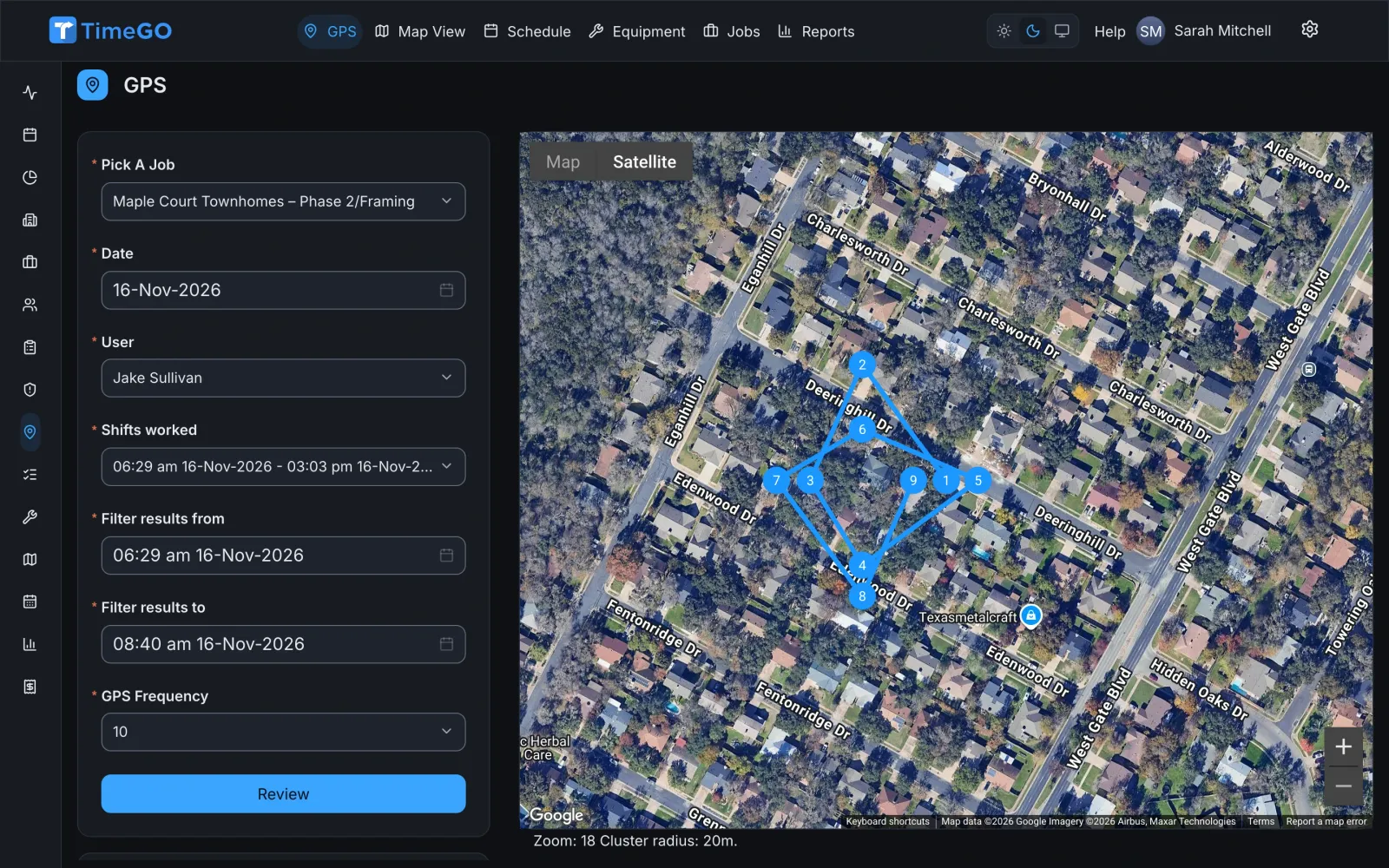
The GPS page of the web app with a carpenter's route on the Maple Court Townhomes site on a satellite mapThe GPS page of the web app with a carpenter's route on the Maple Court Townhomes site on a satellite map

The foreman's report

The daily report, with photos, tied to the job

  • Design the report in the form builder and file as many as you like. It needs the Pro plan.
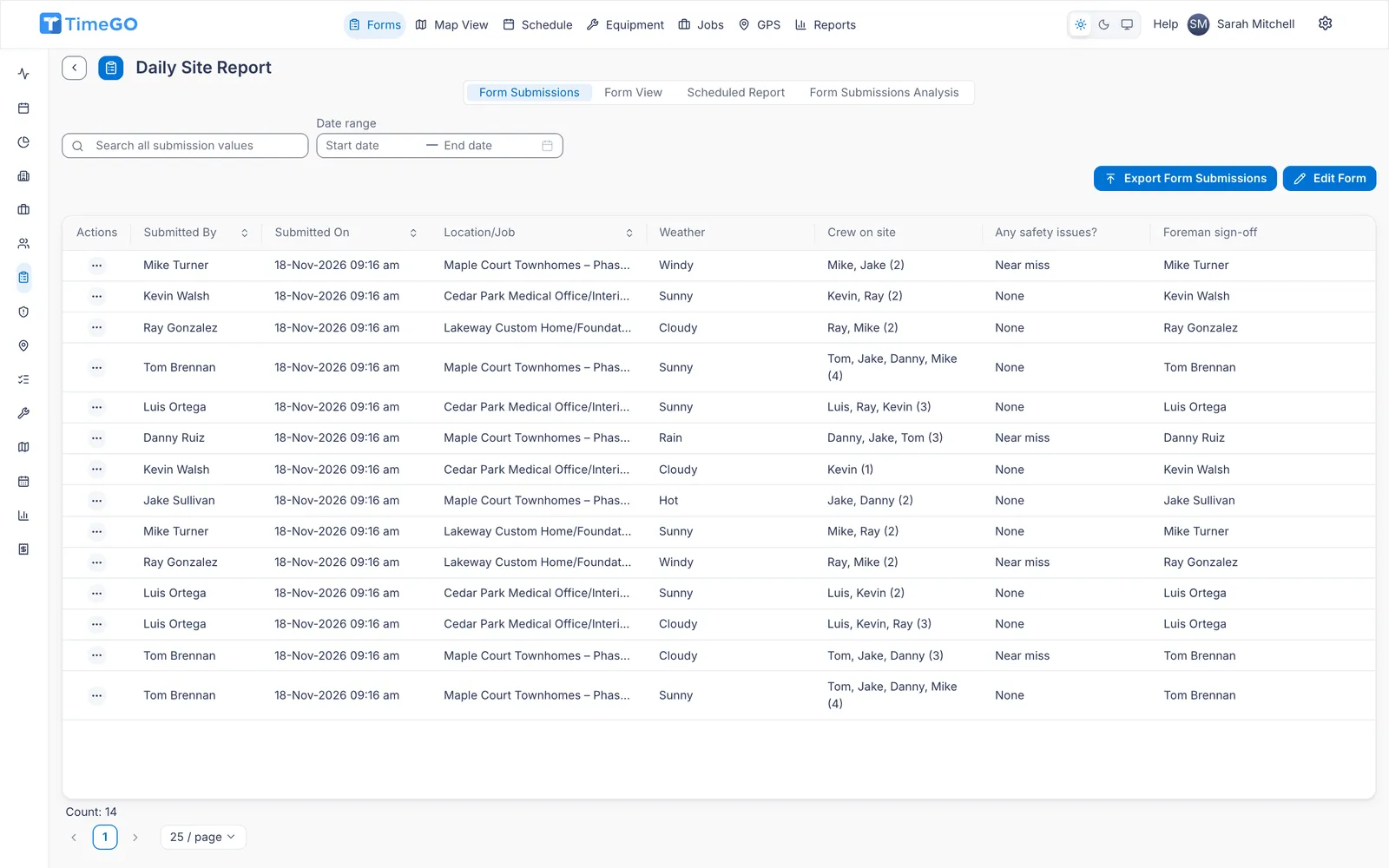
  • The foreman attaches photos and documents and gets the signature on the screen.
  • In the web app every report lists the sender, the time and the job site.
How custom forms work
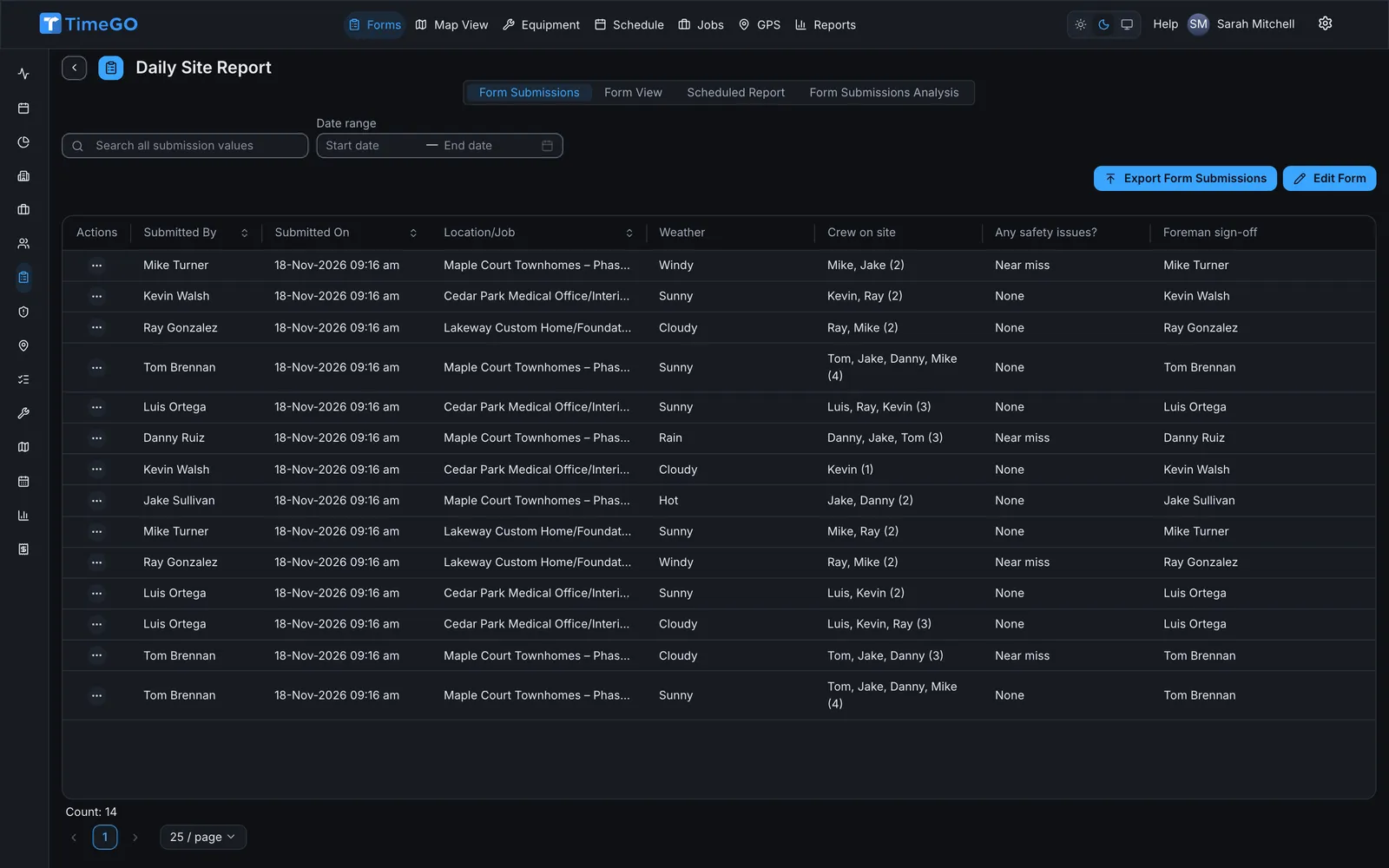
The submissions of the Daily Site Report form with the job, weather, crew on site, safety issues and the foreman's sign-offThe submissions of the Daily Site Report form with the job, weather, crew on site, safety issues and the foreman's sign-off

Hours per job

How many hours did the job take?

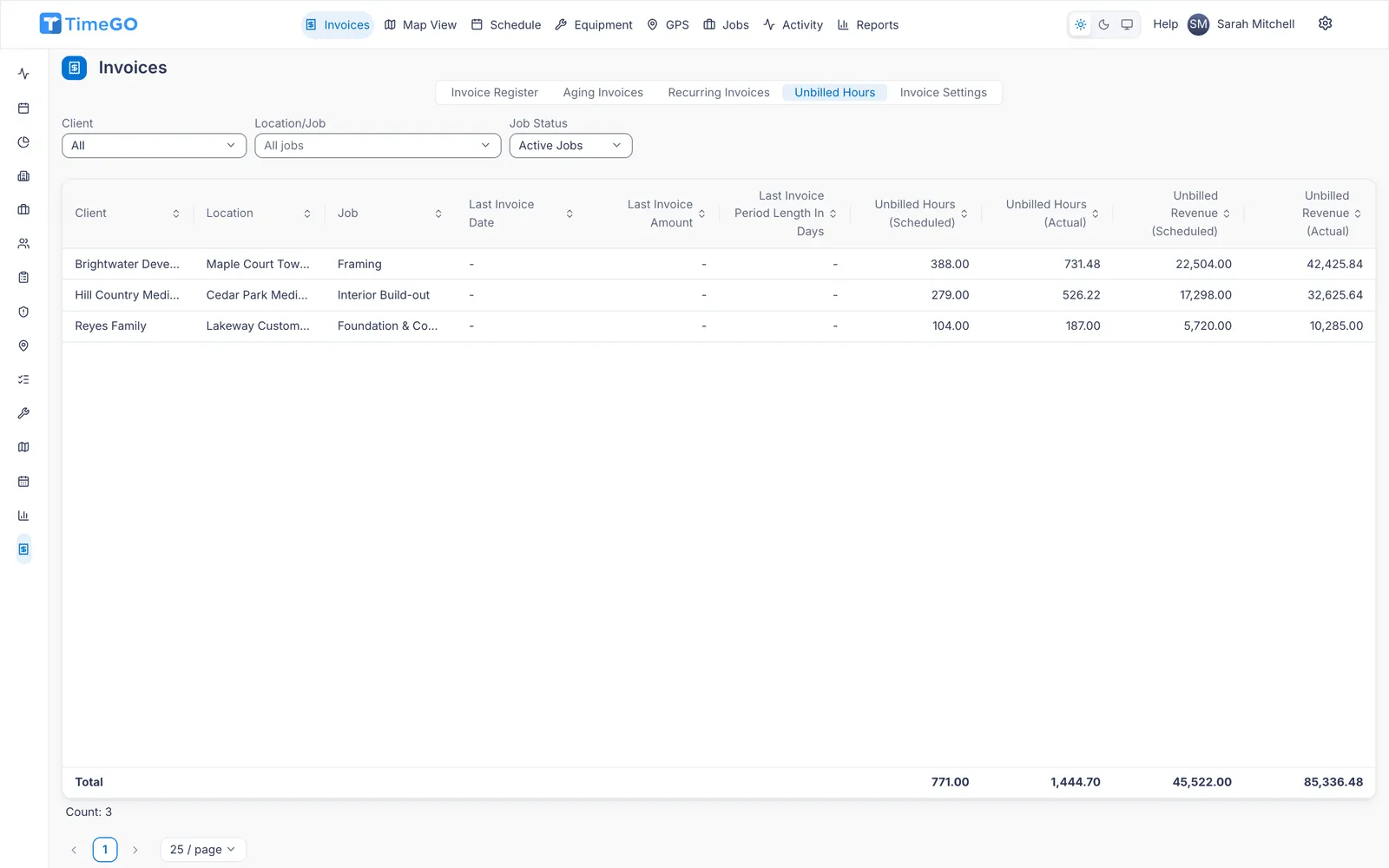
  • Unbilled Hours lists each job with its scheduled and its actual hours.
  • Pick the dates and Summary by Job totals the hours per job.
  • Export the hours to Excel when you want to work with them yourself.
How timesheets and payroll works
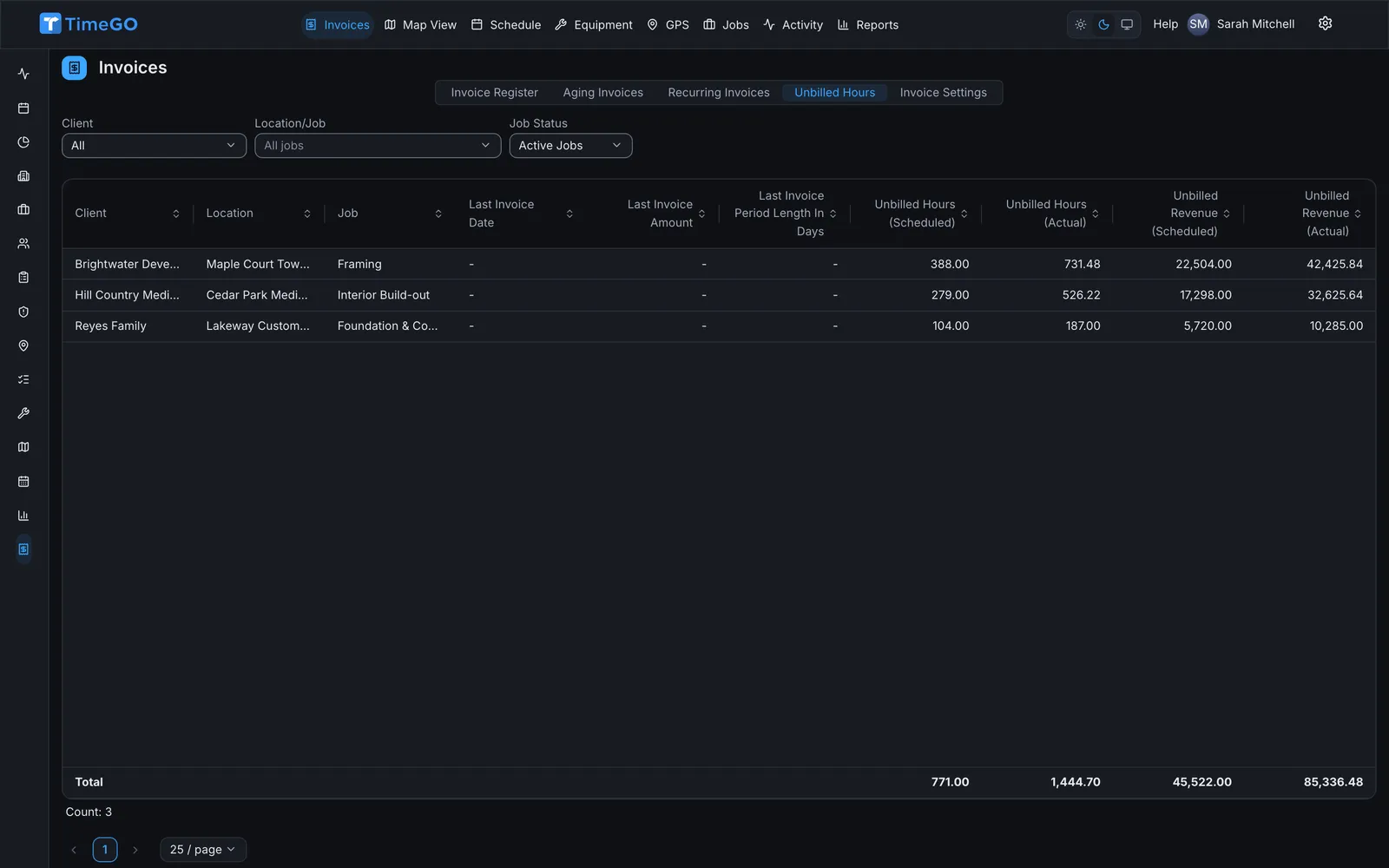
The Unbilled Hours page of Invoices with the scheduled and actual hours of each job siteThe Unbilled Hours page of Invoices with the scheduled and actual hours of each job site

Expenses and equipment

Receipts and equipment of the job

  • Record job expenses and attach a photo of the receipt.
  • Keep an equipment list and a log of the equipment used.
  • Expenses and the equipment list need the Pro plan.
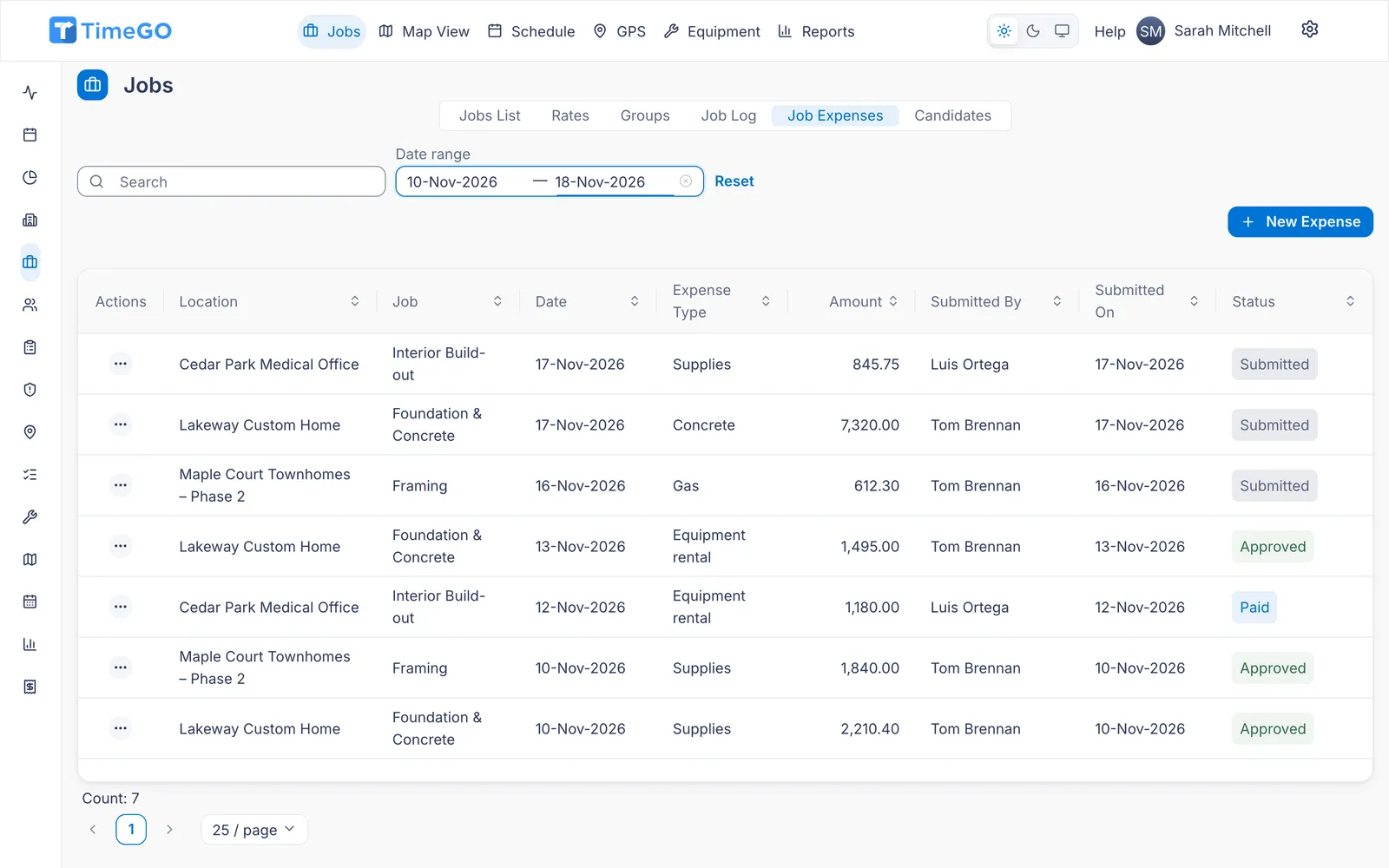
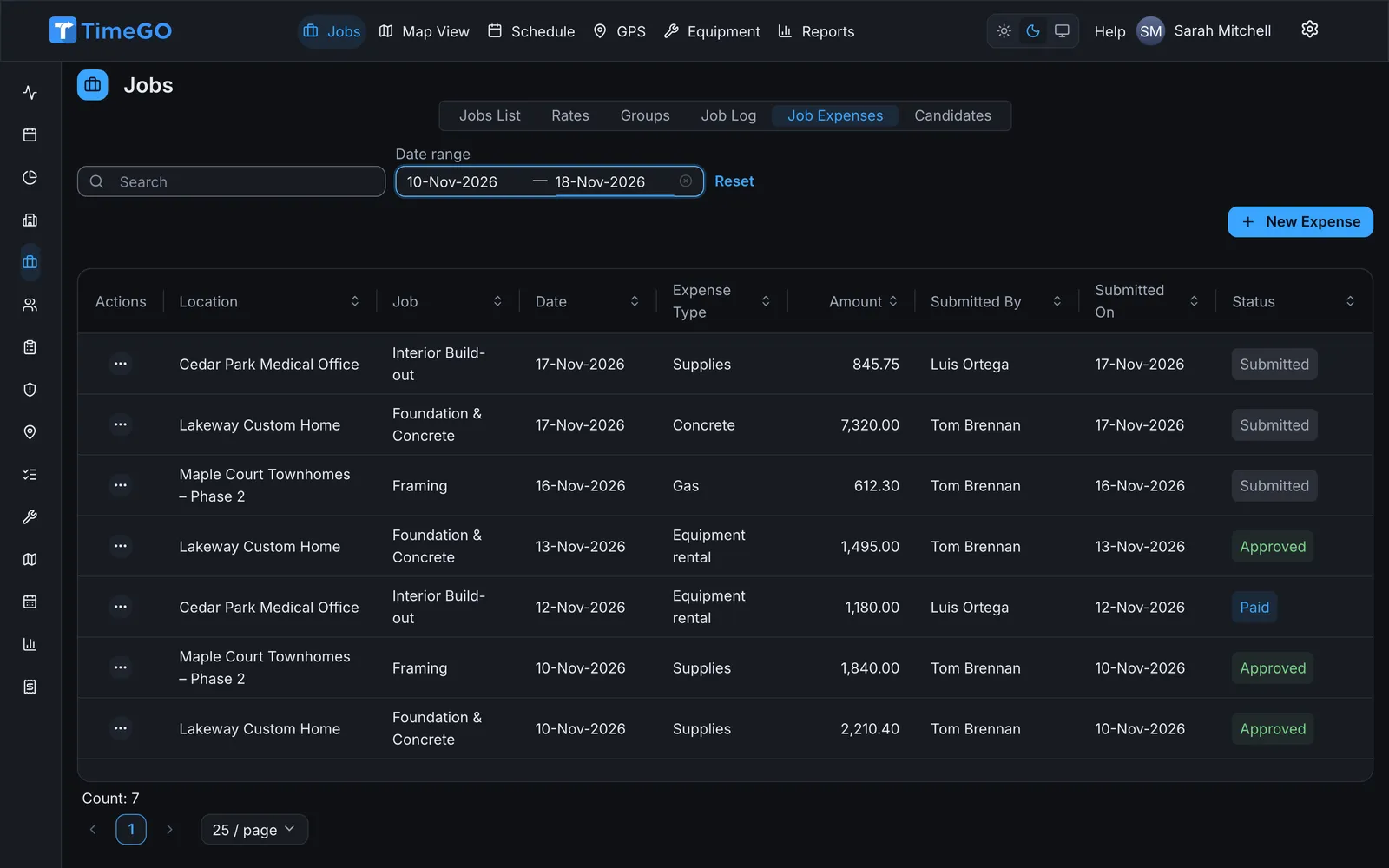
The Job Expenses list of the web app with supplies, concrete, gas and equipment rental for the three job sitesThe Job Expenses list of the web app with supplies, concrete, gas and equipment rental for the three job sites

Late starts and real hours

See who starts late, pay what was worked

  • A worker with no clock-in one minute after the start shows up on the Activity page, on the web and in the mobile alerts.
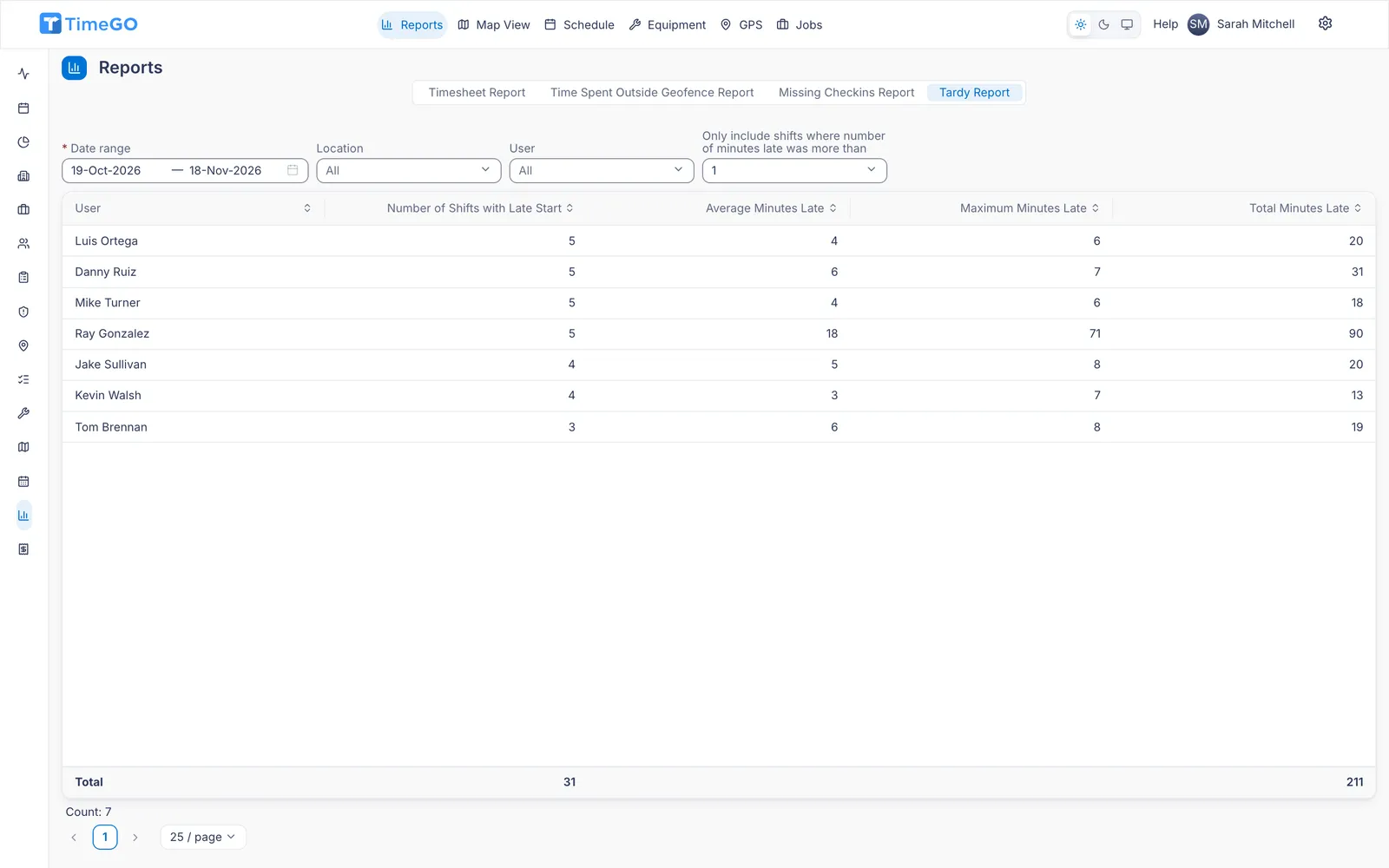
  • The Tardy Report lists each worker's late shifts with the average, maximum and total minutes late.
  • With auto clock-out turned on, a shift left open is closed by it. The worker gives the real end time and you say yes, change it or say no.
How timesheets and payroll works
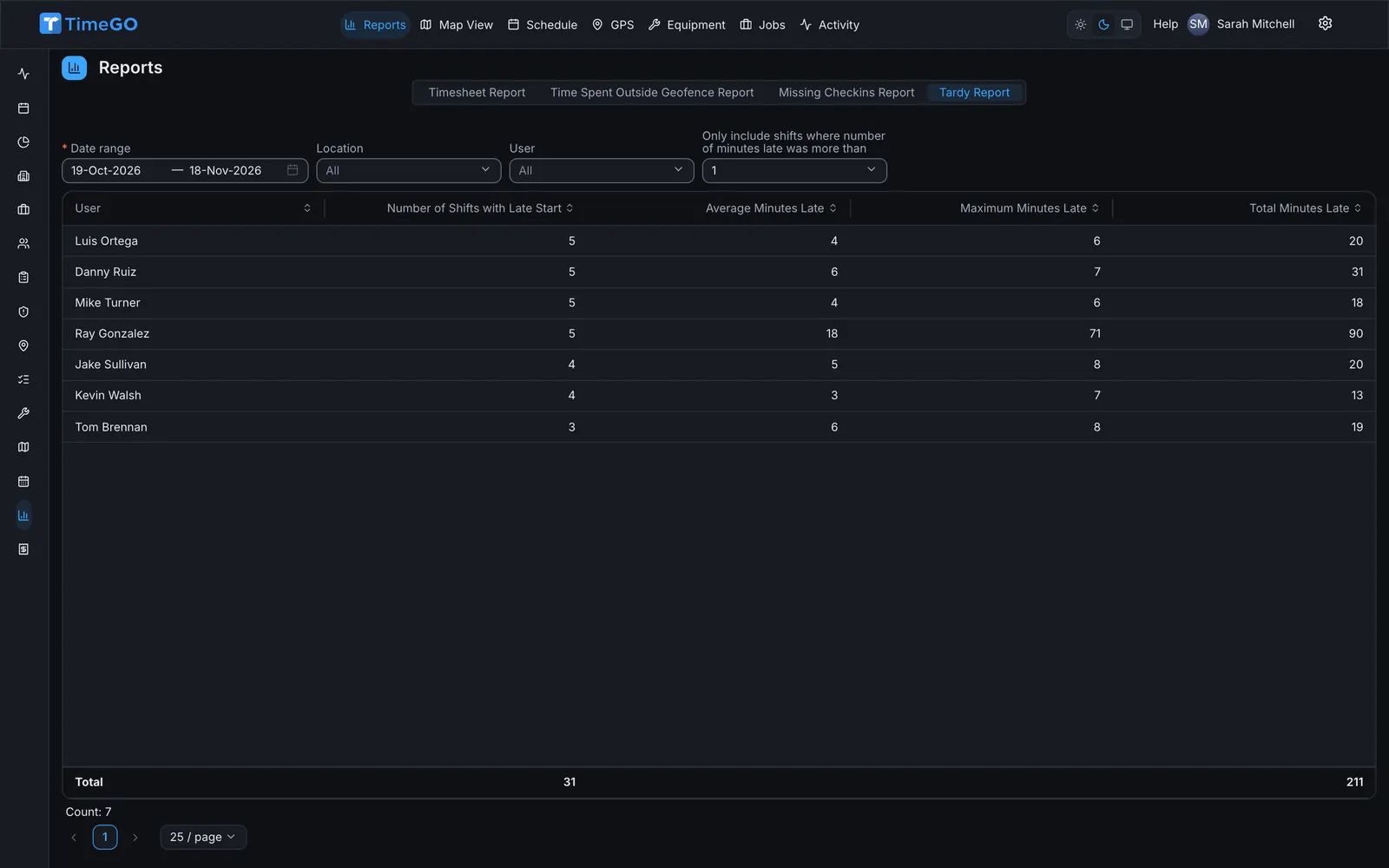
The Tardy Report with each crew member's late shifts and the average, maximum and total minutes lateThe Tardy Report with each crew member's late shifts and the average, maximum and total minutes late

Who sees what

Owner, foreman and crew

  • Owner

    Know your jobs without driving to them

    • Look at the map to see the crew on each job.
    • Read the hours of each job before you price the next one.
  • Foreman

    Keep the job moving and file the report

    • Write the daily report on the phone and attach the photos and the signature.
    • Get an alert when a hand has not shown up on the clock.
    • With auto clock-out on, confirm when a shift left open really ended.
  • Crew member

    One app for the whole job

    • Punch in at the job, even in a basement, then breaks and punch out.
    • Tick off the shift's tasks and send photos in the job chat.
    • Use the app in English, Spanish or Vietnamese, whichever the crew prefers.

Getting started

Start with TimeGO in four steps

  1. Add your job sites

    Put each job on the map with a geofence, and set up your crews.

  2. Each crew starts at its own site

    A worker punches in at the job with GPS, inside the fence you drew.

  3. File the daily report

    The foreman files the daily report from the phone, photos and signature included.

  4. Read the hours per job

    Open Summary by Job, then export the period to payroll.

Your jobs, your numbers, your say

  • A foreman sees their own jobs

    A project manager sees only the jobs of their own location, position or group.

  • The real punch is never lost

    Rounding moves the total. The shift still shows the time the worker punched.

  • A late finish waits on you

    A time reported after an auto clock-out waits until you approve it.

Export your hours or sync them to

  • Excel export
  • QuickBooks Desktop file
  • QuickBooks Online
  • Xero

Free templates

Free templates and guides

From the blog

All posts

Before you book

Frequently asked questions

Can I see which crew is on which job right now?

Yes. Open the Map View and each job site shows the crew working there. Open a shift to see the route the phone recorded.

Can I find out how many hours a job took?

Yes. Summary by Job lists each job with its hours. TimeGO does not price the job for you.

Will the app work on a new build with no signal at all?

Yes. The clock-in, the clock-out and the GPS points wait on the phone and go up once there is signal.

What if someone forgets to clock out?

With auto clock-out turned on, the shift ends at its set time. The worker tells you when they really left, and you approve, adjust or decline.

Can the foreman send the daily report with pictures?

Yes. Build the report as a custom form. The foreman attaches photos and gets a signature on the phone screen. Forms are on the Pro plan.

Can I keep expenses and equipment per job?

Yes. Job expenses can carry a photo of the receipt, and there is an equipment list with a log. Both are on the Pro plan.

Do you keep my crew's licenses and certificates on file?

Yes. The worker's record keeps the documents, and a reminder goes to the worker ahead of the expiry date.

Next step

See your own jobs in TimeGO

In a demo we set up two of your job sites and walk through the map, the daily report and the hours per job with your own crews.

TimeGO for other industries