Skip to content

Landscaping crew time tracking by property

A time tracking app for crews that work a route of small properties

Your crew clocks in at each lawn, lot and HOA entrance with GPS. You see which properties were visited, how long each took and the photo of the finished work, then bill each one from its hours.

  • Every property visited, timed
  • A photo of the finished job
  • Works on a lot with no bars

A sample mowing day across four propertiesSample data

04:10 PM

Site geofence1Cedar Ridge HOA2Barton Creek3Mueller Lakeside4Westlake Dental

4 / 4 properties checked in

Office dashboard

  1. Clocked in · Crew 2
  2. Cedar Ridge HOA · GPS
  3. Barton Creek · GPS
  4. Mueller Lakeside · GPS
  5. Westlake Dental · GPS
  6. Cedar Ridge sign-off form, 3 photos
  7. Westlake sign-off form, 2 photos

Summary by Job

Cedar Ridge HOA

  • Cedar Ridge HOA, hours of the week
  • Barton Creek, week hours

Ready to invoice

The crew leader clocks in at stop one. The tap only counts with GPS on the lot. The start is saved before the first mower is off the trailer.

Four stops, four times. At each property the crew reaches its virtual GPS point and the scan gets its time. The phone draws the way between them.

See the morning's stops in order. Pick the crew member and the day to see the stops in order, with the time of each.

Each property gets its hours. The shift is filed under its job. Summary by Job totals the hours of a property, and the invoice starts from them.

  • GPSroute of the shift, reviewed on a map during or after it
  • Per stopa time on every property the crew reached
  • Photosof the finished job go in a form, with a signature
  • By jobone line per property with the hours the crews spent there

Watch

See it before you book a call

Short videos of TimeGO at work. Press play.

  • Product intro

    TimeGO Intro

    Watch on YouTube

    A short introduction to TimeGO, from our own YouTube channel.

A day on the route

The HOA calls on Friday. Was the north lawn mowed Tuesday?

Texts from the truck and a Friday spreadsheet

  1. 07:00 AM

    The crew leaves the yard

    One text, "on our way". Which property comes first is in the crew leader's head.

  2. 11:30 AM

    Nobody knows how long a stop took

    Four properties, one drive between them, and no way to tell where the morning went.

  3. 03:30 PM

    Photos arrive in a group chat

    Finished work comes as pictures with no property name, mixed with lunch and jokes.

  4. 04:30 PM

    Hours are guessed

    Each crew member writes one number for the day. Splitting it across properties is a guess.

  5. Friday, the HOA calls

    The manager asks about Tuesday. You dig through texts to answer.

OutcomeOn Friday you rebuild the week by hand, property by property, from texts and memory.

TimeGO on the same day

  1. 06:58 AM

    First property, on record

    The crew leader clocks in with GPS at Cedar Ridge HOA, and the start time is saved.

  2. 07:20 AM

    Every stop has its time

    At each property the crew reaches a virtual GPS point, and the scan keeps its time.

  3. 09:50 AM

    The finished job, in a photo

    The crew sends a form with photos of the work and a signature. It carries the property and the time.

  4. 12:00 PM

    The map shows the drive

    The phone logs the GPS route as the truck moves, so the drive from lot to lot shows on the map.

  5. Each property has its hours

    The hours of a property are added up for you, so the bill is not a guess.

OutcomeOn Friday you open Tuesday and show the HOA the time on site and the photos.

Product tour

The route of a landscaping day, from the first stop to the bill

The day's route

See the route your crew drove, on one map

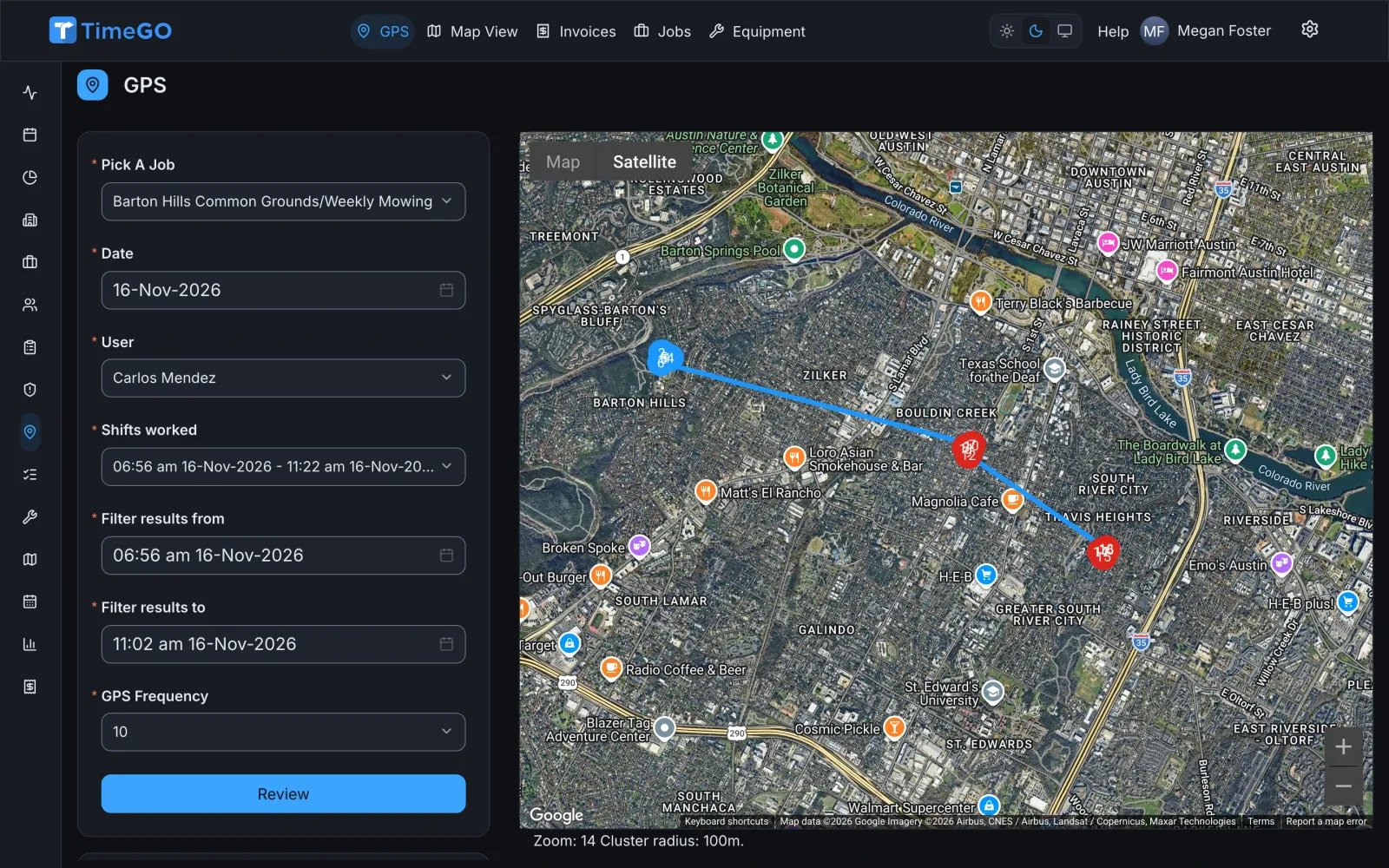
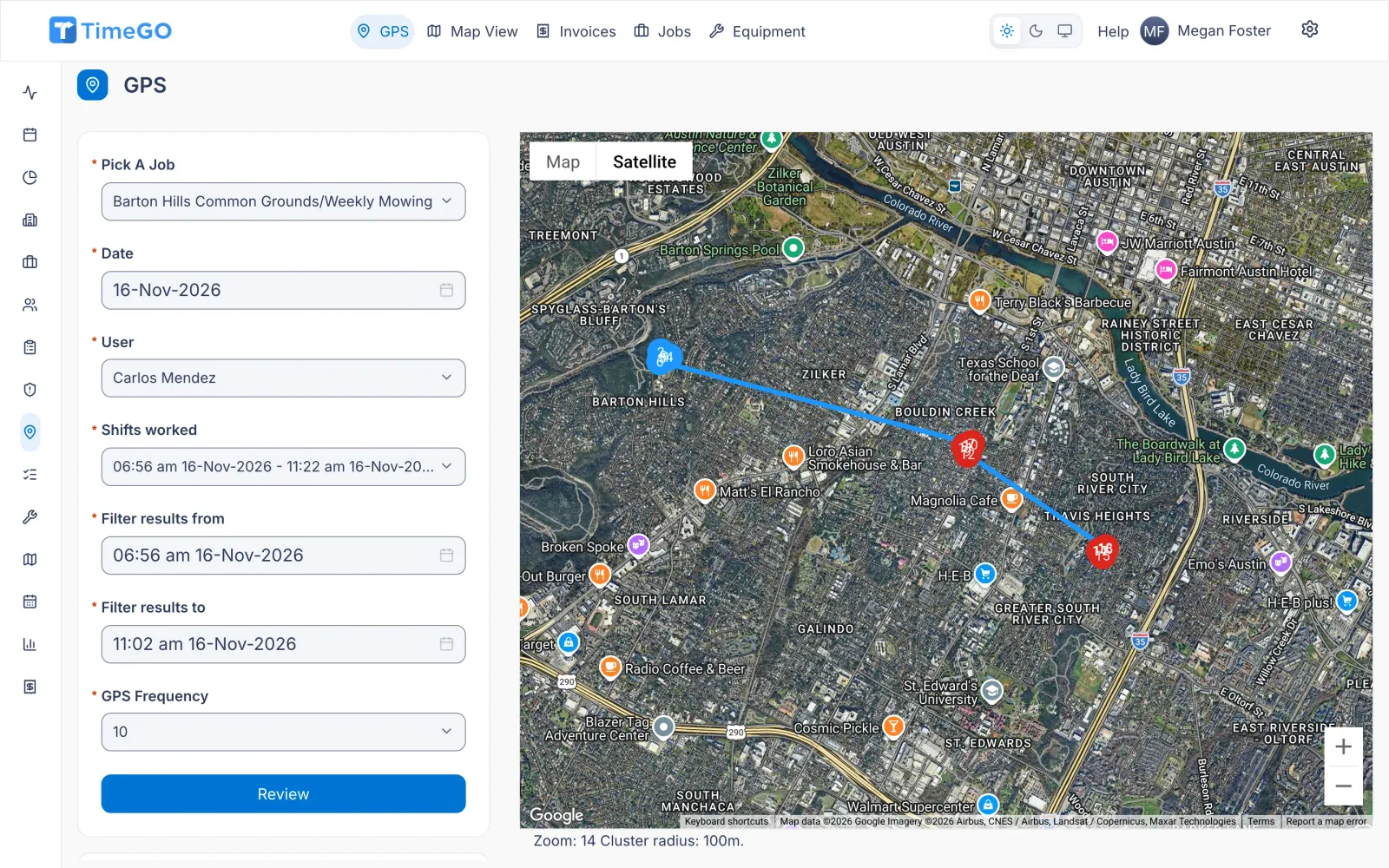
  • The phone records the GPS route during the shift. Open it on a map while the crew works or the next morning.
  • Pick the crew member, the day and the job, and the stops appear in the order they were reached.
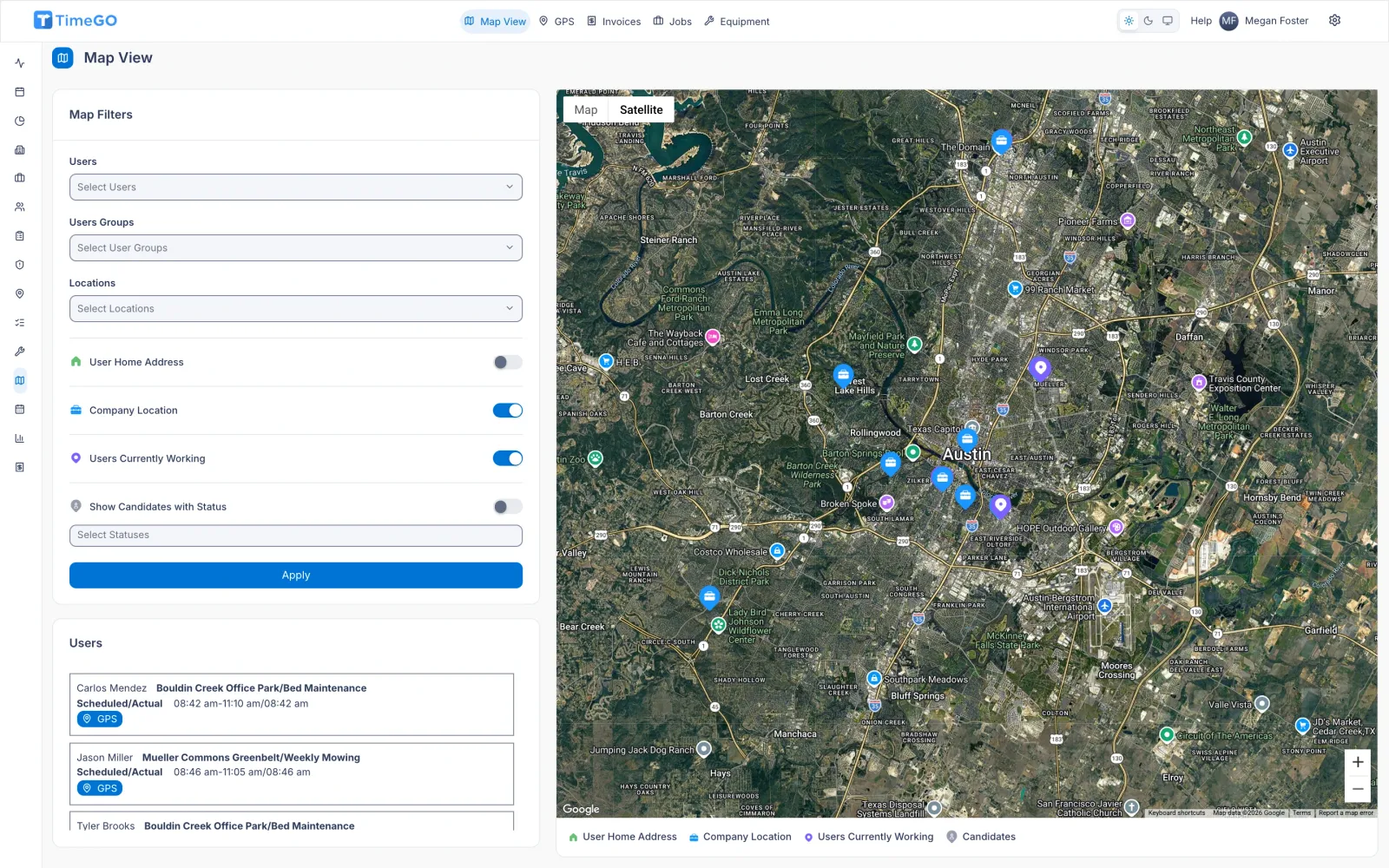
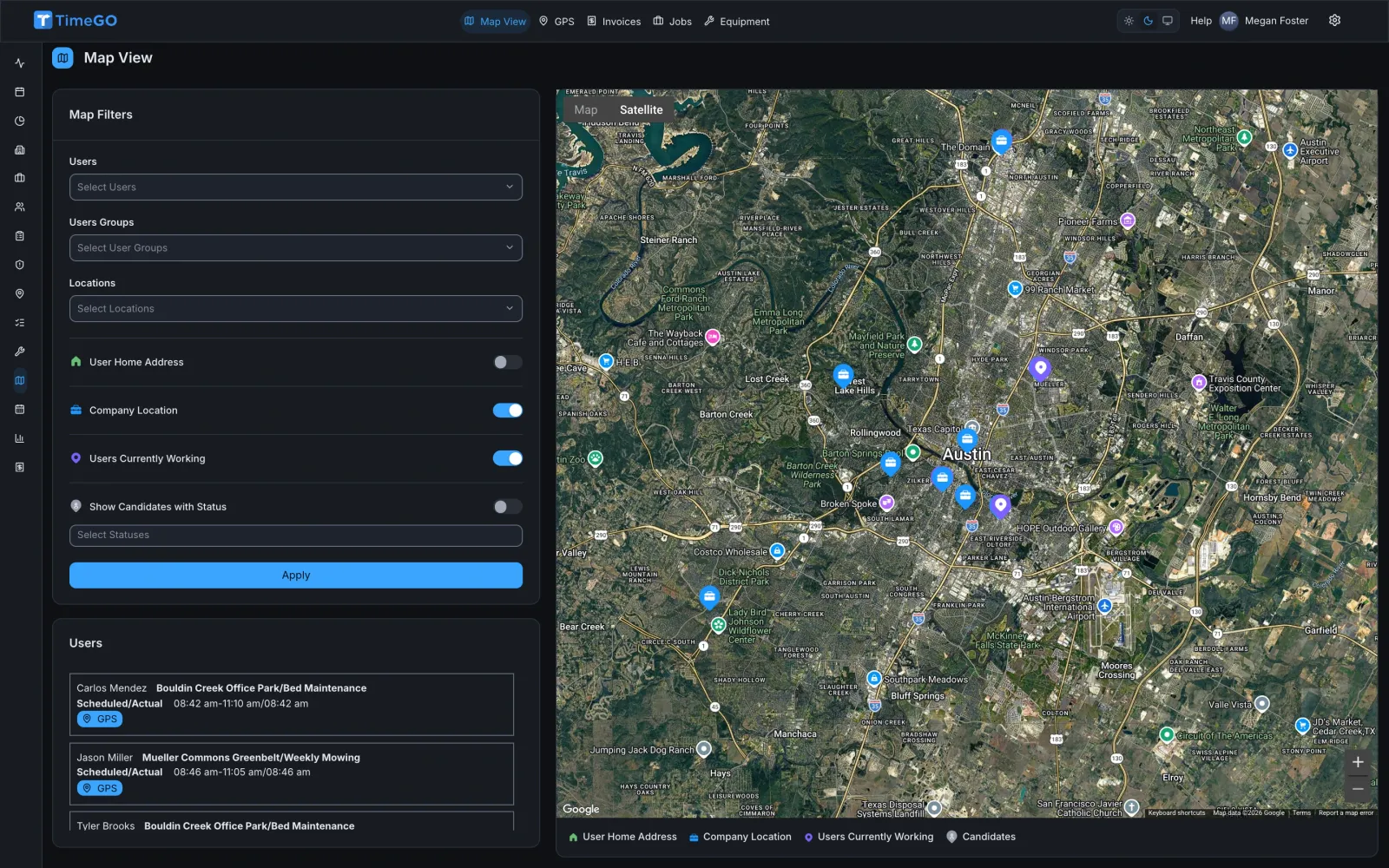
  • The Map View pins every job and lists the crew working at it.
How GPS time clock works
The GPS page of the web app with a crew lead's route from property to property on a satellite mapThe GPS page of the web app with a crew lead's route from property to property on a satellite map

Arrive at each property

Every property is a place the crew has to reach

  • Mark a geofence around every lawn and lot on the route. The crew clocks in with GPS inside it.
  • A virtual GPS checkpoint at the gate or the lawn gives each arrival a time-stamped scan. It is on the Pro plan.
  • The Map View shows every property of the company and the crews clocked in at them.
How patrol checkpoints work
The Map View of the web app with the pins of eight properties and the crews working at them on a satellite map of AustinThe Map View of the web app with the pins of eight properties and the crews working at them on a satellite map of Austin

Photo of the finished job

The picture the HOA asks for, tied to its property

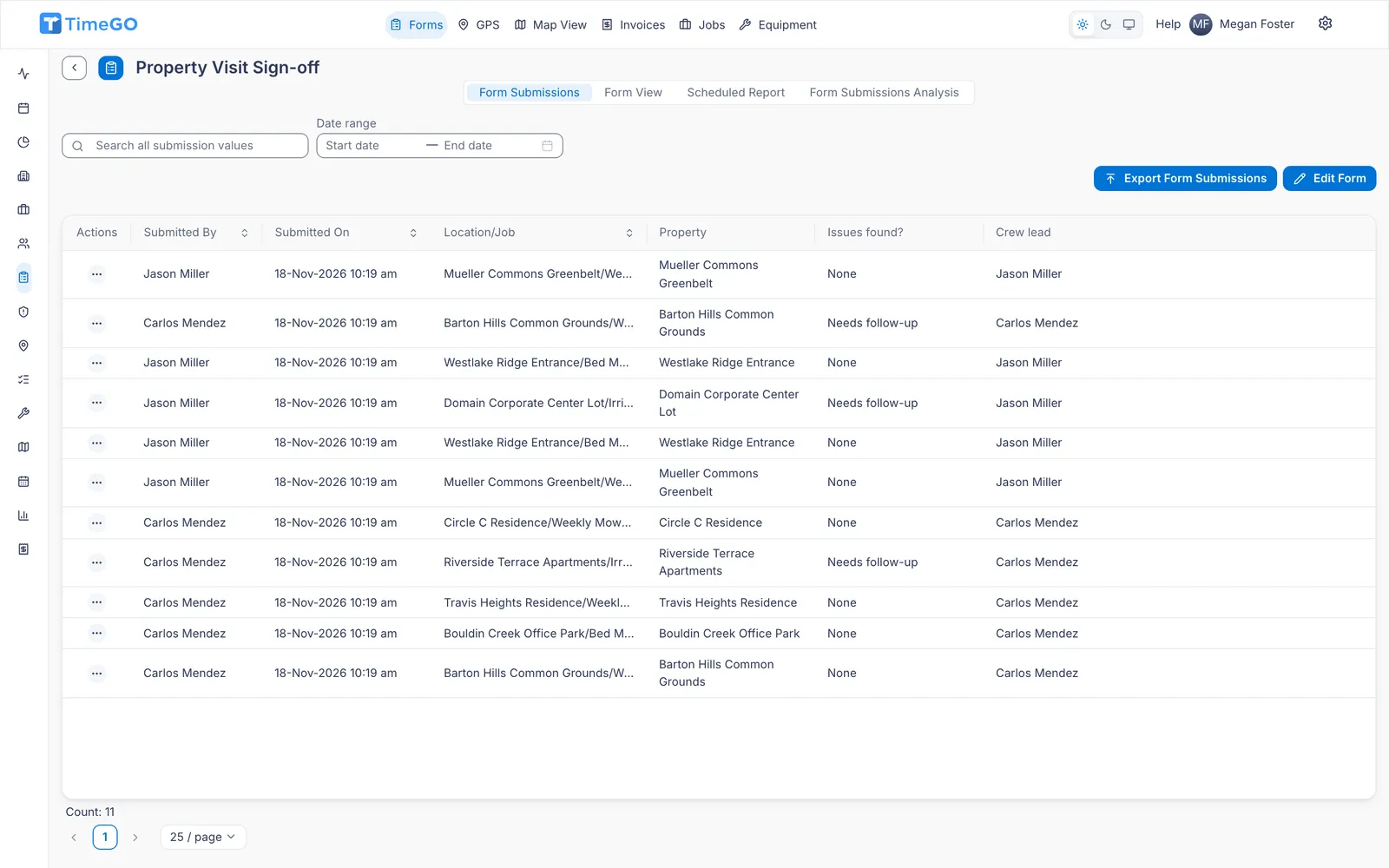
  • Turn the HOA sign-off into a form with before and after photos of the lawn and a signature, filled in by the crew leader.
  • Every submission names the sender, the time and the property, so the group chat of lawn pictures goes away.
  • Forms need the Pro plan and take any number of submissions.
How custom forms work
The results of the Property Visit Sign-off form in the web app, with who submitted each one, when, the property and whether issues were foundThe results of the Property Visit Sign-off form in the web app, with who submitted each one, when, the property and whether issues were found

Equipment on the truck

Mowers, trimmers and trailers, written down

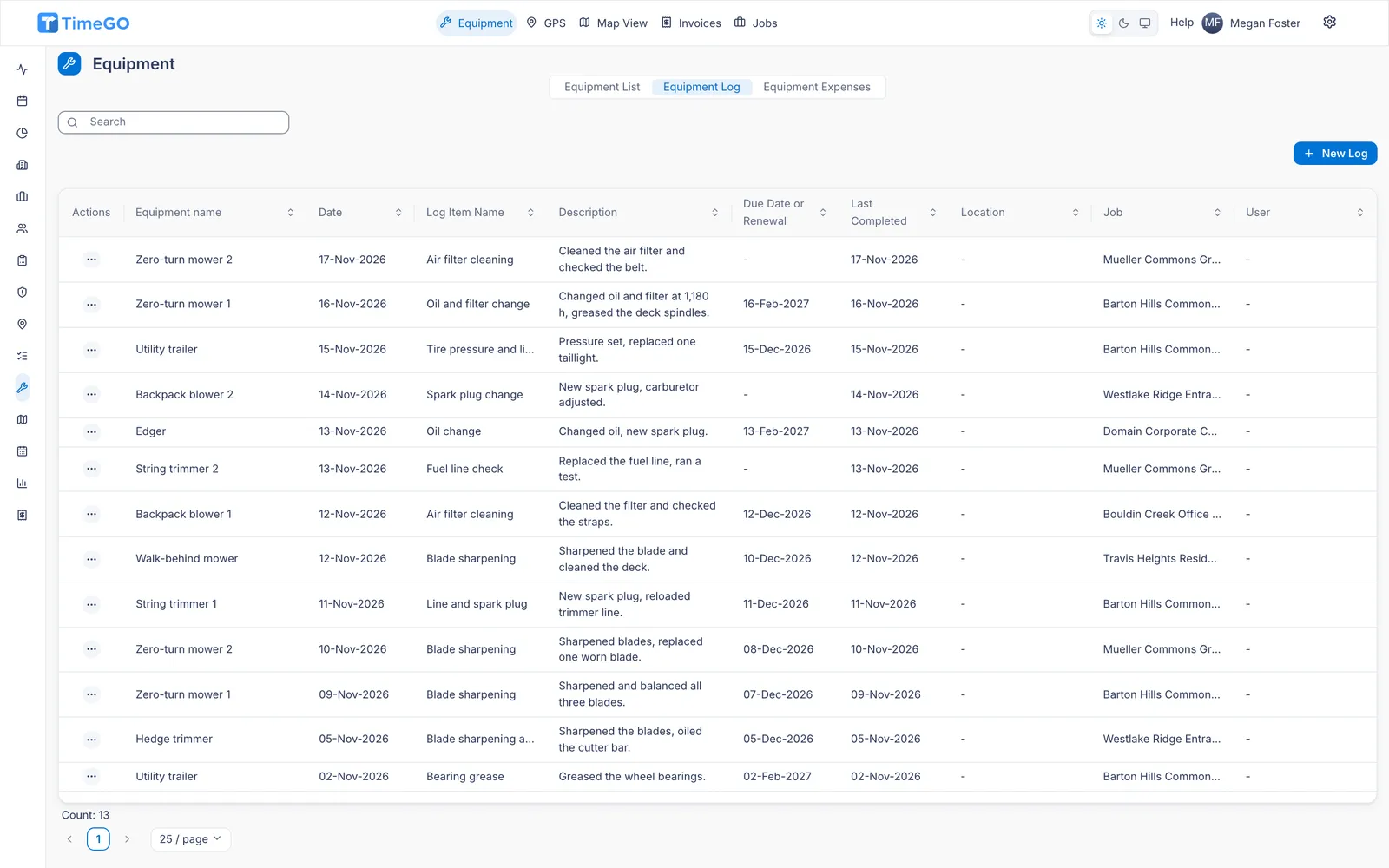
  • List the mowers, trimmers and trailers you own.
  • Log blade sharpening, oil changes and repairs for each piece, with the date and when it is due next.
  • Fuel, mulch and part receipts go in as job expenses. Equipment and job expenses need the Pro plan.
The Equipment Log of the web app with mowers, trimmers, blowers and a trailer, each with its log item, date and the job it belongs toThe Equipment Log of the web app with mowers, trimmers, blowers and a trailer, each with its log item, date and the job it belongs to

Hours per property

How long does each property really take?

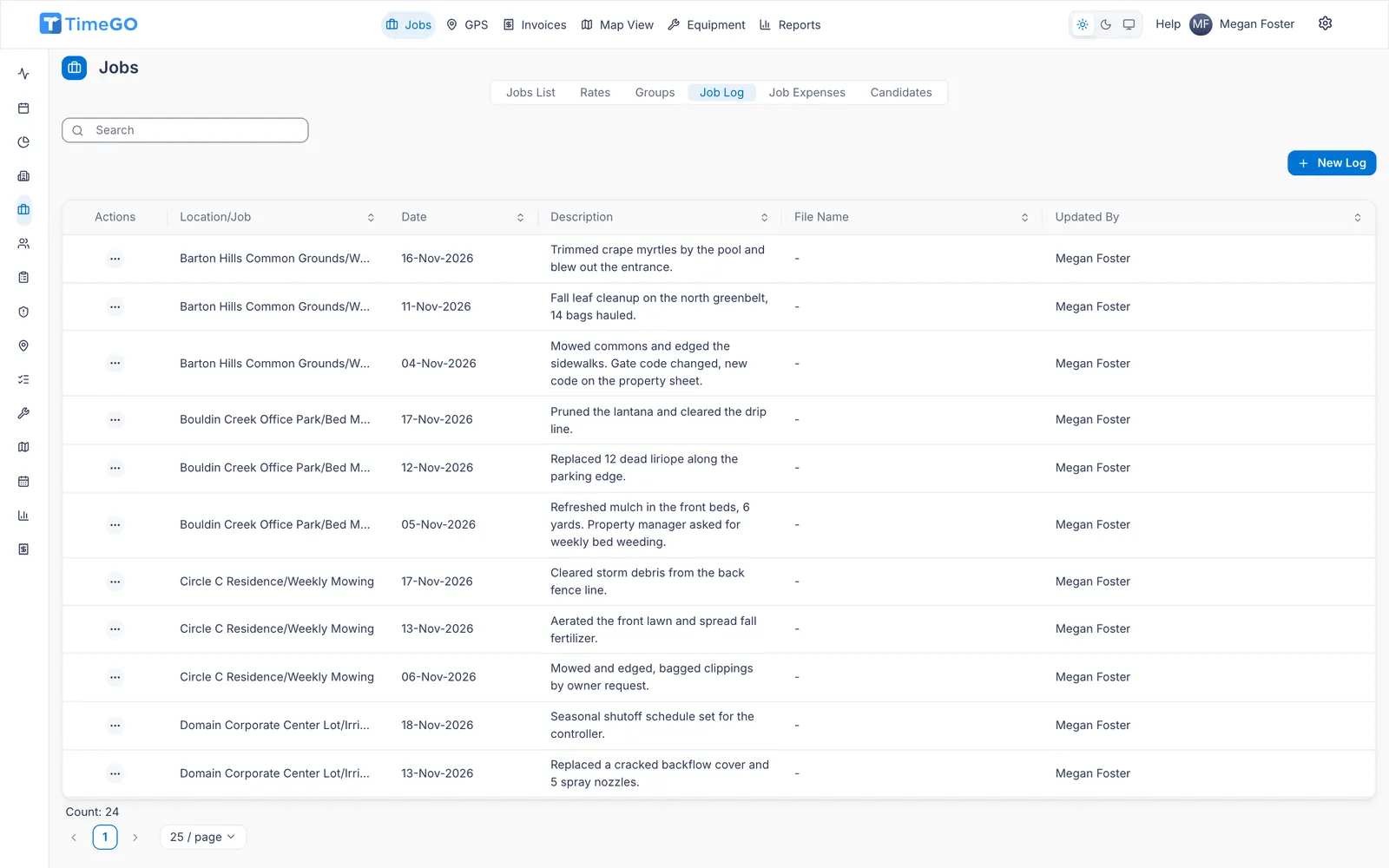
  • Every property keeps its own job log, with a dated note of what the crew did there, such as mulch laid or beds pruned.
  • Summary by Job adds up the hours of each property, and you can take them to Excel.
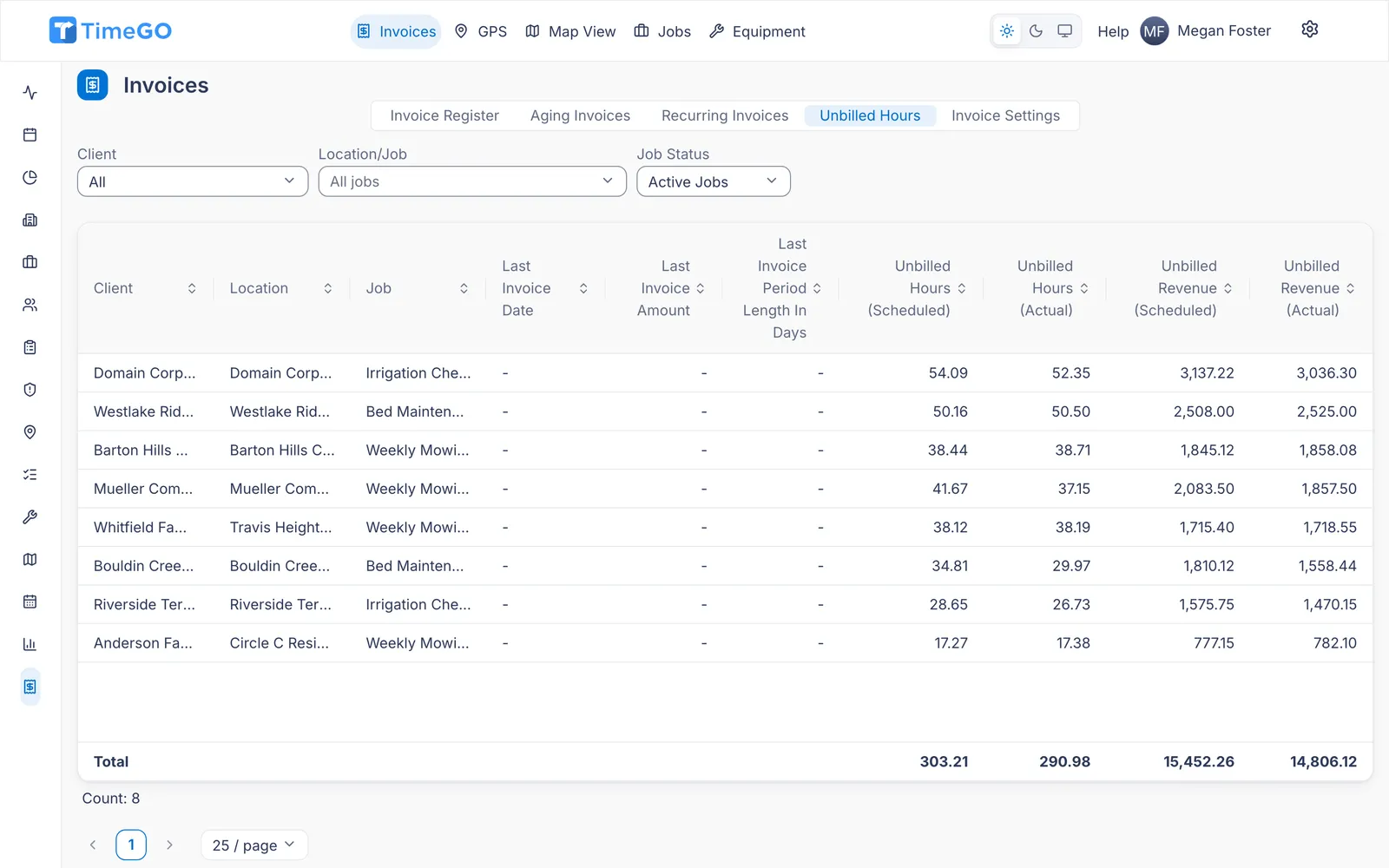
  • Unbilled Hours shows the scheduled and the actual hours of each property before you invoice.
How timesheets and payroll works
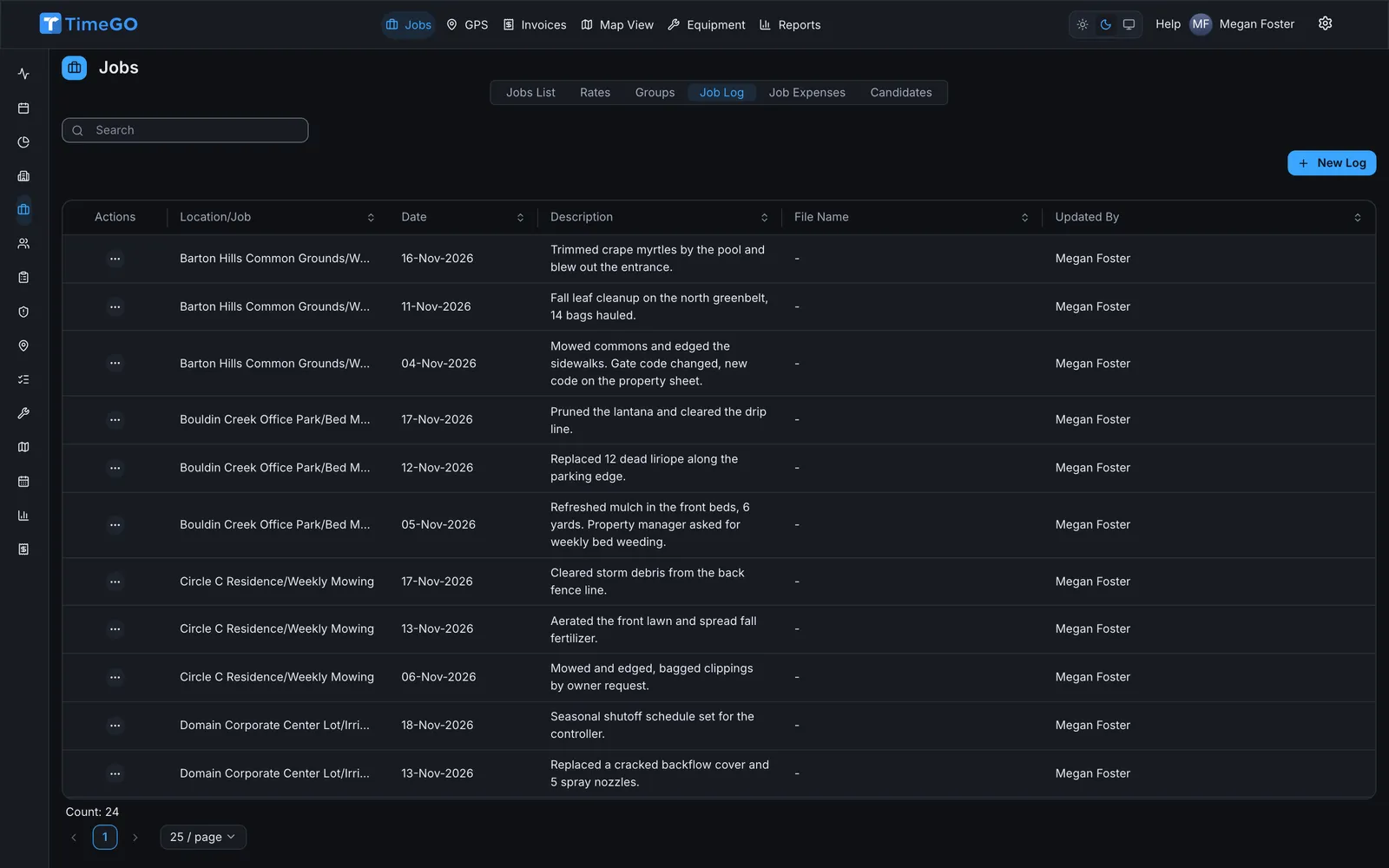
The Job Log of the web app with dated notes for each property, such as leaves hauled and beds mulchedThe Job Log of the web app with dated notes for each property, such as leaves hauled and beds mulched

Bill each property

Send each property the invoice for its own hours

  • Choose the job and the dates, and the invoice is built from the hours tracked.
  • The HOA or owner receives the PDF in an email.
  • Invoicing needs the Pro plan.
How invoices work
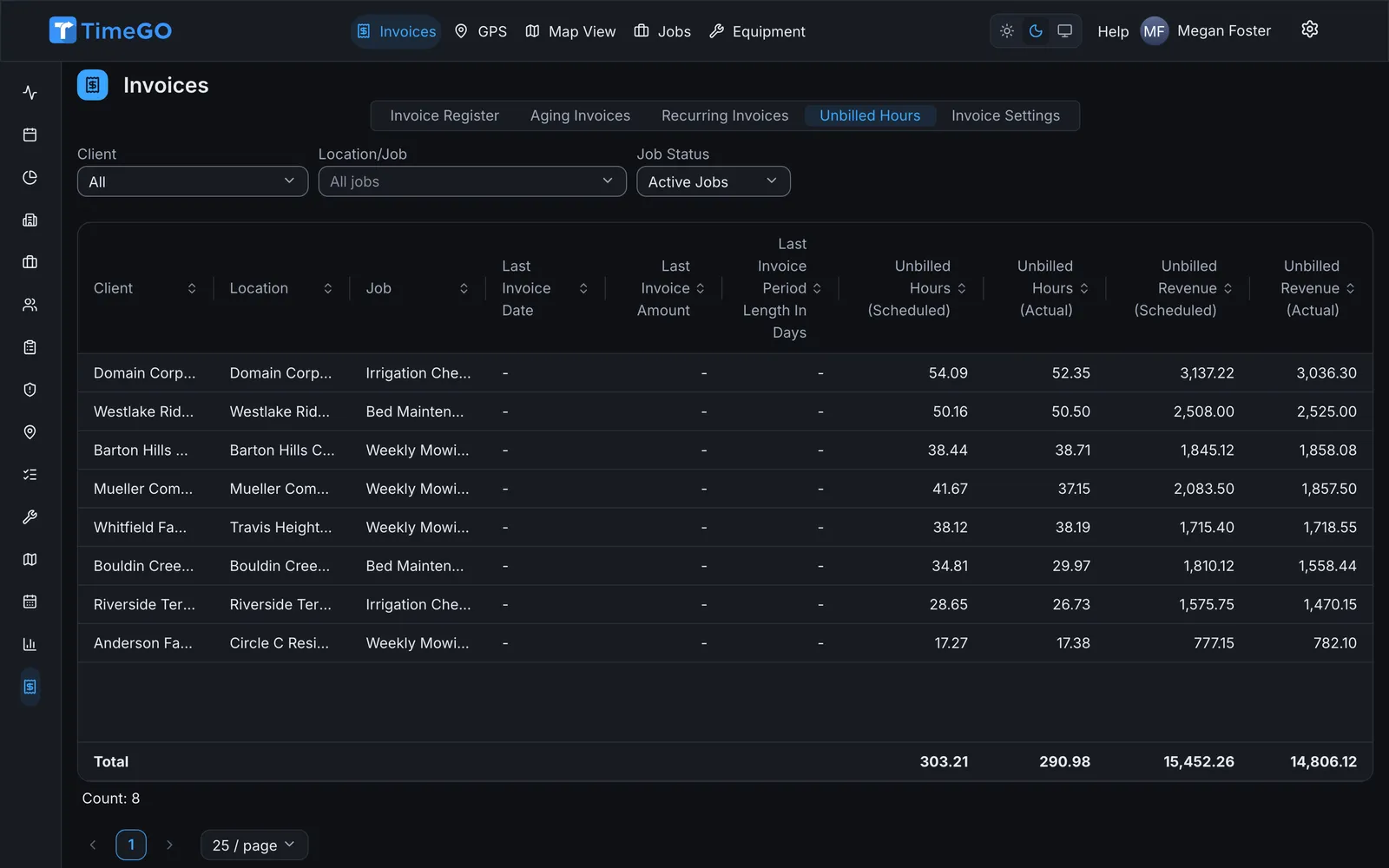
The Unbilled Hours tab of Invoices with the hours and revenue of each propertyThe Unbilled Hours tab of Invoices with the hours and revenue of each property

Who sees what

The owner, the crew leader, the crew and the HOA

  • Owner

    Know the route without riding along

    • See which properties were visited and how long each took.
    • Invoice each property from its hours.
  • Crew leader

    Drive the route, send the photos

    • Clock the crew in at stop one and send the photos of each finished lawn.
    • Get an alert when a crew has not clocked in a minute after its start time.
    • With auto clock-out on, accept the real end time of a shift nobody closed.
  • Crew member

    Spring hire or ten-year veteran, same app

    • See the shifts you are scheduled for and confirm or decline them.
    • Clock in at each lawn, then breaks, then clock out at the truck.
    • The app is available in English, Spanish and Vietnamese.
  • HOA or property manager

    What the HOA is allowed to see

    • Looks at a read-only schedule of its own properties.
    • You pick whether form results, scans and GPS tracking are visible to it.

Getting started

Start with TimeGO in four steps

  1. Add your properties

    Put each property on the map as a location under its client, with a geofence.

  2. Schedule the crews

    Build the week. Each crew member accepts or declines in the app.

  3. Clock in and send the photo

    The crew clocks in at the property and sends the sign-off form with photos.

  4. Bill from the hours

    Read the hours of each property, then build the invoice.

Who sees which property is up to you

  • A crew leader sees their own properties

    A manager can be kept to a single area, role or group.

  • The HOA gets only what you open up

    The HOA sees no form photos, scans or GPS tracking until you open them.

  • A shift nobody closed waits for your yes

    With auto clock-out turned on, the real finish time comes from the crew member and waits for you.

Hours go to payroll in

  • Excel export
  • QuickBooks Desktop file
  • QuickBooks Online
  • Xero

Free templates

Free templates and guides

From the blog

    • Clock-in and scheduling

    Time tracking for landscaping crews on the move

    Track landscaping crews that drive between properties all day: a clock-in at each property, the route on a map, and hours per property by Friday.

    • Payroll and billing

    How to track overtime for hourly field employees

    Track overtime for crews that work long days at many sites: fix the payroll week, set where overtime starts, collect real clock-ins, read the week.

All posts

Before you book

Frequently asked questions

How do I know which property my crew was at?

The geofence decides where a crew can clock in. A virtual GPS checkpoint at each property adds a time-stamped scan, and the route of the shift is on the map.

Can I see how long each property took?

Yes. Summary by Job lists the hours spent at each property. The GPS route of the shift shows the drive between them on the map.

Can the crew send a photo of the finished work?

Yes. Make a form with photos and a signature. The crew leader sends it from the lawn and you see the sender, the time and the property. Forms need the Pro plan.

Can I track mowers, trimmers and trailers?

Keep a list of your equipment and log who used what. Fuel and part receipts can be saved as job expenses with a photo. Equipment and expenses need the Pro plan.

We hire seasonal crews every spring. Does that work?

Add each new person, schedule their shifts and they confirm in the app. Each employee record keeps documents and warns you before a license runs out.

Can an HOA or property manager see the work?

Only if you allow it. Client access can include form results, checkpoint scans and GPS tracking, and you choose what the client sees.

Can I invoice each property?

Yes. Pick the property's hours, build the invoice and email the PDF. Invoicing needs the Pro plan.

Next step

Try it on your own route

In a demo we load a few of your properties and show the map, the finished-work photos and the hours of each property.

TimeGO for other industries