 English
 Español
 Tiếng Việt
 Deutsch
 Français
 Português
 Polski
 Nederlands
 Italiano
 Svenska
 Norsk
 Dansk
 Suomi
 Čeština
 हिन्दी
 العربية
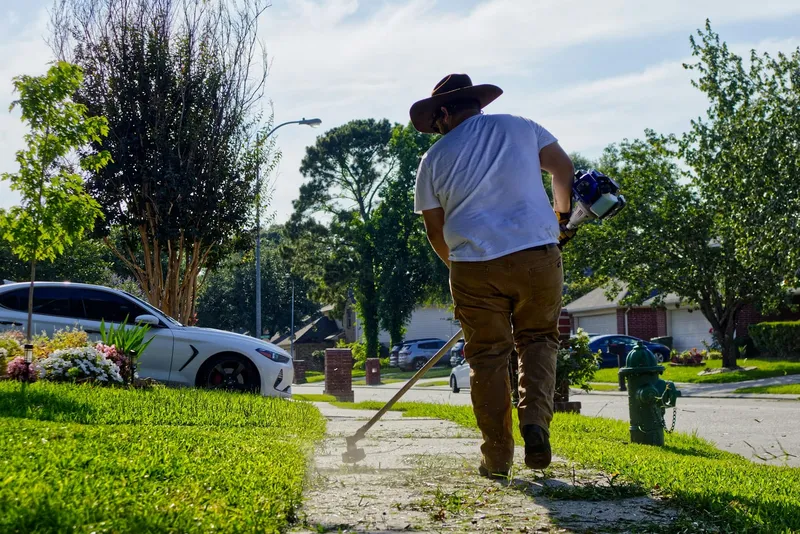
To track a landscaping crew that moves between properties, make each property its own location with a geofence, have the crew lead clock out of one and into the next, and keep a GPS route of the day. By Friday the hours are in the timesheet, split by property, and Tuesday’s “did anybody come?” has an answer with a time on it.
A route day, as it usually goes
The truck leaves the yard at 6:45 with two mowers on the trailer. Seven properties before lunch, four after. Somewhere around stop five a client comes out to ask for the hedges along the back fence, and the route slips by half an hour.
On Friday the foreman’s notebook says “Mon 9.5”. It does not say which of the eleven properties got how much of that, and when the HOA manager says the crew skipped the clubhouse on Monday, you have no way to say they didn’t, short of asking the foreman to remember.
A location for every property
Add each client and each property in TimeGO as a location, with a geofence around it. Use a name the crew already says out loud (“Oak Ridge clubhouse”, not the street number). In the dashboard, a map shows your job locations and who is working.
Because hours are tracked per location, you will see for the first time which properties cost you the most crew time. That can be the start of a pricing conversation.
Clock in at each stop
The crew lead clocks in on the phone at the first property and clocks out when the truck leaves. At the next one, clock in again. The geofence ties each punch to the property.
Lawns at the edge of town have bad coverage. Offline mode keeps the clock-in until the signal returns.
Clocking in eleven times a day sounds like a lot until you need to know what one property costs. If the crew pushes back, start with the first and last stop of the day, and add the stops in between once the habit is there.
The route, when you need it
On a job with continuous GPS tracking switched on, the app records the crew lead’s route while they are clocked in. In the web dashboard you pick the job, the day and the person, press Review, and the route appears on a map with the order of the stops and the time they reached each one. Tracking pauses during a break, so a gap at noon is lunch.
Use it when a client says the crew did not come, or when one property keeps running long and you want to see why. The GPS tracking page shows the screen.
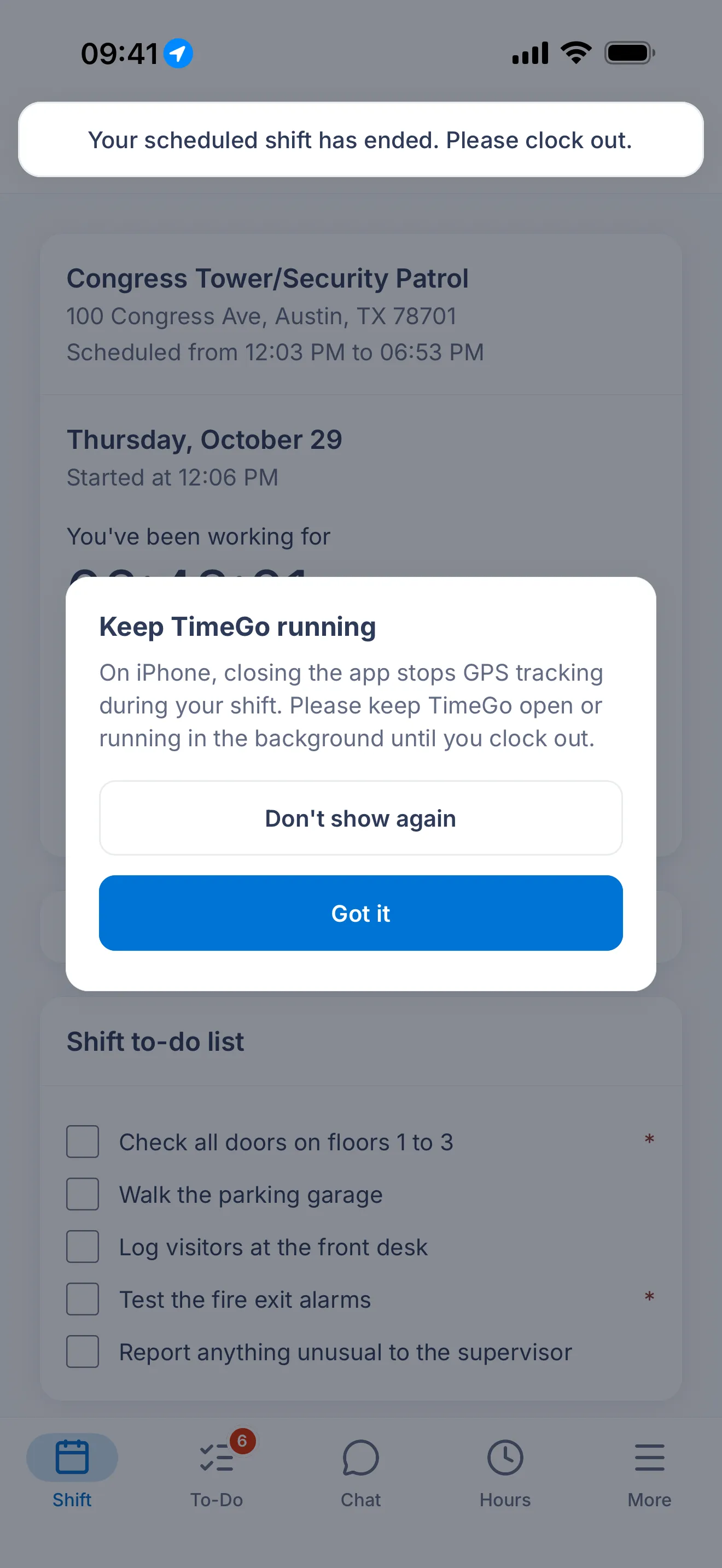
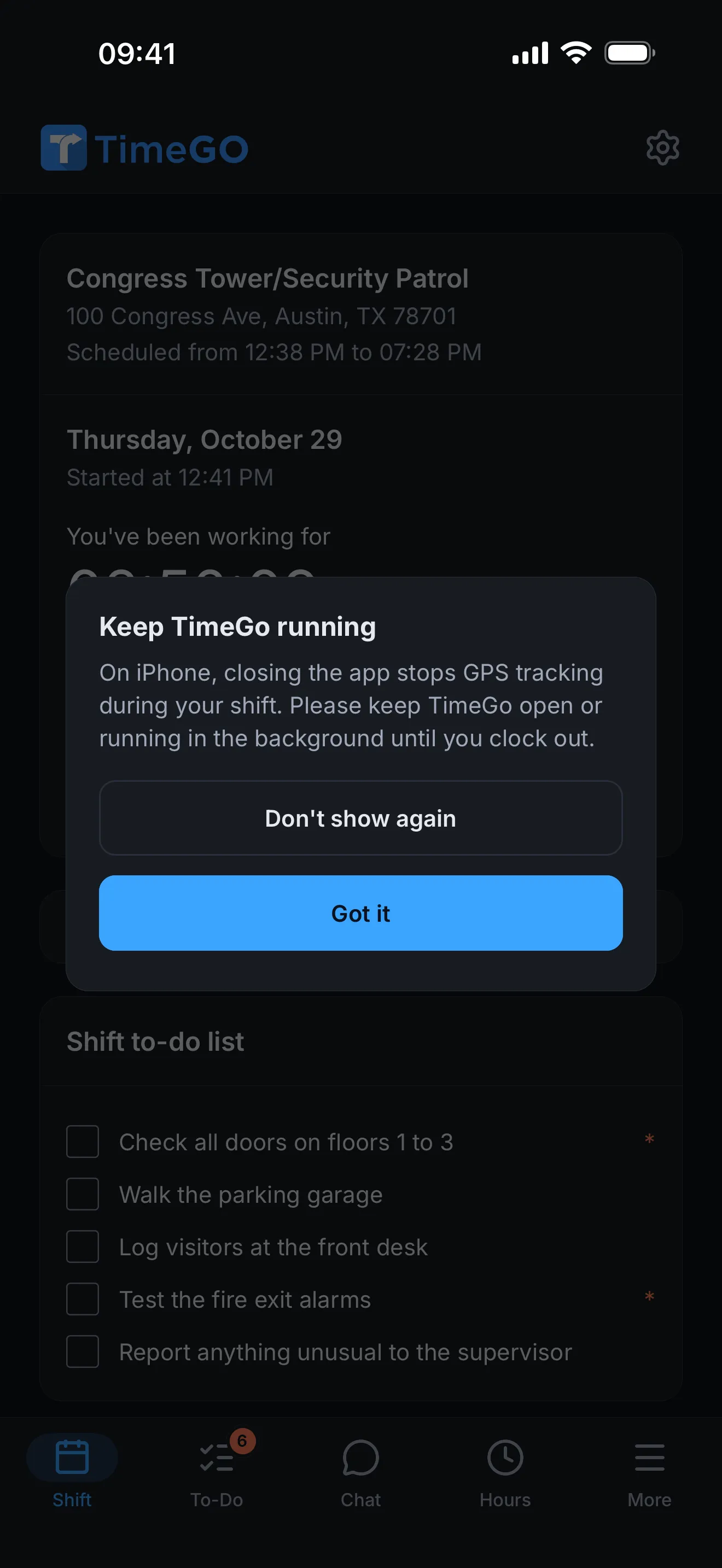 On iPhone, swiping the app closed stops the route. Show the crew this message on day one.
Tell the crew the route is recorded during paid hours on jobs where you turn it on, and why. A crew that hears it from you on Monday takes it very differently from one that finds out in a dispute.
A list for each visit
A property visit has a routine: mow, edge, blow, bag the clippings, check the sprinkler heads. Write it once as a shift to-do list and mark the steps that cannot be skipped as required. The crew lead ticks them off in the app, and you see how far each stop got. The landscaping crew daily checklist is a printable starting point.
When a client wants pictures, a custom form with photos does the job: a before and after of the beds, signed off by the crew lead.
Rain days and the week’s hours
When it rains, move the shifts on the schedule and send them out again with Notify. The crew sees the change in the app and confirms or declines it.
At the end of the week, each shift is in the timesheet with its real punches. Read it, then export it for payroll or sync it to QuickBooks Online or Xero.
What it does not do
The app records where the crew lead’s phone was. It does not know what the lawn looks like, and it cannot tell a crew of three from a crew of one if only one person clocks in. If you pay each worker by the hour, each worker needs to clock in on their own phone. And on iPhone, a closed app means no route for the rest of that shift, so the habit of leaving it running matters more than any setting.