 English
 Español
 Tiếng Việt
 Deutsch
 Français
 Português
 Polski
 Nederlands
 Italiano
 Svenska
 Norsk
 Dansk
 Suomi
 Čeština
 हिन्दी
 العربية
Put the opening and closing steps into to-do lists that repeat every day, and have staff clock in and out on their own phones in the same app. The lists show what got done at open and at close, and the clock shows who was there to do it. Start with whichever one you argue about more.
The Sunday morning problem
Say the opener walks in at 7 on Sunday and the reach-in on the line is warm. Someone propped the door with a sheet tray at close and nobody pulled it. The closing sheet on the clipboard has every box ticked, in the same pen, apparently in the same thirty seconds, and the closer will not answer the phone until noon.
Paper lists get filled in at the end, from memory, by whoever holds the pen. You cannot tell the task done at 10:40 from the one ticked at 11:55 on the way to the car, and by Monday the sheet is in the recycling.
Write the closing list once
Create a new to-do in the web dashboard, show it on the user app and set it to repeat daily (the checklists page has the steps). Then type the tasks in the order your best closer actually works them. For a small line it might look like this:
- Pull the line, wrap, label and date everything.
- Walk-in and reach-in temperatures, typed in.
- Fryer off, oil covered.
- Flat-top scraped, hood wiped down.
- Sanitizer buckets dumped, mats up, floor mopped.
- Back door locked and walk-in door shut, with a photo.
- Trash out, lights off.
Two of those ask for more than a tick. For the temperatures, turn on Textbox for the task, and the closer types the reading on the phone, for example “walk-in 37, reach-in 39”. For the doors, ask for proof: the camera icon next to a task adds a photo, a note, or both. A photo of a shut walk-in door at 11:48 PM settles more arguments than any tick.
Work that does not happen every night gets its own list. Hood filters every Friday is a weekly list, which can repeat on a chosen day every 1 to 12 weeks. The ice machine on the 1st of the month is a monthly list. The to-do lists page has the rest of the options.
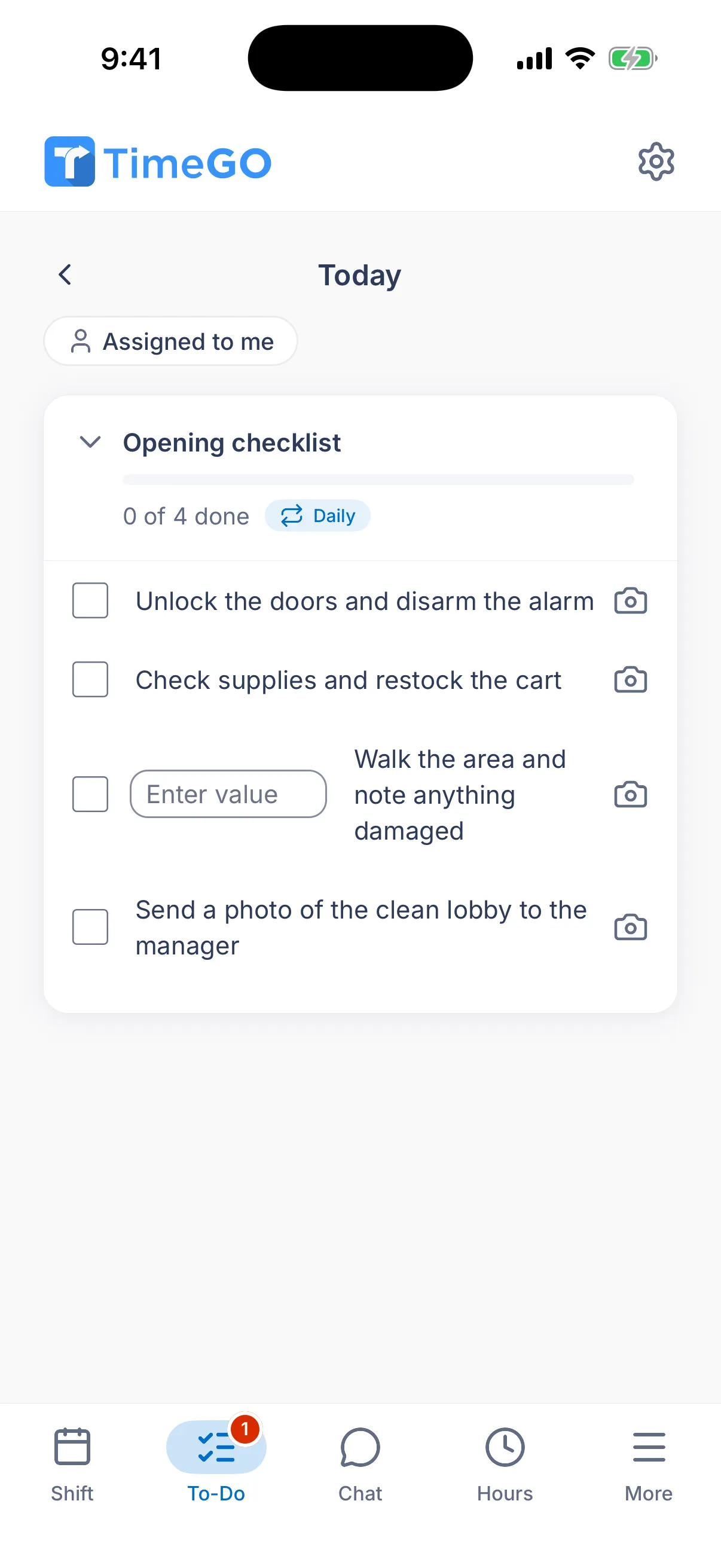
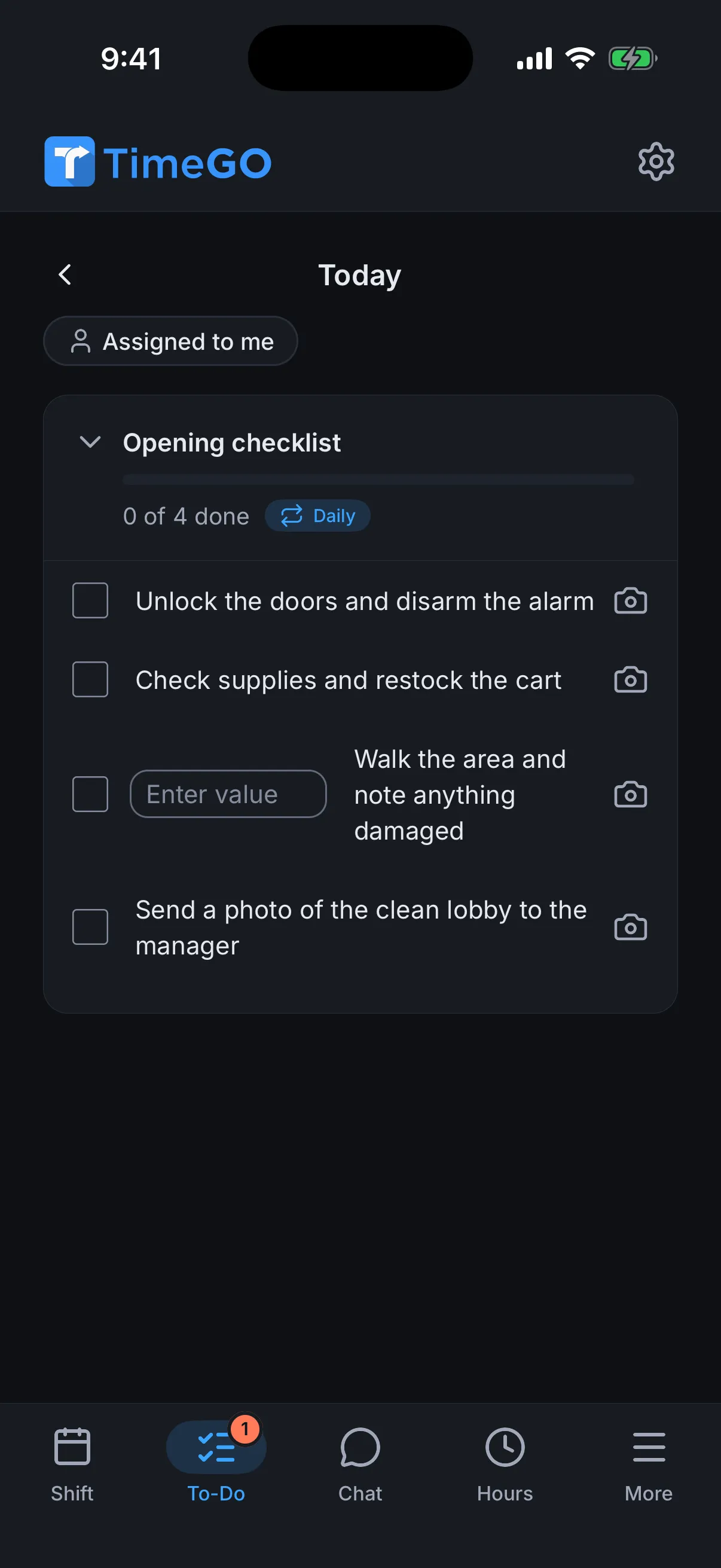 An opening list on the opener’s phone: each task ticks off, and the camera icon takes a note or a photo as proof.
Who owns which task
Each task can have its own due date and the people who must do it. On the weekly list that matters: the hood filters are due Friday, and they belong to the dishwasher on the Friday close, not to whoever is still around.
Then decide how the list gets ticked. One shared list means everyone on it works the same list and sees each other’s ticks, which suits a close where three people split the kitchen. Each person gets a copy gives every server their own list and their own ticks, which suits side work, where you want to see which server restocked their section. The steps are in how to create a to-do list.
What happens at midnight
The opener starts with a clean list, and last night’s close is kept in history, read-only, so nobody tidies up Saturday’s list on Monday. The rules are on the to-do lists page.
Two weeks of that history tells you more than a staff meeting does. You see which closer leaves the temperatures blank and which task quietly drops off on Saturdays.
When a step cannot be skipped
Daily to-do lists have no required tasks. If there is one step a closer must not leave open, put it on a shift to-do list instead: the list that sits under the timer on the Shift tab, tied to the job. A required task there has an asterisk, and the app counts how many required tasks are left. If one is still open when the closer clocks out, the list is marked submitted and an alert is written for you.
The closer can still clock out, and you get an alert with the task still open, which is the walk-in door you want to hear about at midnight instead of at 7. Keep the required tasks to one or two. When six things are required, people tap through all six to get home.
The clock, on the same phone
Each location gets a geofence. When the job has GPS on, the app checks the phone’s location at clock-in, so the server who taps Clock-In from home at 4:55 is told they cannot clock in outside the job radius. The GPS clock-in page has the details.
Breaks are on the same screen: Take a break, then Continue work when they are back, so the break is in the record, not in someone’s memory. If a cook has not clocked in, you get a missed clock-in alert; late starts are listed in the Tardy Report.
Auto clock-out ends a forgotten shift 0, 6 or 15 minutes after its scheduled end, set shift by shift. We would turn it on for openers and prep cooks, whose shift ends when the schedule says it does, and think twice about the close, which ends when the last table leaves. A closer who runs late can extend or report the real finish, and you decide whether it stands; on a busy Saturday that is one more thing to tap.
Where it stops
The app records a tick, a typed number and a photo. Someone still has to look at the picture, and walk the line at open now and then.
A typed temperature is a record you keep. Whether it satisfies the temperature log your health inspector expects is the inspector’s call, so ask before you throw out the paper log on the walk-in door.
TimeGO is built mainly for crews that work shifts across many sites, so a single restaurant will find menus in the dashboard it never opens.
Start with one half
If the fight is about hours, run the clock alone for two weeks. Put the week on the schedule, send it with Notify so staff confirm their shifts in the app, and have everyone clock in and out on their phones. At the end, read the timesheet and export it.
If the fight is about the walk-in, start with the closing list and read its history every morning for a week. Add the other half once the first one is a habit.