 English
 Español
 Tiếng Việt
 Deutsch
 Français
 Português
 Polski
 Nederlands
 Italiano
 Svenska
 Norsk
 Dansk
 Suomi
 Čeština
 हिन्दी
 العربية
2 min read
How to create a to-do list
Create a to-do list in the web dashboard, choose who gets it, set how it repeats and add the tasks.
Steps
- 1
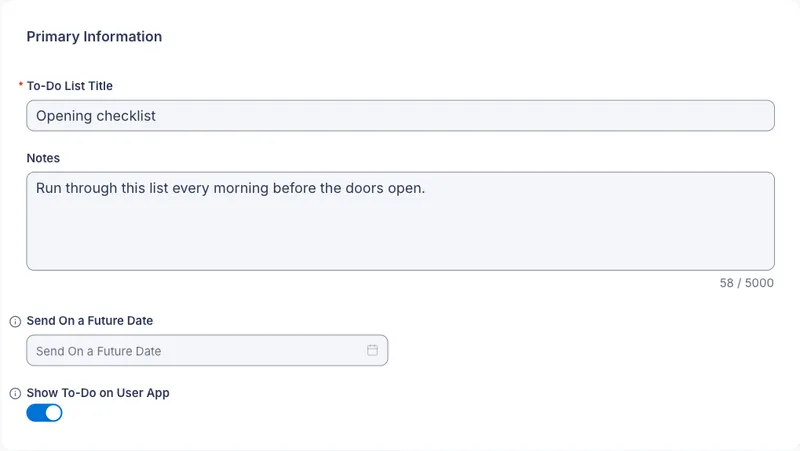
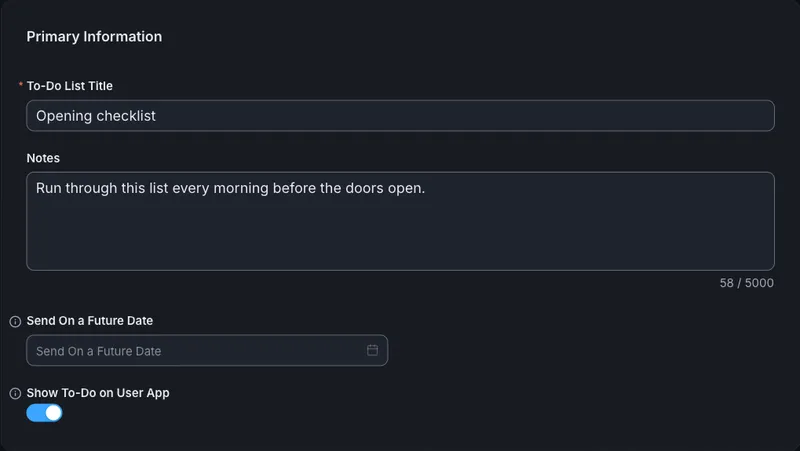
Open To-do and click New To-Do. Type the To-Do List Title, add Notes if the team needs them and turn on Show To-Do on User App. To hold the list until a day, set Send On a Future Date.
- 2
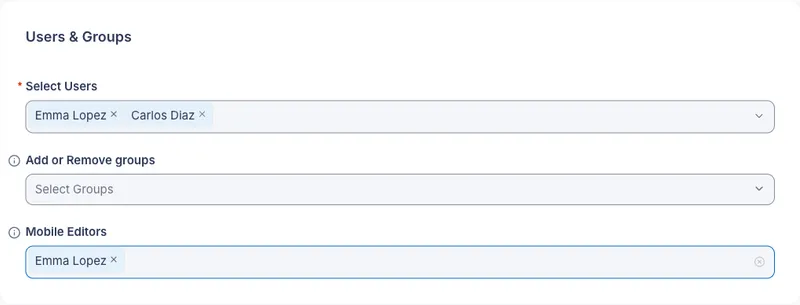
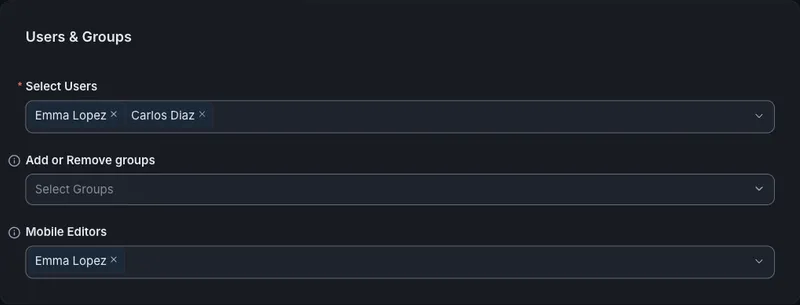
Under Select Users, pick the people who get the list. Use Add or Remove groups for groups. Under Mobile Editors, pick who may edit the list on the phone.
- 3
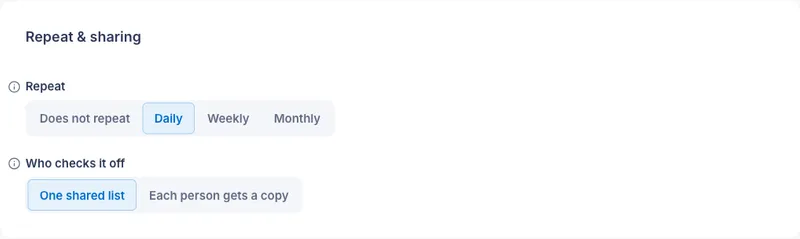
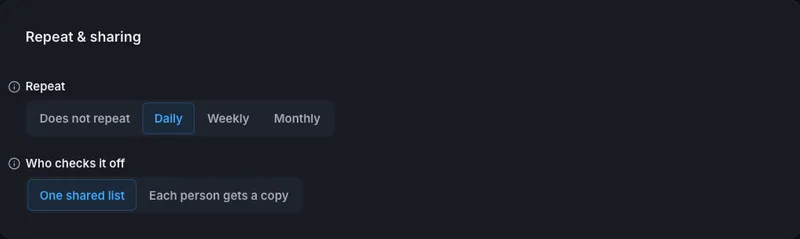
Under Repeat, choose Does not repeat, Daily, Weekly or Monthly. With more than one person, choose Who checks it off: One shared list or Each person gets a copy.
- 4
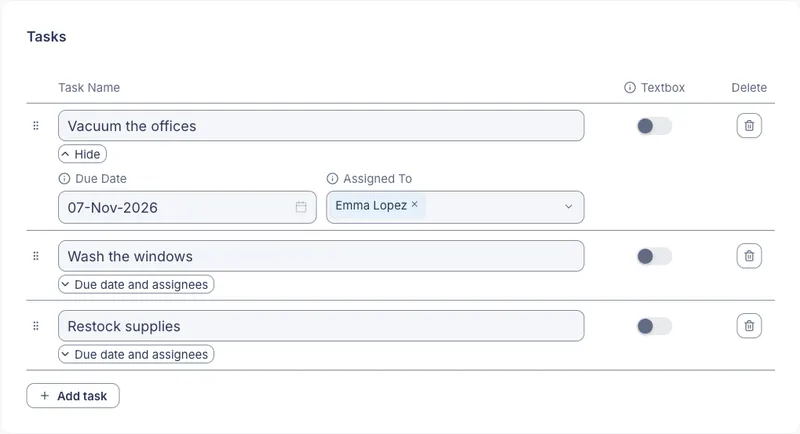
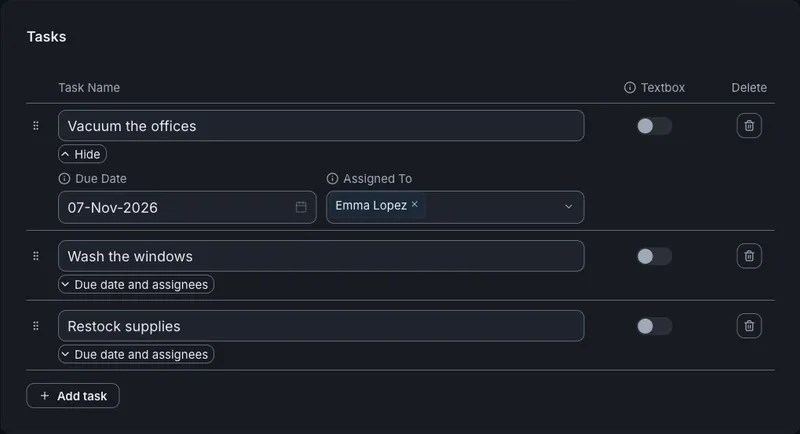
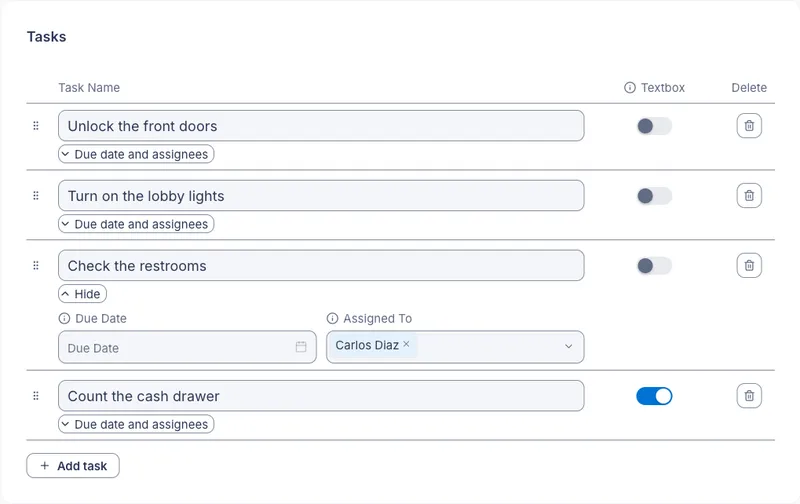
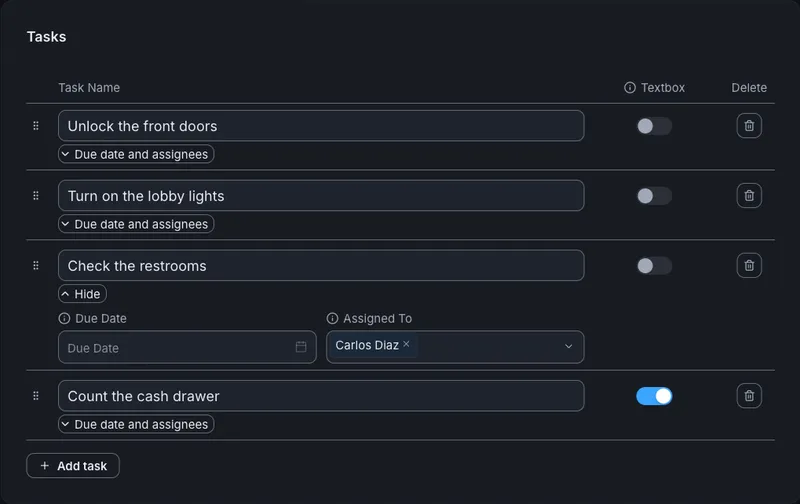
Click Add task and type the task name. To set a due date or assign people, open Due date and assignees.
- 5
To let people type a value, such as a meter reading, turn on Textbox for that task. Then click Create.
If it does not work
People do not see the list in the app.
Check that they are in Select Users or in a selected group, that Show To-Do on User App is on and that the Send On a Future Date day has come.
Good to know
- A repeating list clears its ticks and answers at midnight company time. The tasks stay and each day is kept in history.
- A manager can correct a past tick. The reason is recorded.
- To make a similar list, open the list and click Copy To-Do, then change the people and dates.
About the feature: More about To-Do lists, More about Mobile app