 English
 Español
 Tiếng Việt
 Deutsch
 Français
 Português
 Polski
 Nederlands
 Italiano
 Svenska
 Norsk
 Dansk
 Suomi
 Čeština
 हिन्दी
 العربية
Phone app
1 min read
How to edit a to-do list on the phone
Change a to-do list's tasks, due dates and people from the phone, then save.
Steps
- 1
Open the To-Do tab, tap the three dots on the list, then tap Edit.
- 2
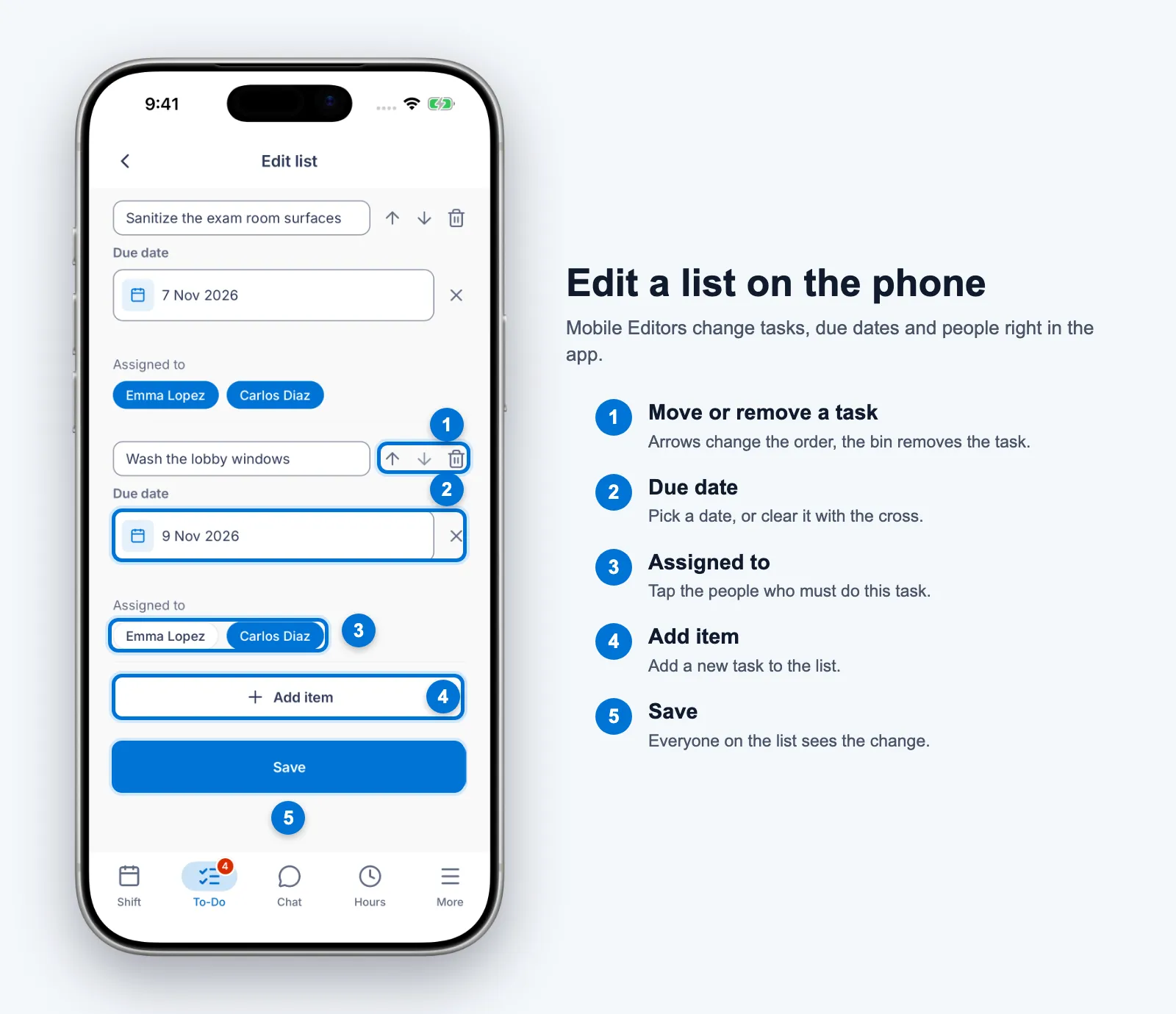
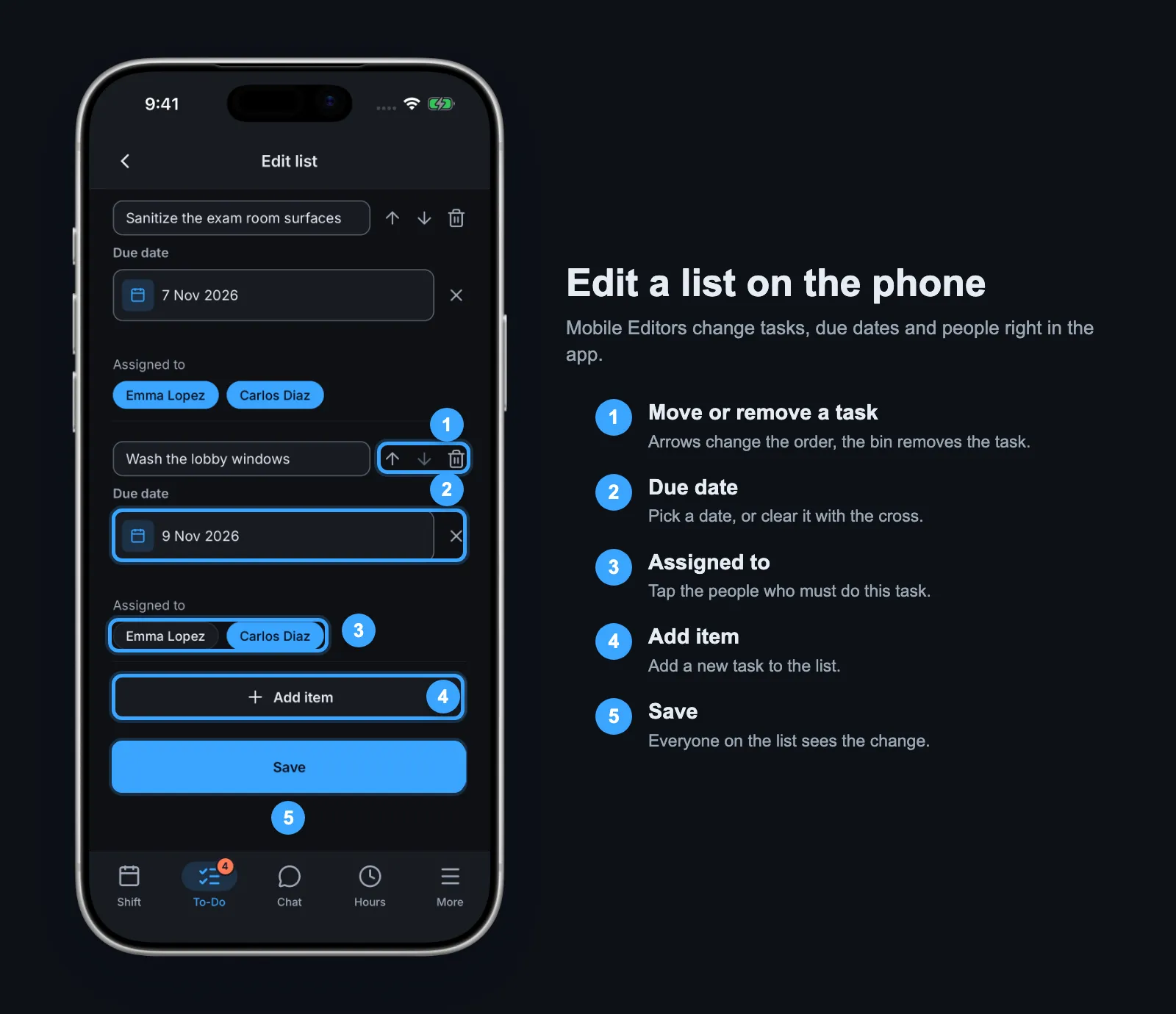
Change the Title or Note. For each task, move it up or down, remove it, pick a Due date (the X clears it) and tap the people under Assigned to.
- 3
Tap Add item to add a new task.
- 4
Tap Save. Everyone on the list sees the change.

Good to know
- Only Mobile Editors of the list see the three dots. If you do not, ask your manager to add you as a Mobile Editor of that list.
- Delete in the same menu removes the list for everyone on it.
About the feature: More about To-Do lists, More about Mobile app