 English
 Español
 Tiếng Việt
 Deutsch
 Français
 Português
 Polski
 Nederlands
 Italiano
 Svenska
 Norsk
 Dansk
 Suomi
 Čeština
 हिन्दी
 العربية
2 min read
How to use your to-do lists
Check off your tasks on the To-Do tab, add a note or a photo as proof, and finish a one-time list with Mark To-do as Completed.
Steps
- 1
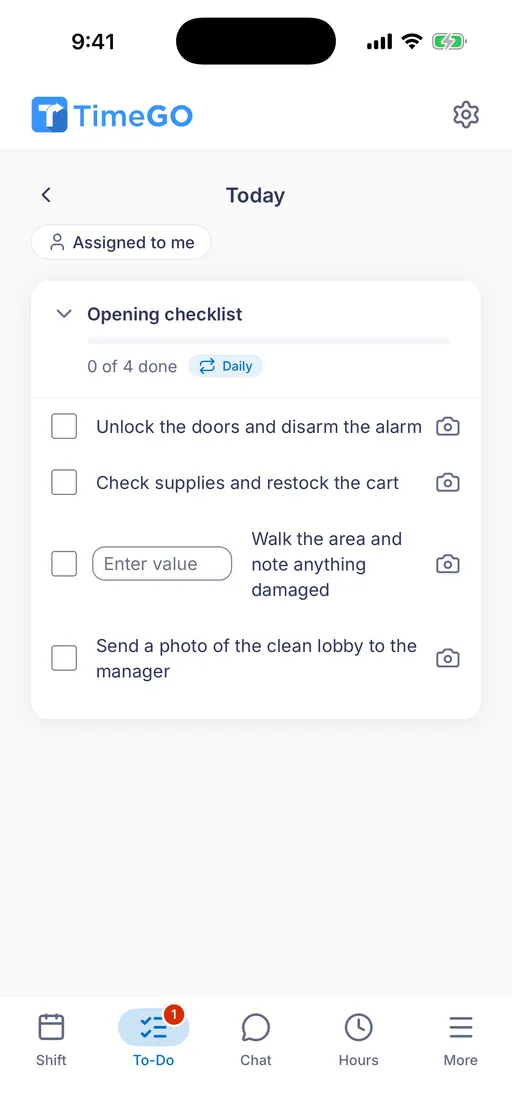
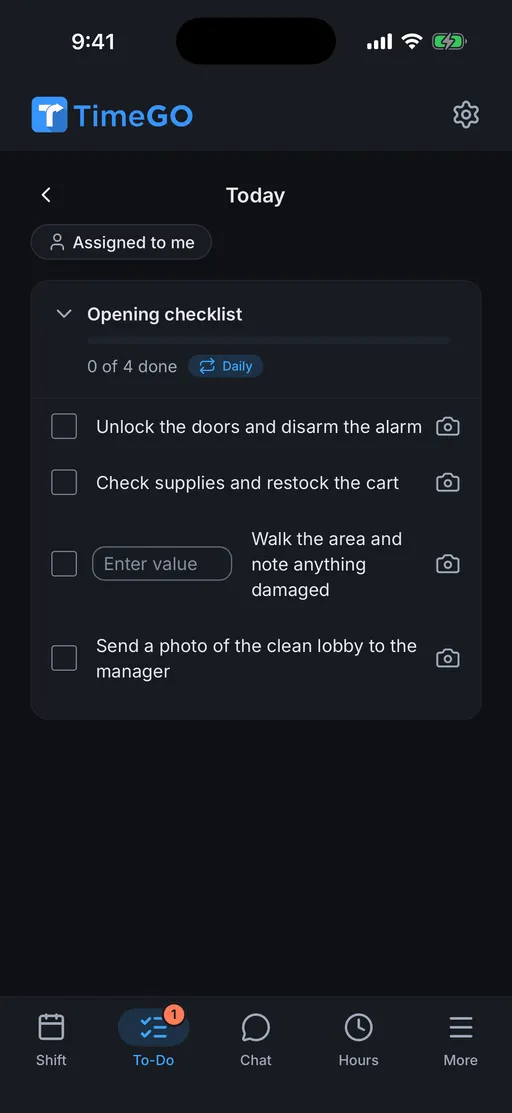
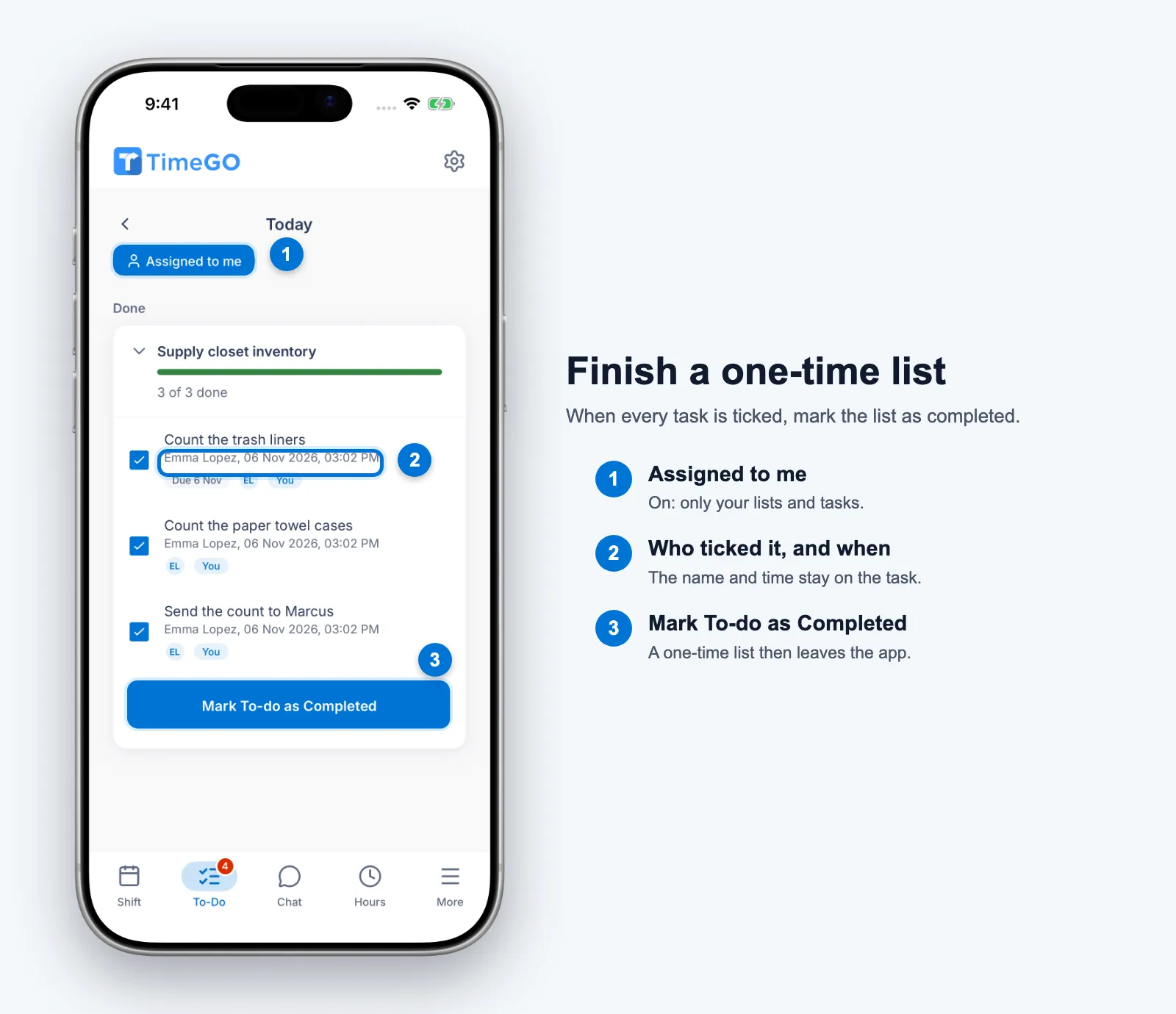
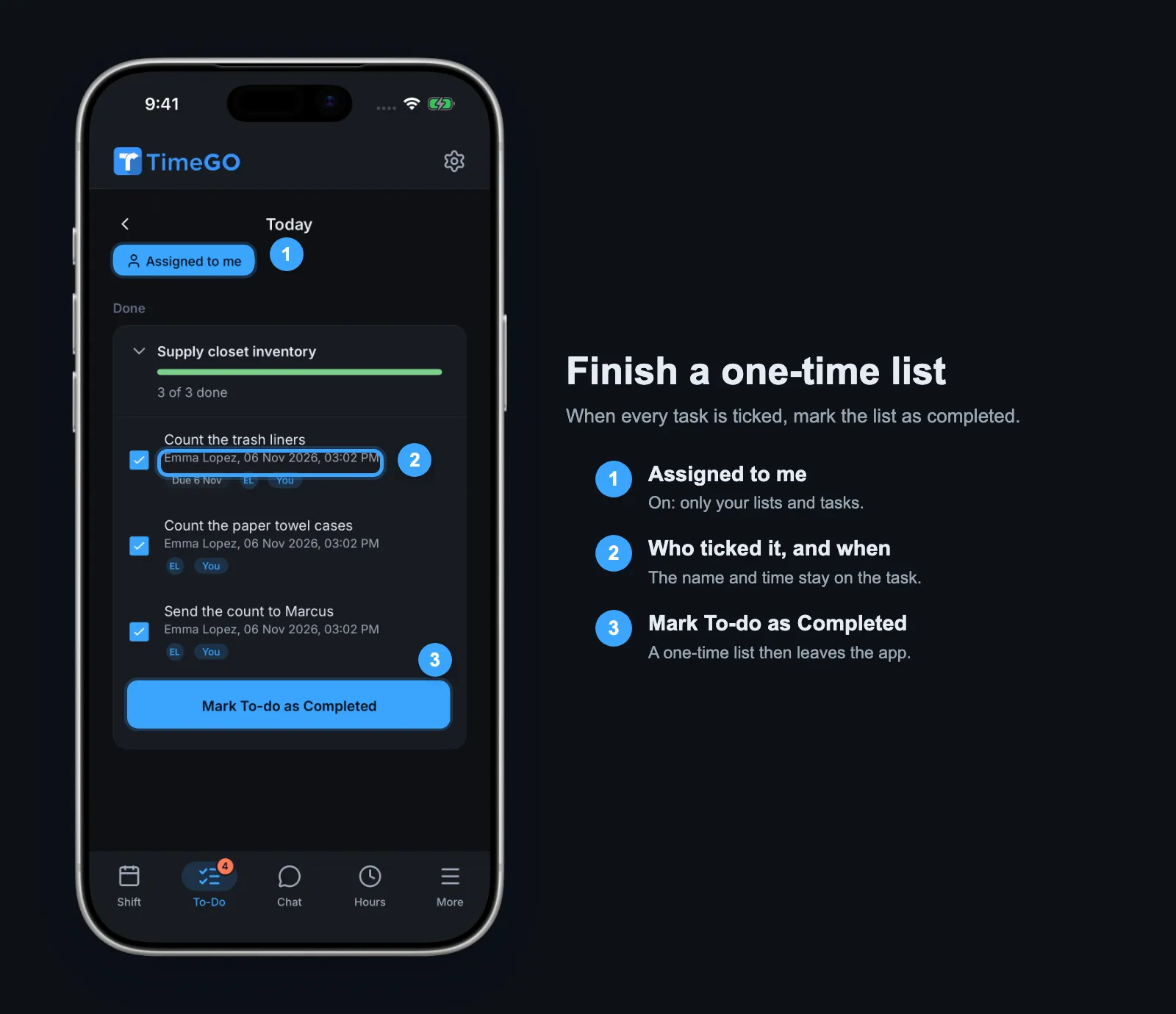
Open the To-Do tab. It shows the lists for today. Tap Assigned to me to see only your lists and tasks, and tap it again to see all.
- 2
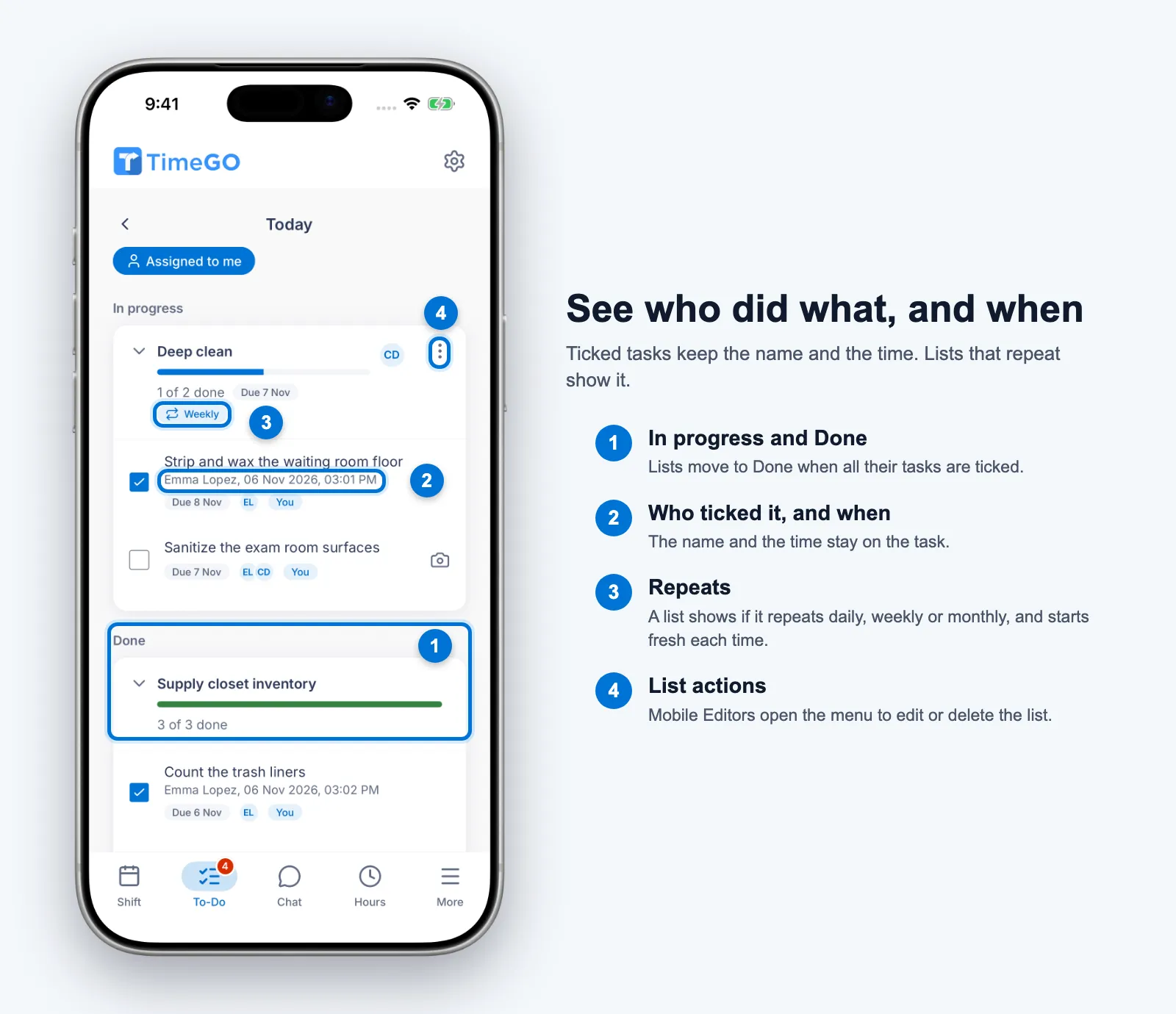
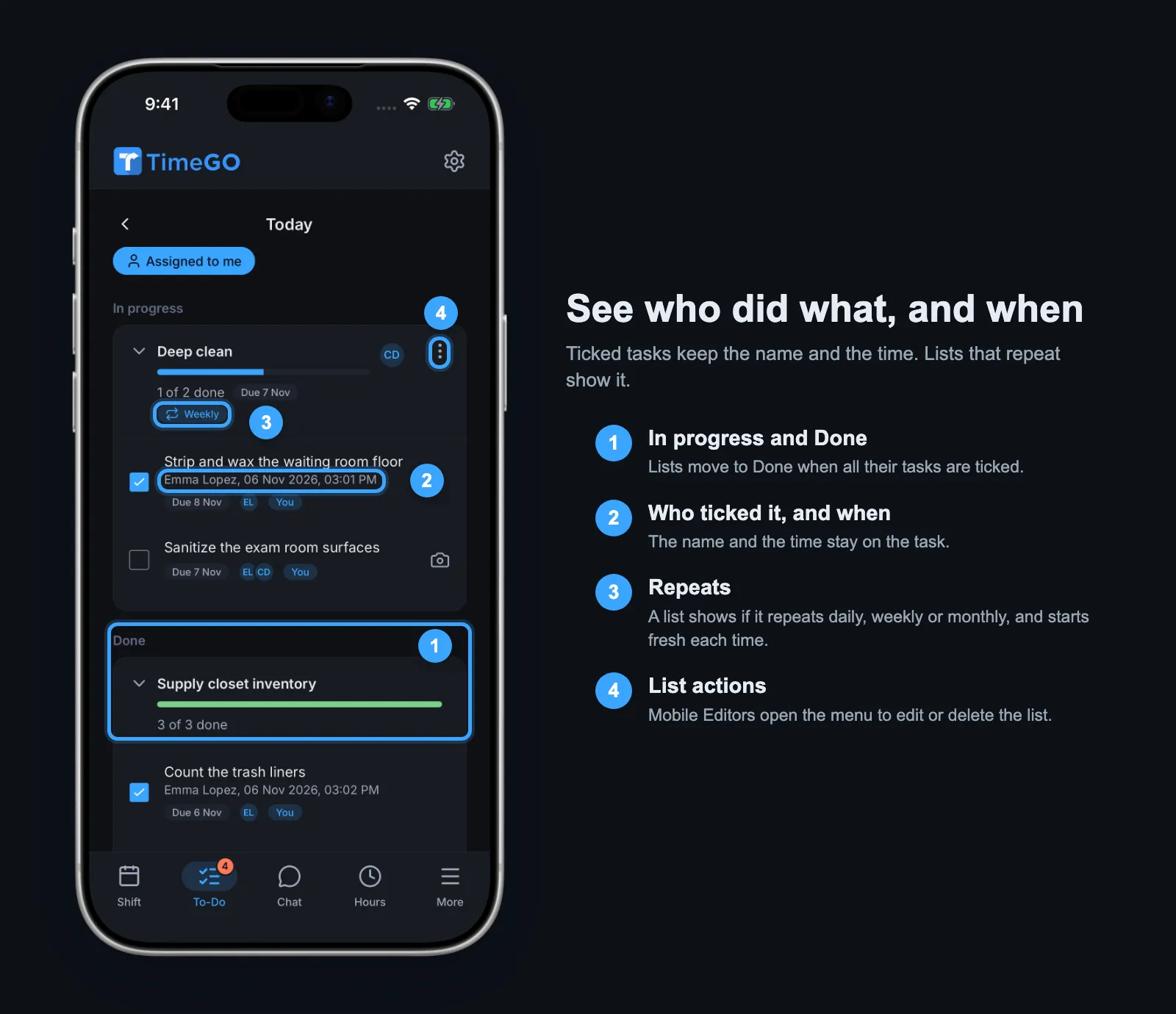
Check a task when it is done. The top of the list shows how many tasks are done, for example 0 of 3 done, and the next due date. If a task has an Enter value box, type the value there (up to 30 characters).
- 3
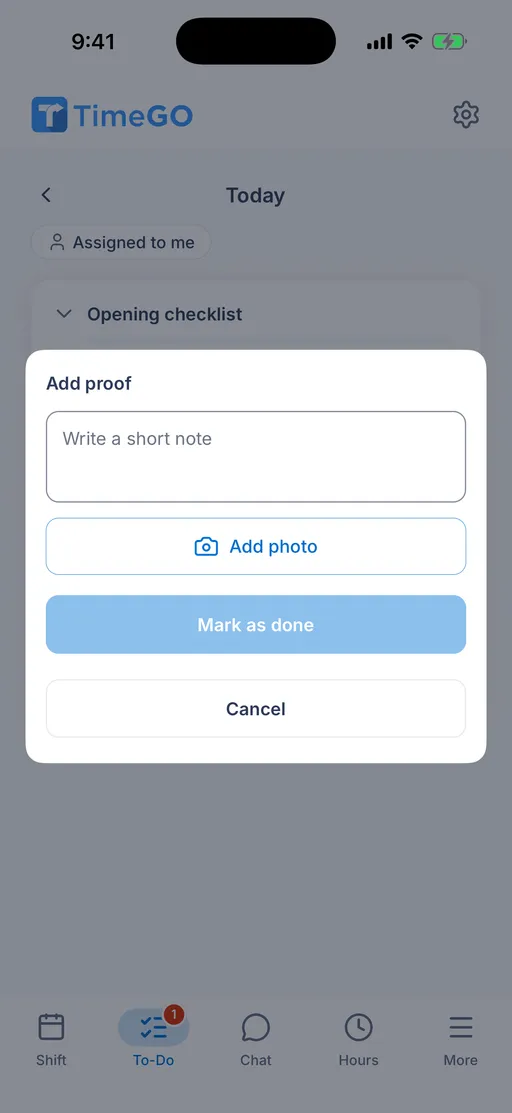
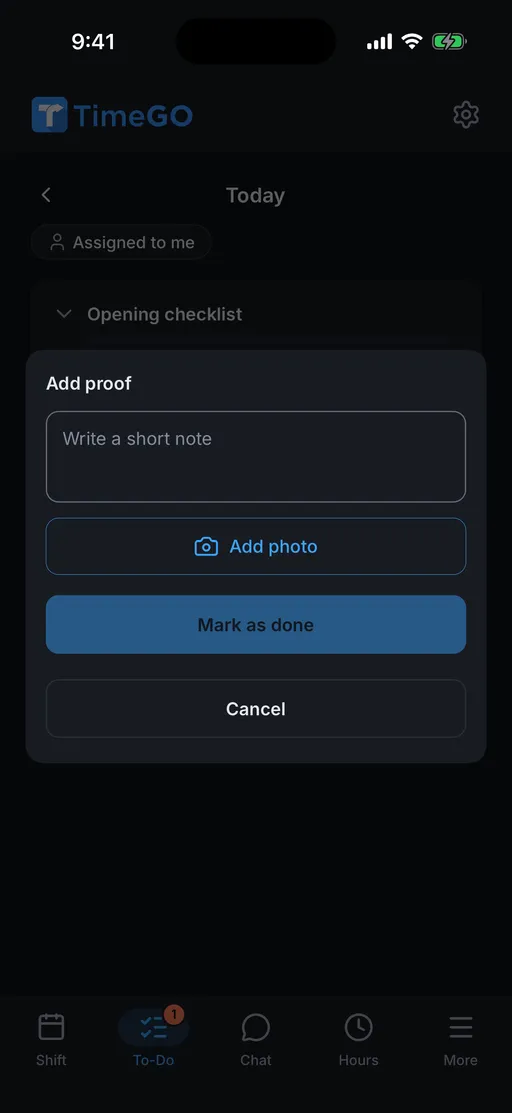
To add proof, tap the camera icon next to the task. Write a short note of up to 200 characters, add a photo, or both.
- 4
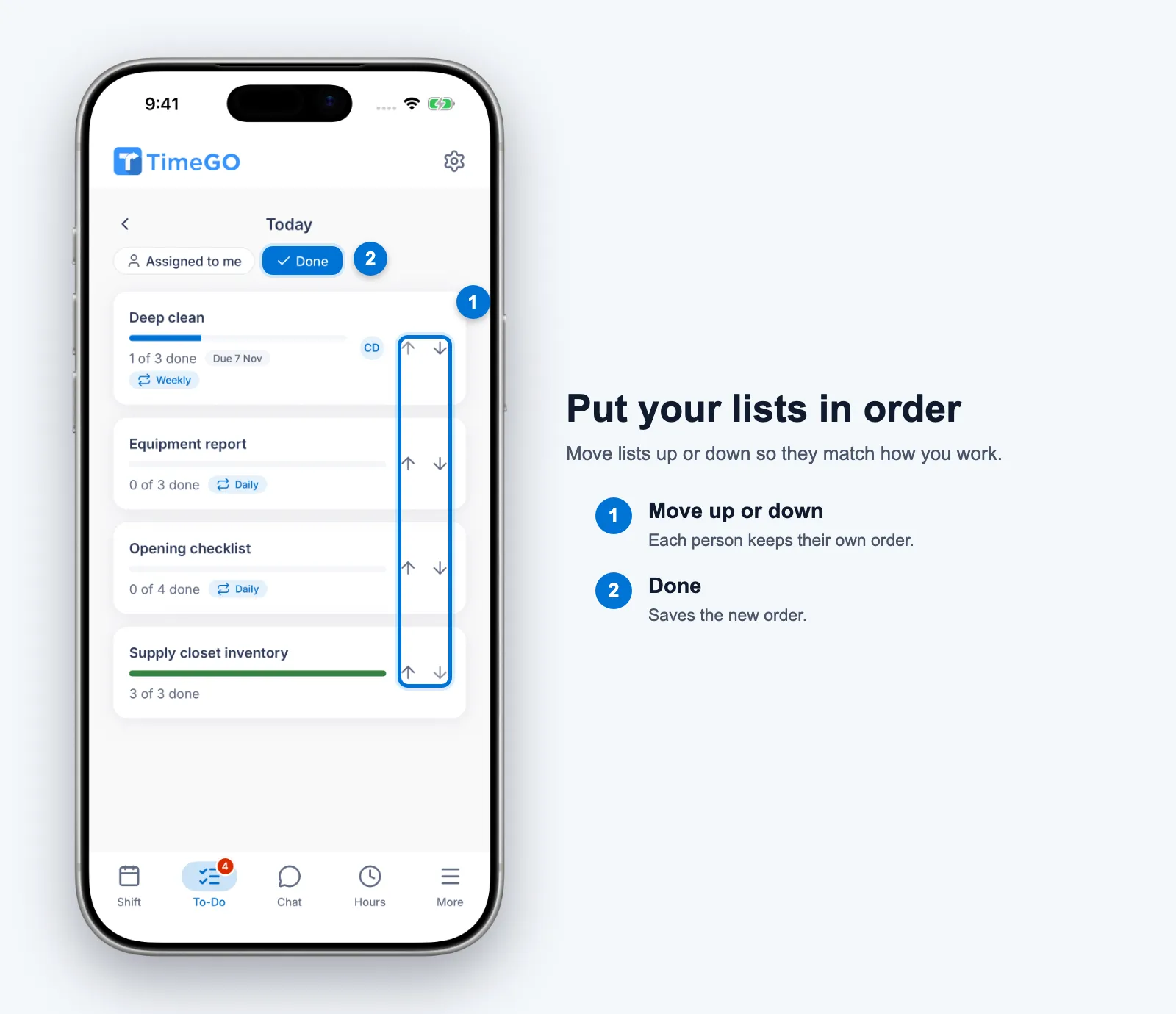
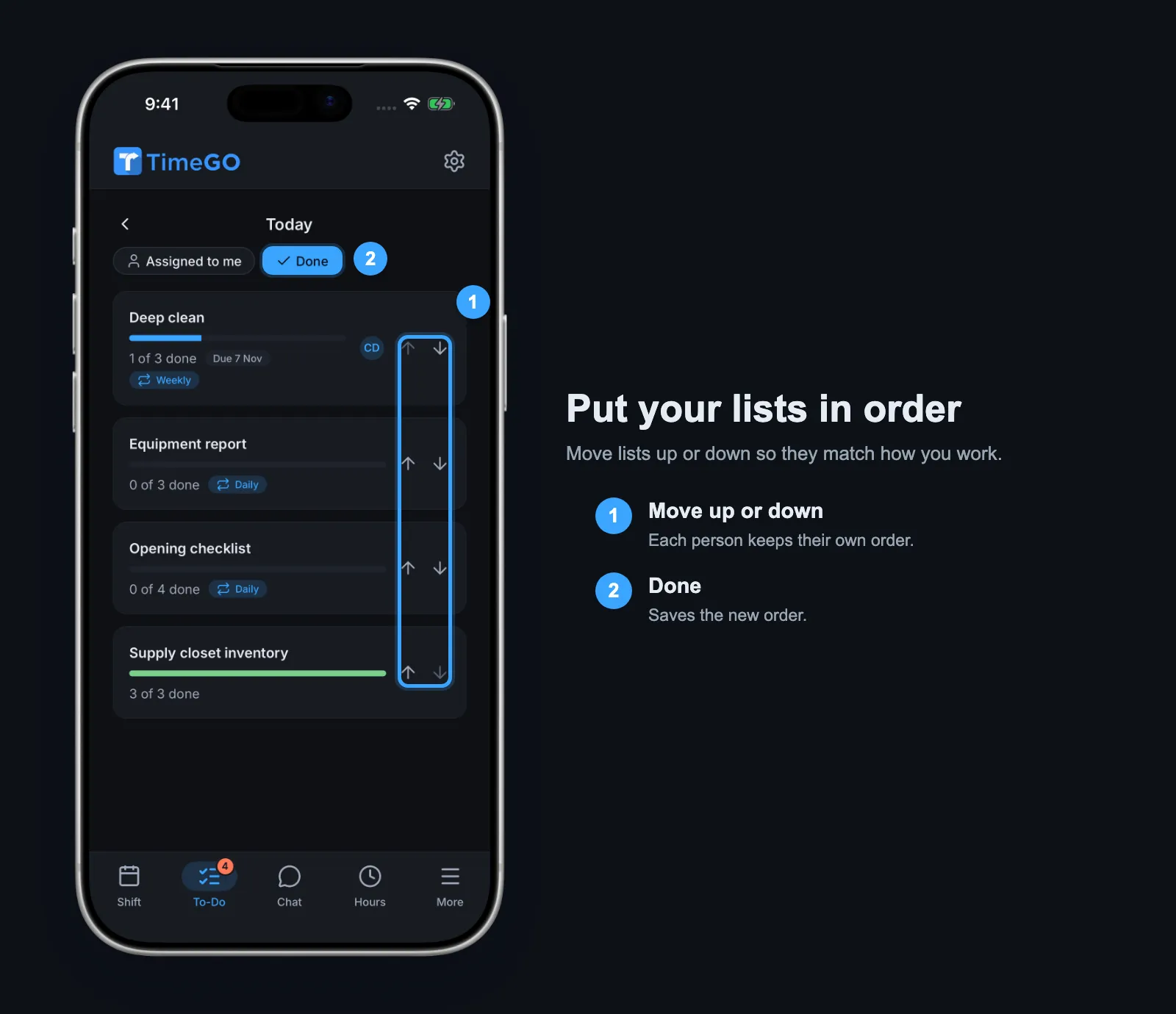
To change the order of your lists, tap Reorder, move the lists with the arrows and tap Done.
- 5
When every task of a one-time list is done, tap Mark To-do as Completed.
If it does not work
A list you expect is missing.
Ask your manager to add you to the list. You only see lists that you are part of.
Good to know
- To look at an earlier day, use the arrows next to the date at the top. Earlier days are read-only, so ask your manager if a past task needs a correction.
- A repeating list starts again at midnight company time: checks and answers clear, the tasks stay, and each day is kept in history.
- Some lists are shared: when one person checks a task, everyone on the list sees it. Other lists give each person their own copy.
About the feature: More about To-Do lists, More about Mobile app