 English
 Español
 Tiếng Việt
 Deutsch
 Français
 Português
 Polski
 Nederlands
 Italiano
 Svenska
 Norsk
 Dansk
 Suomi
 Čeština
 हिन्दी
 العربية
A timesheet app that exports to Excel and syncs with QuickBooks Online and Xero
Shifts land in the timesheet as employees clock out. Round the time, group the hours into payroll periods, then export them to Excel or a QuickBooks Desktop file, or sync them to QuickBooks Online or Xero.

What it does
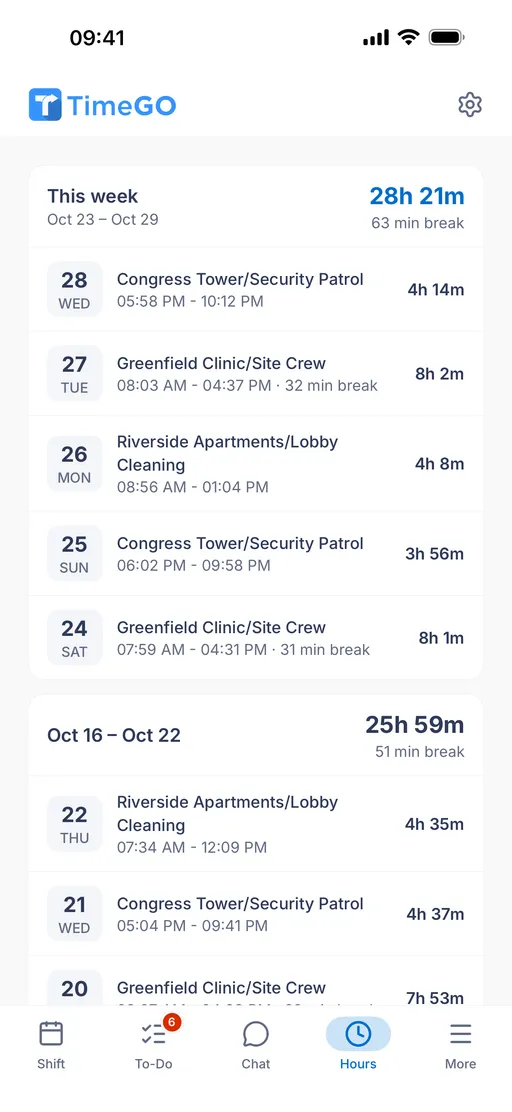
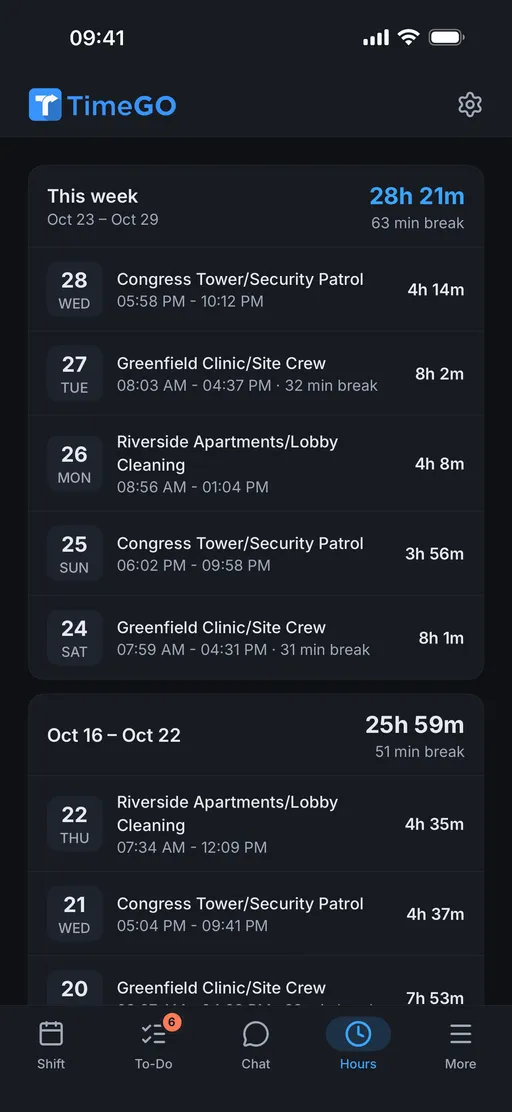
Employees clock in, take breaks and clock out in the TimeGO app, and see their own week on the Hours tab. In the web dashboard, each shift lands in the timesheet and hours are kept in payroll periods. Time can be rounded to 6 or 15 minutes. A period exports to Excel or a QuickBooks Desktop file, or syncs to QuickBooks Online or Xero on the Pro plan.
How it works
Employees clock in and out
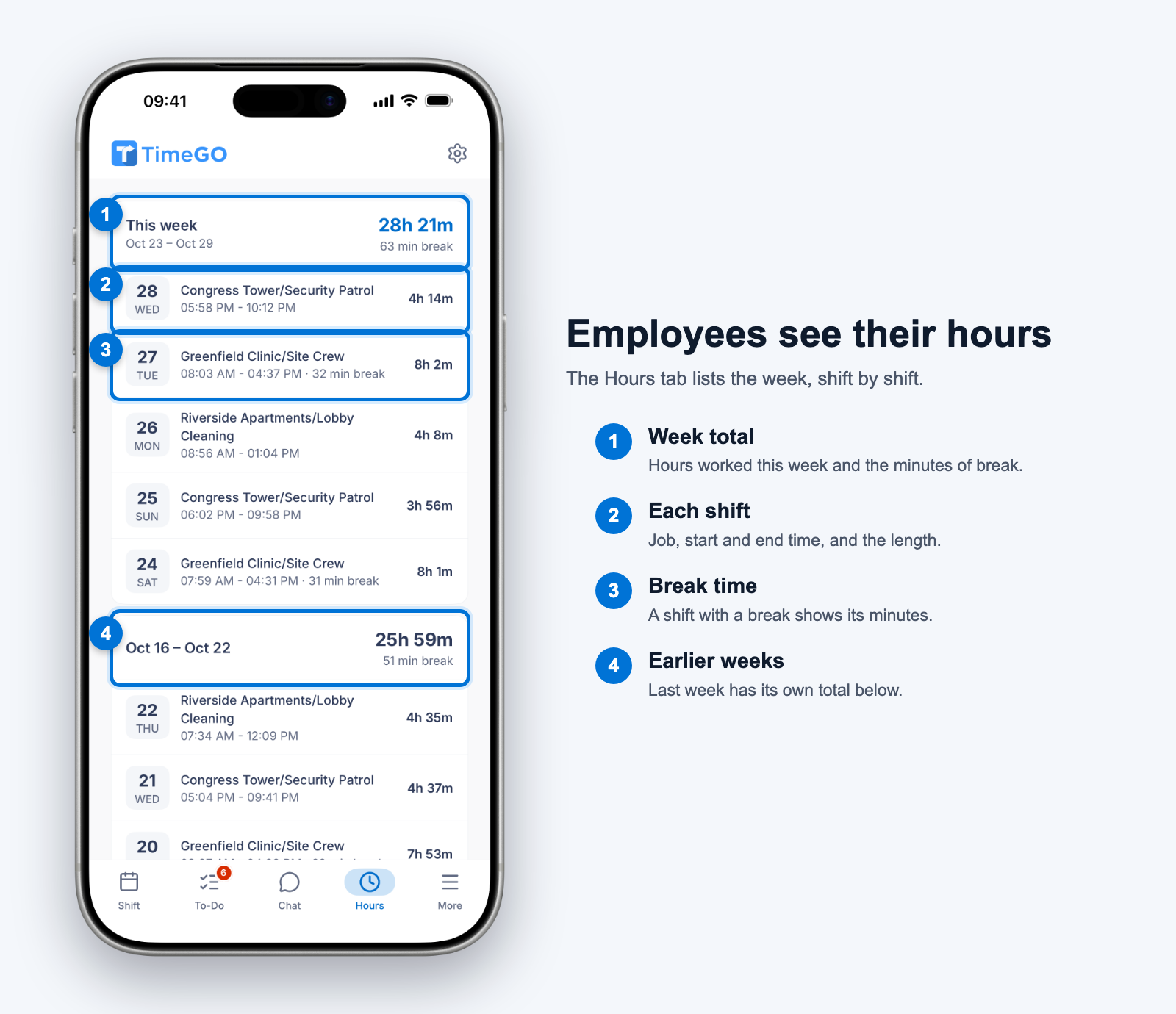
In the app, start, end and breaks come from the phone, with GPS. Employees see their own week on the Hours tab.
The shift lands in the timesheet
In the dashboard, each shift goes into the timesheet with its job, in the payroll period it belongs to.
Choose how time is rounded
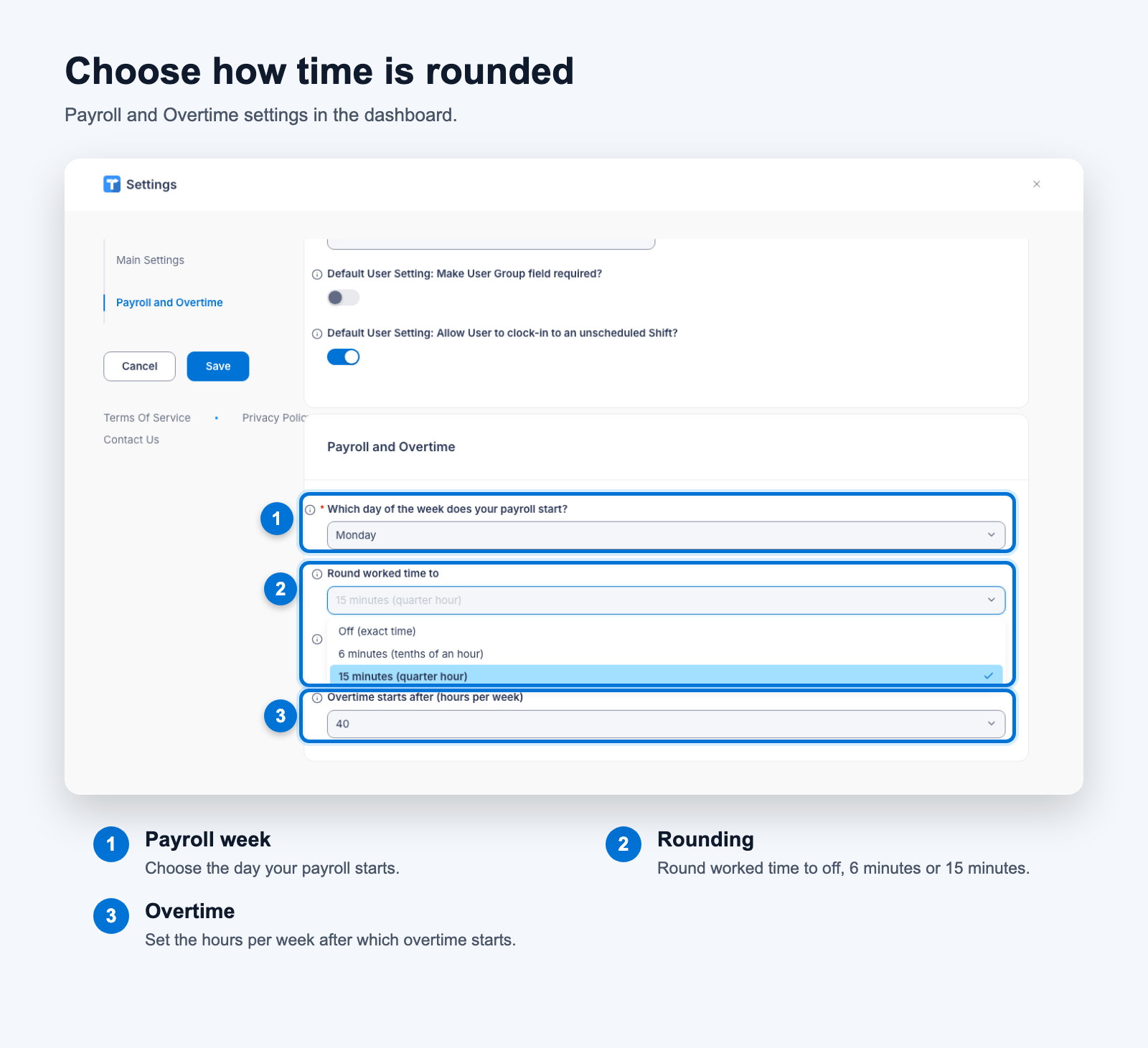
Set rounding to off, 6 or 15 minutes. Totals use the rounded time, and shift details keep the real punches.
Export or sync the period
Export the hours to Excel or a QuickBooks Desktop file, or sync them to QuickBooks Online or Xero from the Integrations page.
See it in TimeGO
Time rounding
Rounding is a setting with three choices, off, 6 minutes or 15 minutes, under Payroll and Overtime in the web dashboard. Employees clock in and out as usual. Only the first clock-in and the last clock-out of a shift are rounded. Breaks, punches in between and times a manager typed in stay exact. Totals use the rounded time, and a shift’s details keep the real punches.
Export to Excel or QuickBooks Desktop
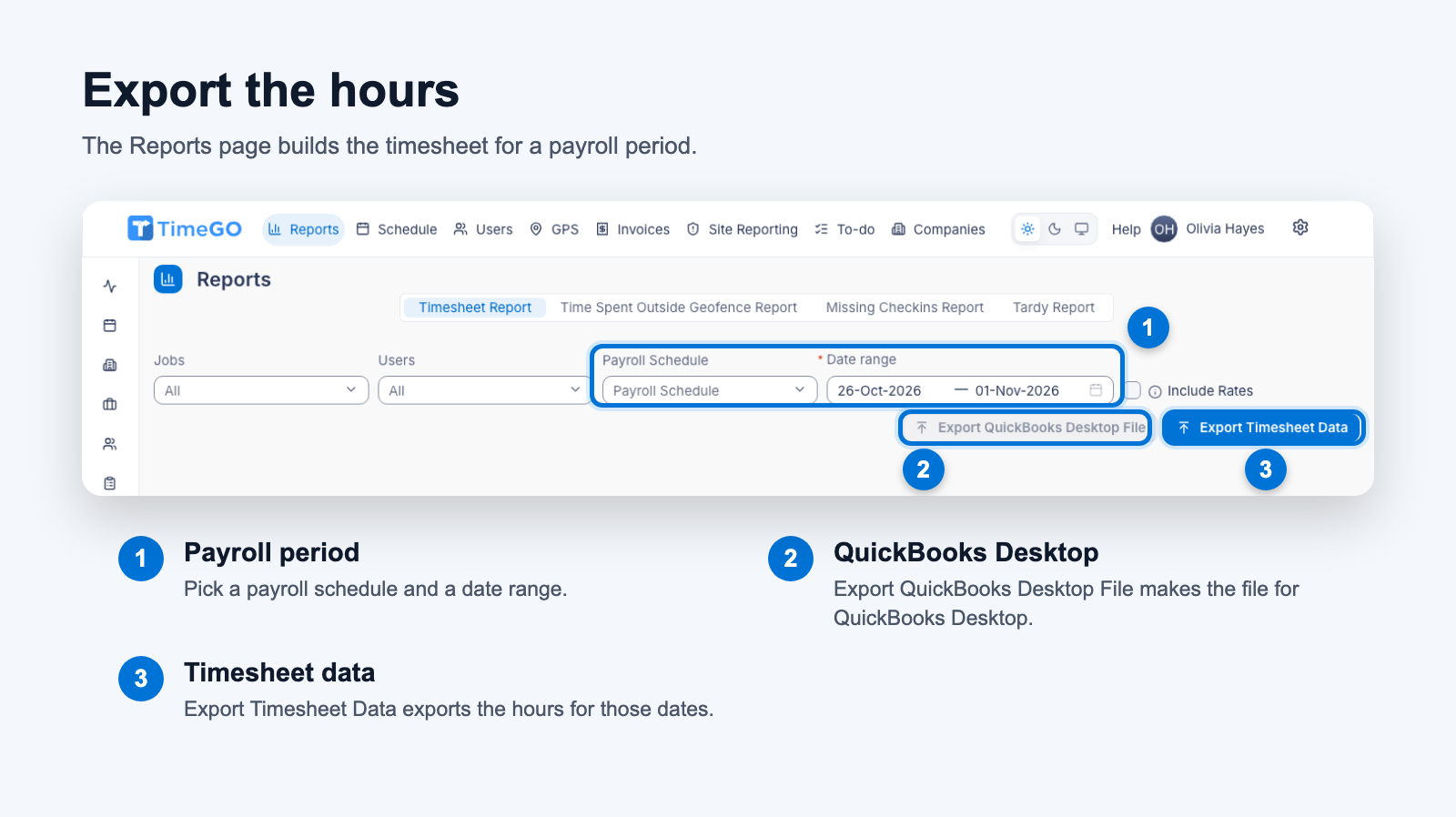
On the Reports page, pick the Timesheet Report, then a payroll period or a date range, and the jobs and users if you want fewer. Export Timesheet Data makes an .xlsx file of the hours, by job and by user, to check, sort, total or pass to your accountant. Export QuickBooks Desktop File makes the IIF file for QuickBooks Desktop. Either one is a file you make when you need it, not a sync. The help article How to export hours to Excel or QuickBooks Desktop has each click.
Sync to QuickBooks Online or Xero
On the Pro plan, connect your accounting tool on the Integrations page and sync employees and hours. See QuickBooks Online and Xero.
Reports
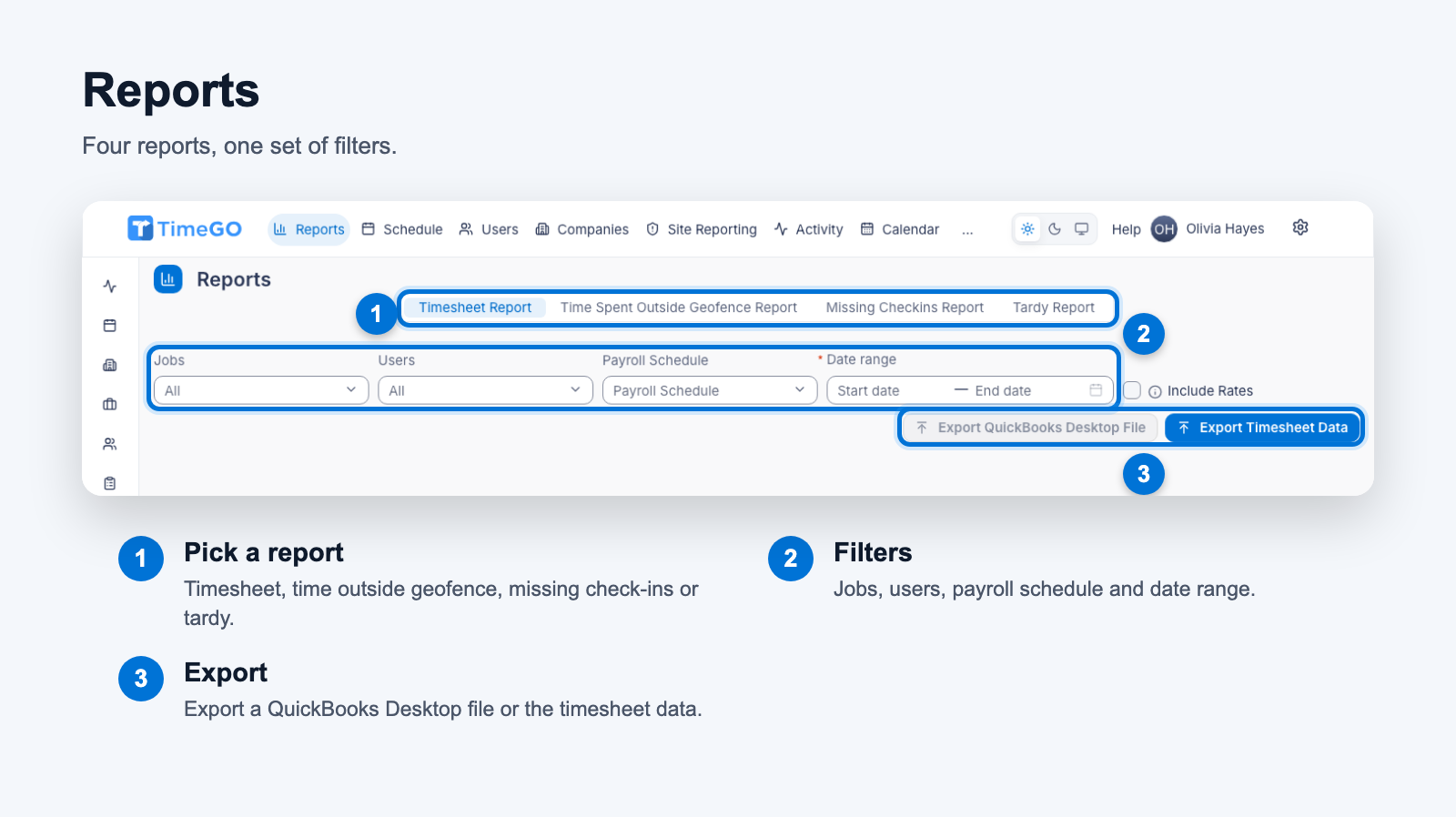
The Reports page has four reports, all with the same filters for jobs, users, payroll schedule and date range: the Timesheet Report, the Time Spent Outside Geofence Report, the Missing Checkins Report and the Tardy Report. The export buttons sit on the same page.
Who it helps
Frequently asked questions
Does TimeGO build the timesheet from clock-ins?
Yes. Employees clock in, take breaks and clock out in the app, and each shift lands in the timesheet in the dashboard. Hours are grouped for each payroll period.
Can employees see their own hours?
Yes. The Hours tab of the employee app shows the week's total and a row for each shift, with its job, times and break.
What rounding options does TimeGO have?
Off, 6 minutes or 15 minutes. Six minutes is a tenth of an hour, and 15 minutes is a quarter of an hour.
Do I lose the real punch times when I round?
No. Open the shift and the real punches are there. Totals use the rounded time, or the time as punched when rounding is off.
Which payroll and accounting tools can I send hours to?
Excel and a QuickBooks Desktop (IIF) file. On the Pro plan, you can also sync employees and hours to QuickBooks Online or Xero from the Integrations page.
Is the Excel export a sync?
No. It is a file you make when you need it, from the Timesheet Report. To sync hours with QuickBooks Online or Xero, connect them on the Integrations page. Syncing is on the Pro plan.
What goes into the Excel file?
The hours your employees tracked in the TimeGO app, for the payroll period or date range you picked. If you chose jobs or users, only their hours go in.
Where do I see who started late?
In the Tardy Report, one of the four reports on the Reports page. It lists shifts where the employee was late by more minutes than you set.
Can I invoice a client from the same hours?
Yes. TimeGO builds invoices from tracked hours and emails them as PDF. See [invoices](/features/invoices/).
Step-by-step guides
- How to add holidays
- How to choose time rounding
- How to connect QuickBooks Online or Xero
- How to export hours to Excel or QuickBooks Desktop
- How to find your reports
- How to read a timesheet
- How to see missed clock-in alerts and late starts
- How to see the check-ins an employee missed
- How to see time an employee spent outside the geofence
- How to see who started late
- How to see your hours in the phone app
- How to set employee pay rates
- How to set payroll periods