 English
 Español
 Tiếng Việt
 Deutsch
 Français
 Português
 Polski
 Nederlands
 Italiano
 Svenska
 Norsk
 Dansk
 Suomi
 Čeština
 हिन्दी
 العربية
Export timesheets to QuickBooks Desktop
An .iif file of hours only, in the format QuickBooks Desktop imports. QuickBooks Desktop has no sync, so you make a new file whenever you need one.
How it works
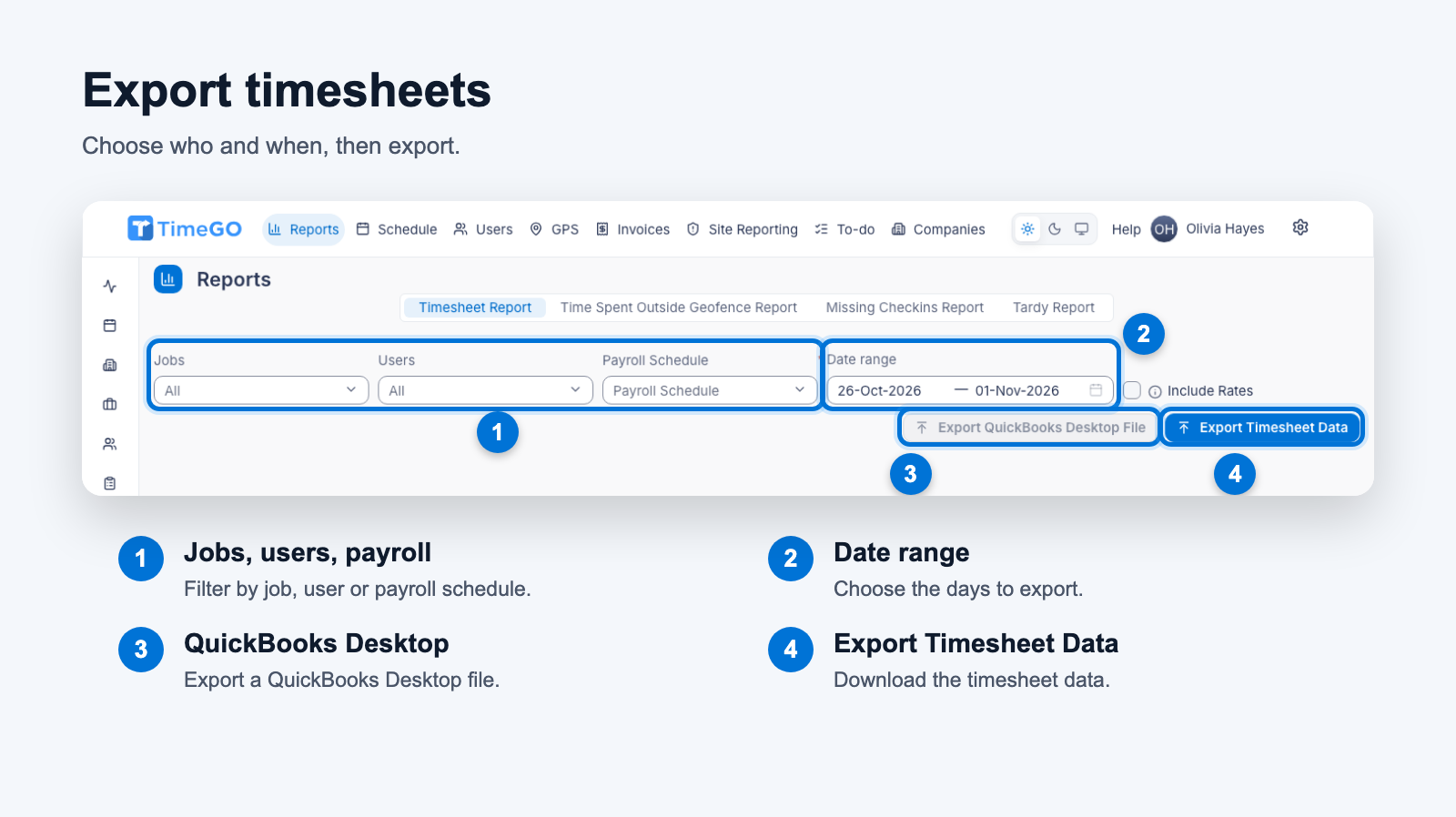
Tick Include Rates
In the Timesheet Report, tick Include Rates. The export button stays grayed out until you do.
Click Export QuickBooks Desktop File
TimeGO makes the .iif file for the period, jobs and users you picked. The click path is in the export help article.
Import into QuickBooks Desktop
Import the .iif file in QuickBooks Desktop. It carries hours only.
See it in TimeGO
What syncs or exports
- An .iif file for QuickBooks Desktop
- Hours only
- A new file each time, no sync
Frequently asked questions
What is an IIF file?
The file format TimeGO makes for QuickBooks Desktop. The file from the Timesheet Report holds hours only, for the period and the jobs and users you picked.
Why is Export QuickBooks Desktop File grayed out?
Tick Include Rates first. If you don't see the box, your user can't see both job rates and user rates, so someone who can see them makes the export.
Does this keep QuickBooks Desktop in sync?
No. There is no sync with QuickBooks Desktop. You export a new file whenever you need one. A sync exists only for QuickBooks Online and Xero, on the Pro plan.
Where are the steps?
In the Help Center article How to export hours to Excel or QuickBooks Desktop. It also covers Shift reviews pending, the Payroll Adjustment page and the Excel file.
Keep reading
QuickBooks is a trademark of Intuit.