 English
 Español
 Tiếng Việt
 Deutsch
 Français
 Português
 Polski
 Nederlands
 Italiano
 Svenska
 Norsk
 Dansk
 Suomi
 Čeština
 हिन्दी
 العربية
Dashboard
2 min read
How to read a timesheet
Export the hours to Excel from Reports, or open a shift in the Schedule to see when the employee really started and ended.
Steps
- 1
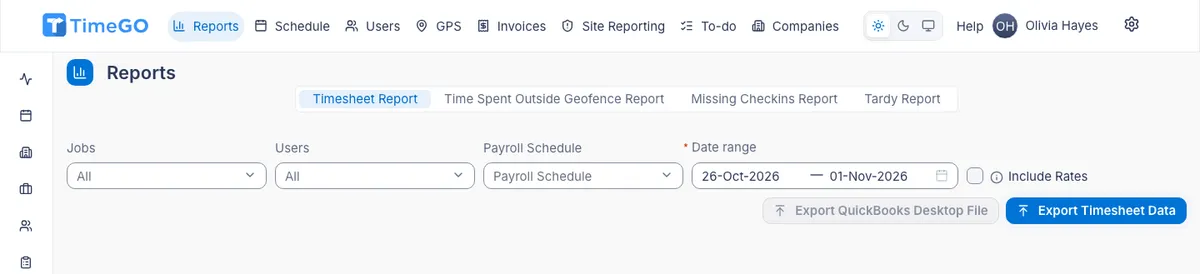
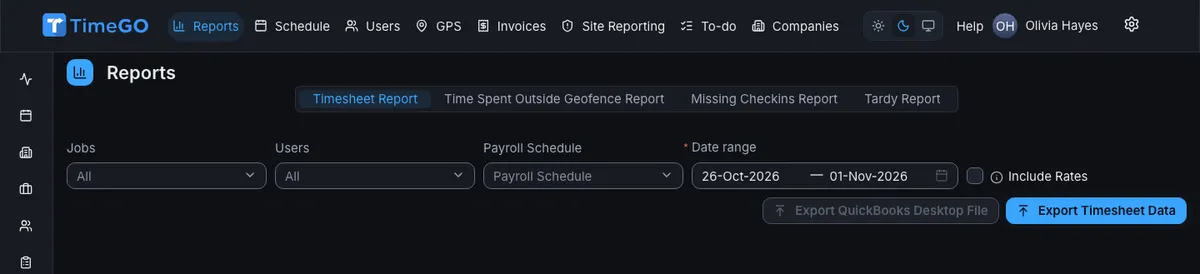
Open Reports, then the Timesheet Report tab. Choose a Payroll Schedule, Year and Payroll Period, or pick a Date range.
- 2
Tick Include Rates if you want rate columns, then click Export Timesheet Data. You get an Excel file.
- 3
To check one shift, open Schedule and click the shift.
- 4
In the Actual Hours Worked card, read Actual Start Time and Actual End Time.
If it does not work
The hours in the report do not match the clock-in and clock-out times of the shift.
Rounding is the usual reason. See Good to know below, and the article on choosing time rounding.
Good to know
- Only the first clock-in and the last clock-out of each shift are rounded. A time a manager types in is not rounded.
- Include Rates shows only to users who can see both job rates and user rates. It adds pay rate, billed amount, margin, burdened cost and net profit columns to the Excel file.
- A business admin sets the rounding under Account settings, in Payroll and Overtime, with Round worked time to.
About the feature: More about Timesheets and payroll