 English
 Español
 Tiếng Việt
 Deutsch
 Français
 Português
 Polski
 Nederlands
 Italiano
 Svenska
 Norsk
 Dansk
 Suomi
 Čeština
 हिन्दी
 العربية
Dashboard
2 min read
How to see hours you have not invoiced yet
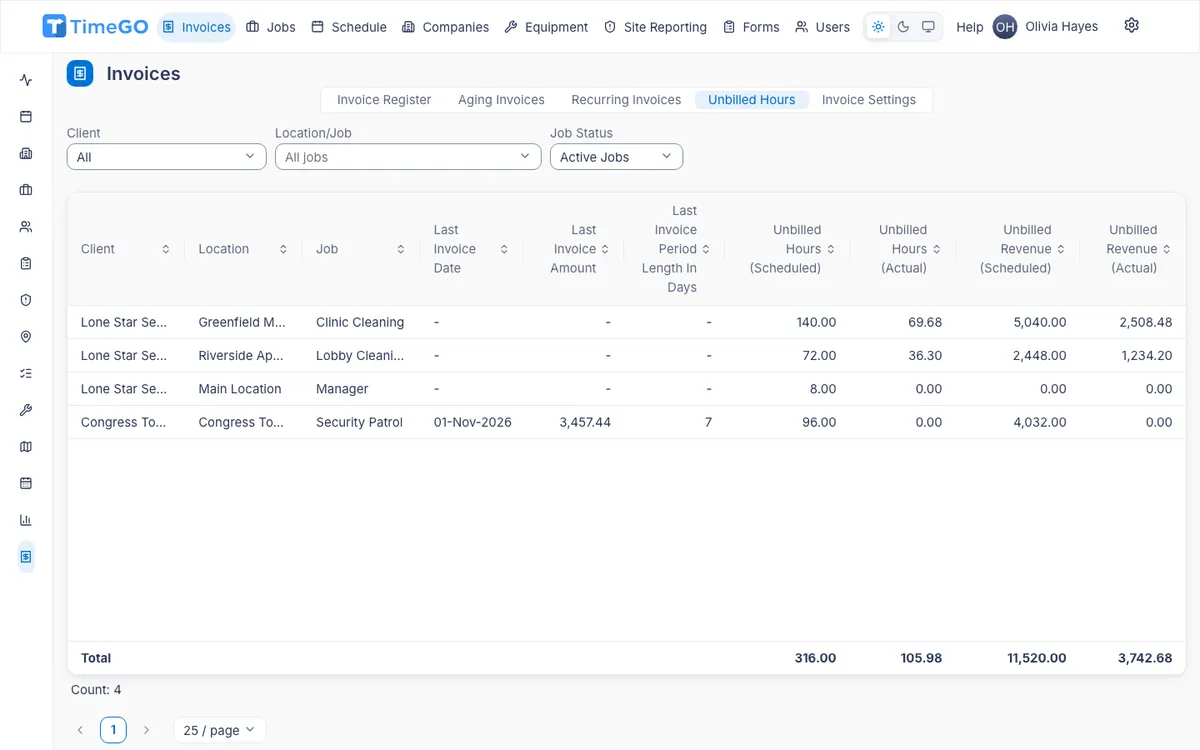
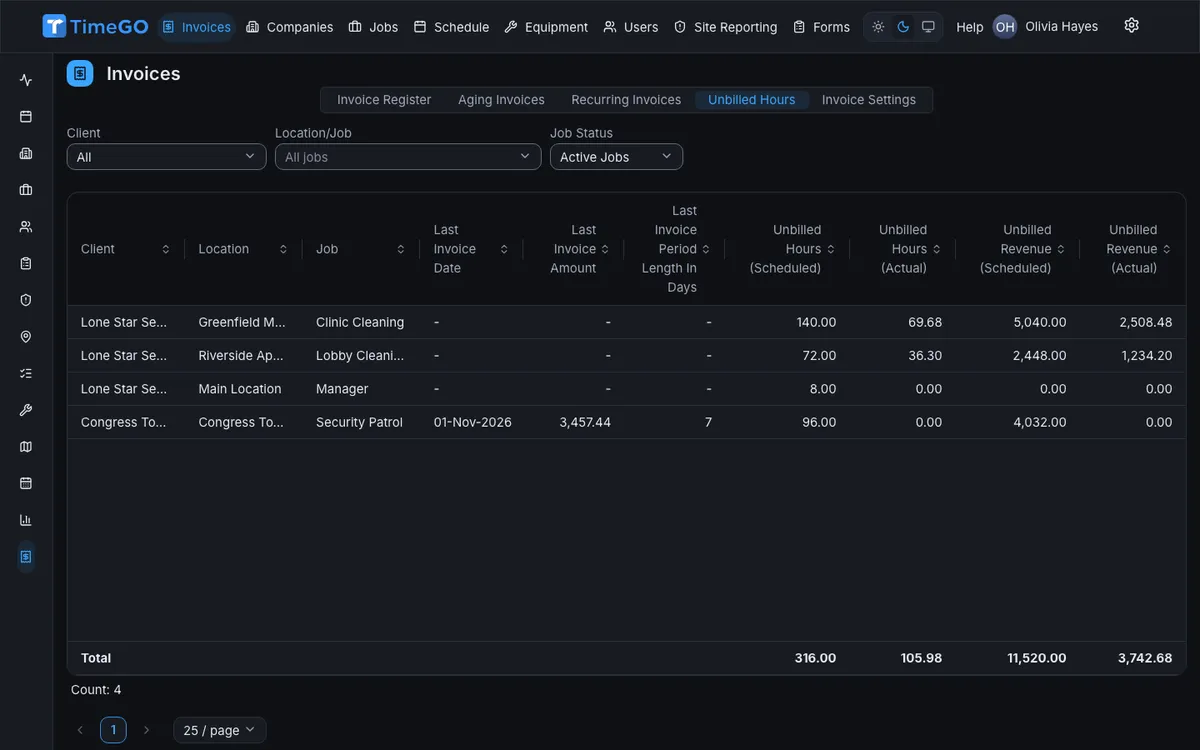
On the Unbilled Hours tab, each billable job shows its hours and revenue not yet invoiced since its last invoice. Filter by client, job and job status.
Steps
- 1
Click Invoices in the main menu and open the Unbilled Hours tab.
- 2
To narrow the list, use Client, Location/Job and Job Status.
- 3
Read Unbilled Hours (Scheduled), Unbilled Hours (Actual), Unbilled Revenue (Scheduled) and Unbilled Revenue (Actual) for each job.
- 4
To bill a job, create a one-time invoice for it with work dates after its Last Invoice Date.

Good to know
- There is no date range: hours count from the day after the job’s Last Invoice Date, the last work date of its latest invoice, not its Invoice Date. A job with no invoice shows a dash and counts all its unbilled hours.
- A shift counts when it is billable, has started and is not marked invoiced, which happens when its invoice is emailed. Hours on or before the Last Invoice Date are not counted, even if no invoice covered them.
- Revenue is hours times the job’s client billing rate for the shift’s day, at the overtime rate for a shift set to bill at overtime, and 0 for a job with no rate. Adjustments, holidays and the weekly overtime limit are not applied, and scheduled hours do not subtract unpaid breaks, so an invoice from the same hours can show a different total.
About the feature: More about Invoices