 English
 Español
 Tiếng Việt
 Deutsch
 Français
 Português
 Polski
 Nederlands
 Italiano
 Svenska
 Norsk
 Dansk
 Suomi
 Čeština
 हिन्दी
 العربية
Phone app
1 min read
How to see your hours in the phone app
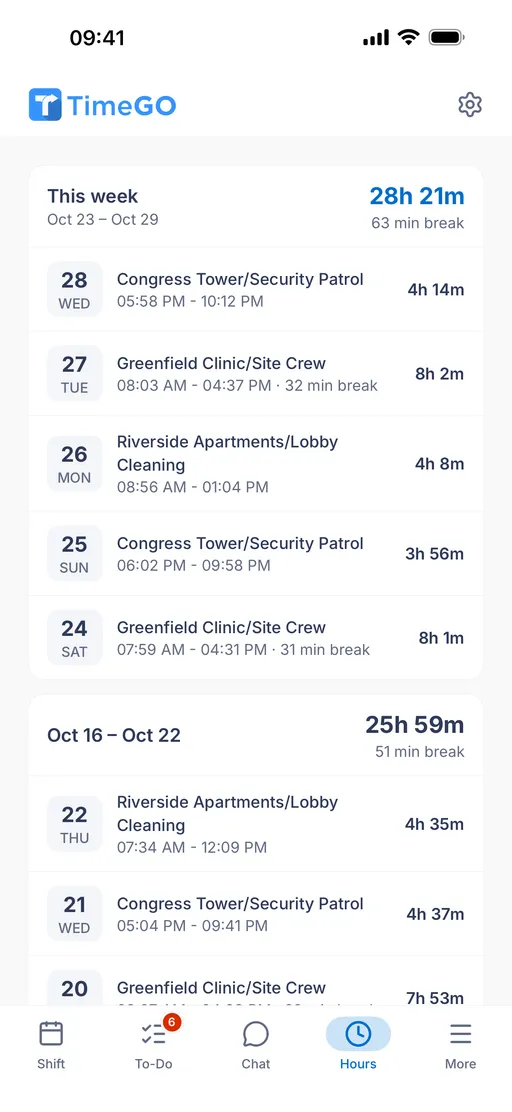
The Hours tab shows your last four pay weeks, newest first, with the time you worked on each shift and a total for each week.
Steps
- 1
Tap Hours at the bottom of the phone app.
- 2
Scroll down to see the weeks before this one.
If it does not work
The app says: This feature is unavailable in your current plan.
Your company's plan or access does not include Hours. Ask your manager.
The app says: Not available without internet connection
Connect your phone to the internet. The Hours tab loads your hours from the server.
Good to know
- The line under a week total shows that week’s break time. Breaks are not counted in the totals.
- Paid as under a shift shows only when company time rounding changed your start or end. It shows the rounded times your company pays.
- I worked longer means TimeGO clocked you out automatically. Tap it, say when you really finished, and tap Send to manager. You can report once, within 24 hours of the shift’s scheduled end.
About the feature: More about Mobile app, More about Timesheets and payroll