 English
 Español
 Tiếng Việt
 Deutsch
 Français
 Português
 Polski
 Nederlands
 Italiano
 Svenska
 Norsk
 Dansk
 Suomi
 Čeština
 हिन्दी
 العربية
Dashboard
2 min read
How to add holidays
Open the Holidays tab in Payroll, click Add New Holiday, enter a name and the first and last day, then click Add.
Steps
- 1
Click the gear icon at the top right of the dashboard, click Payroll Settings, then open the Holidays tab.
- 2
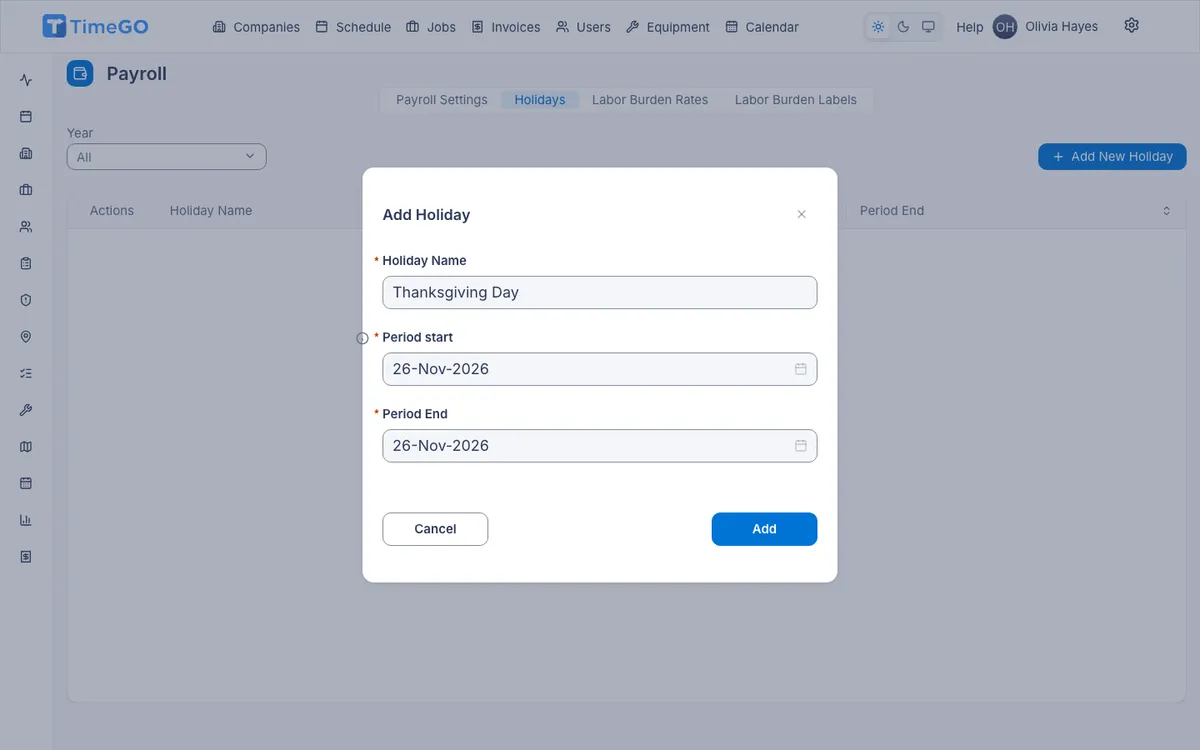
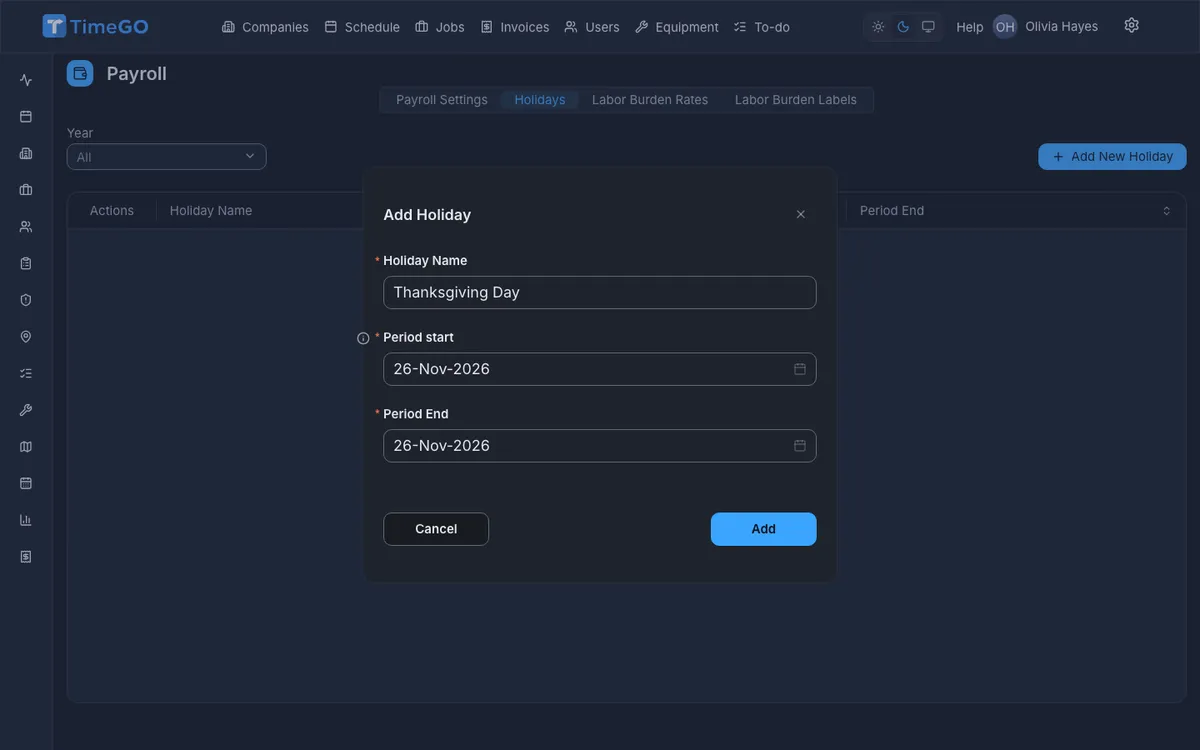
Click Add New Holiday and enter the Holiday Name.
- 3
Set Period start and Period End. For a one-day holiday, pick the same date in both.
- 4
Click Add.
- 5
To change or remove a holiday later, open the menu in the Actions column of its row and click Edit Holiday or Delete Holiday.

Good to know
- Hours worked on a holiday date, last day included, are holiday hours for every user, paid at the user’s Holiday Rate whatever else the shift is set to. A user with no Holiday Rate is paid 0 for them, so set it under Rates on the Users page.
- In pay, holiday hours do not count toward the weekly overtime limit. A shift that runs past midnight is split at midnight, and only the part on the holiday dates counts.
- On an invoice from tracked hours, holiday hours are billed at the job’s overtime billing rate when the job has a rate. If the job also bills weekly overtime, a holiday shift that crosses the weekly limit can be split, with the part under the limit billed at the regular rate.
About the feature: More about Timesheets and payroll