 English
 Español
 Tiếng Việt
 Deutsch
 Français
 Português
 Polski
 Nederlands
 Italiano
 Svenska
 Norsk
 Dansk
 Suomi
 Čeština
 हिन्दी
 العربية
3 min read
How to create a one-time invoice
On the Invoice Register tab, click New One-Time Invoice, fill in the invoice and its jobs, pick the work dates, click Add Lines to Invoice, then Save.
Steps
- 1
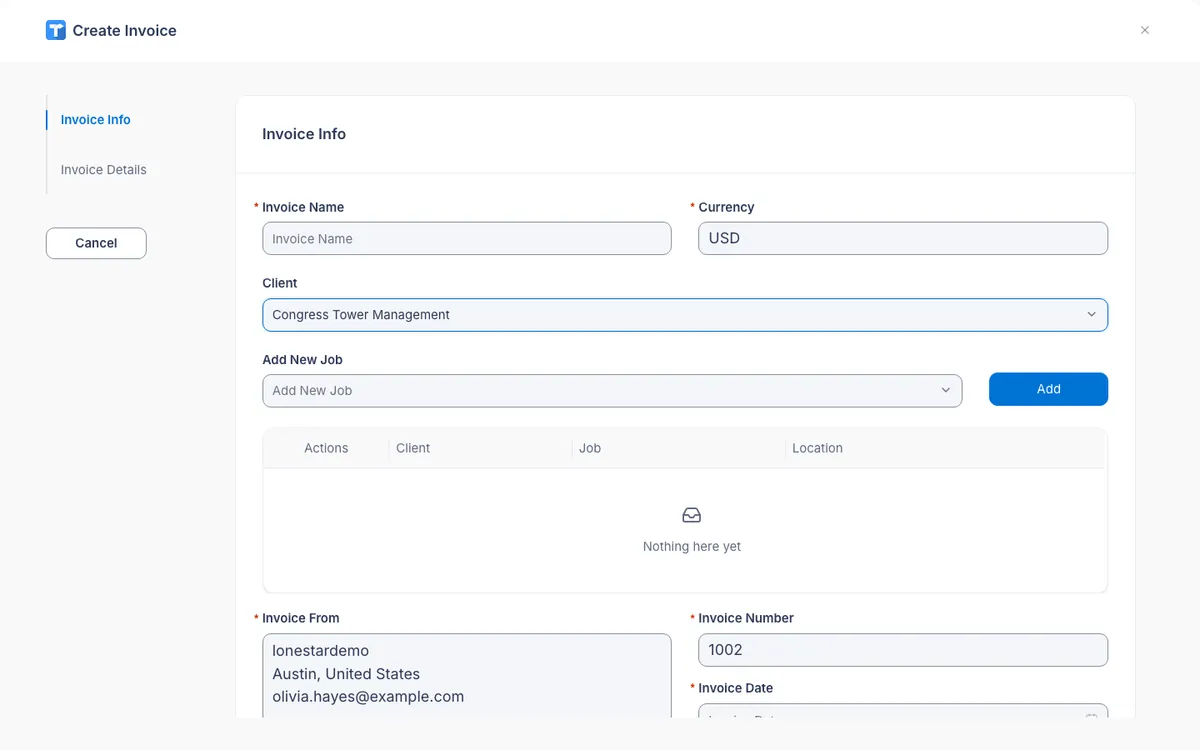
Click Invoices in the main menu, open the Invoice Register tab and click New One-Time Invoice. The Create Invoice page opens.
- 2
Under Invoice Info, type an Invoice Name and pick the Client.
- 3
Pick a job in Add New Job and click Add. Repeat for every job of this client on the invoice.
- 4
Fill in Invoice Date, Due Date and Bill To. Change the prefilled Invoice From, Invoice Number and Currency if needed.
- 5
Under Invoice Details, pick the dates in This invoice includes work dates between.
- 6
Choose the hours to bill. Pick Billable Actual Hours Worked, one line per shift or Billable Scheduled Hours, one line per shift, then Add uninvoiced hours only or Add all hours.
- 7
Click Add Lines to Invoice, check the lines and the Total, then click Save.

If it does not work
The Save button is grey
Save stays grey until the invoice has a job, work dates and a total above zero. Click Add Lines to Invoice, or Recalculate after you change a line.
TimeGO does not accept the Invoice Number
Another invoice already uses it. TimeGO compares the digits only, so INV-5 and 5 count as the same number. Increment Invoice Number in Invoice Settings decides whether this is checked across all clients or per client.
You have already added this job!
A job can be on the invoice once. Pick another job.
Good to know
- Add Lines to Invoice takes the billable shifts of billable jobs in the work dates: Qty is the shift’s hours minus unpaid breaks (actual hours follow your time rounding), Rate is the job’s client billing rate for that day (0 if none), and Total is Qty times Rate, rounded to cents. The overtime rate is used when the shift is set to bill at overtime, falls on a holiday you added, or the job pays overtime and the employee is past the weekly limit, and such a shift can split into a regular and an overtime line.
- The invoice Total is the subtotal plus the adjustments, rounded to cents. Adjustment 1 Name is a percentage of the subtotal or an amount, Adjustment 2 Name as a percentage is taken on the total after the first, Adjustment 3 Name is an amount added last, and a negative value subtracts.
- Shifts are marked invoiced when you email the invoice, not when you save it, so Add uninvoiced hours only can pick the same shifts again until then. Lines made with Totals by rate carry no shift, so those hours stay uninvoiced.
About the feature: More about Invoices