 English
 Español
 Tiếng Việt
 Deutsch
 Français
 Português
 Polski
 Nederlands
 Italiano
 Svenska
 Norsk
 Dansk
 Suomi
 Čeština
 हिन्दी
 العربية
Dashboard
1 min read
How to create an invoice from tracked hours
Make a one-time invoice from the hours your crew tracked, check the PDF, and email it to your client.
Steps
- 1
Click Invoices in the main menu and open the Unbilled Hours tab. It lists each client, location and job with its unbilled hours and revenue.
- 2
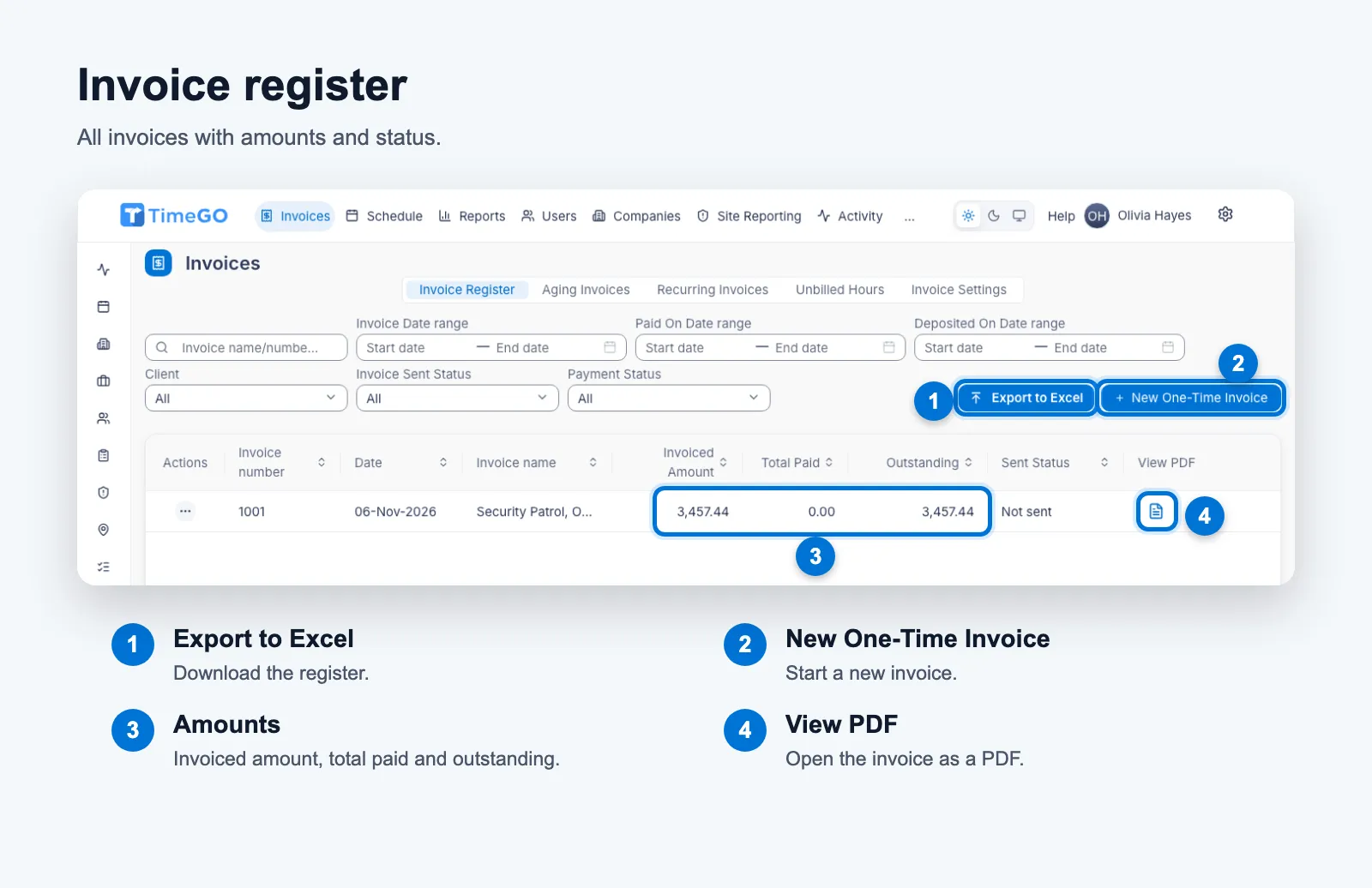
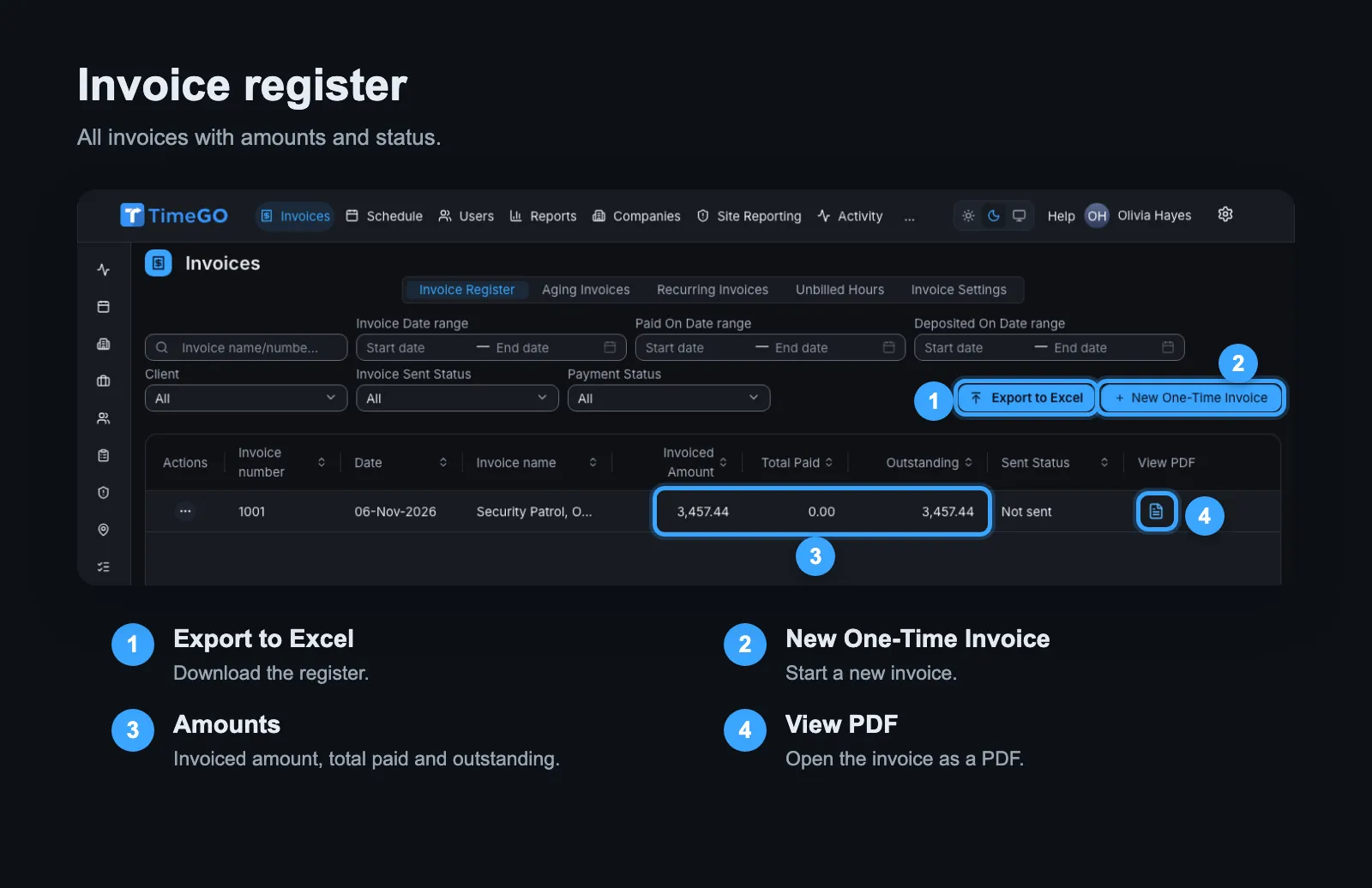
Open the Invoice Register tab and click New One-Time Invoice.
- 3
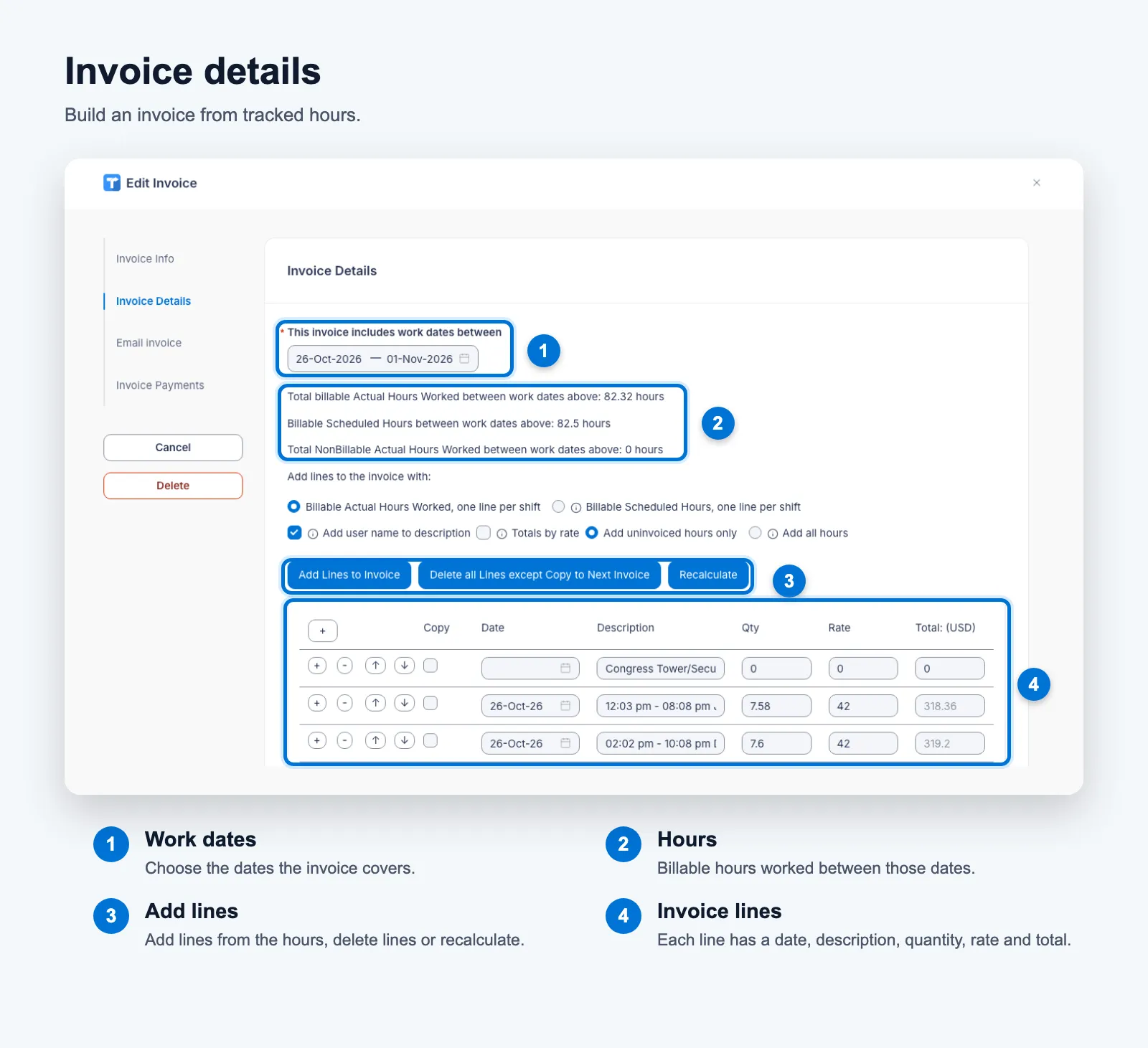
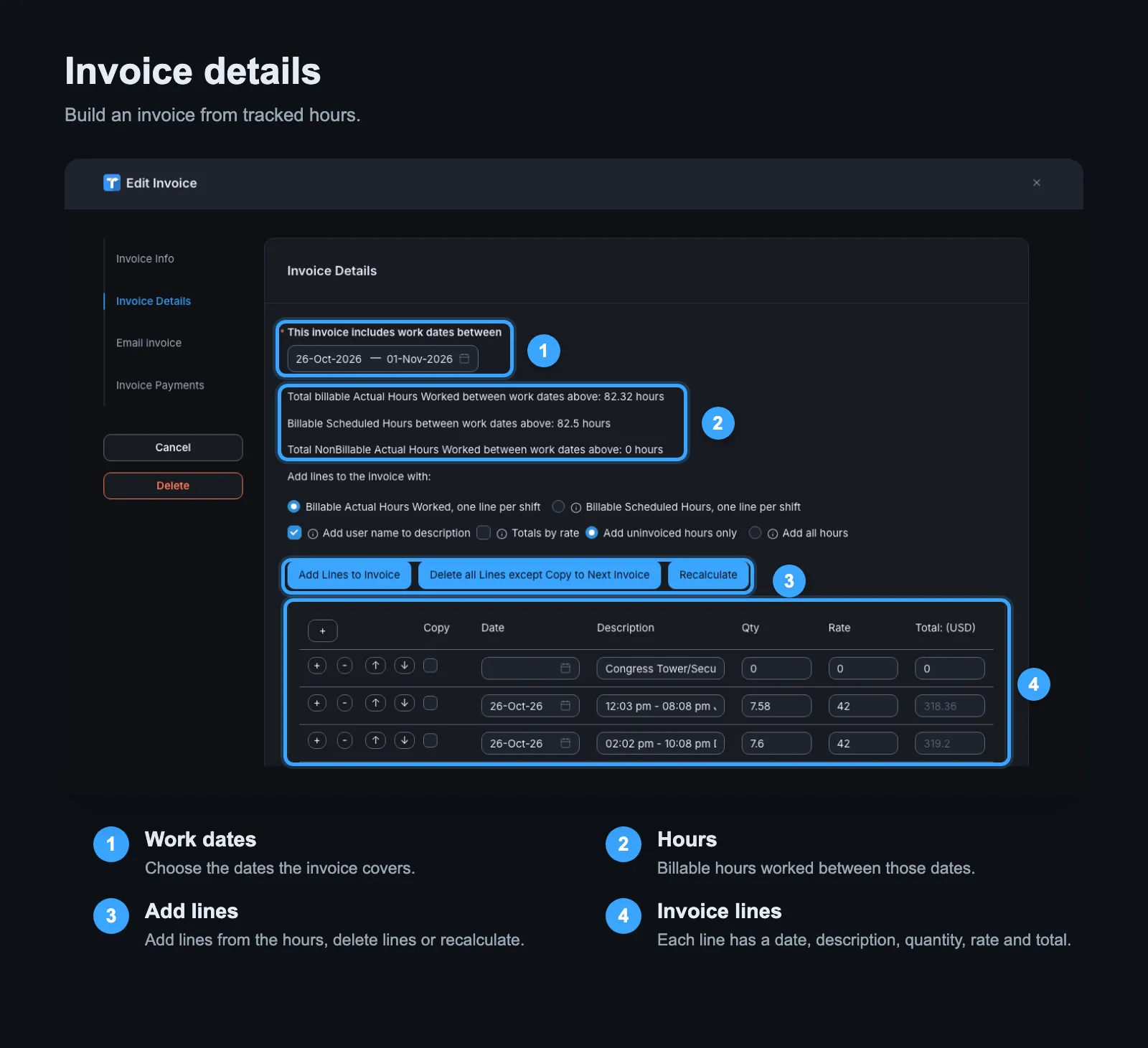
Under Invoice Details, set the dates in This invoice includes work dates between, click Add Lines to Invoice, check the lines, then click Create.
- 4
In the register, click the icon in the View PDF column to check the invoice.
- 5
Open the invoice with Actions, Edit Invoice, go to Email invoice, fill in Email To, Email Reply To, Email Subject and Email Body, then click Send.
Good to know
- Sending an invoice marks it as sent and marks the shifts on its lines as invoiced.
- Invoices use your time rounding setting. See How to choose time rounding.
- Invoice Settings holds the defaults for the email fields, Increment Invoice Number and Invoice From Text.
About the feature: More about Invoices