 English
 Español
 Tiếng Việt
 Deutsch
 Français
 Português
 Polski
 Nederlands
 Italiano
 Svenska
 Norsk
 Dansk
 Suomi
 Čeština
 हिन्दी
 العربية
Dashboard
1 min read
How to choose time rounding
Pick how worked time is rounded for the whole company: exact time, 6 minutes or 15 minutes.
Steps
- 1
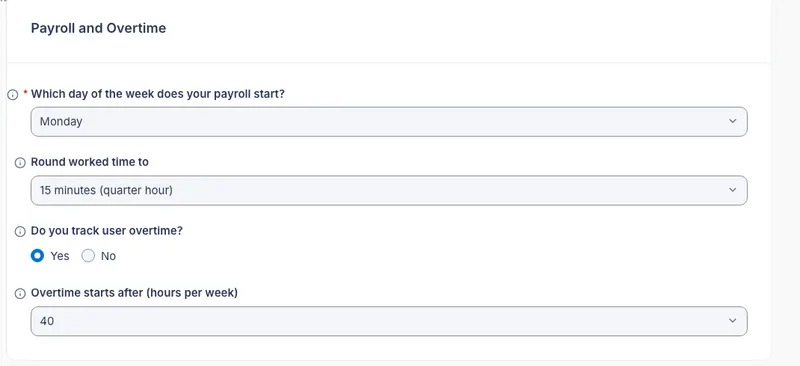
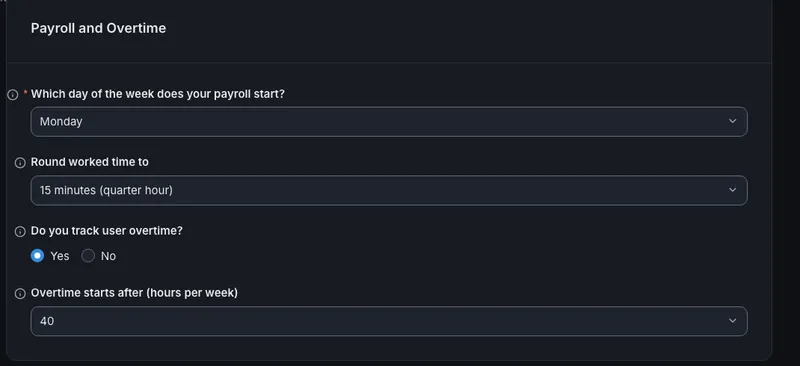
Open Account settings from the user menu, then click Payroll and Overtime.
- 2
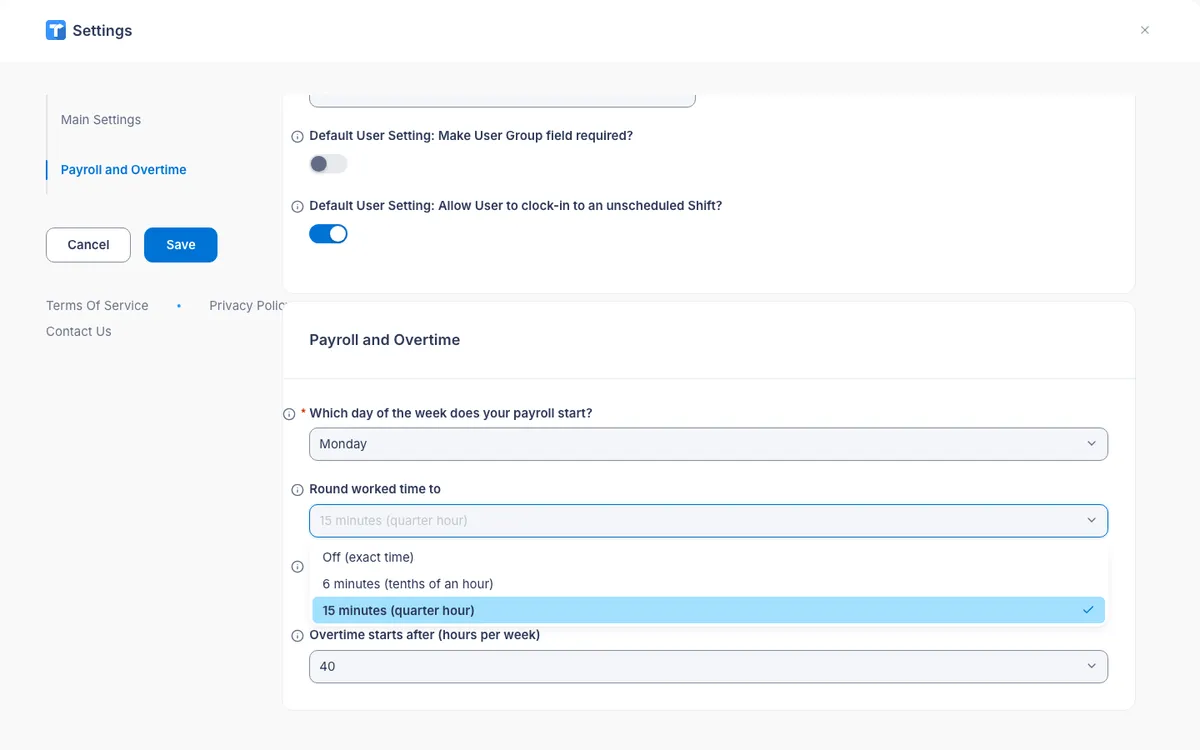
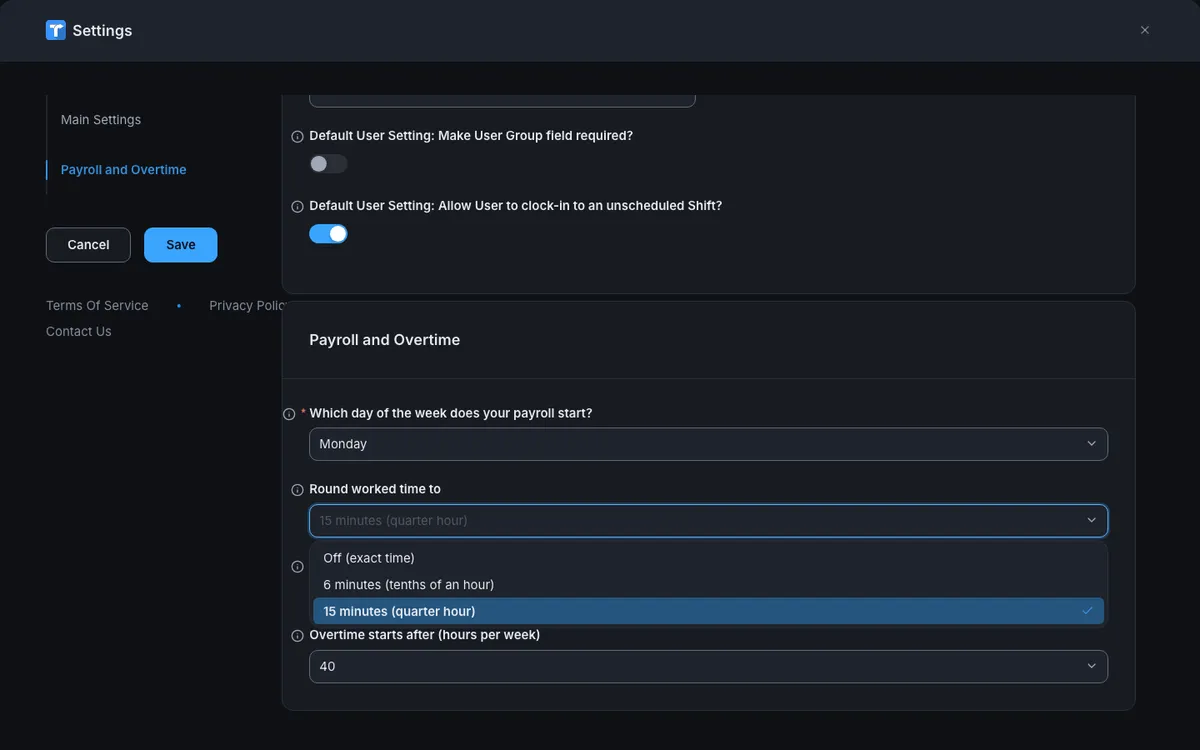
Find the field Round worked time to.
- 3
Pick Off (exact time), 6 minutes (tenths of an hour) or 15 minutes (quarter hour).
- 4
Click Save.
If it does not work
A time a manager entered by hand is not rounded.
That is expected. Times a manager enters are kept as entered.
Good to know
- One setting covers the whole company. It also applies to past periods, in payroll, reports and invoices.
- Only the first clock-in and the last clock-out of a shift are rounded. Breaks stay exact, and the Schedule keeps showing exact times.
- With Off (exact time), totals use the time as punched.
About the feature: More about Timesheets and payroll