 English
 Español
 Tiếng Việt
 Deutsch
 Français
 Português
 Polski
 Nederlands
 Italiano
 Svenska
 Norsk
 Dansk
 Suomi
 Čeština
 हिन्दी
 العربية
2 min read
How to find and manage your invoices
On the Invoice Register tab, filter the list to find an invoice, then use its Actions menu to edit it, edit its payments, copy it or delete it.
Steps
- 1
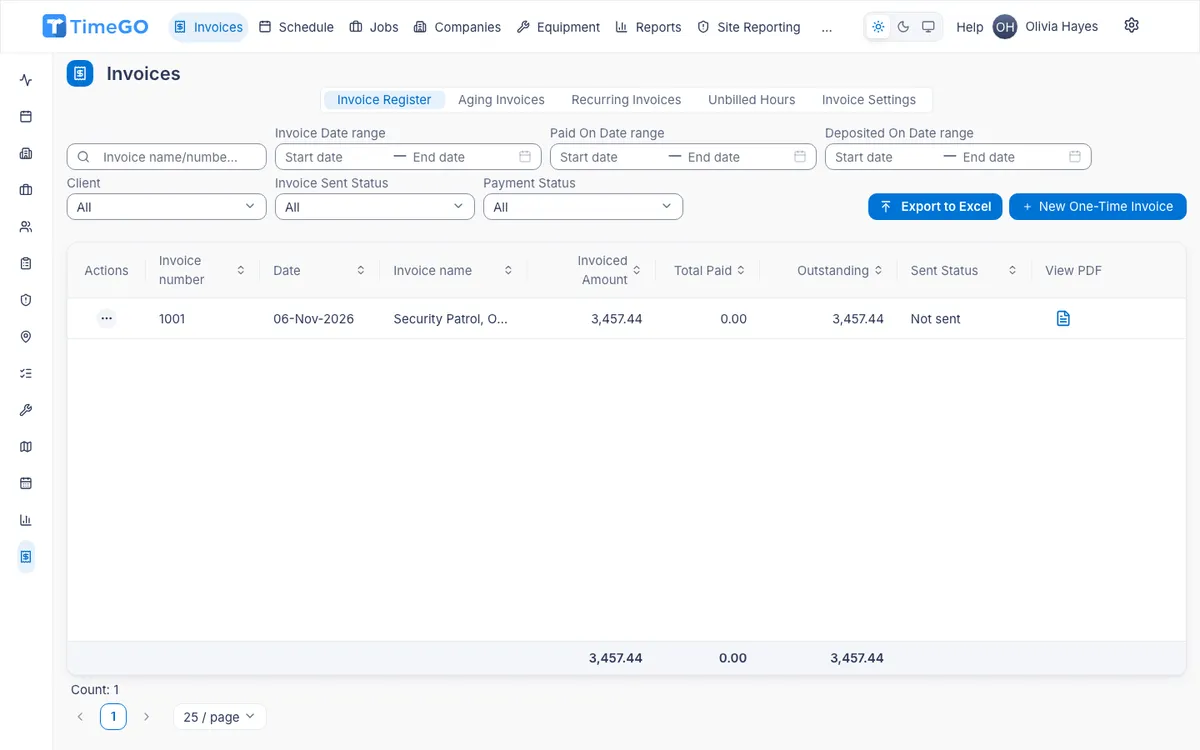
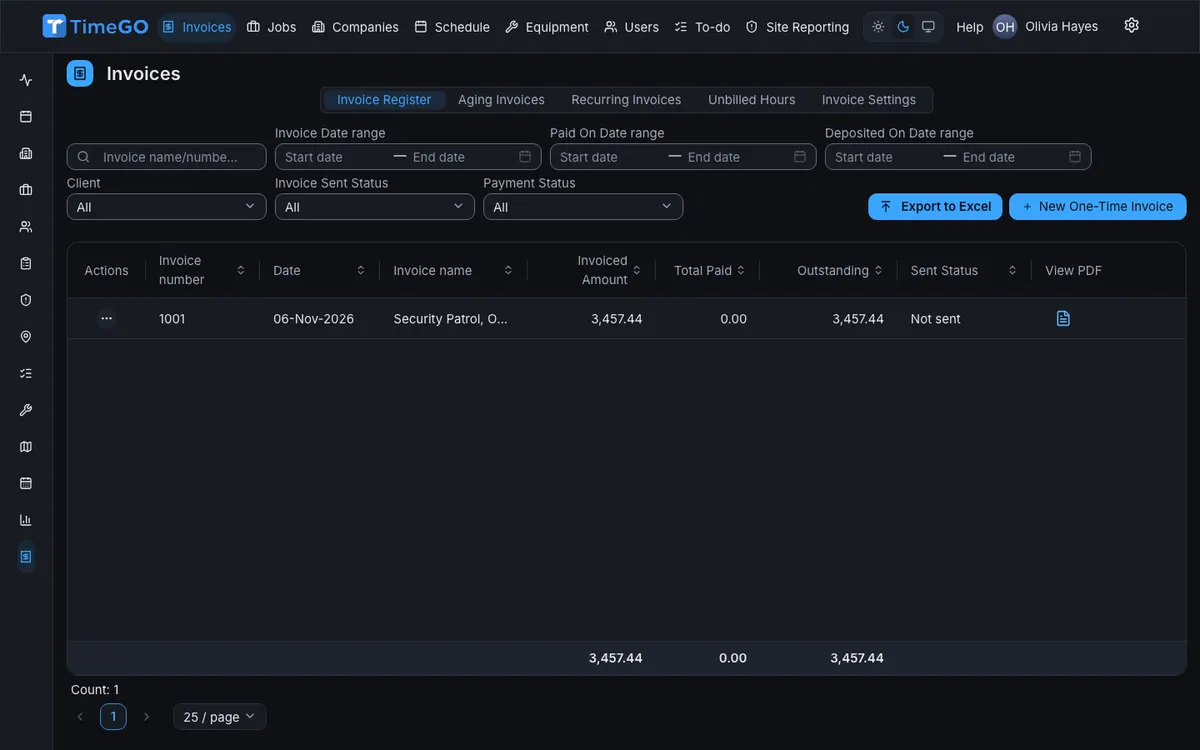
Click Invoices in the main menu, then open the Invoice Register tab.
- 2
To find an invoice, type in Invoice name/number contains or use the date range, Client, Invoice Sent Status and Payment Status filters.
- 3
To download the PDF, click the document icon in the View PDF column.
- 4
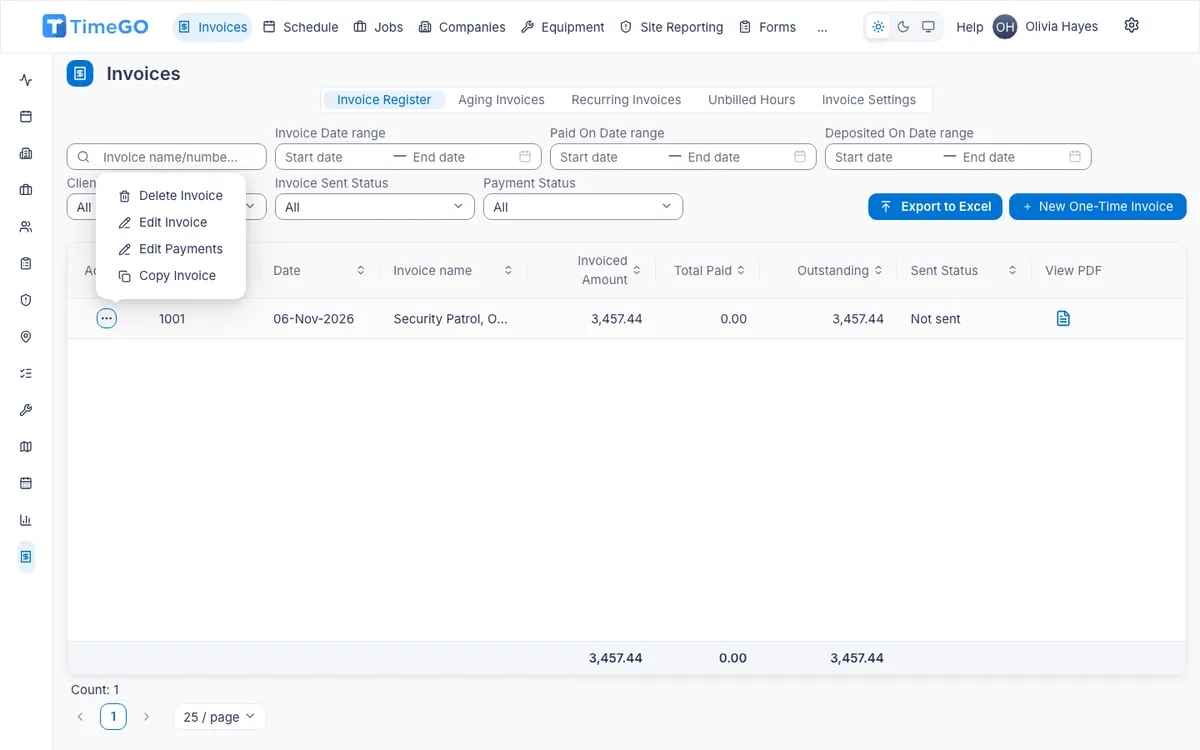
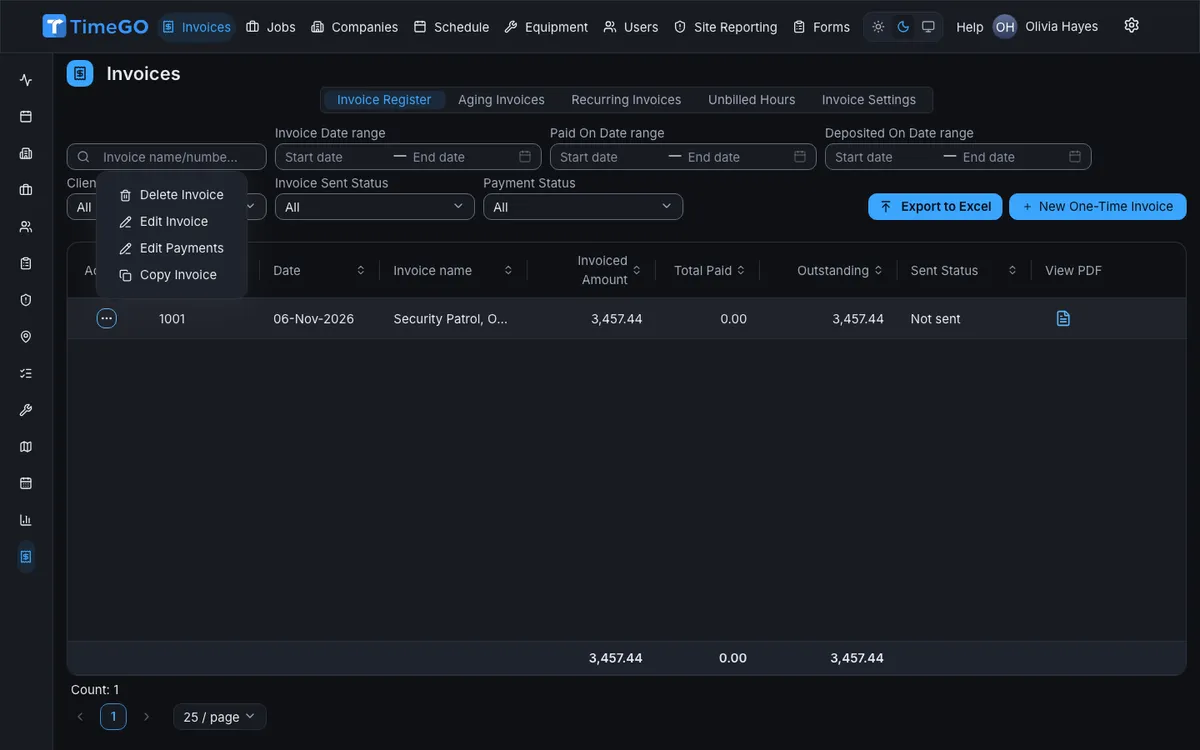
To change an invoice, click ... in the Actions column, choose Edit Invoice, change it and click Save. After you change a line's Qty, Rate or Total, click Recalculate first.
- 5
To record a payment, choose Edit Payments. Fill in Paid amount, Paid On and Deposited On, add a Check number if you have one, click Add, then click Save.
- 6
To start a new invoice from an old one, choose Copy Invoice, fill in the dates and click Save.
- 7
To remove an invoice, choose Delete Invoice and click Yes. The shifts on it stay marked invoiced. To bill those hours again, choose Add all hours on a new invoice.
- 8
To save the list in a spreadsheet, click Export to Excel.

If it does not work
Please, fill all required fields!
In Edit Payments, fill in Paid amount, Paid On and Deposited On before you click Add.
The Save button is grey in Edit Invoice
Click Recalculate. Save turns on when the invoice has a total again.
Good to know
- Outstanding is Invoiced Amount minus Total Paid. The bottom row adds up the invoices that match your filters.
- Payment Status follows the payments: none is Not Paid, below the total is Partially Paid, reaching the total is Fully Paid. Saving sets it again even if you picked it by hand, and invoices not Fully Paid show in Aging Invoices for active clients, unless you set Client to All.
- Copy Invoice keeps the name, jobs, notes, adjustments and email text and gives the next invoice number. Dates stay empty, Sent Status is Not sent, no payments come along, and only lines with Copy ticked do.
About the feature: More about Invoices