 English
 Español
 Tiếng Việt
 Deutsch
 Français
 Português
 Polski
 Nederlands
 Italiano
 Svenska
 Norsk
 Dansk
 Suomi
 Čeština
 हिन्दी
 العربية
2 min read
How to set employee pay rates
On the Users page, open the Rates tab, click New Rate, choose the user and the dates, enter the hourly rates and click Add.
Steps
- 1
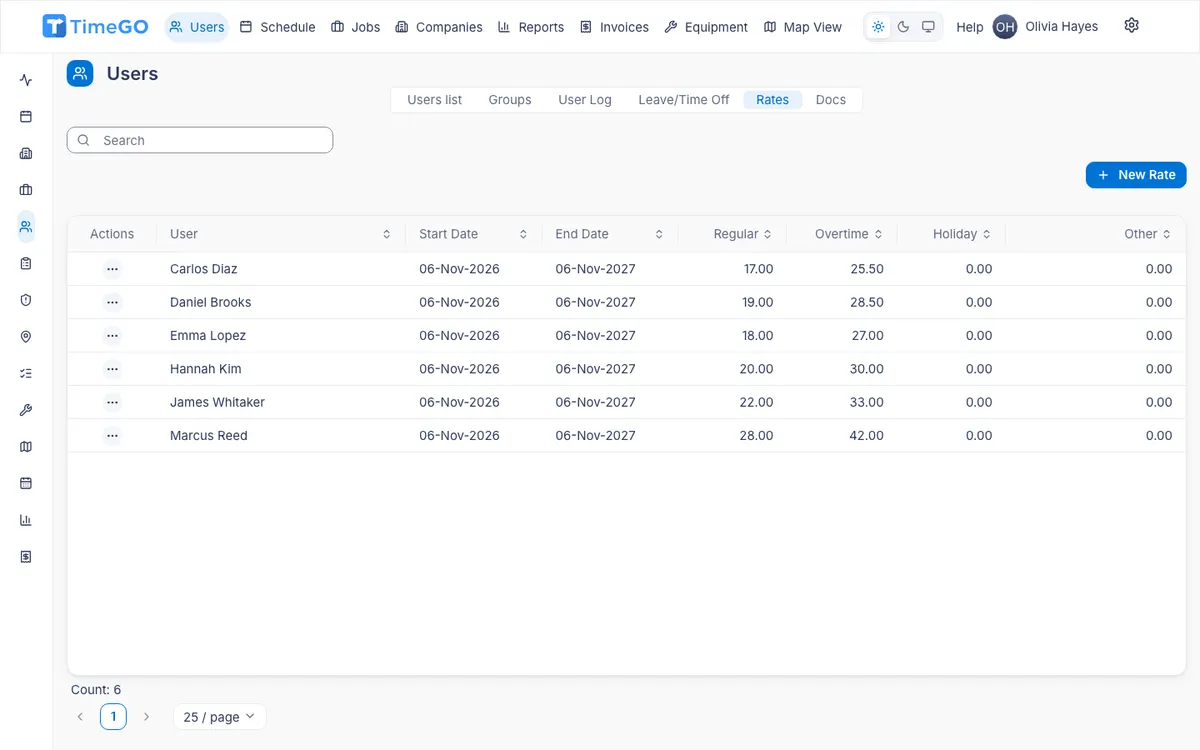
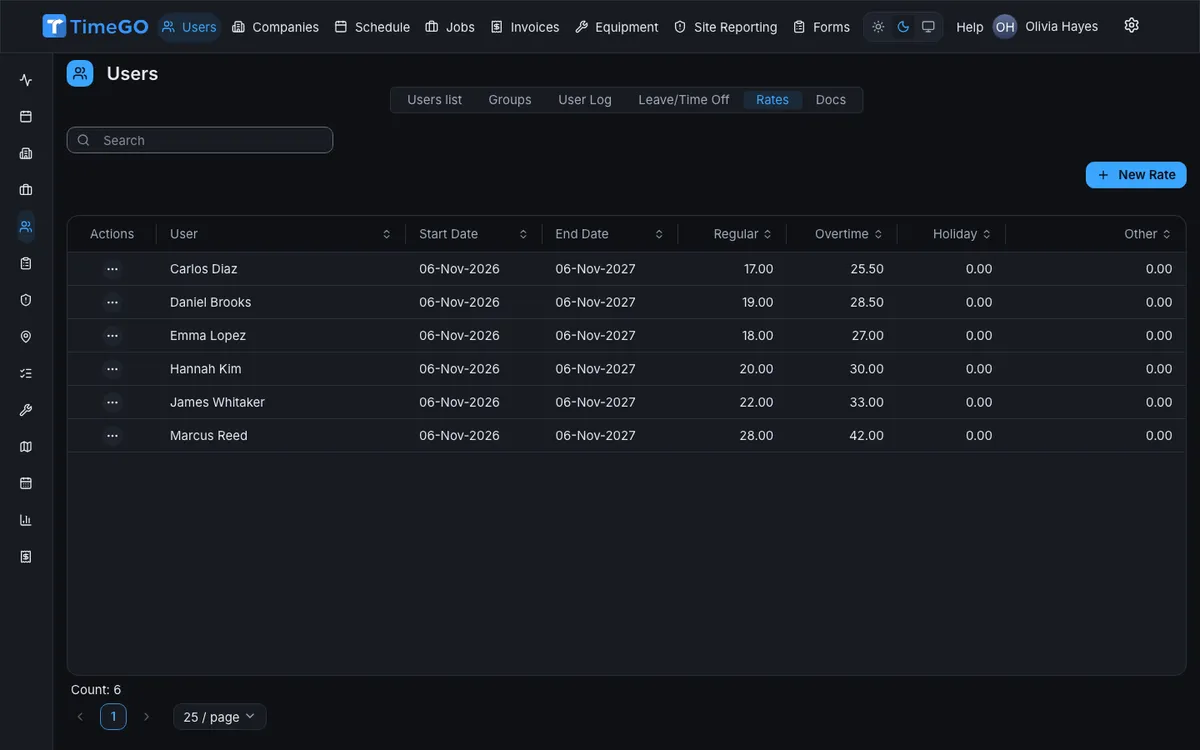
Open the Menu on the left and click Users, then open the Rates tab.
- 2
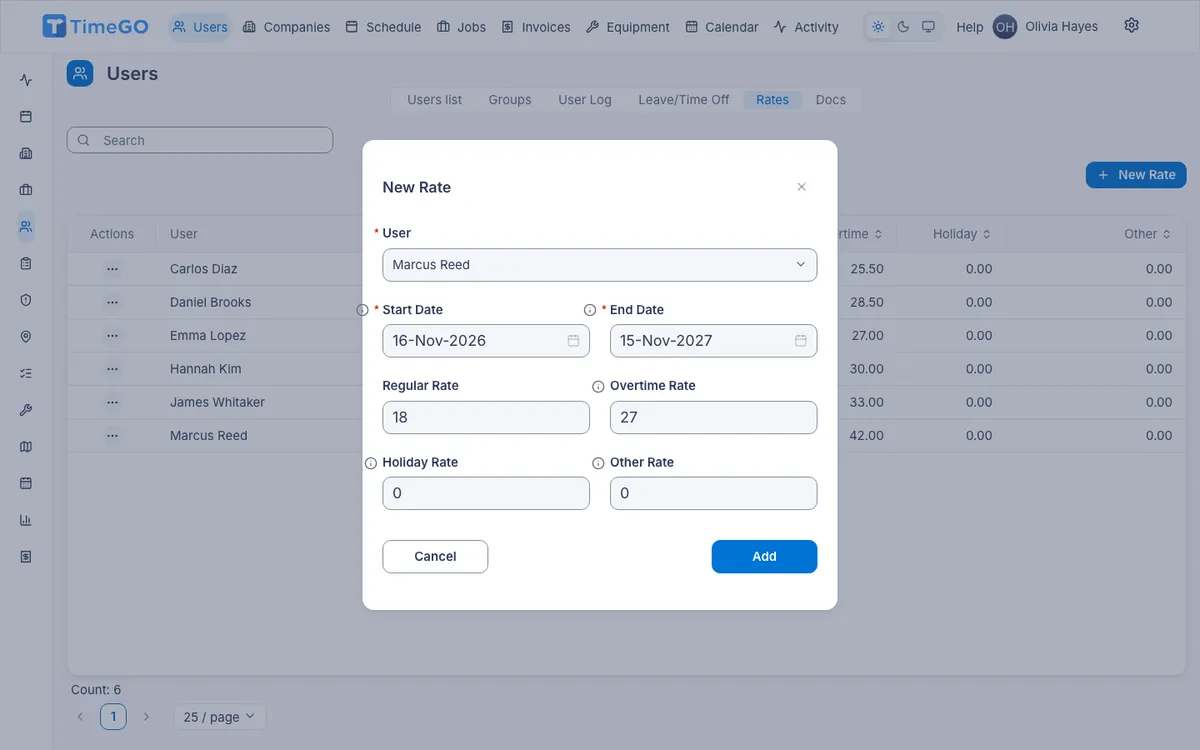
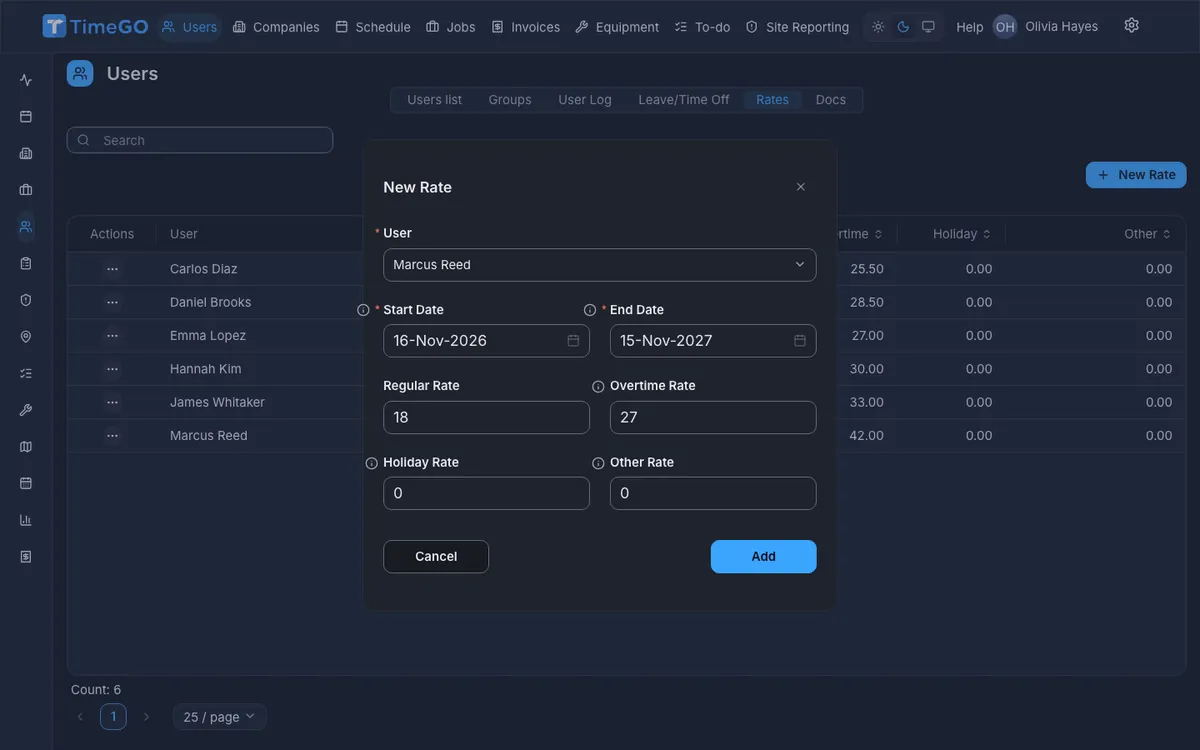
Click New Rate, choose the User, then pick the Start Date and End Date. Both are required.
- 3
Enter the hourly Regular Rate. Fill in Overtime Rate, Holiday Rate and Other Rate only for hours you pay at those rates.
- 4
Click Add.
- 5
To change or remove a rate later, open the menu in the Actions column of its row and click Edit rate or Delete rate.

If it does not work
These dates are already taken or dates overlapping
The new rate starts on or before the Start Date of this user's latest rate. Choose a Start Date after it, or edit the latest rate.
Date gap exists between new rate and previous rate
Rates for one user cannot leave days uncovered. Start the new rate the day after the previous rate ends.
A window says Upgrade Required
Your company's current plan does not include this feature. The Super Admin can change the plan, see How to see your plan and billing.
Good to know
- Each kind of hour is paid at its own rate: rate times hours, rounded to cents. Select Include Rates in the Timesheet Report to see the amounts (only people who can view both user and job rates see them).
- With overtime tracking on, overtime hours are the hours above the weekly limit for users marked Eligible for overtime pay?, plus every hour of a shift set to Pay user overtime rate. With it off they are regular hours, and other hours come from shifts set to Pay user other rate.
- A report uses the rate whose dates cover the shift, and a shift outside every rate pays 0, so add the next rate before the old one ends. A new rate that starts while the latest one is running ends it the day before.
About the feature: More about Timesheets and payroll, More about Employee records