 English
 Español
 Tiếng Việt
 Deutsch
 Français
 Português
 Polski
 Nederlands
 Italiano
 Svenska
 Norsk
 Dansk
 Suomi
 Čeština
 हिन्दी
 العربية
Time tracking that syncs with QuickBooks Online
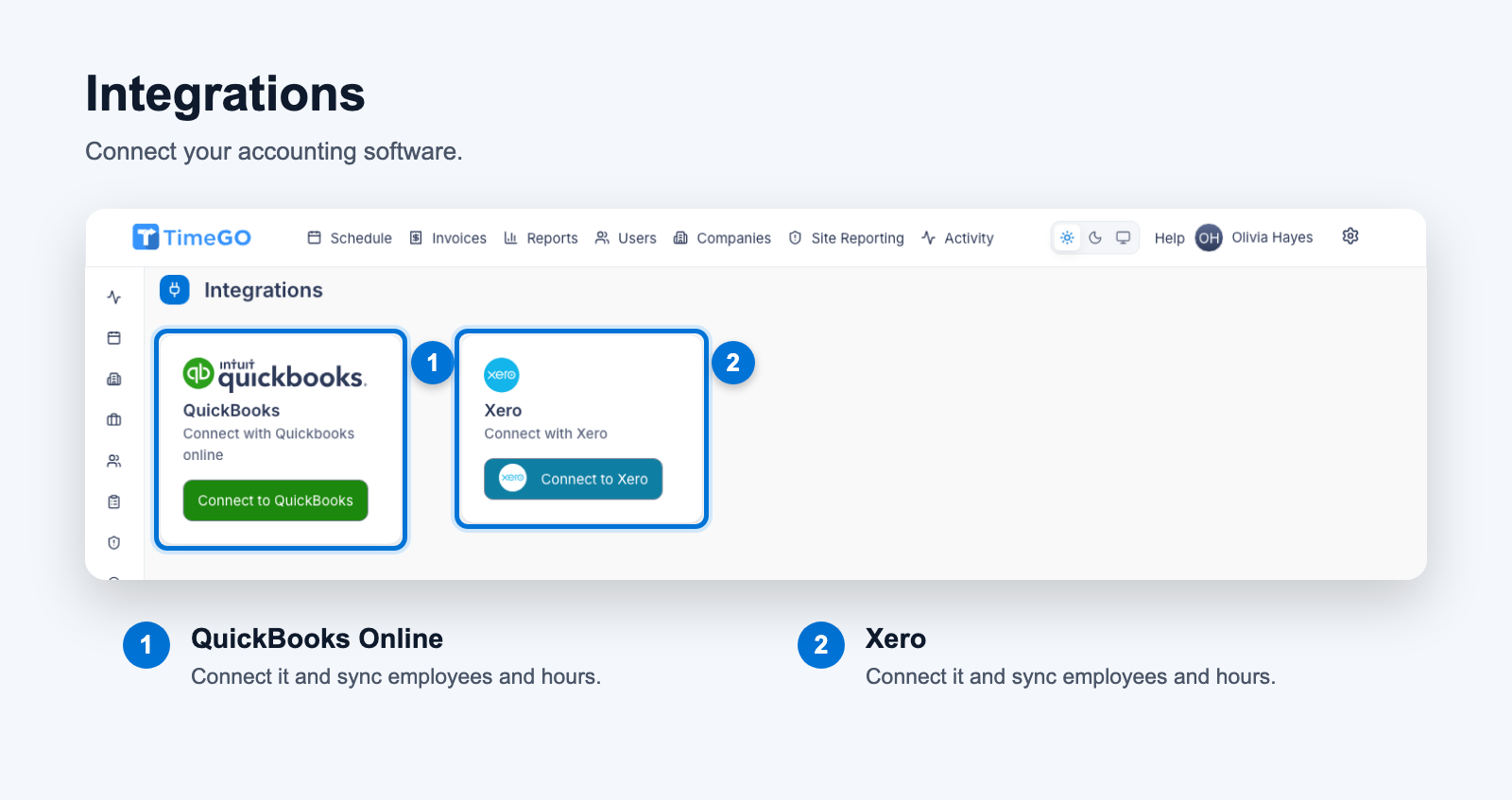
Connect QuickBooks Online on the Integrations page, then sync your employees and their hours (time activities) for the dates you choose. It needs the Pro plan.
How it works
Connect
Open Integrations in the web dashboard and click Connect to QuickBooks. Business admins and Pro-plan managers can connect.
Choose the dates
Click Sync Now, set From Date and To Date, then click Next. Hours come from the timesheets.
Review
Check the list of users with their rates and their regular, overtime, holiday and other hours before anything is sent.
Confirm rate changes
If Rates Changed During Sync Period appears, a user's rate changed inside those dates. Tick the confirmation box to go on.
Sync
Click Sync, then Finish. Employees and their hours go to QuickBooks Online as time activities.
See it in TimeGO
What syncs or exports
- Employees
- Hours, as time activities
- Only the dates you choose
Frequently asked questions
Which plan includes the QuickBooks Online sync?
The Pro plan. On Basic the Integrations page is read-only, so you can see it but not connect or sync. Business admins and Pro-plan managers can connect.
What does the sync move?
Employees and their hours, for the From Date and To Date you set. The hours go to QuickBooks Online as time activities.
What happens when a pay rate changes?
The sync shows Rates Changed During Sync Period and asks you to tick a box before it goes on. A new rate applies from the next payroll in QuickBooks Online only after you update it by hand in the user's pay types there.
How is this different from the QuickBooks Desktop export?
QuickBooks Online is a connection that syncs employees and hours. QuickBooks Desktop has no sync. It works from an .iif file that you export from the Timesheet Report with Export QuickBooks Desktop File.
Keep reading
QuickBooks is a trademark of Intuit.