 English
 Español
 Tiếng Việt
 Deutsch
 Français
 Português
 Polski
 Nederlands
 Italiano
 Svenska
 Norsk
 Dansk
 Suomi
 Čeština
 हिन्दी
 العربية
Time tracking that syncs with Xero
Connect Xero on the Integrations page, match your hours types and payroll schedules to Xero, then sync your employees and their hours. It needs the Pro plan.
How it works
Connect
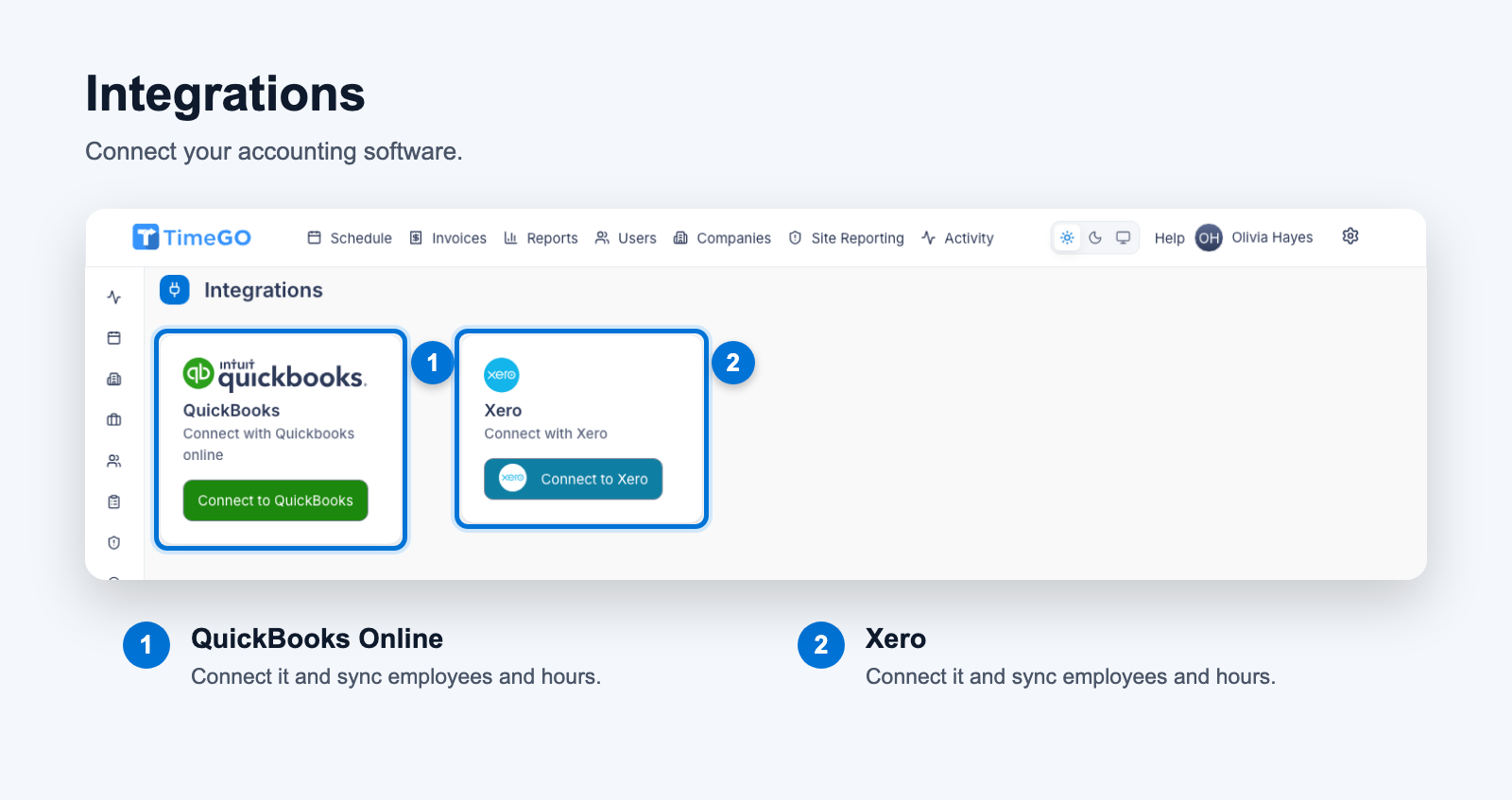
Open Integrations in the web dashboard and click Connect to Xero. Business admins and Pro-plan managers can connect.
Configure
Click Configuration. Match each hours type (regular, overtime, holiday and other) to a Xero earnings rate, and each payroll schedule to a Xero calendar type. Click Save.
Choose the dates
Click Sync Now, set From Date and To Date, then click Next. Hours come from the timesheets.
Review and sync
Click Sync, then Finish. Each employee's hours arrive in Xero by earnings rate, as matched in Configuration.
See it in TimeGO
What syncs or exports
- Employees
- Hours, by earnings rate
- Only the dates you choose
Frequently asked questions
Which plan includes the Xero sync?
The Pro plan. On Basic the Integrations page is read-only, so you can see it but not connect or sync. Business admins and Pro-plan managers can connect.
What does the Configuration step do?
It tells TimeGO where your hours belong in Xero. Regular, overtime, holiday and other hours each get a Xero earnings rate, and each payroll schedule gets a Xero calendar type.
What does the sync move?
Employees and their hours, for the From Date and To Date you set. Each hours type goes to Xero under the earnings rate you matched to it in Configuration.
Can I get a file for Xero instead?
TimeGO does not export a file for Xero. The Timesheet Report exports hours to Excel and to a QuickBooks Desktop (.iif) file.
Keep reading
Xero is a trademark of Xero Limited.