 English
 Español
 Tiếng Việt
 Deutsch
 Français
 Português
 Polski
 Nederlands
 Italiano
 Svenska
 Norsk
 Dansk
 Suomi
 Čeština
 हिन्दी
 العربية
Dashboard
1 min read
How to approve, adjust or decline an auto clock-out
When an employee reports a finish time after an auto clock-out, approve it, change it or decline it from the shift.
Steps
- 1
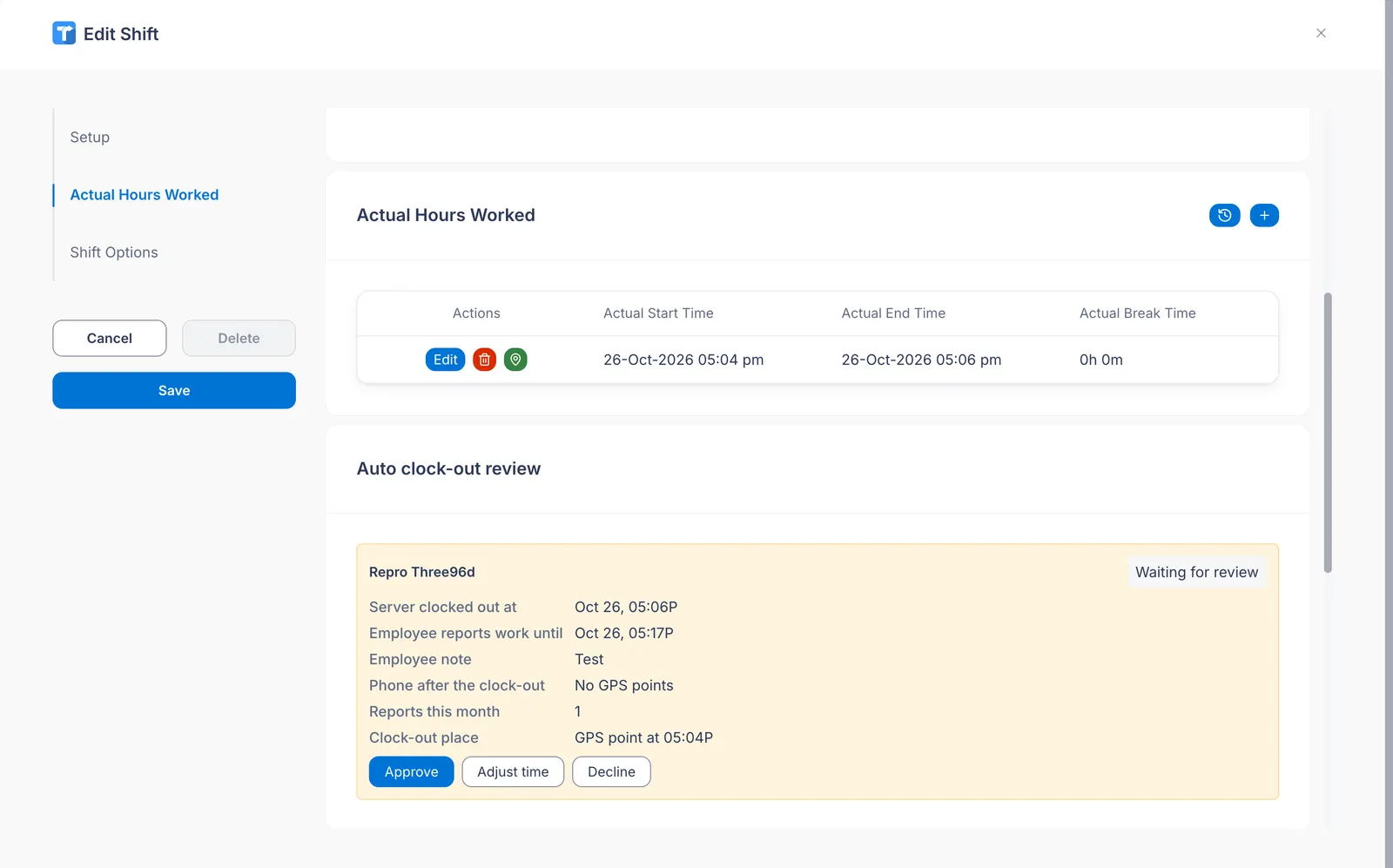
Click Schedule, then open the shift that shows Review pending.
- 2
In the Auto clock-out review card, compare Server clocked out at with Employee reports work until and read the Employee note.
- 3
Click Approve to accept the time the employee reported.
- 4
To use your own time, click Adjust time, enter it in End of work and click Save. To refuse the report, click Decline, write the reason in Reason for declining and click Save.

Good to know
- The employee has 24 hours from the shift’s scheduled end to report the real finish time.
- A declined review keeps the clock-out time TimeGO set, and the reason is required.
- The employee gets a push with your decision. The status then reads Approved, Adjusted or Declined.
About the feature: More about GPS time clock