 English
 Español
 Tiếng Việt
 Deutsch
 Français
 Português
 Polski
 Nederlands
 Italiano
 Svenska
 Norsk
 Dansk
 Suomi
 Čeština
 हिन्दी
 العربية
2 min read
How to clock employees out automatically when their shift ends
Turn on auto clock-out in a shift, so the employee is clocked out after it ends.
Steps
- 1
In the web dashboard, click Schedule. Then click Add Shift for a new shift, or open the shift you want to change.
- 2
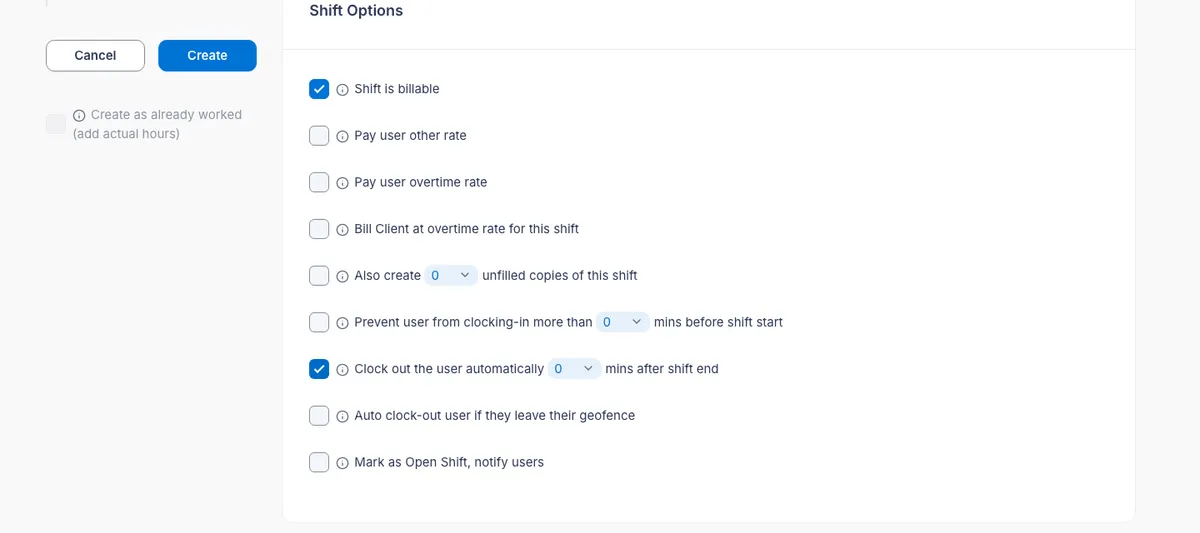
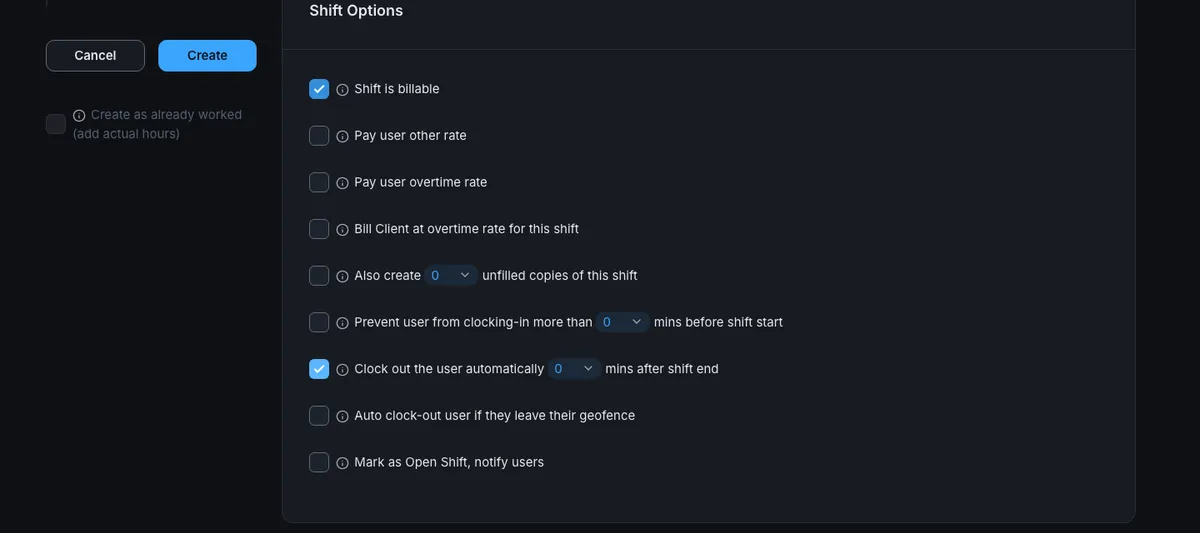
In Shift Options, check Clock out the user automatically.
- 3
In mins after shift end, pick 0, 6 or 15.
- 4
To also clock the employee out when they leave the site, check Auto clock-out user if they leave their geofence (the area around the site).
- 5
Click Create for a new shift, or Save for a shift you changed.
If it does not work
The employee is clocked out 12 hours after the shift ended.
Auto clock-out is off unless you turn it on. Open the shift, check Clock out the user automatically in Shift Options, pick the minutes, and save.
The employee leaves the site, but is not clocked out.
Check that the job has GPS on. Then ask a business admin to set Auto clock-out when off site under Account settings > Main Settings (After 5, After 10 or After 15 minutes).
Good to know
- Without the option, TimeGO clocks the employee out 12 hours after the scheduled end.
- With the option on, TimeGO clocks the employee out at the scheduled end, plus the minutes you picked, plus any extra time the employee took in the app.
- If time rounding is on, you can pick only 0 or the rounding step (6 or 15 minutes).
About the feature: More about GPS time clock, More about Scheduling