 English
 Español
 Tiếng Việt
 Deutsch
 Français
 Português
 Polski
 Nederlands
 Italiano
 Svenska
 Norsk
 Dansk
 Suomi
 Čeština
 हिन्दी
 العربية
Phone app
1 min read
How to request time off
Send a time-off request from the More tab, and your manager approves or declines it.
Steps
- 1
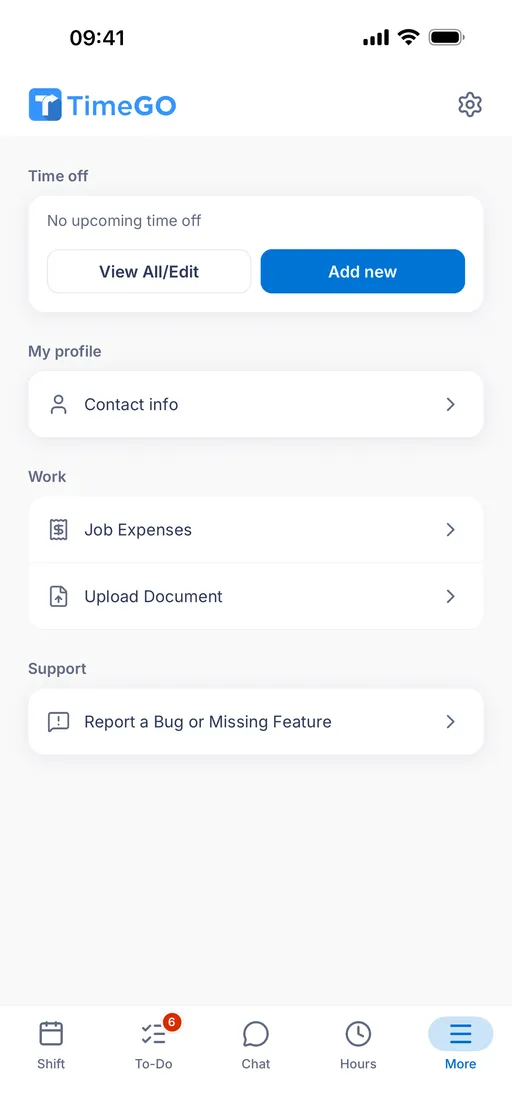
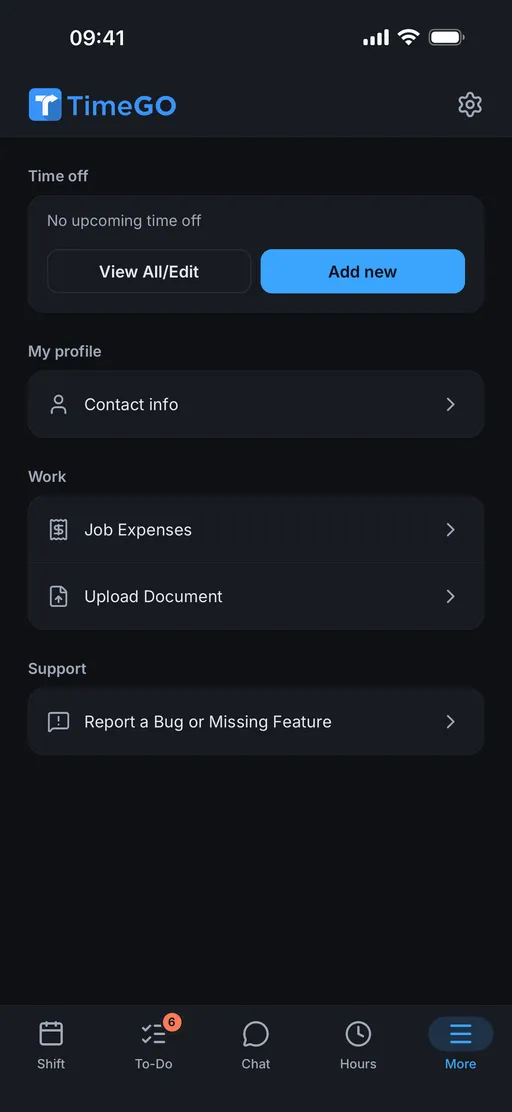
Tap the More tab, the last one on the bottom bar, then tap Add new in the Time off box.
- 2
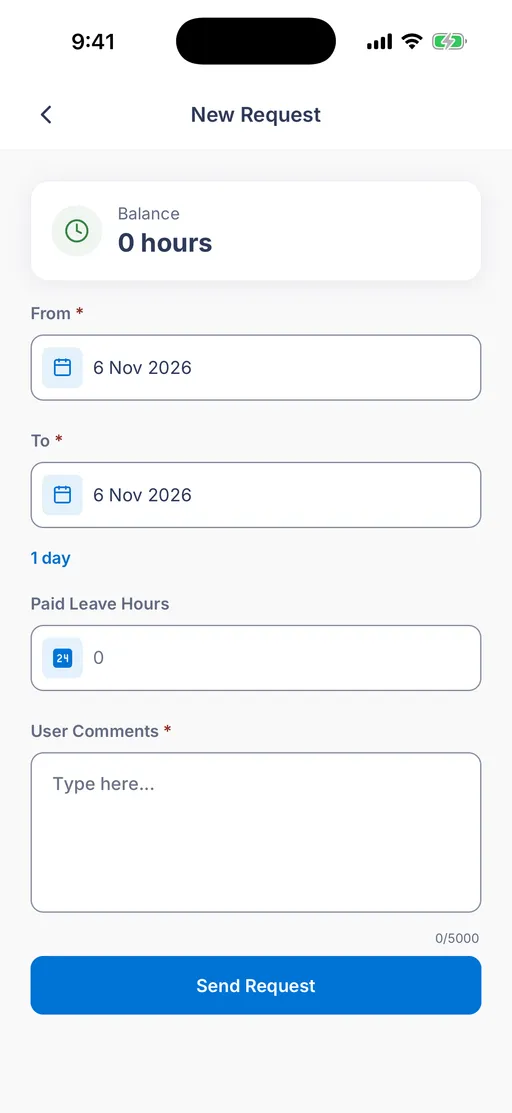
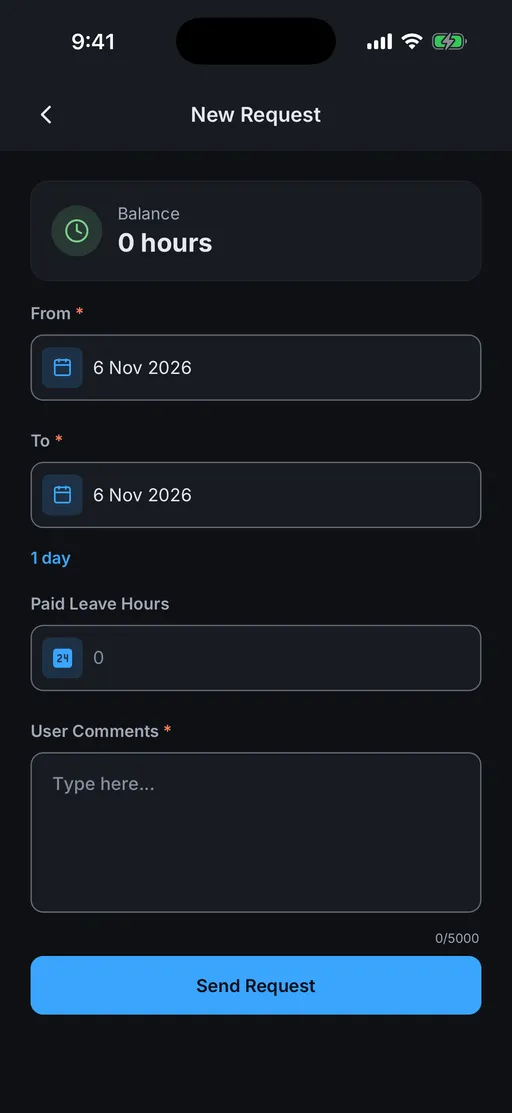
Pick the dates in From and To, then enter the hours in Paid Leave Hours.
- 3
Write a comment in User Comments, then tap Send Request.
- 4
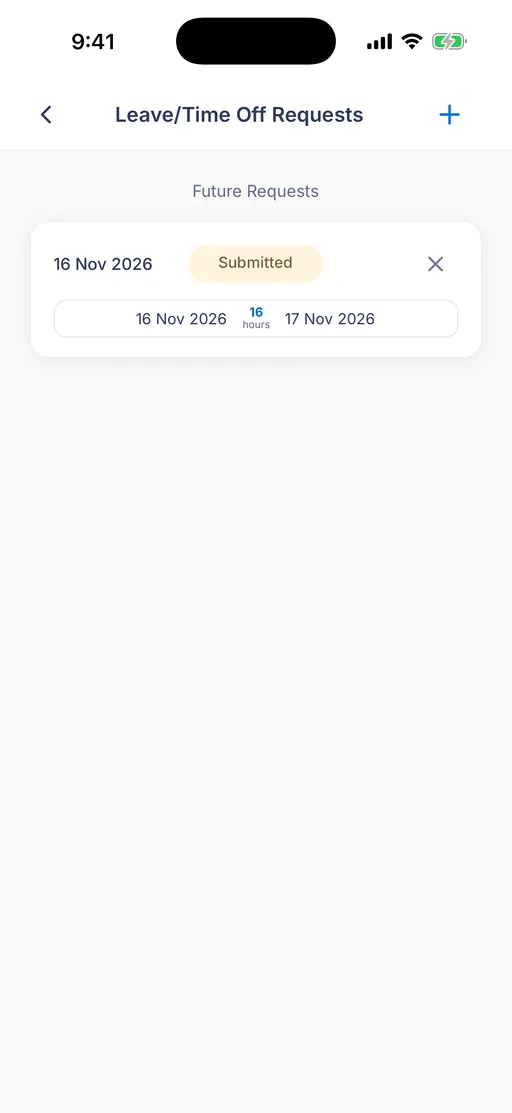
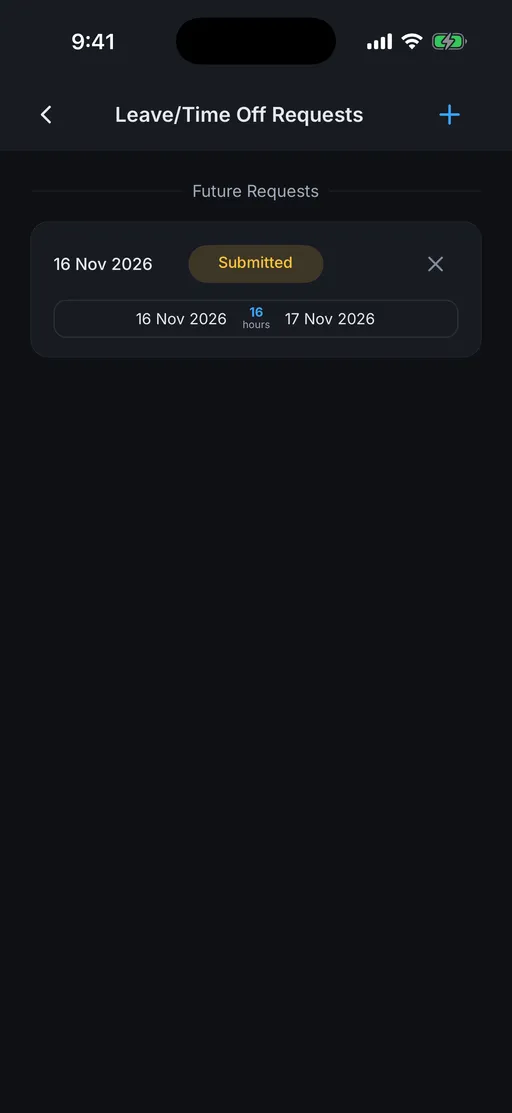
To follow the request, tap View All/Edit in the Time off box. The list shows its status.


Good to know
- Your managers get a push notification when you send a request. You get one when the request is approved or declined.
- A request has one of four statuses: Submitted, Approved, Declined or Canceled. To cancel one, tap the X next to it in the list.
- Your manager reviews the request on the web dashboard, in the Leave/Time Off tab on your user page.
About the feature: More about Scheduling, More about Mobile app