 English
 Español
 Tiếng Việt
 Deutsch
 Français
 Português
 Polski
 Nederlands
 Italiano
 Svenska
 Norsk
 Dansk
 Suomi
 Čeština
 हिन्दी
 العربية
2 min read
How to add a job
Click New Job on the Jobs page, fill in the name, company and location, then click Create. Set a geofence in Job Settings if the job needs one.
Steps
- 1
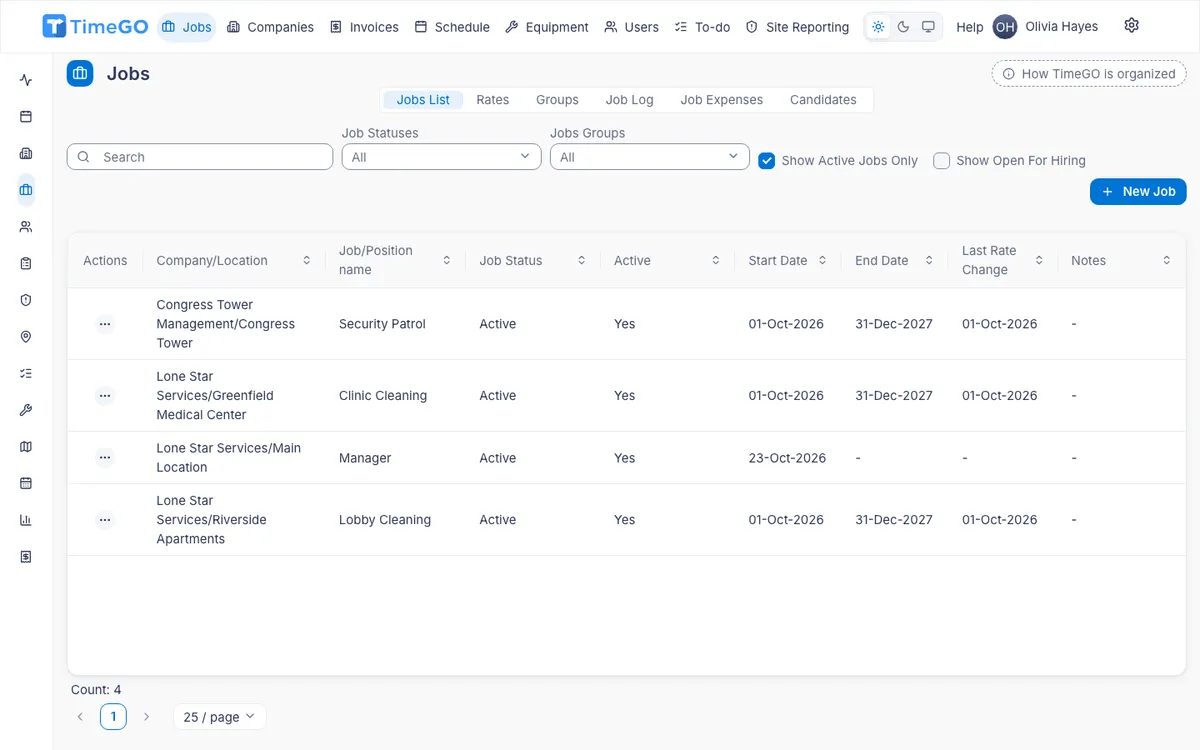
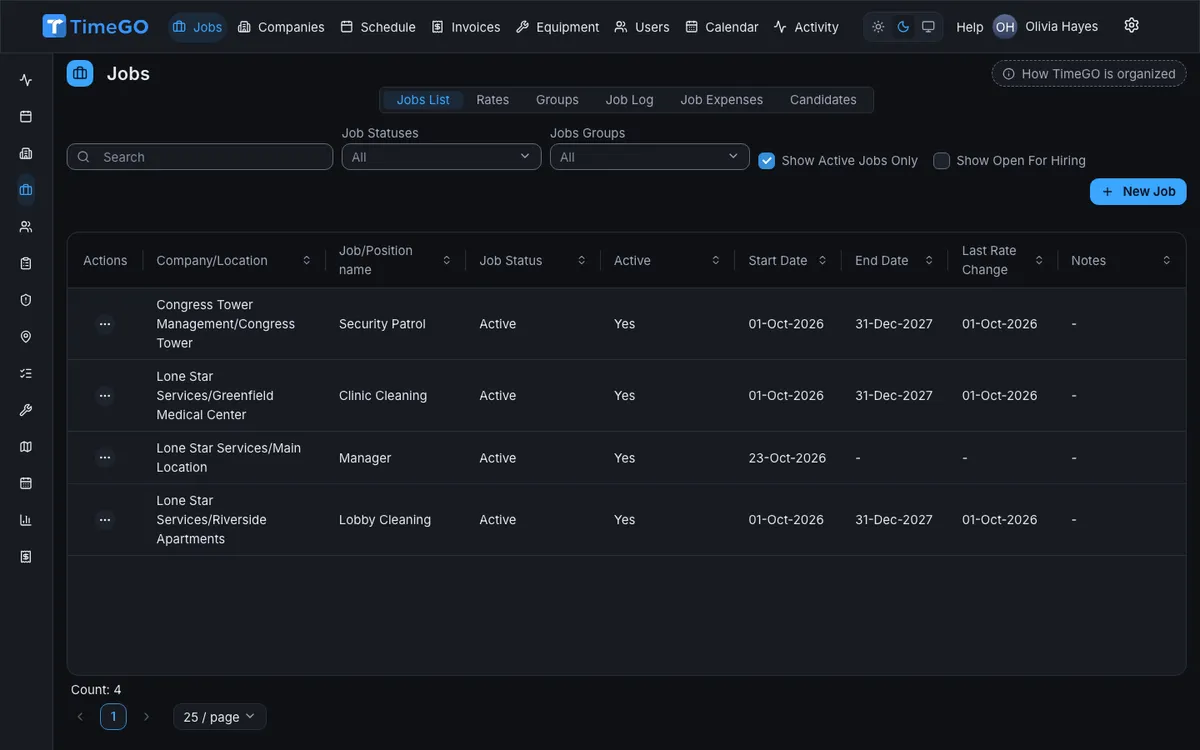
Open the Menu on the left and click Jobs, then New Job.
- 2
In Primary Information, type the Job/Position name, then pick the Company and the Location.
- 3
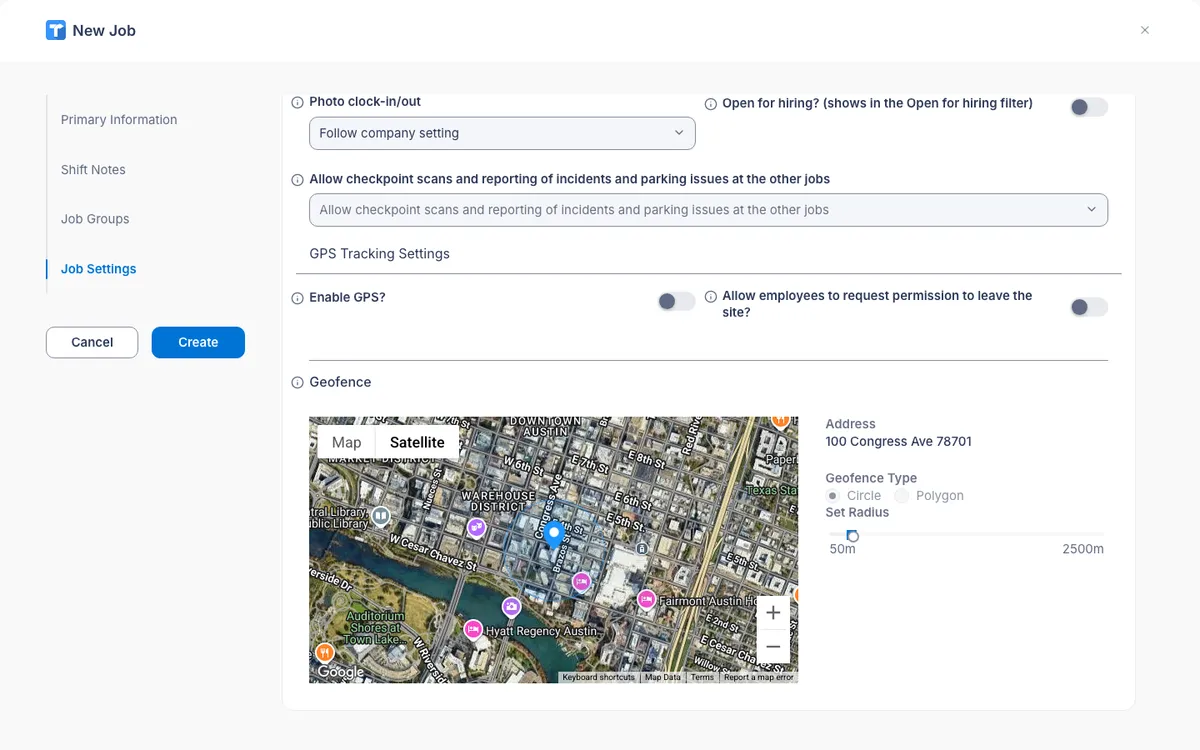
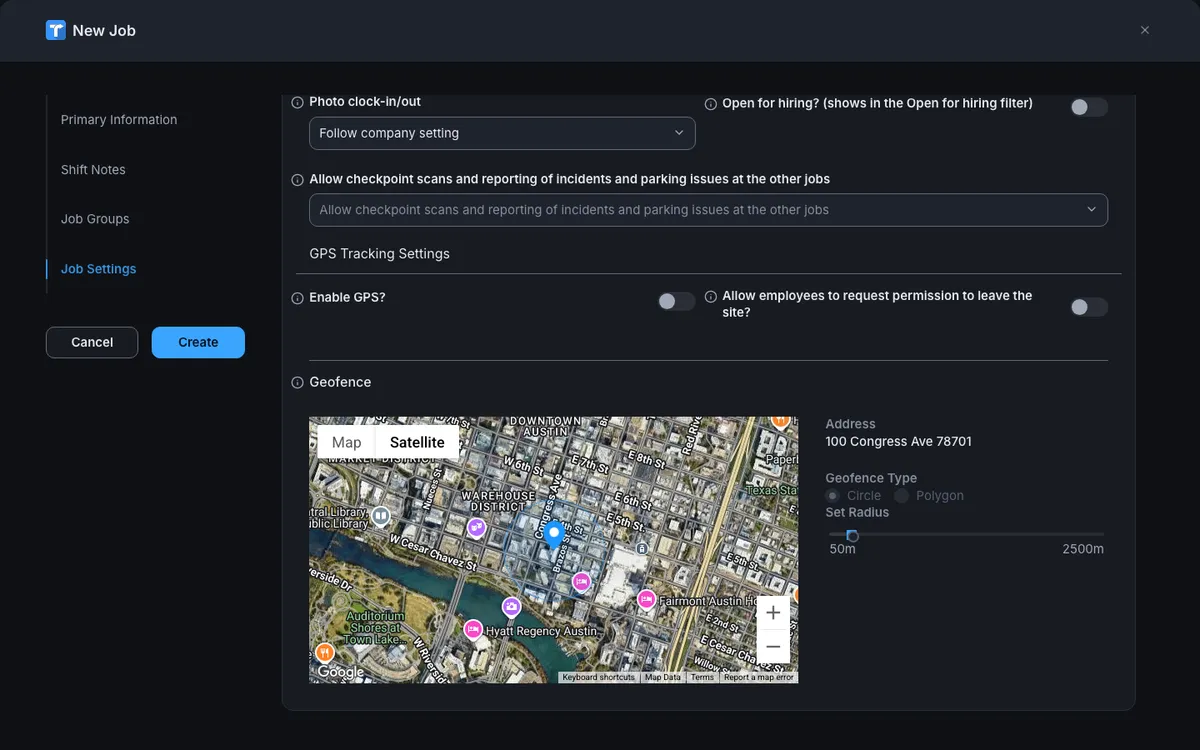
Click Job Settings on the left, then turn on Enable GPS?, which also turns on Enable Continuous GPS Tracking? and Track GPS for clock-in and clock-out?. To refuse clock-in outside the geofence, turn on Prevent clocking in while outside Geofence?.
- 4
Under Geofence Type, pick Circle or Polygon. For a circle, set Set Radius from 50m to 2500m. For a polygon, click on the map to add at least 3 points.
- 5
Click Create.

Good to know
- Each job has its own radius or polygon; a circle is centered on the location’s address. The Geofence part appears only when the location has an address with coordinates.
- Geofence Type and Set Radius stay locked until Enable GPS? is on. The app checks the phone’s position only when Track GPS for clock-in and clock-out? is on.
- With Prevent clocking in while outside Geofence? on, TimeGO refuses Clock-In outside the geofence and shows “Cannot clock in outside the job radius”.
About the feature: More about Scheduling, More about GPS time clock