 English
 Español
 Tiếng Việt
 Deutsch
 Français
 Português
 Polski
 Nederlands
 Italiano
 Svenska
 Norsk
 Dansk
 Suomi
 Čeština
 हिन्दी
 العربية
2 min read
How location groups work
Set up your levels and groups, put each location into a group, then limit a manager to the groups he looks after. He then sees only those locations.
Steps
- 1
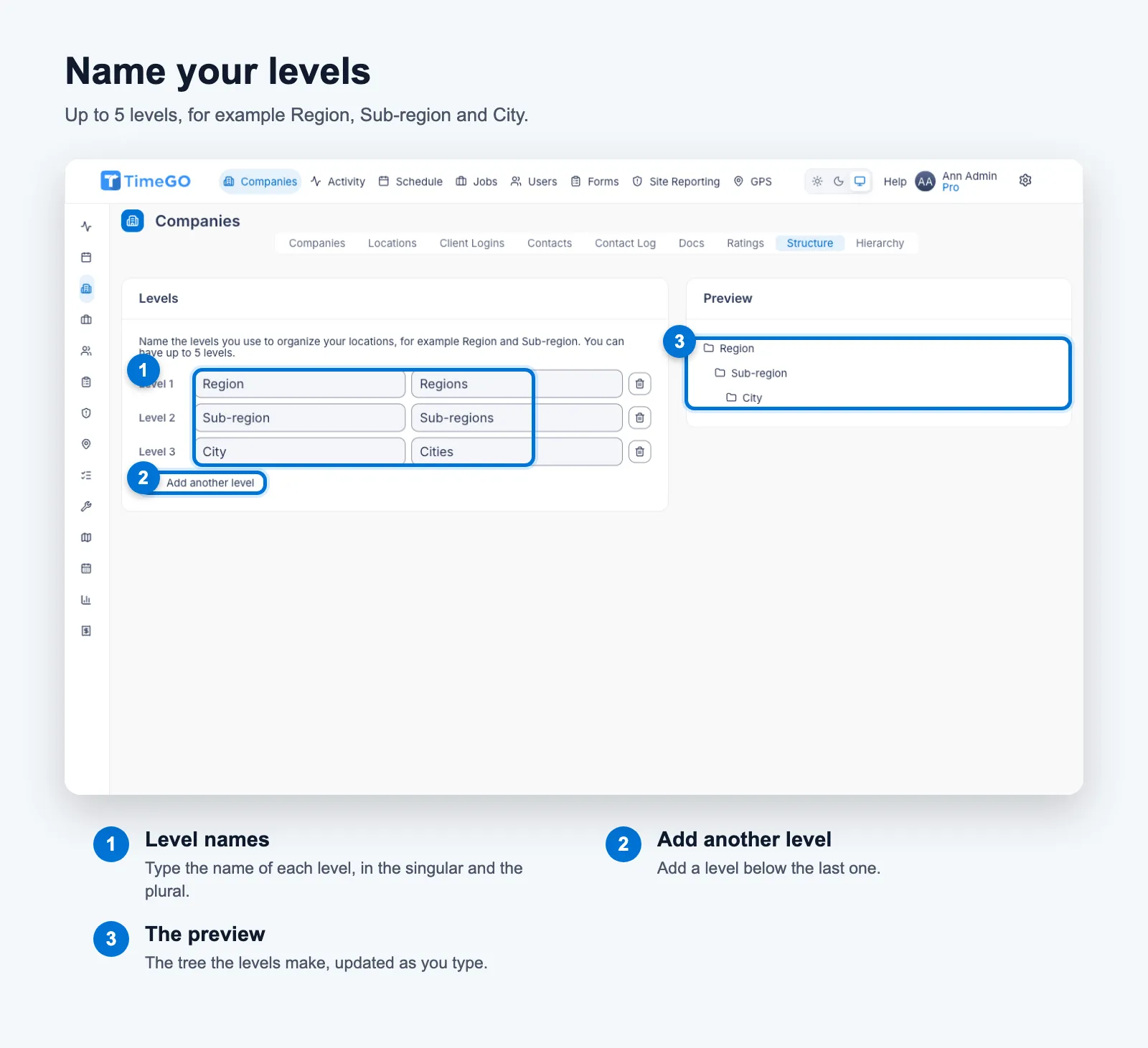
Click Companies, then Structure. Name your levels, for example Region, Sub-region and City. You can have up to 5 levels. The preview on the right shows the tree the levels make.
- 2
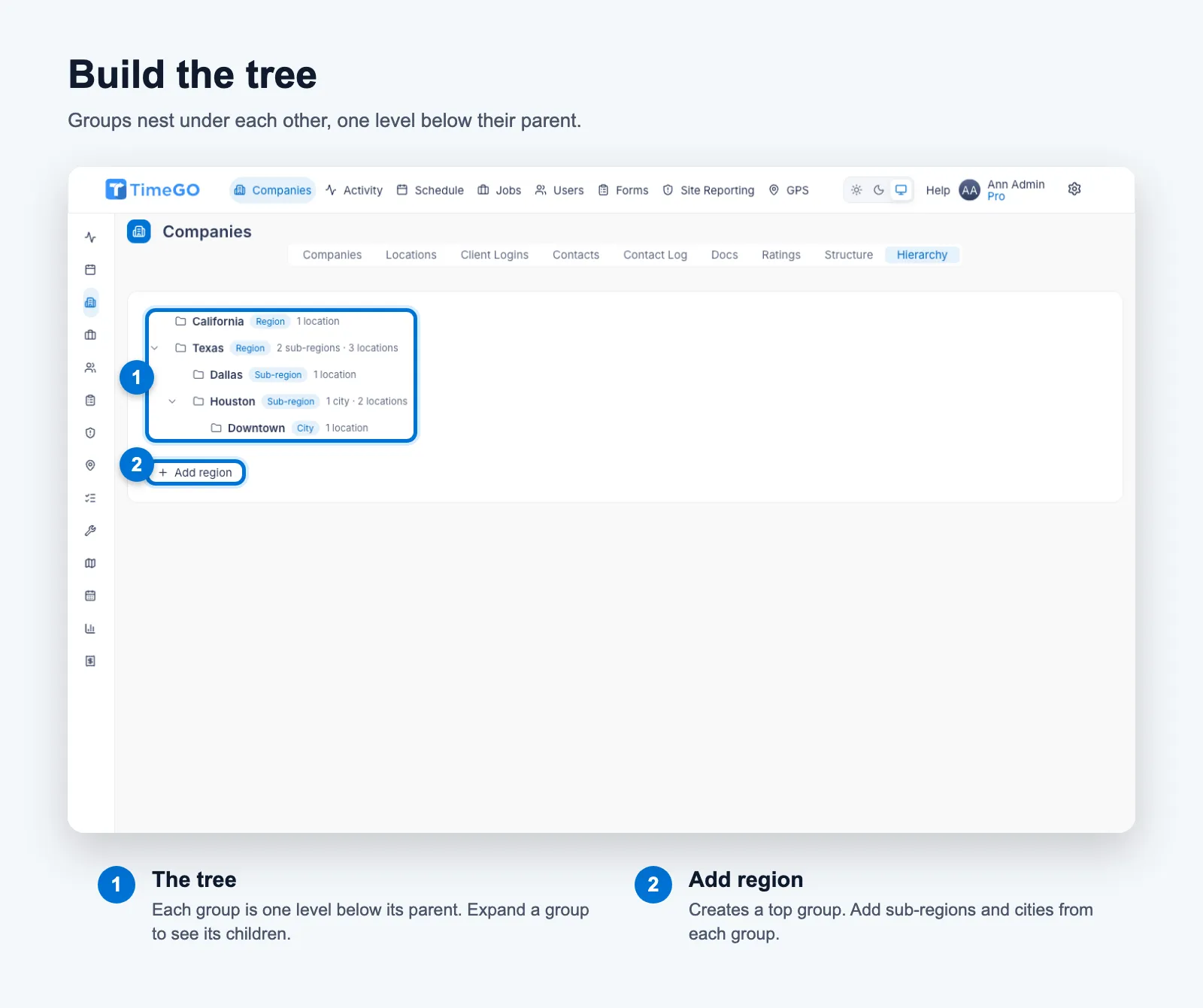
Click Hierarchy, then Add region to create the top group. Click the + button at the end of a group's row to add a group under it, for example a sub-region or a city. Each group sits one level below its parent.
- 3
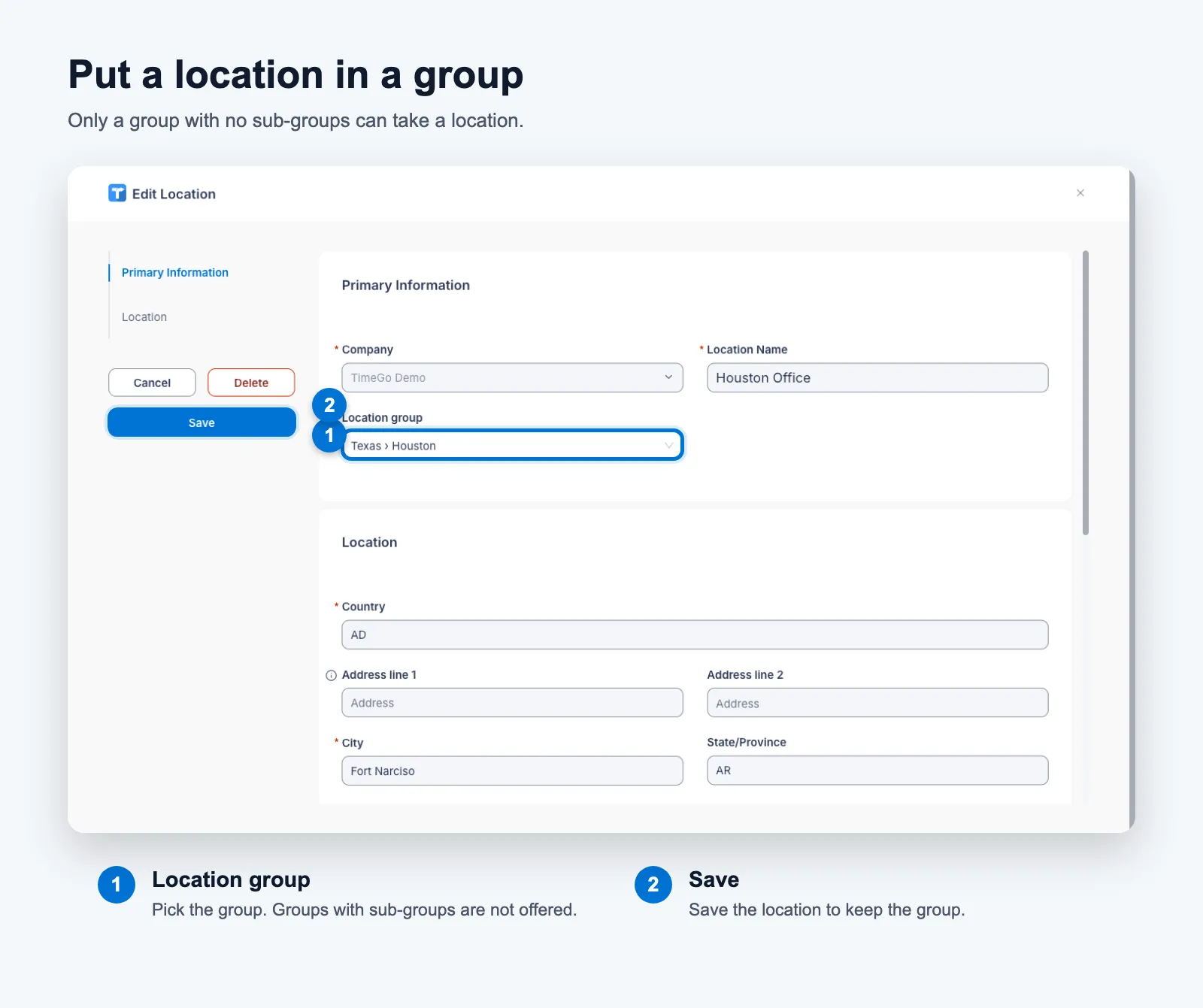
Open a location (Companies, then Locations, then the location), click Edit Location, and pick a group in Location group. Save. A location can be in one group only, and only in a group that has no sub-groups.
- 4
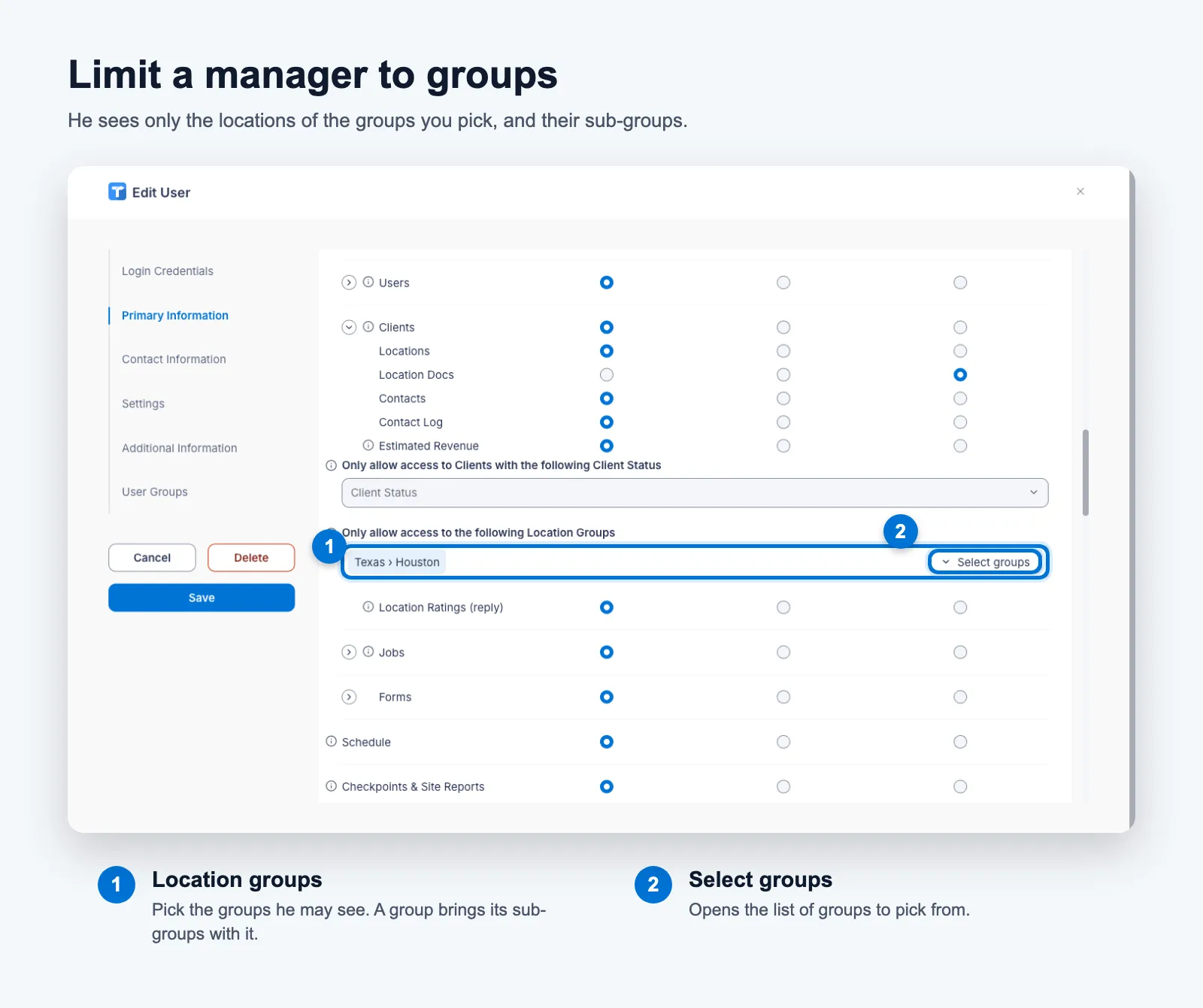
Click Users, open the manager, then click Edit profile. Under Manager Permissions, open Clients and find Only allow access to the following Location Groups. Click Select groups and pick the groups. A group includes its sub-groups. Click Save.
- 5
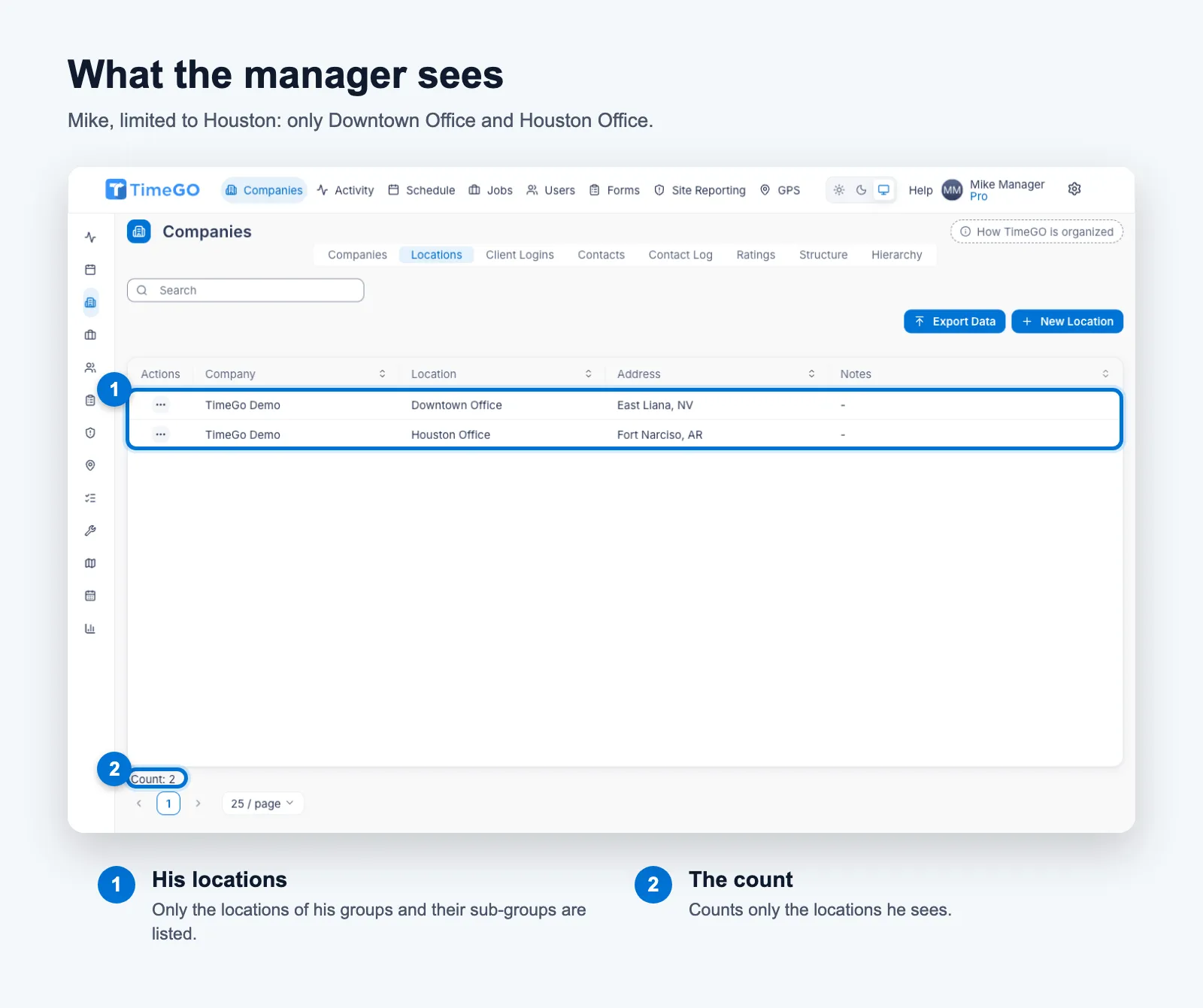
Ask the manager to sign in. Under Companies, then Locations, he sees only the locations of his groups. The same limit applies to his jobs, shifts, activity, alerts and reports.
- 6
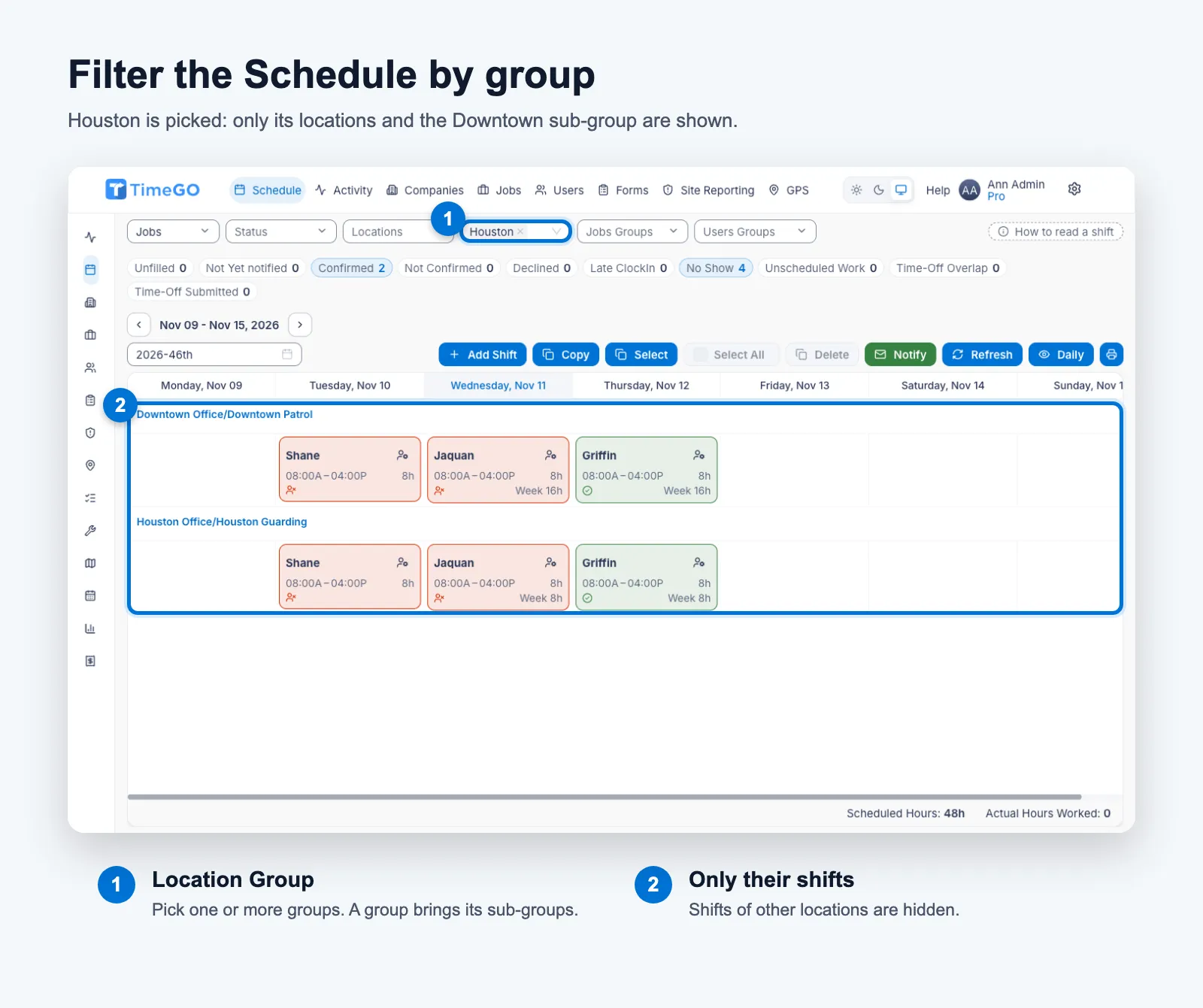
On Schedule, pick a group in the Location Group filter. Only the shifts of its locations and sub-groups stay on the screen.
- 7
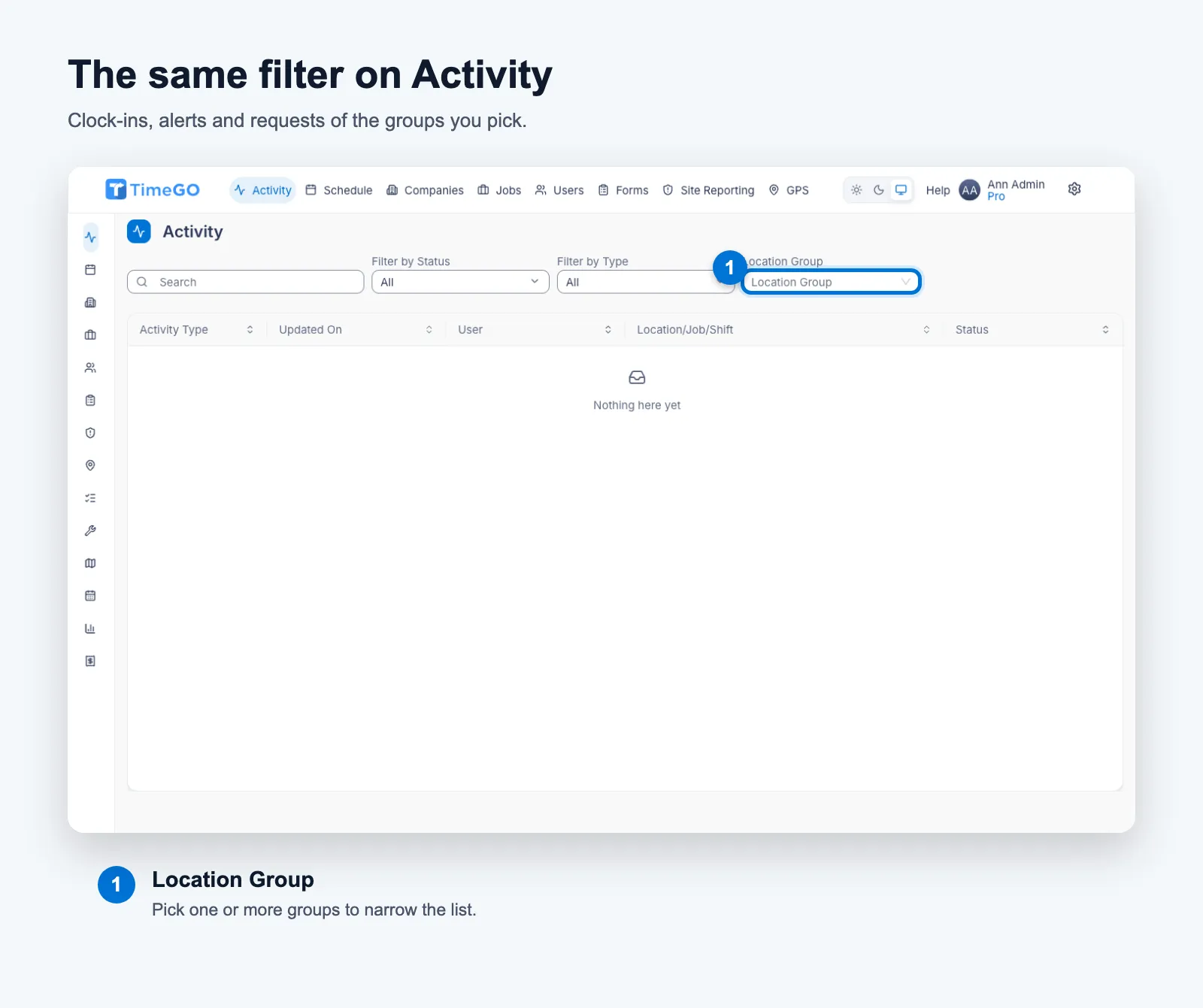
Activity has the same Location Group filter, for clock-ins, alerts and time-off requests.

If it does not work
You cannot pick a group for a location.
A location goes only into a group that has no sub-groups. Pick one of its sub-groups instead.
A manager still sees all locations.
Check that the manager has at least one group selected in his permissions. A manager with no groups is not limited.
Good to know
- Levels and groups are for your own use: archive a group when you no longer need it, and it and its sub-groups are hidden. Their locations are left without a group. Nothing is deleted.
- Only the business admin sets levels and groups and puts locations into them. A manager cannot move a location to another group.
- A manager without any group is not limited. Admins and client users see everything, as before.
- Invoices, chats, to-do lists and equipment are not limited by groups. They are not tied to a location.
About the feature: More about Scheduling