 English
 Español
 Tiếng Việt
 Deutsch
 Français
 Português
 Polski
 Nederlands
 Italiano
 Svenska
 Norsk
 Dansk
 Suomi
 Čeština
 हिन्दी
 العربية
Dashboard
1 min read
How to add and manage employees
On the Users page, click New User, fill in the required fields and click Add.
Steps
- 1
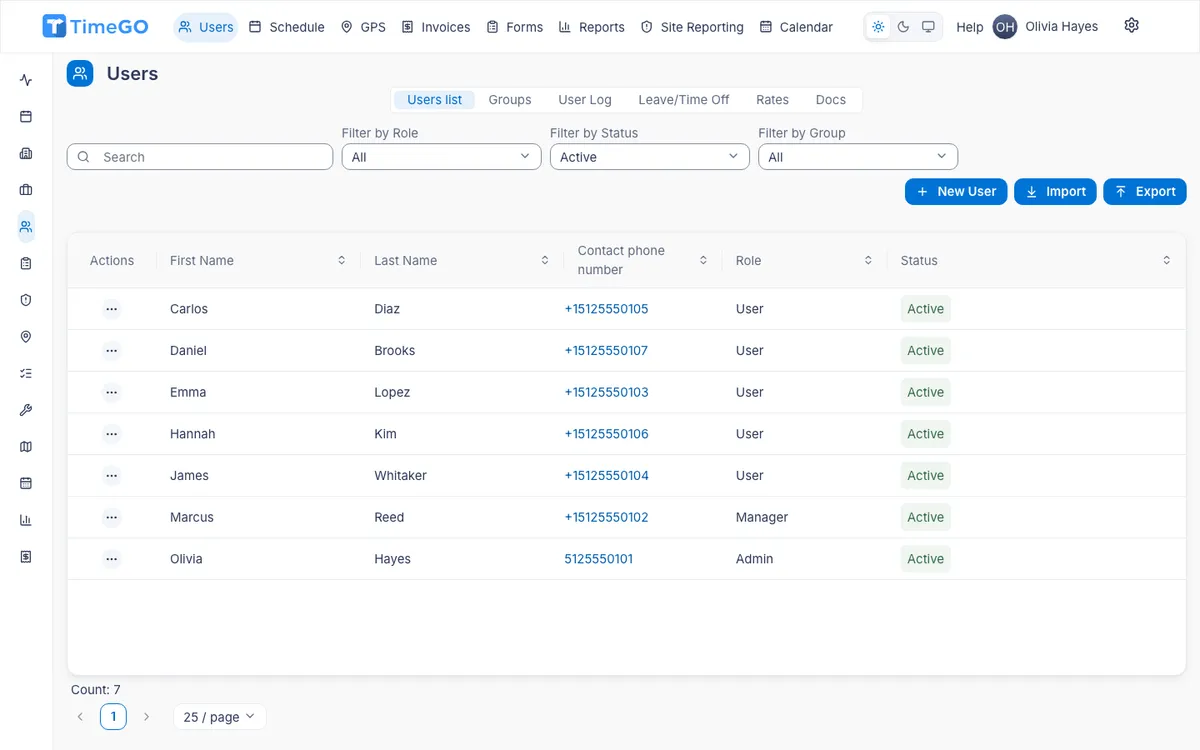
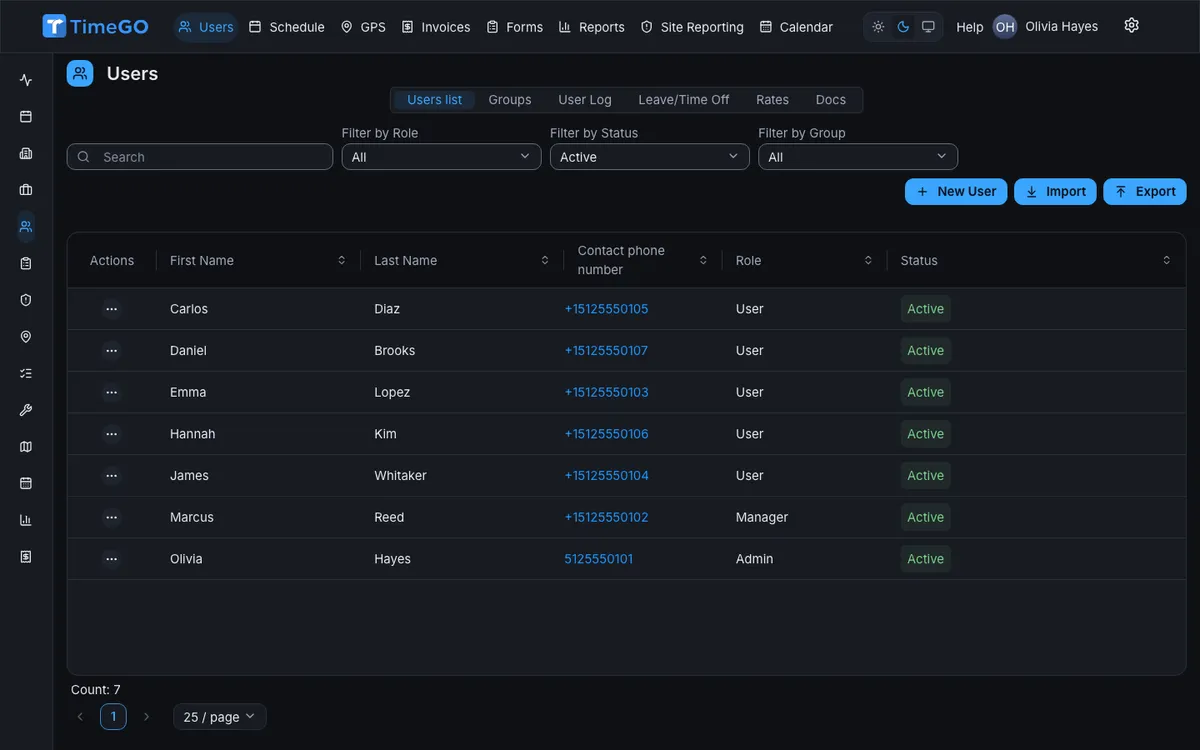
Open the Menu on the left and click Users, then click New User.
- 2
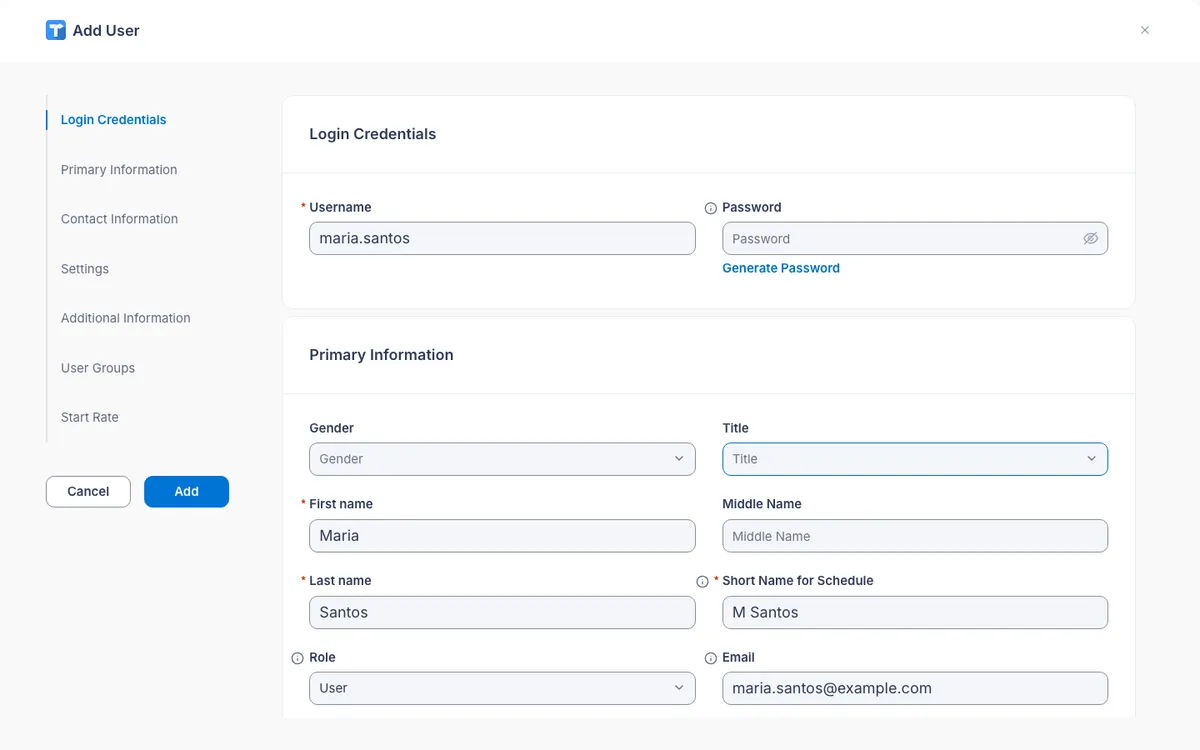
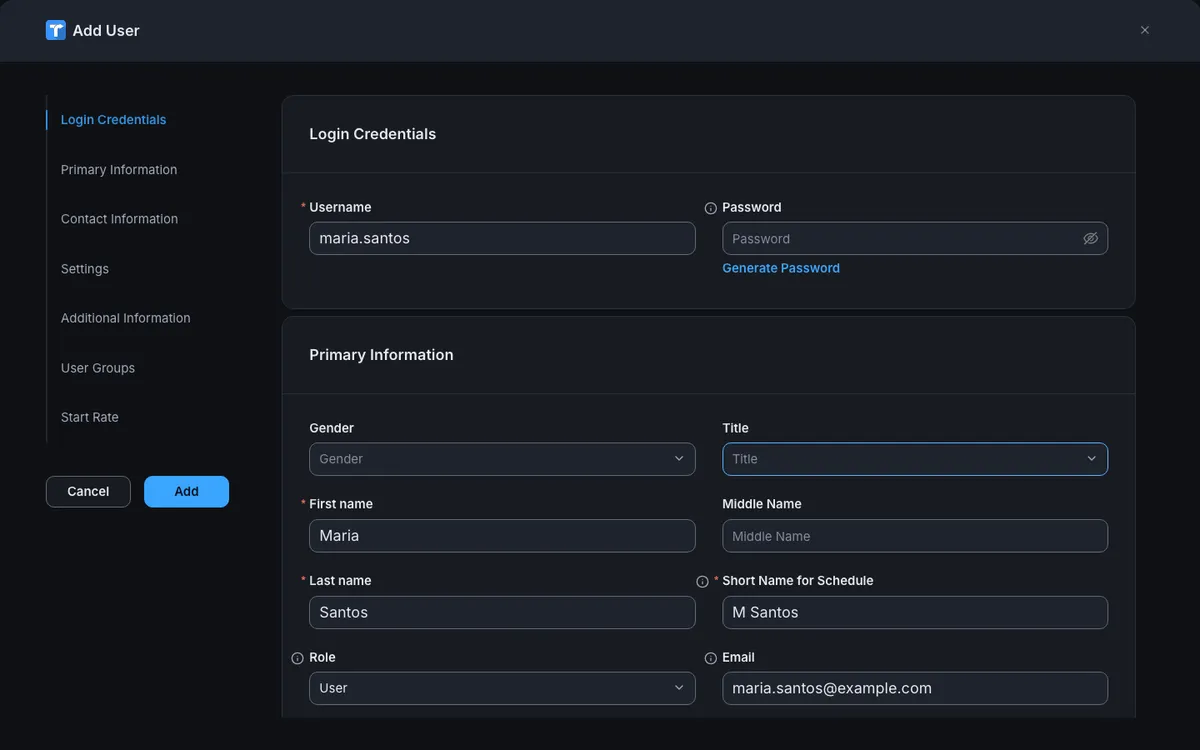
Fill in the required fields marked with *: Username, First name, Last name, Short Name for Schedule, User payroll schedule, Country, Time Zone and Two-factor sign-in (MFA). Admins and managers also need an Email.
- 3
To email the user their username, password and app download links, set Invitation Channels under Send Invite to Send Invite by Email. The user needs an Email.
- 4
Click Add, or Send Invite and Save if you chose to send an invite.
- 5
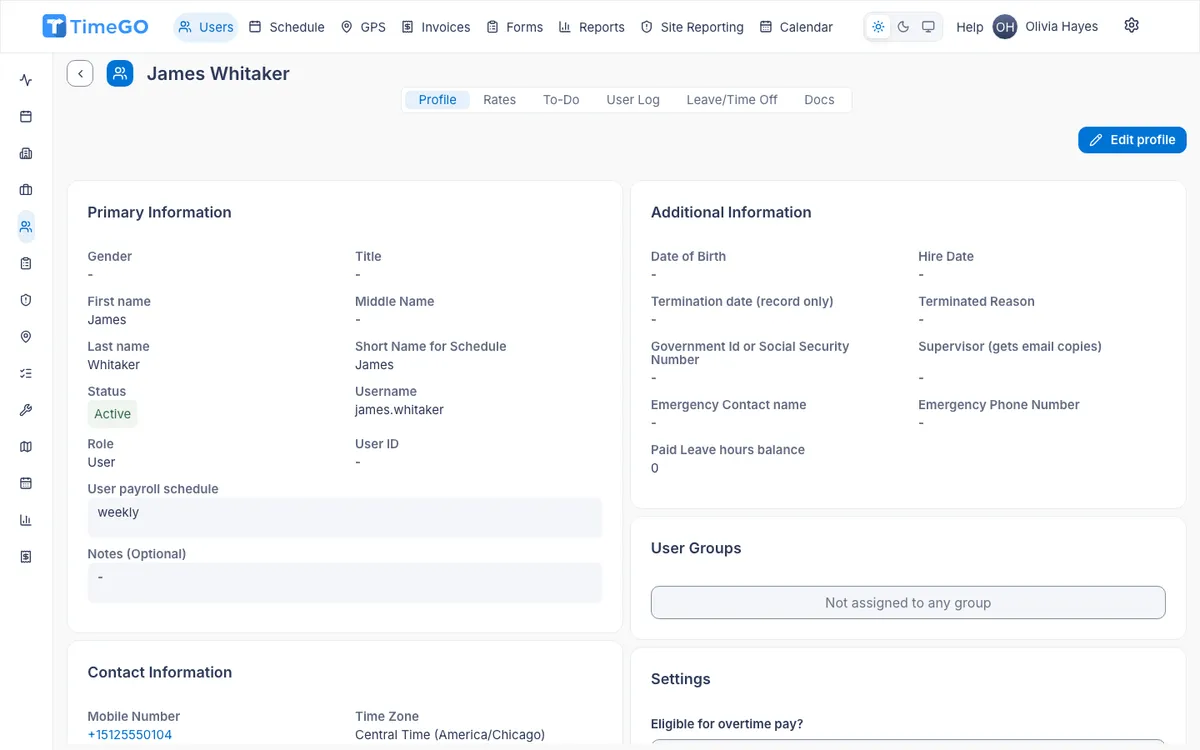
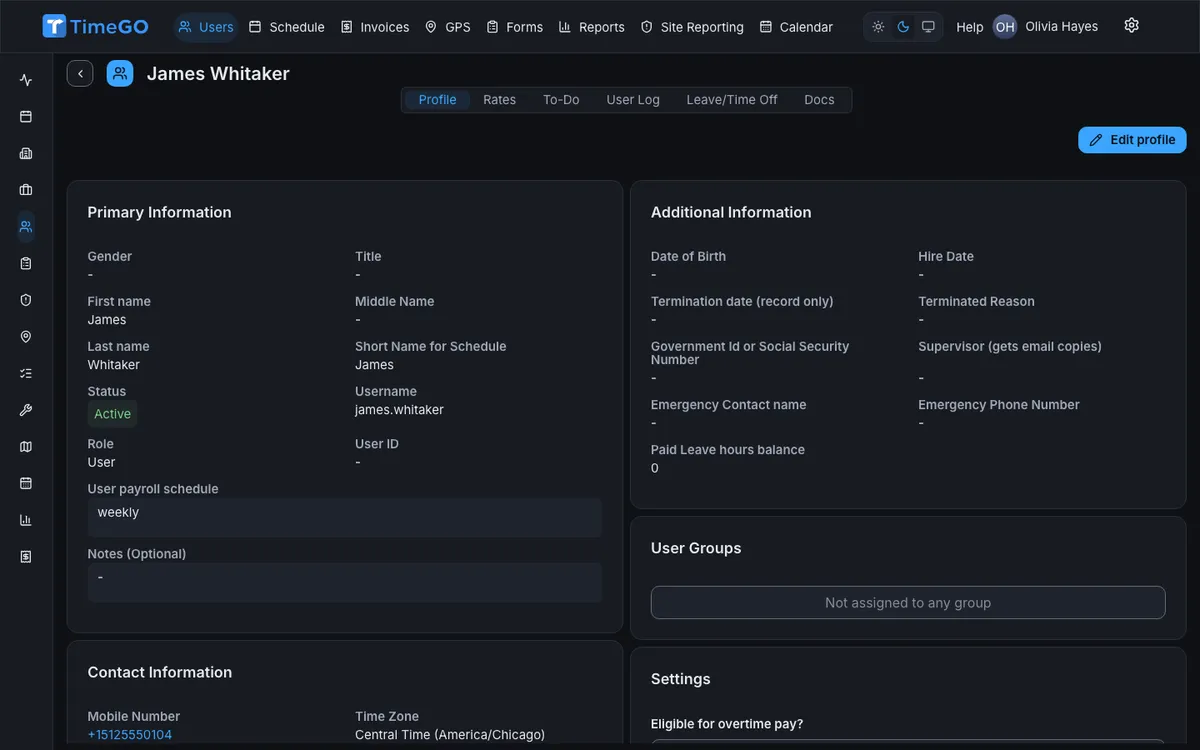
To change a user later, click them in the list and click Edit profile.
- 6
Change the details and click Save.

Good to know
- Set Status to Inactive to stop a user from signing in. Open sessions stop working. Shifts and history stay.
- Click Import to add up to 200 users from a CSV file.
- A manager can edit their own profile and users with the User role, not other managers or admins.
About the feature: More about Employee records