 English
 Español
 Tiếng Việt
 Deutsch
 Français
 Português
 Polski
 Nederlands
 Italiano
 Svenska
 Norsk
 Dansk
 Suomi
 Čeština
 हिन्दी
 العربية
2 min read
How to choose your phone notifications
Turn on Allow notifications, then choose whether you get chat messages and shift notifications, and how many minutes before a shift the reminder comes.
Steps
- 1
Tap the gear icon at the top right of a tab's header to open Settings, then tap Notifications.
- 2
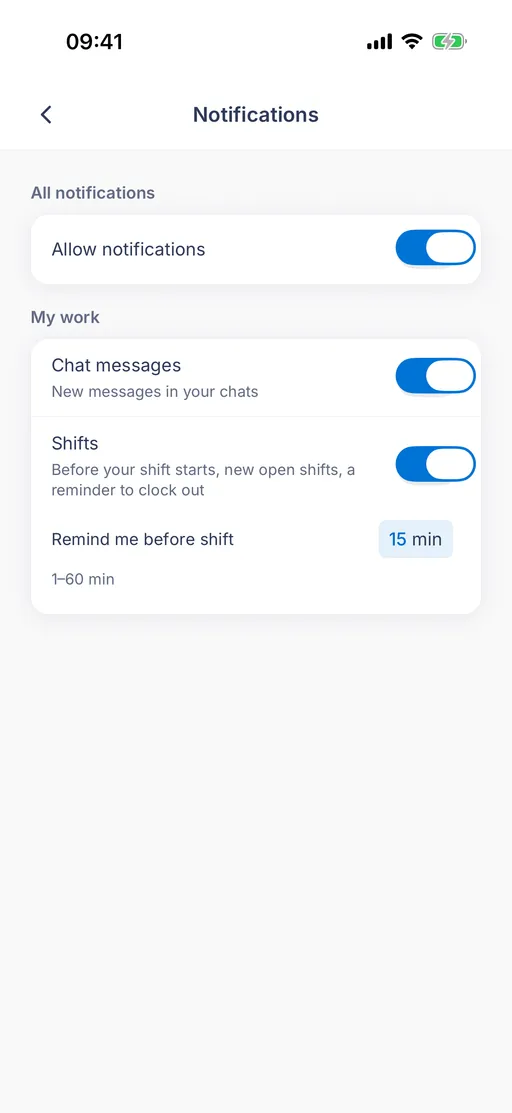
Turn on Allow notifications. If the app says notifications are off, allow them for TimeGO in your phone's settings.
- 3
Under My work, turn Chat messages and Shifts on or off.
- 4
Tap the minutes next to Remind me before shift and choose a number from 1 to 60.
If it does not work
The app says: To receive notifications, please enable them in the settings of your device
Open your phone's settings, allow notifications for TimeGo, then go back and turn on Allow notifications again.
The Notifications row is missing from Settings
Settings shows its account and preference rows only when your phone is online. Connect to the internet and open Settings again.
Good to know
- Shifts covers the reminder before your shift starts, new open shifts, the reminder to clock out, auto clock-out and the result of a shift review you sent.
- The My work switches appear only while Allow notifications is on, and the minutes picker only while Shifts is on.
- Tapping a notification opens its screen. A chat message opens that chat, and a check-in notice opens the Shift tab.
About the feature: More about GPS time clock, More about Mobile app