 English
 Español
 Tiếng Việt
 Deutsch
 Français
 Português
 Polski
 Nederlands
 Italiano
 Svenska
 Norsk
 Dansk
 Suomi
 Čeština
 हिन्दी
 العربية
Phone app
1 min read
How to message your team in chat
Send a message, photo or file in a job chat or the management chat in the phone app.
Steps
- 1
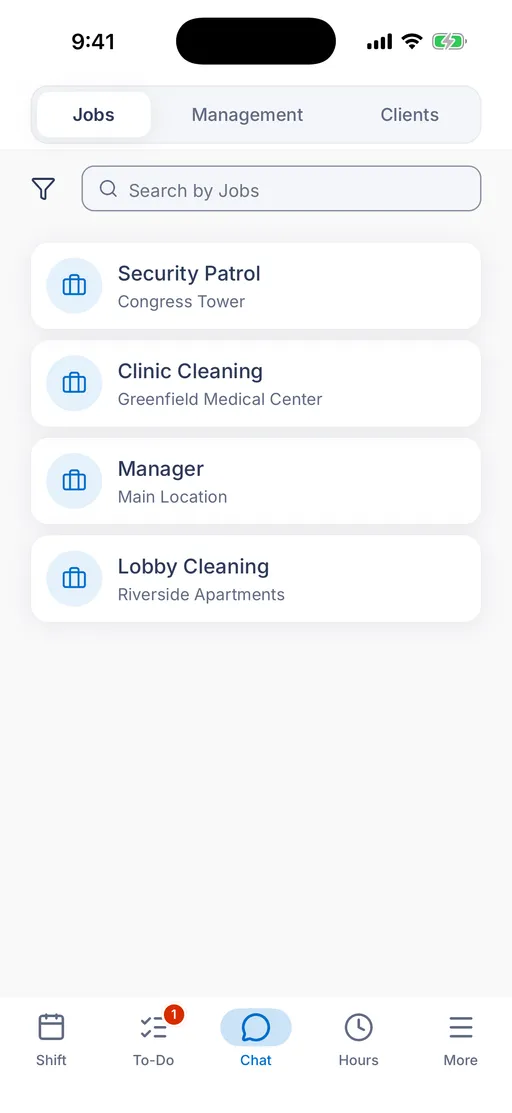
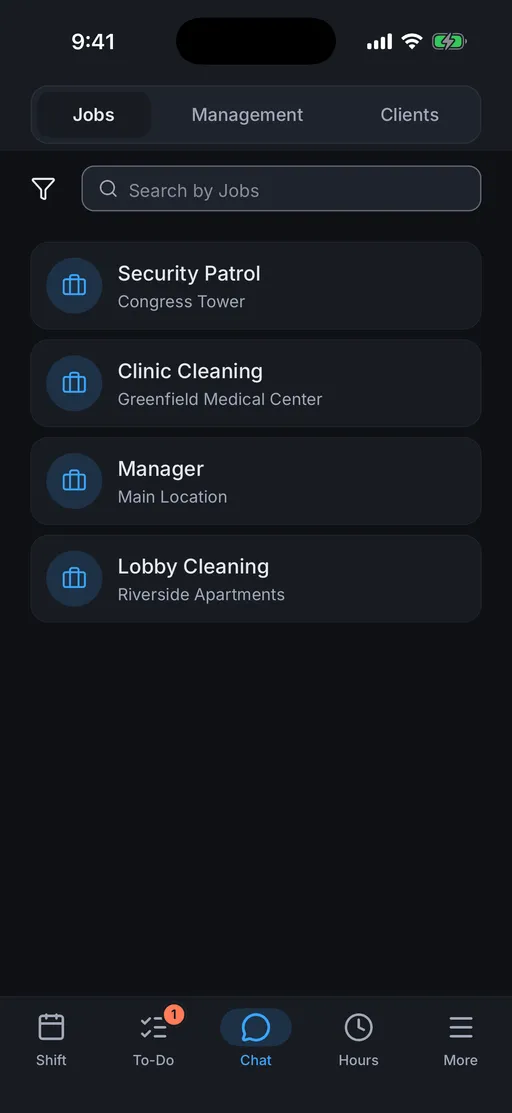
Tap the Chat tab, between To-Do and Hours.
- 2
Tap a chat. Jobs holds the chat of each job. Management is your chat with your managers.
- 3
Type your message. To add a photo or file, tap the paperclip.
- 4
Send it. Replies show up in the same chat.
Good to know
- A file can be up to 40 MB.
- The other members get a notification on their phone if they allow it. You control yours with Show Chat Notifications in the app settings.
- A document renewal reminder shows up in your chat as a system message.
About the feature: More about Mobile app