 English
 Español
 Tiếng Việt
 Deutsch
 Français
 Português
 Polski
 Nederlands
 Italiano
 Svenska
 Norsk
 Dansk
 Suomi
 Čeština
 हिन्दी
 العربية
Phone app
1 min read
How to fill in a custom form
Open a form assigned to you, fill it in and submit it in the phone app.
Steps
- 1
Open the More tab, tap Forms, then tap the form you need. The list shows only the forms assigned to you.


- 2
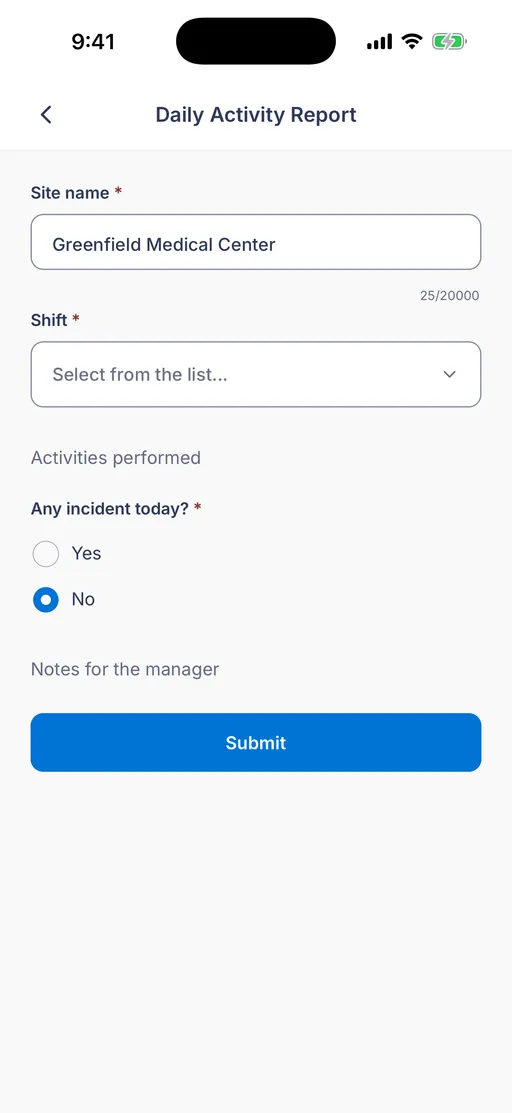
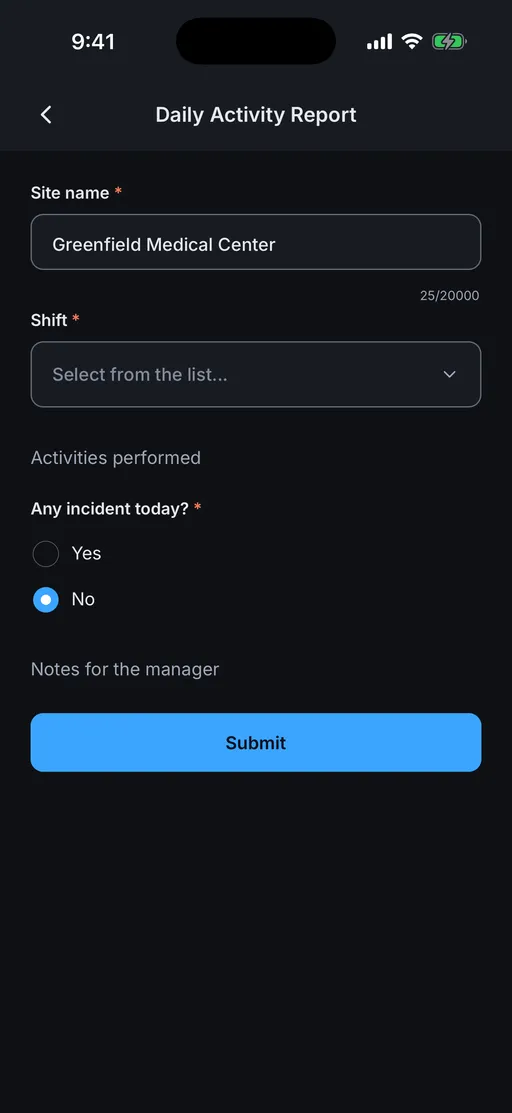
Fill in each field. A field can be text, a date, a dropdown, a checkbox or a toggle.
- 3
If the form asks for a photo, a file or a signature, add it.
- 4
Tap Submit.


If it does not work
There is no Forms item under More
Forms are part of the Pro plan. If Forms is missing, your company is on the Free or Basic plan.
The form is gone after you submitted it
Your manager set it to be filled in only once. Ask your manager to delete your submission if you need to fill it in again.
Good to know
- Your manager decides who sees the submissions in the app: nobody, only the person who submitted the form, or all users assigned to the job.
About the feature: More about Custom forms, More about Mobile app