 English
 Español
 Tiếng Việt
 Deutsch
 Français
 Português
 Polski
 Nederlands
 Italiano
 Svenska
 Norsk
 Dansk
 Suomi
 Čeština
 हिन्दी
 العربية
Dashboard
1 min read
How to add employee documents and expiry reminders
Add a license or certificate to an employee's record with an expiration date, and TimeGO reminds the employee before it ends.
Steps
- 1
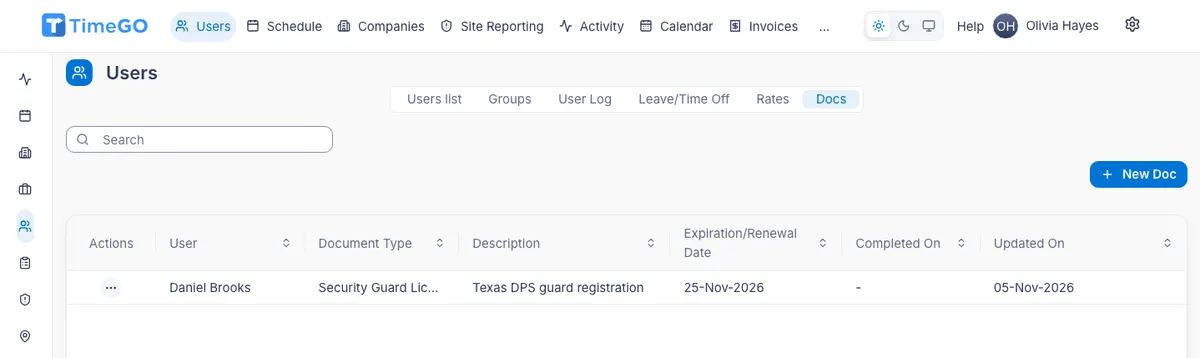
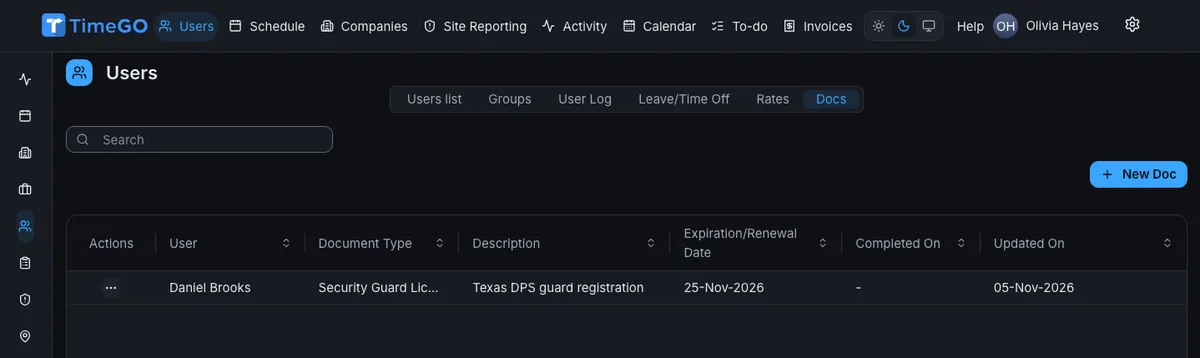
Click Users, open the employee, then open the Docs tab.
- 2
Click New Doc.
- 3
Fill in Document Name, Document Type, Expiration/Renewal Date and Completed On, and add the file in the upload area.
- 4
Tick Send reminder every, then choose how many days apart the reminders go out and how many days before the Expiration/Renewal Date they start.
- 5
Click Add.
If it does not work
The reminder option is not on the form.
Send reminder every shows only when the Expiration/Renewal Date is today or later. Pick a date that has not passed.
Good to know
- Reminders go to the employee only, as a push and as a message in the employee’s chat, until the expiration date. They arrive around 12:00 in the employee’s time zone. Managers get none.
- Managers and business admins can list, add, edit and delete any employee’s documents.
- An employee can also add a document in the phone app: More tab, Upload Document.
About the feature: More about Employee records