 English
 Español
 Tiếng Việt
 Deutsch
 Français
 Português
 Polski
 Nederlands
 Italiano
 Svenska
 Norsk
 Dansk
 Suomi
 Čeština
 हिन्दी
 العربية
2 min read
How to build a custom form
On the Forms page, click New Form, name the form, choose a Type, add fields in the Form Builder, then click Create.
Steps
- 1
Open the Menu on the left and click Forms, then click New Form.
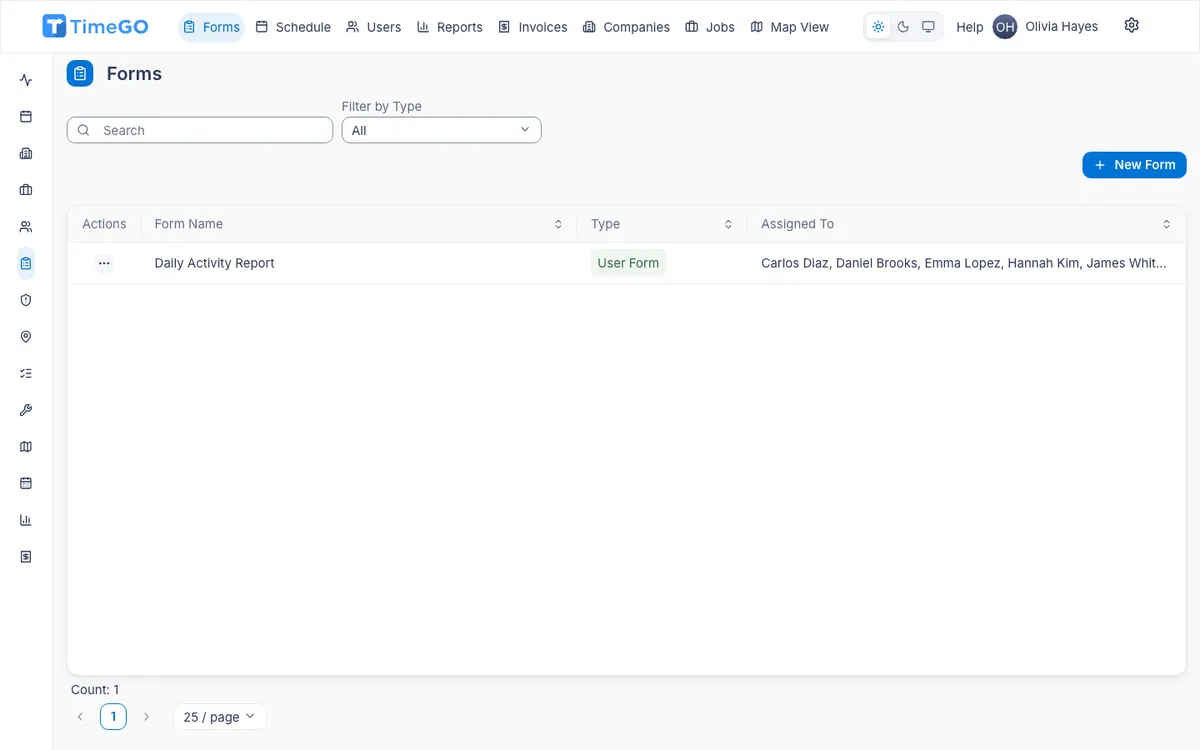
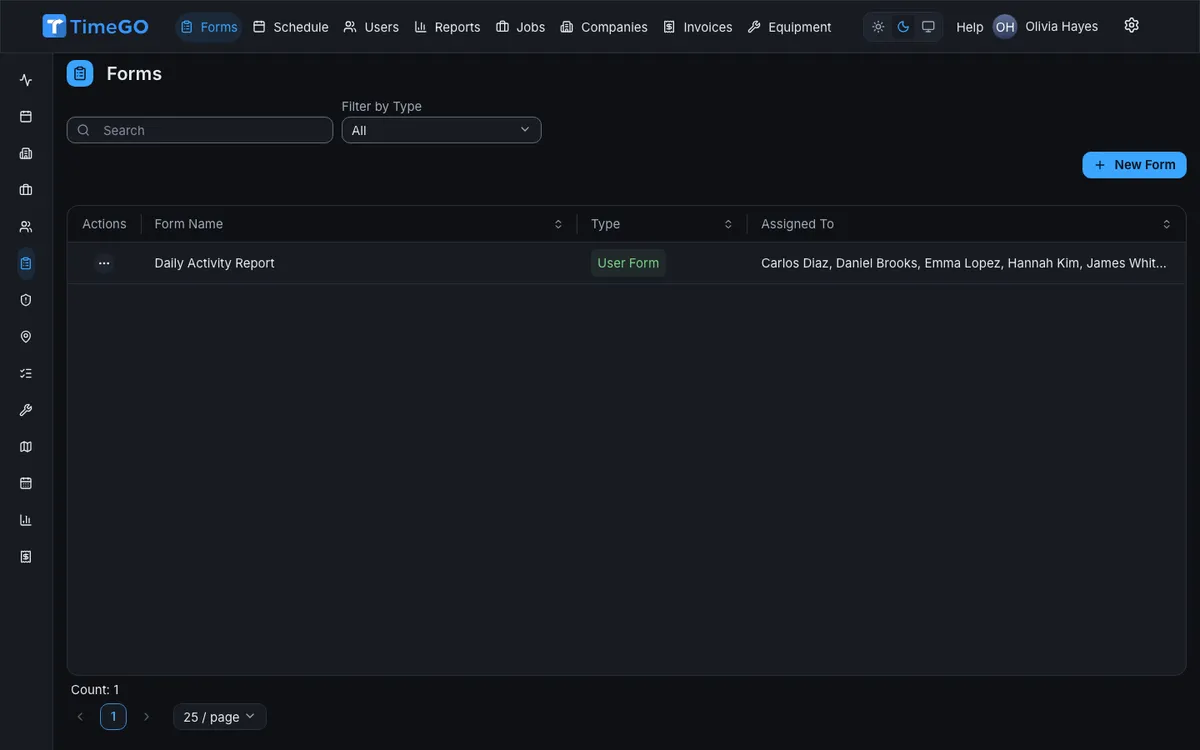
- 2
Under Settings, type a Form Name and pick a Type: Job Forms, User Forms or Public Forms.
- 3
For Public Forms, type a Set Form URL. It is required, and it is the last part of the public link.
- 4
Under Form Builder, click a field such as Text Input and type its question in the Question box. Repeat for each field.
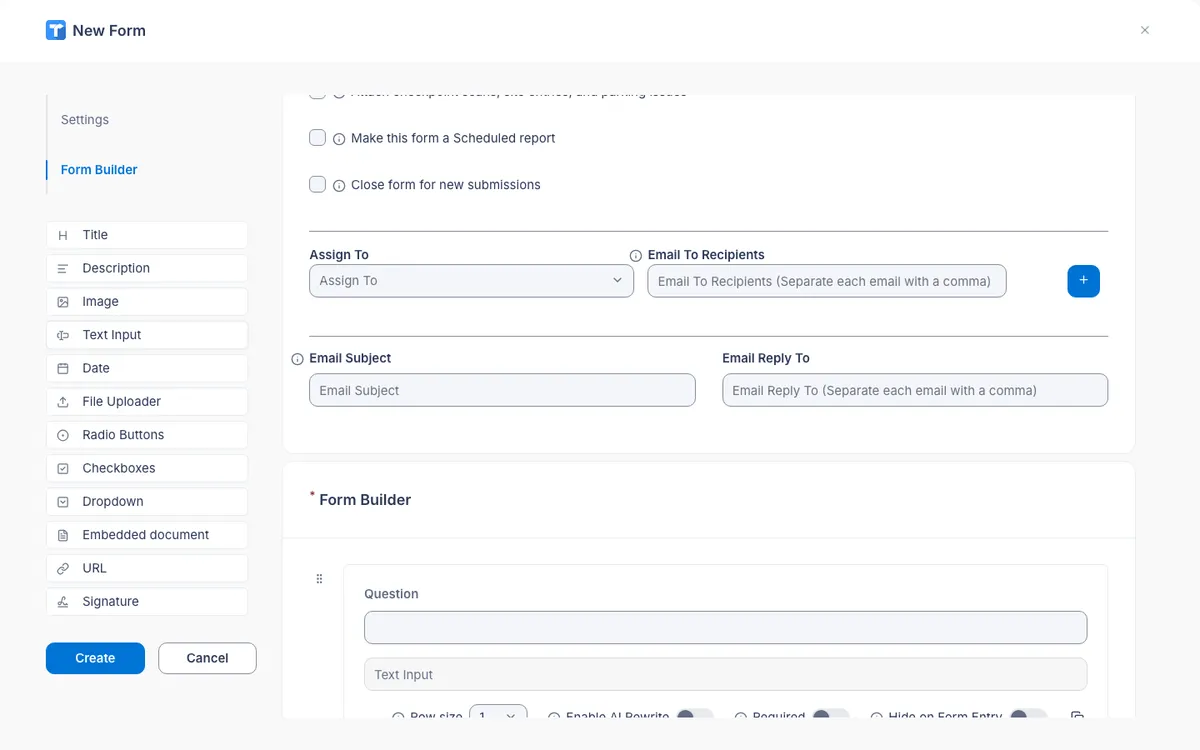
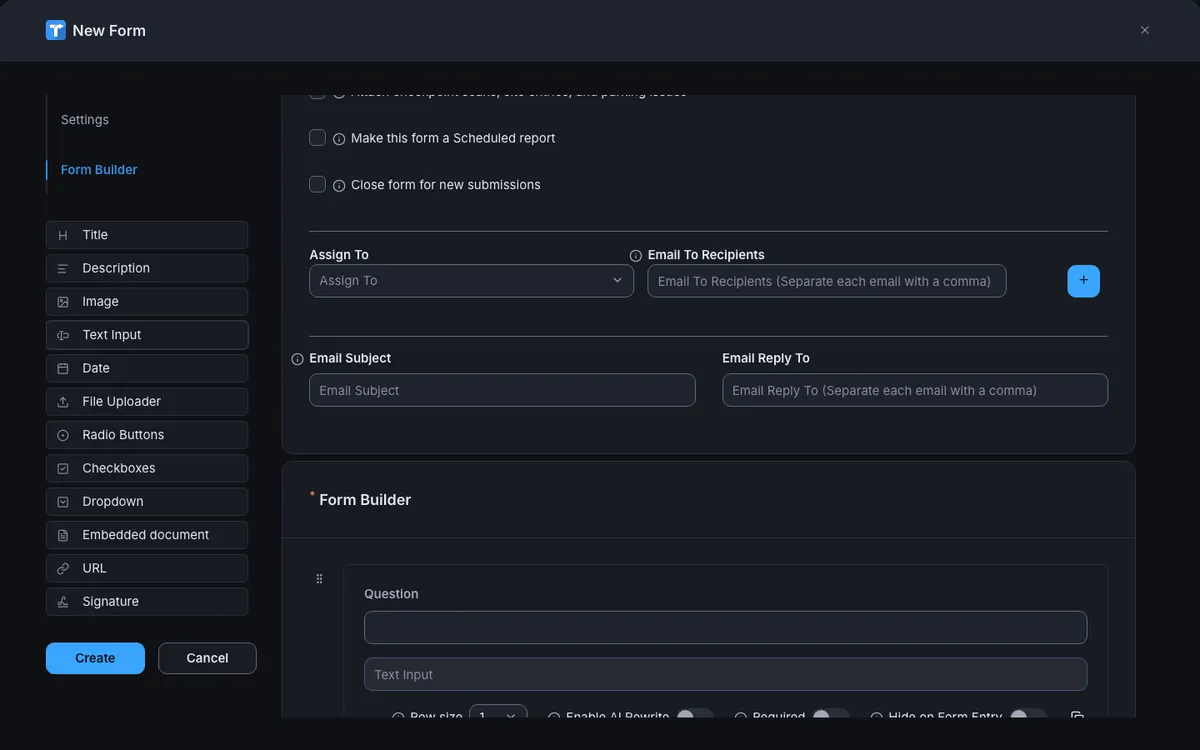
- 5
Click Create.
If it does not work
Please add some form components! It must be at least one component!
Click at least one field under Form Builder before you click Create.
Please fill in the fields of all components! / The Form Element should have a list of unique variants!
Type a question for every field. Give each option of a Radio Buttons, Checkboxes or Dropdown field its own name. Add the picture, document or link that an Image, Embedded document or URL field asks for.
This field is required and must contain only letters and numbers (max 20)!
Under Set Form URL, type 2 to 20 letters or numbers, with no spaces. It must be unique in your company.
Good to know
- The Type decides who fills in the form. A public form can be filled in on the web by anyone with its link, without signing in.
- You cannot change the Type after the form has a submission.
- A public form can have only one Signature field.
About the feature: More about Custom forms