 English
 Español
 Tiếng Việt
 Deutsch
 Français
 Português
 Polski
 Nederlands
 Italiano
 Svenska
 Norsk
 Dansk
 Suomi
 Čeština
 हिन्दी
 العربية
2 min read
How to import employees from a CSV file
On the Users page, click Import, upload a CSV file with up to 200 users, check the preview and finish.
Steps
- 1
Open the Menu on the left and click Users.
- 2
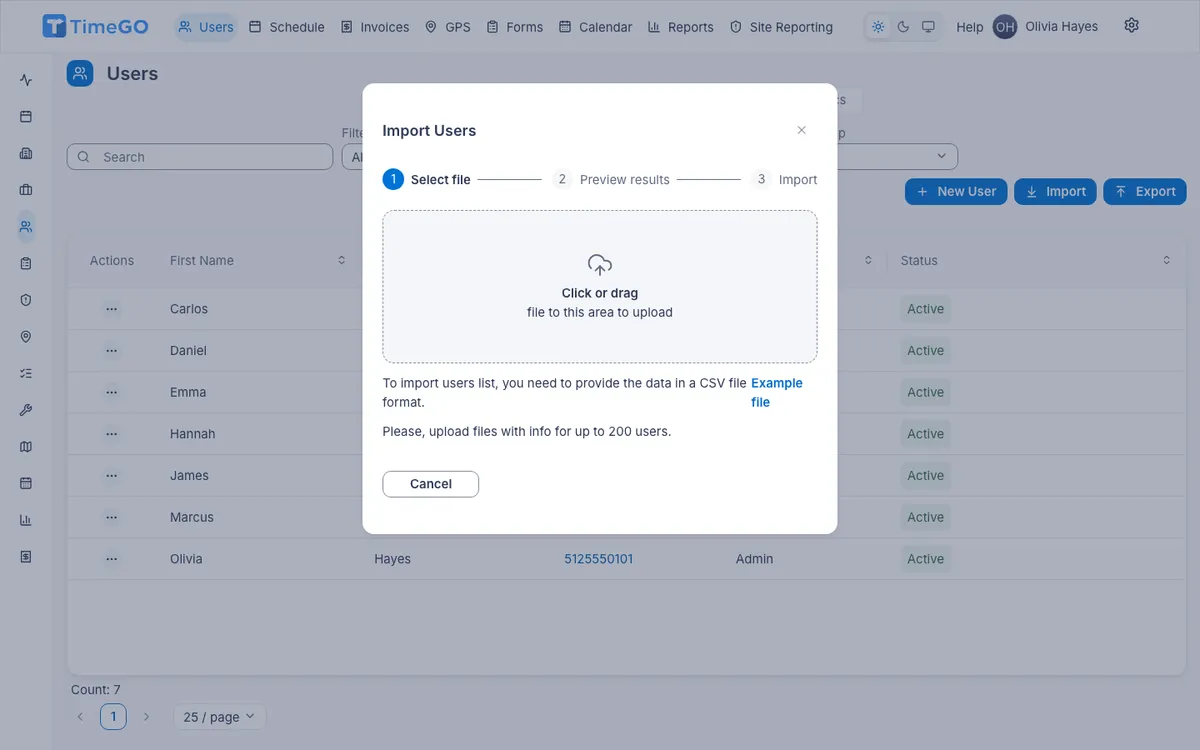
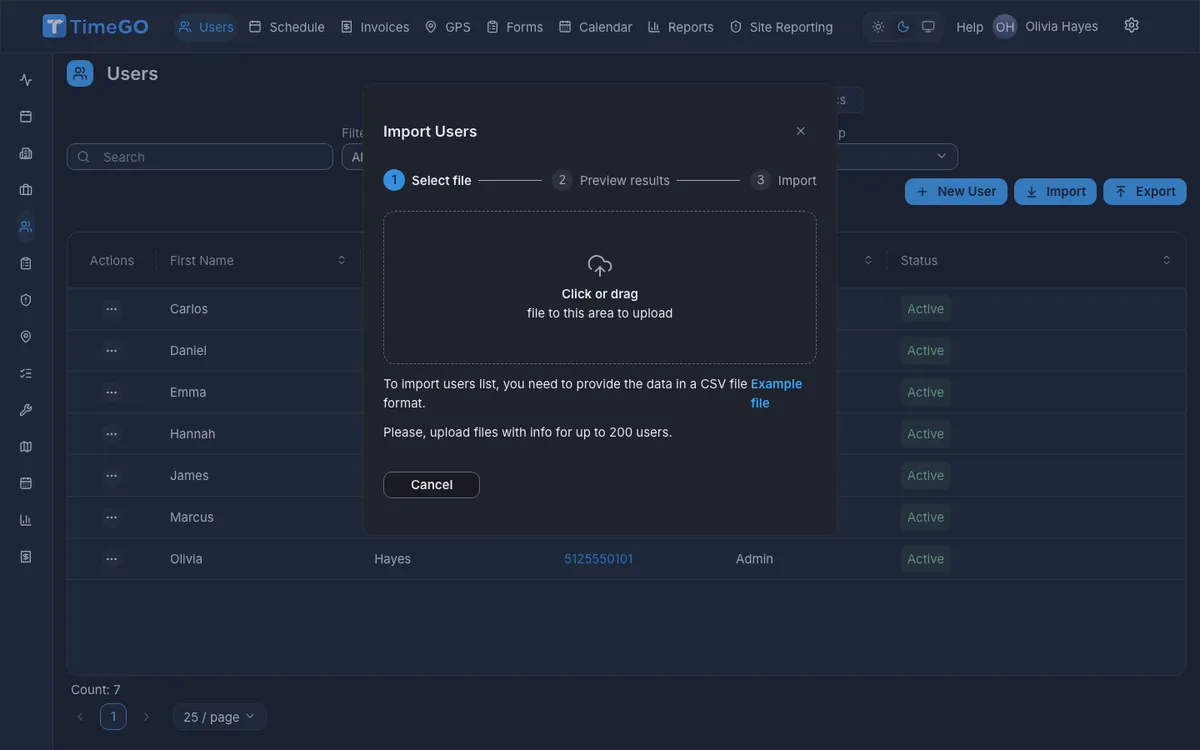
Click Import.
- 3
Click Example file to get a sample CSV. Keep its column order and first row.
- 4
Fill in one row per user: User Name, First Name, Last Name, Short Name and User Role. A blank Status means Active.
- 5
Drag your CSV file into the box, or click the box to choose it, then click Next.
- 6
Check Users added, Changes, Errors and No changes. If Errors is 0, click Next, then Done.

If it does not work
The app says: users.xlsx is not a csv file
Save the file as a CSV file, then upload it again.
The app says: File not uploaded. Please upload a file with no more than 200 users!
Split the users into CSV files of up to 200 users each and import them one after the other.
The preview shows a warning: Cannot import users with admin or manager roles. Please add them manually!
Only rows with role Manager are skipped. Add those managers by hand: click New User on the Users page. A row with role Admin counts as an error.
The preview has no Next button
The file has rows with errors. Click Cancel, fix the file, then start the import again.
Good to know
- If a User Name already exists, the import updates that user and counts them under Changes.
- The import needs a default payroll schedule for your company. Without one, the import fails.
About the feature: More about Employee records