 English
 Español
 Tiếng Việt
 Deutsch
 Français
 Português
 Polski
 Nederlands
 Italiano
 Svenska
 Norsk
 Dansk
 Suomi
 Čeština
 हिन्दी
 العربية

To staff an event without surprises, put every shift on one schedule, send it, and make each worker confirm or decline in the app. That turns silence into a status you can see. Then check the confirmations on a fixed rhythm, fill the declines while you still have days to do it, and let the app handle clock-in at the venue on the night.
Silence is not a yes
An event has a start time that will not move. A gala at 7 PM with call time at 4 does not wait for the bartender who never saw the group text. And you staff many events at once, at different venues, with people who also work for two other agencies.
Group chats and spreadsheets fail in the same way: a worker who does not reply looks exactly like a worker who is coming. You find out which one at 4:15.
Two weeks out: build and send
Create a shift for each role at each event: four bartenders, ten servers, two coat check, one lead. Leave a shift without a name if you have not filled it yet; an unfilled shift is a valid shift. On the schedule, shifts and actual hours sit on one screen with color-coded status, so open and filled roles are easy to tell apart.
Employees only see new or changed shifts after you send them with Notify. Send early. A decline two weeks out is an inconvenience. A decline the morning of is a scramble. The scheduling page shows the whole week view.
If the same worker ends up on two shifts that overlap, say a wedding that runs late and a breakfast setup, the dashboard warns you when you save. It still saves, so read the warning.
Make the worker answer
Workers see their shifts in the TimeGO app on a Confirm Your Schedule screen and tap Confirm Schedule or Decline Schedule. Confirming also sets a shift start reminder on their phone. Declined shifts disappear from their app, so nobody turns up for a shift they turned down.
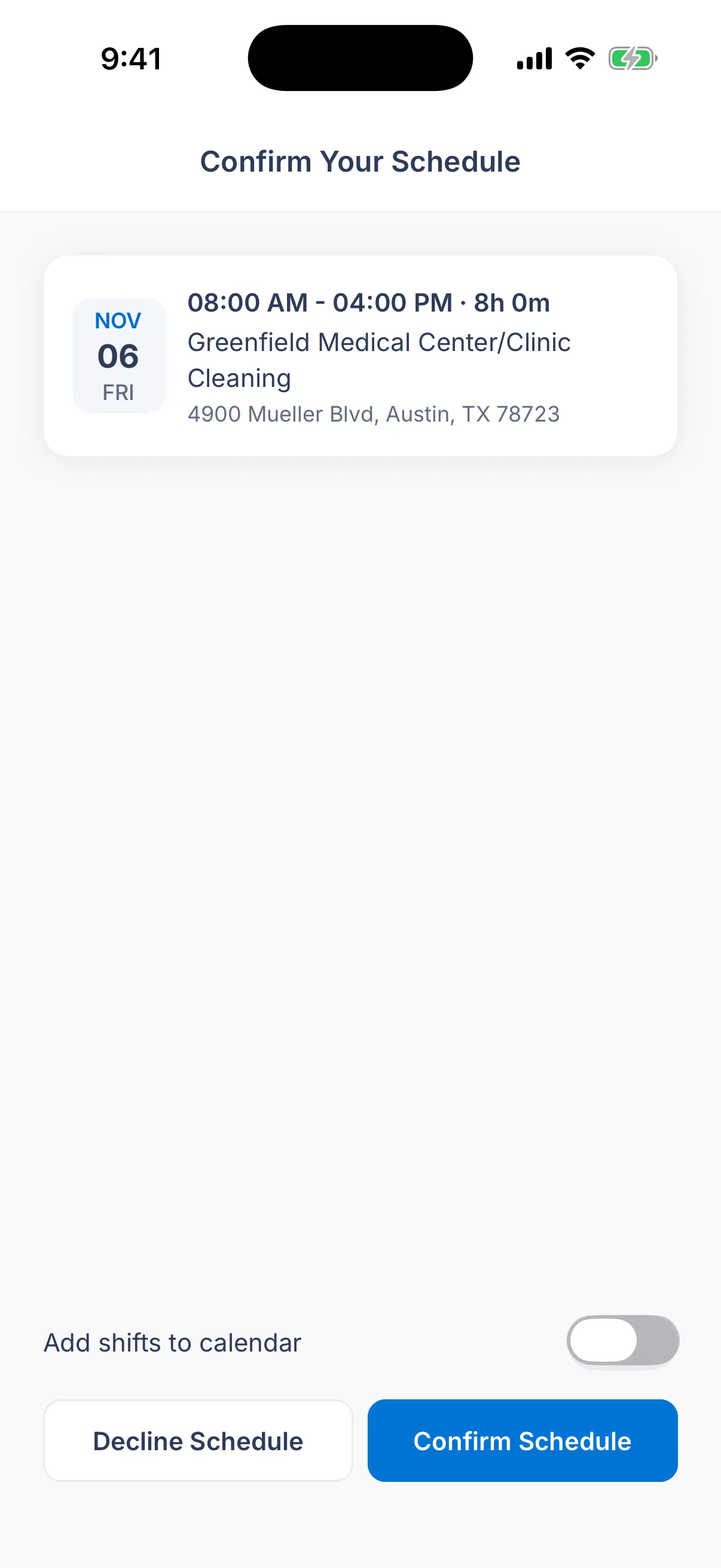
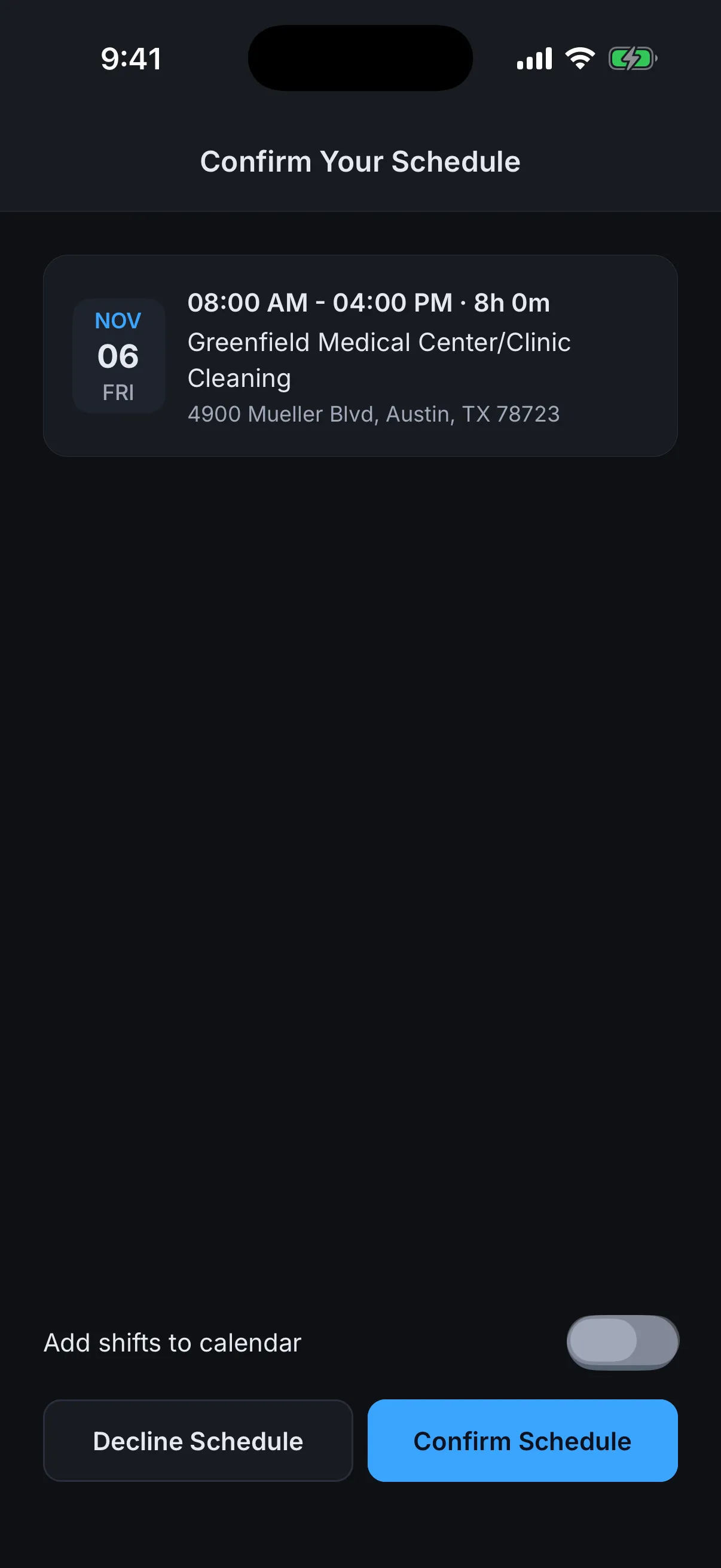 What the worker sees: the shift, the venue, two buttons. There is no third option called “maybe”.
The rhythm before the event
A routine worth copying:
- The morning after you send: look at who has confirmed.
- Three days out: call everyone who has not answered. Not a text, a call.
- Every decline: offer the shift to the next person and send the change with Notify.
- Two days out: the schedule should be all confirmed. Anything that is not, you staff tonight.
Event workers often have other jobs and ask for days off. Time-off requests come through the app, a manager approves them, and approved time off is flagged against any overlapping shift on the schedule. A calendar shows time off and events together, so you see the conflict before you build the next event, not after.
On the night
At the venue, workers clock in, take breaks and clock out in the app. A geofence around the venue ties the punch to the place, and a clock-in from the parking garage across the street does not count. Convention centers and loading docks are often dead zones, and offline mode keeps the clock-in until the signal returns.
A missed clock-in alert tells you when someone has not clocked in (how it works). At an event, that early warning matters.
Different roles do different things. Write a shift to-do list for each one, and mark what must be done as required: count the radios out and back in, check the bar stock against the sheet, set the registration table before doors. Workers tick them off in the app and you see how far each list got. For a quick change on the night, the venue map or a new door time, chat in the mobile app takes photos and files. For anything that must happen, use a required task, not a message.
After the event
Each shift lands in the timesheet when the worker clocks out. Read it the next morning while the night is fresh, export it for payroll, and build the client’s invoice from the same tracked hours. The event staffing page shows the whole cycle in one place.
What it does not do
TimeGO does not find workers. It schedules and tracks the ones you have. If your bench is too thin for the season, no amount of confirming fixes that, and the schedule will simply show you the gap earlier.