 English
 Español
 Tiếng Việt
 Deutsch
 Français
 Português
 Polski
 Nederlands
 Italiano
 Svenska
 Norsk
 Dansk
 Suomi
 Čeština
 हिन्दी
 العربية
Dashboard
1 min read
How to review an employee's GPS route
See one employee's GPS route for one shift on the map in the web dashboard.
Steps
- 1
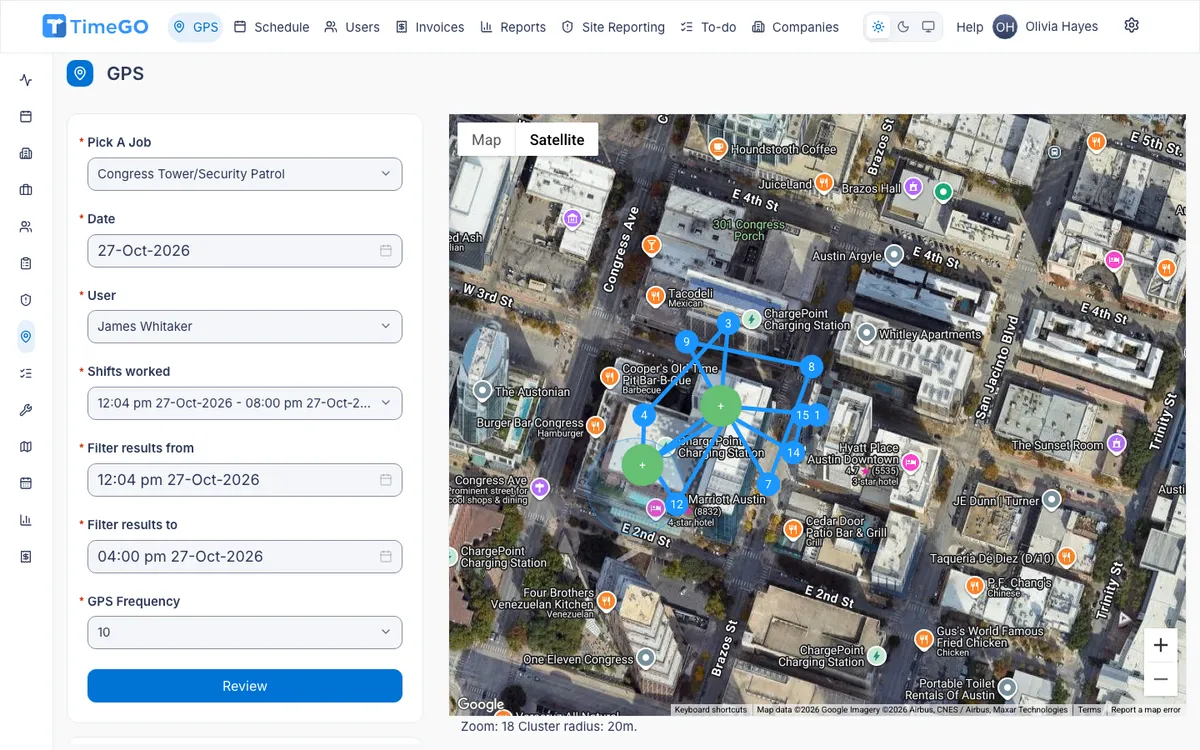
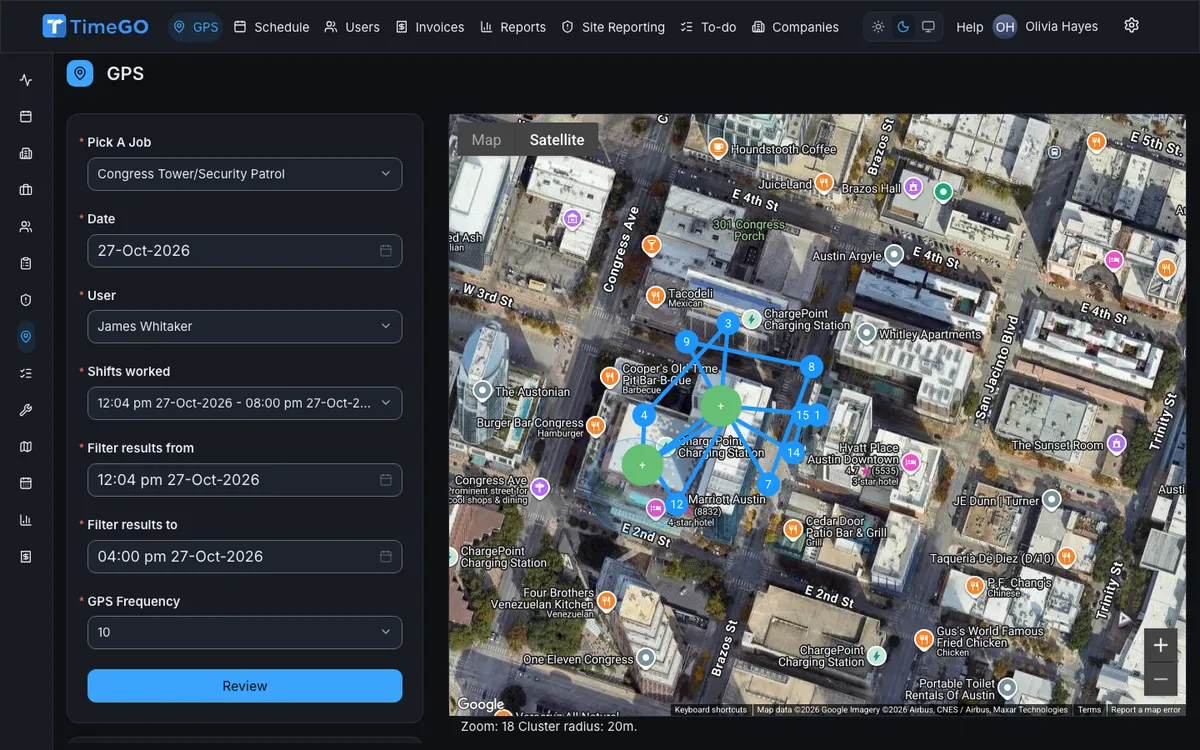
Click GPS in the main menu.
- 2
Choose Pick A Job, Date, User and Shifts worked.
- 3
To look at a shorter time, set Filter results from and Filter results to.
- 4
Press Review. The route appears on the map, with the list of check-ins, route points, scans and checkpoints.

Good to know
- The page loads the route only when you press Review. Press Review again to reload it.
- Tracking stops during a break, so a gap in the route in the middle of a shift is expected.
- GPS Frequency groups the route points on this page. It is 10 minutes by default, and you can pick 1, 5, 15, 20 or 30. It does not change how often the phone records a point.
About the feature: More about GPS time clock