 English
 Español
 Tiếng Việt
 Deutsch
 Français
 Português
 Polski
 Nederlands
 Italiano
 Svenska
 Norsk
 Dansk
 Suomi
 Čeština
 हिन्दी
 العربية

You can run one TimeGO feature and leave the rest alone. Pick the one that fixes whatever cost you the most last month, run it for a full pay period, and add the next feature when somebody on your team asks for it. Your employees, sites and clients carry over, so the second feature is a smaller job than the first.
One app, one dashboard, a lot of parts
TimeGO covers scheduling, clock-in with GPS, timesheets and payroll exports, to-do lists, custom forms, employee documents, time off, job expenses and invoices. Employees use one app on their phones and managers use one web dashboard. The list is long because a field company runs on a dozen small routines, but nobody has to switch them all on in the first week.
An owner with six cleaners on three night accounts usually wants one answer: did they show up, and for how long. An operations manager with forty people across a dozen sites wants the schedule, the hours, the site checklists and the invoice to come out of the same place. Both start the same way, with one feature.
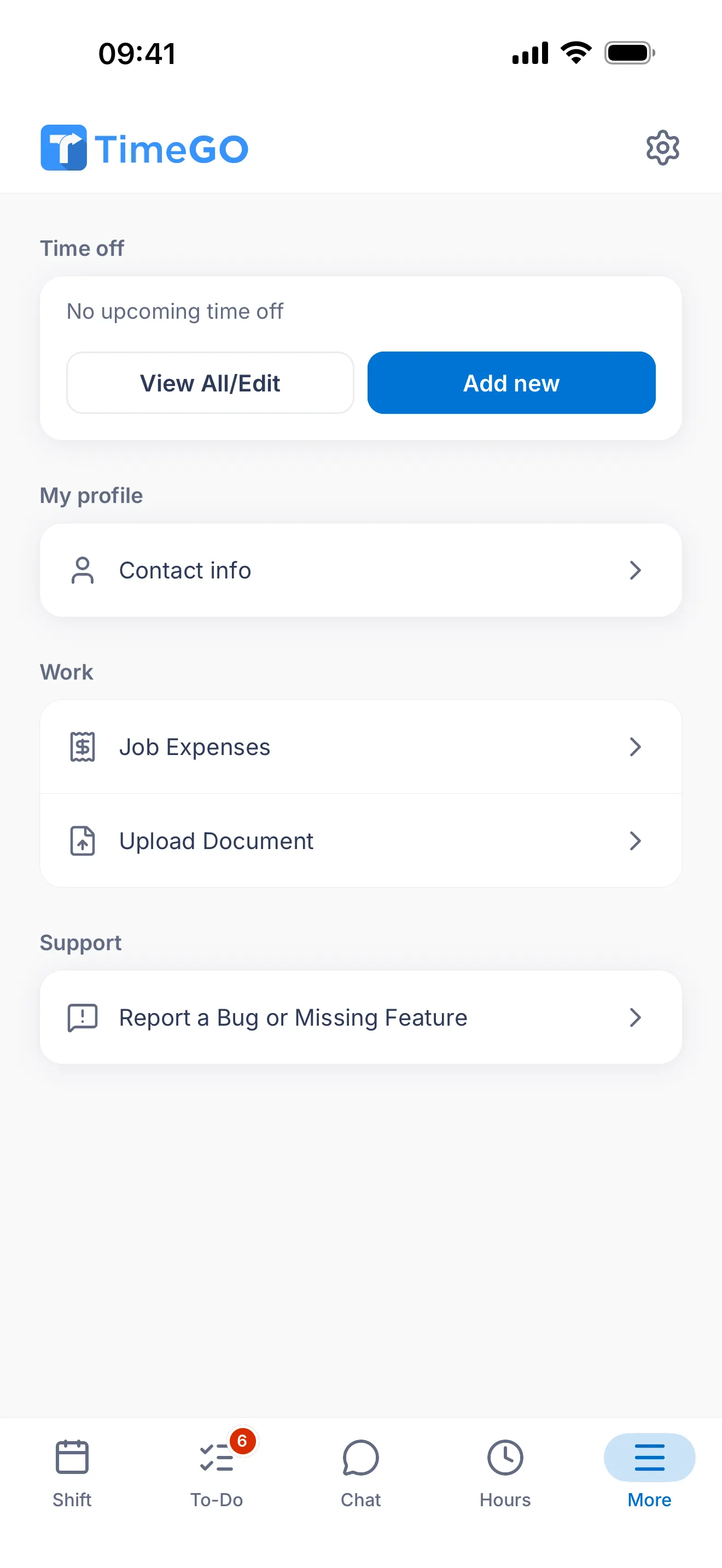
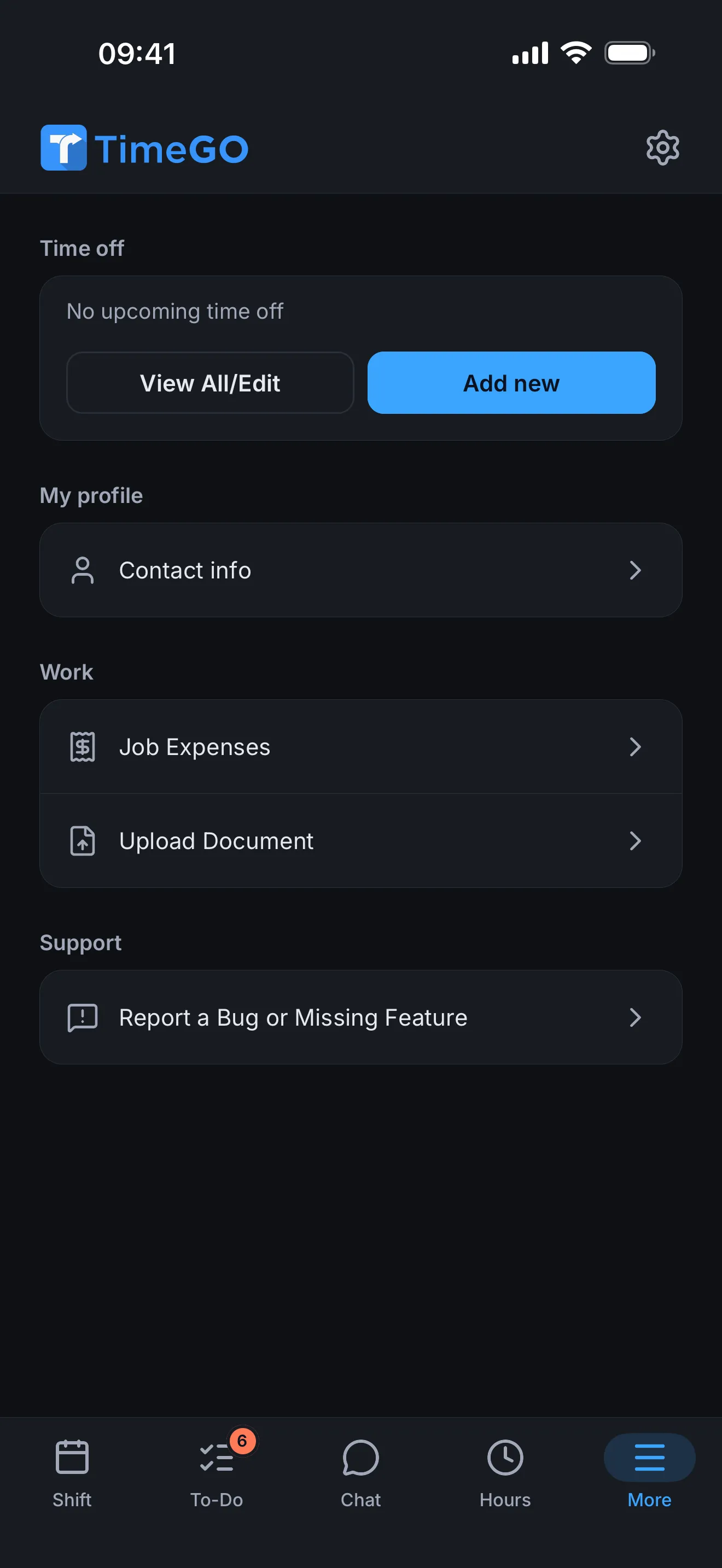 Everything lives in one app, but an employee only uses the parts your company switches on and sends them.
Start where it hurts
Look back over the last month and find the job that ate an evening or cost real money. That is your first feature.
If payroll Friday means chasing texts and squinting at sign-in sheets, start with clock-in and timesheets. Staff clock in on their phones at the site, and at the end of the period you export the hours.
If people miss shifts because the schedule lives in a group chat, start with scheduling. Each employee sees their own shifts in the app and confirms them, or declines a change.
If a client calls at 8 AM to say the break room was skipped again, start with to-do lists.
If the truck has a box of half-filled inspection forms behind the seat, start with custom forms, filled in on the phone with photos and a signature.
If time off gets agreed in a hallway and forgotten by the time the schedule is built, start with time-off requests. The employee asks in the app and the manager answers there.
The first pay period with clock-in
Say you start with clock-in. You add your employees, your job sites and their shifts in the web dashboard, and each site gets a geofence. Employees install the app and clock in and out at the site. At the end of the pay period you open the timesheets, fix the two or three shifts that look wrong, and export the hours. Forms, to-do lists and invoices can stay empty the whole time.
The second feature reuses the first
What you set up for the first feature is already there for the next one. If you started with clock-in and now want a closing checklist, you write the list and send it to people who have the app on their phones already. If you started with forms and now want hours, the staff are in the system. Nobody re-enters the team, and nobody learns a second app.
Wait until the first feature is boring before you add another. When the crew stops mentioning the app at all, they are ready. Switch on two things in the same week and you will not know which one the complaints are about.
A default order
- Hours first: clock-in and timesheets pay you back every single pay period.
- The schedule, once you trust the hours, so the plan and the actual times sit on one screen.
- To-do lists and forms, to retire the clipboard in the van.
- Documents and expenses: employee records with expiry reminders, job expenses with photos.
- Invoices built from tracked hours and emailed as a PDF.
If your worst problem is number five, start at five. The order is only a default.
Telling the crew
People accept “we are moving the sign-in sheet to the phone.” They tune out “we are rolling out a new platform.” Show them the one thing they will do on day one, have them try it in front of you before the shift, and leave the other tabs for later. The mobile app page shows what employees see.
Check the plan before you pick
The plans do not all include the same parts. Custom forms, invoices, site tours with checkpoints, job expenses, the equipment log and the QuickBooks Online and Xero sync are on the Pro plan, and on Basic those screens are read-only. If the feature you want to start with is one of those, choose the plan with that in mind.