 English
 Español
 Tiếng Việt
 Deutsch
 Français
 Português
 Polski
 Nederlands
 Italiano
 Svenska
 Norsk
 Dansk
 Suomi
 Čeština
 हिन्दी
 العربية

TimeGO to-do lists now repeat on a schedule, give each task its own due date and people, take a typed value such as a meter reading, and collect a note or a photo as proof from the phone. They live on the To-Do tab of the latest app, so the first step is asking your team to update it.
One night list, start to finish
The easiest way to see what changed is to build one list. Take a cleaning company with a medical office on its night route. The client wants the restrooms done, the trash out and the break room wiped down every night, and the supply closet counted so nobody runs out of paper towels on a Monday.
The manager creates the list once in the web dashboard and sets it to repeat daily. Two cleaners work that account, so the list goes to both of them as one shared list: when one ticks the restrooms, the other sees it done and moves on. The supply count gets a value box, and the cleaner types “4 cases” instead of texting a photo of the shelf. The restroom task gets a photo, because that is the room clients complain about.
Tonight’s crew starts from an empty list, and last night is kept in history, where anyone on the list can page back and read it.
So when the office manager calls at 7:45 AM to say the break room was skipped, the answer takes a minute. Open yesterday, see whether the task was ticked and read any note left with it.
What is new, piece by piece
Repeats. A list runs once, or repeats daily, weekly (every 1 to 12 weeks, on a day you pick) or monthly (on a day of the month). That covers a nightly closing list, a weekly equipment check and a monthly walk-through of a building.
Due dates and people on each task. In the web dashboard every task can have its own due date and its own assigned people, so one list can hold a morning task for the day porter and an evening task for the night crew. You send a list to selected users and groups. With more than one person on it, you choose one shared list that anybody ticks, or a copy for each person. Shared suits a closing routine. A copy suits something every person must do, like a vehicle check before the first job.
A box for a value. Turn on the text box for a task and the person types the value. A meter reading, a temperature or a count fits.
Proof on the phone. On the To-Do tab the person ticks a task and taps the camera icon next to it to add a note, a photo, or both.
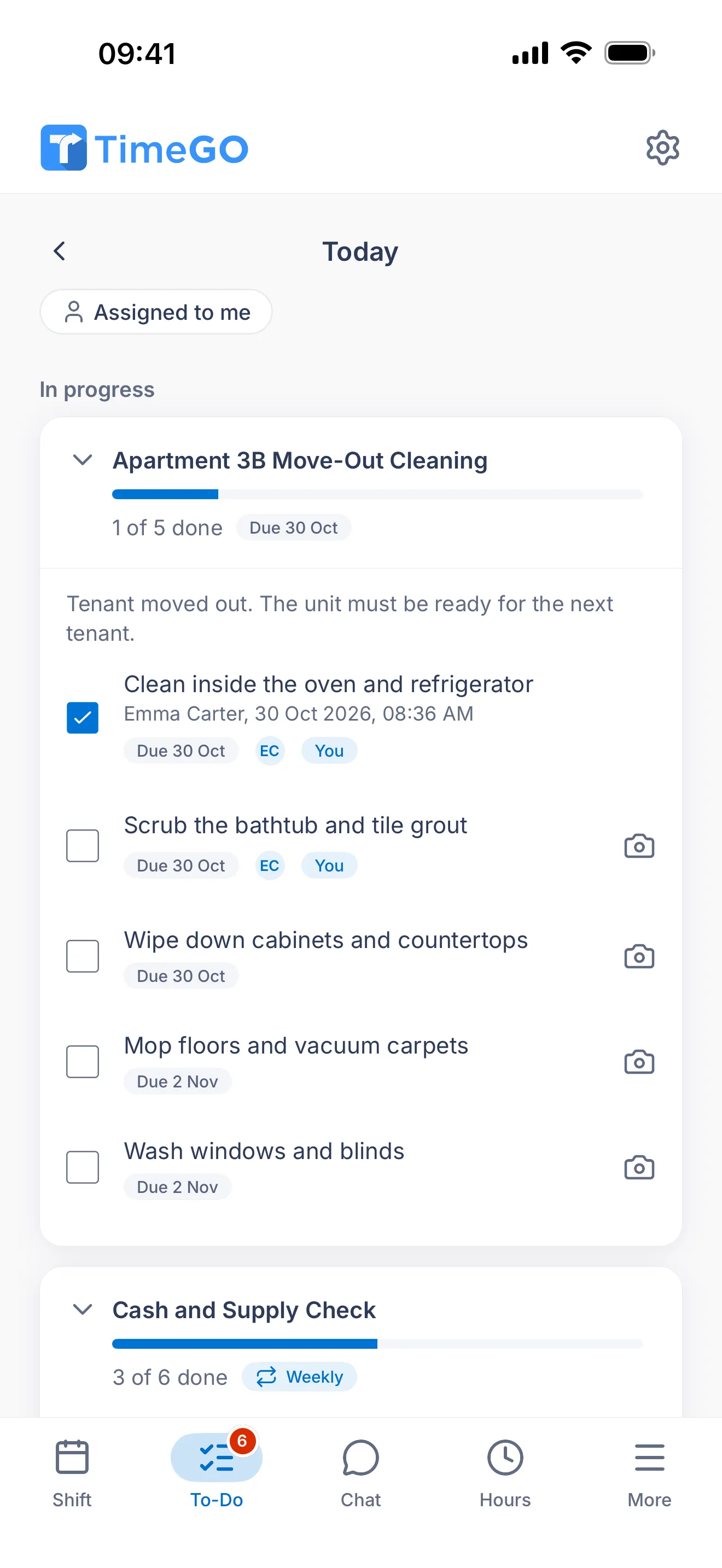
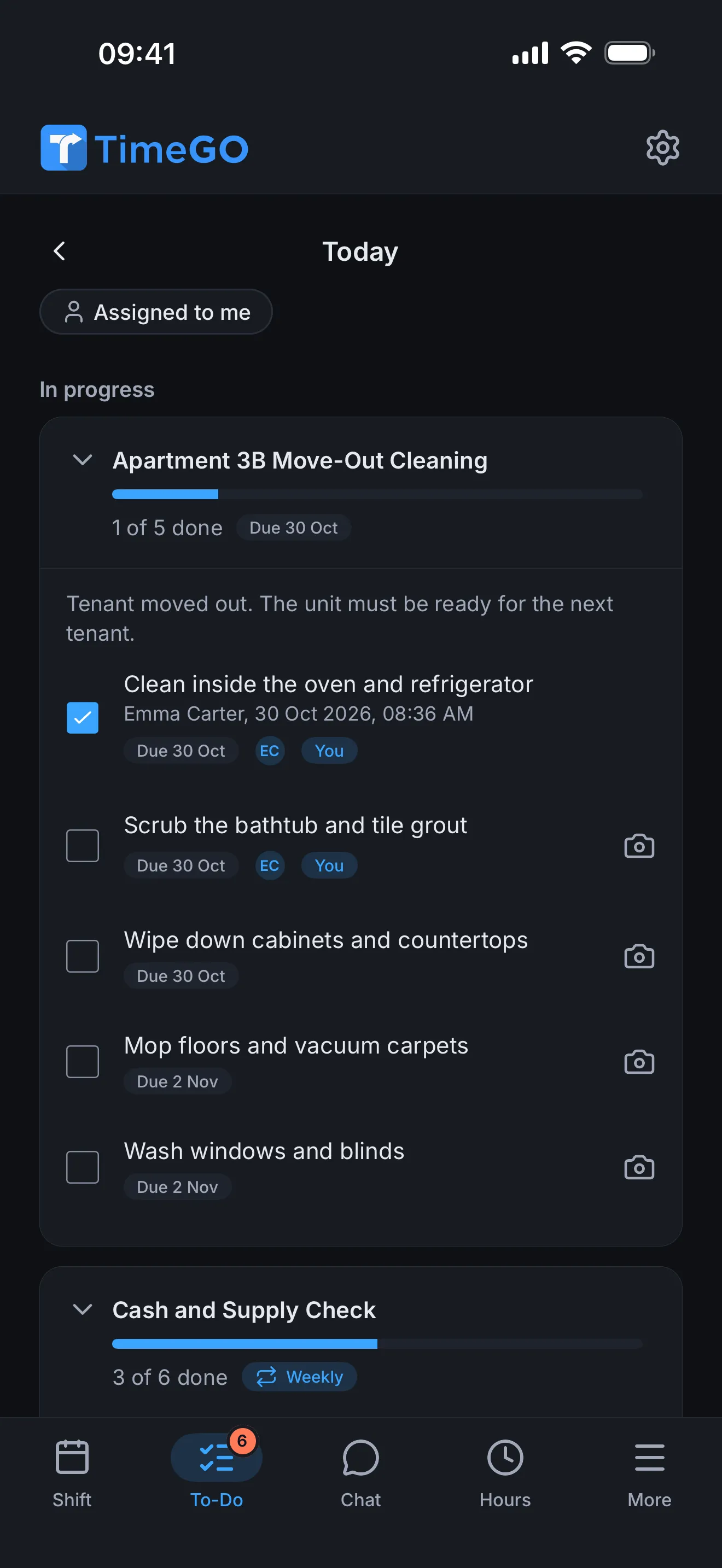 The new To-Do tab: today’s lists, how far each one got, and Assigned to me at the top.
Assigned to me. One button on the To-Do tab narrows the screen to your own lists and tasks. How to use your to-do lists shows each screen.
Mobile Editors. A manager can choose people who edit a list on the phone. Pick a site lead, and when the client adds “wipe the elevator buttons” on a walk-through, the lead adds it on the spot instead of waiting for the office.
On the web. You can copy a list to reuse it for the next account, and hold a list back until a start date.
Where the new lists stop
These lists record what was done. They do not stop anyone from leaving with a task unticked. Required tasks are gone from the To-Do tab, so a skipped task shows up the next morning in the history, not at 11 PM while the cleaner is still in the building. For a job where something must be done before the shift ends, use a shift to-do list. Those still sit under the timer on the Shift tab and work as before: a required task has an asterisk, and the app counts how many required tasks are left. The steps are in using a shift to-do list.
One smaller limit is worth knowing before you build: Delete in a Mobile Editor’s menu removes the list for everyone on it, which is a good reason to make two or three trusted people editors rather than the whole crew.
Build your first one
The fastest way to see what changed is to build the night list above for one account. Create a to-do list walks through the form with screenshots, and the to-do list overview shows what the lists look like on the phone and the web.