 English
 Español
 Tiếng Việt
 Deutsch
 Français
 Português
 Polski
 Nederlands
 Italiano
 Svenska
 Norsk
 Dansk
 Suomi
 Čeština
 हिन्दी
 العربية
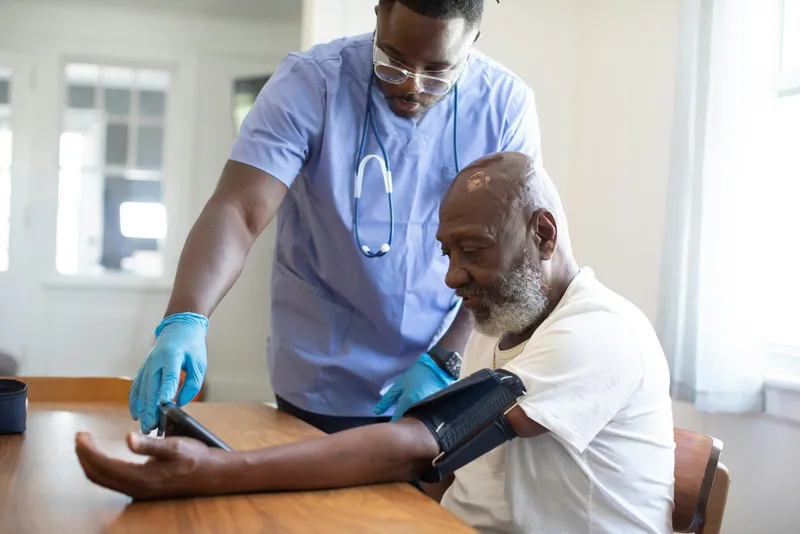
For aides and nurses who visit four or five homes a day, the record that holds up is one clock-in per visit, made on the phone at the client’s address. Set each client’s home up as a job with a geofence around it. The aide clocks in at the door and out when they leave, the visits add up in one timesheet, and nobody rebuilds Tuesday from a notebook on Friday.
The notebook on the passenger seat
A traveling caregiver’s week is written down at the end of it, from memory, in round numbers. 9 to 10 at Mrs. A’s, 10:30 to 12 at the next address, lunch, two more in the afternoon. The office types it up. The order of the visits is blurry, the times are all on the hour, and when a family calls to say nobody came on Wednesday afternoon, there is nothing behind the answer but the aide’s word.
A punch made at the door has a time and a place on it, which a line in a notebook never will.
One job for each client’s home
Set each client’s address up as a job, with a geofence around it, the area the app treats as “at the client’s”. Clients, locations and contacts all live in the dashboard, and a map shows your job locations and who is working.
When the aide taps Clock-In, the app checks the phone’s location against that radius. Outside it, the app says the clock-in is not possible outside the job radius. A new client on Tuesday means one more location and one more visit on the schedule.
A visit, on the phone
- In the Shift tab, the aide selects the visit.
- At the door, they tap Clock-In. The first time, the phone asks for location access; on iPhone the right answer is “Always” with precise location, on Android “Allow all the time”.
- Lunch between visits is Take a break, so it does not count as care time.
- Leaving, they tap Clock Out, and drive to the next.
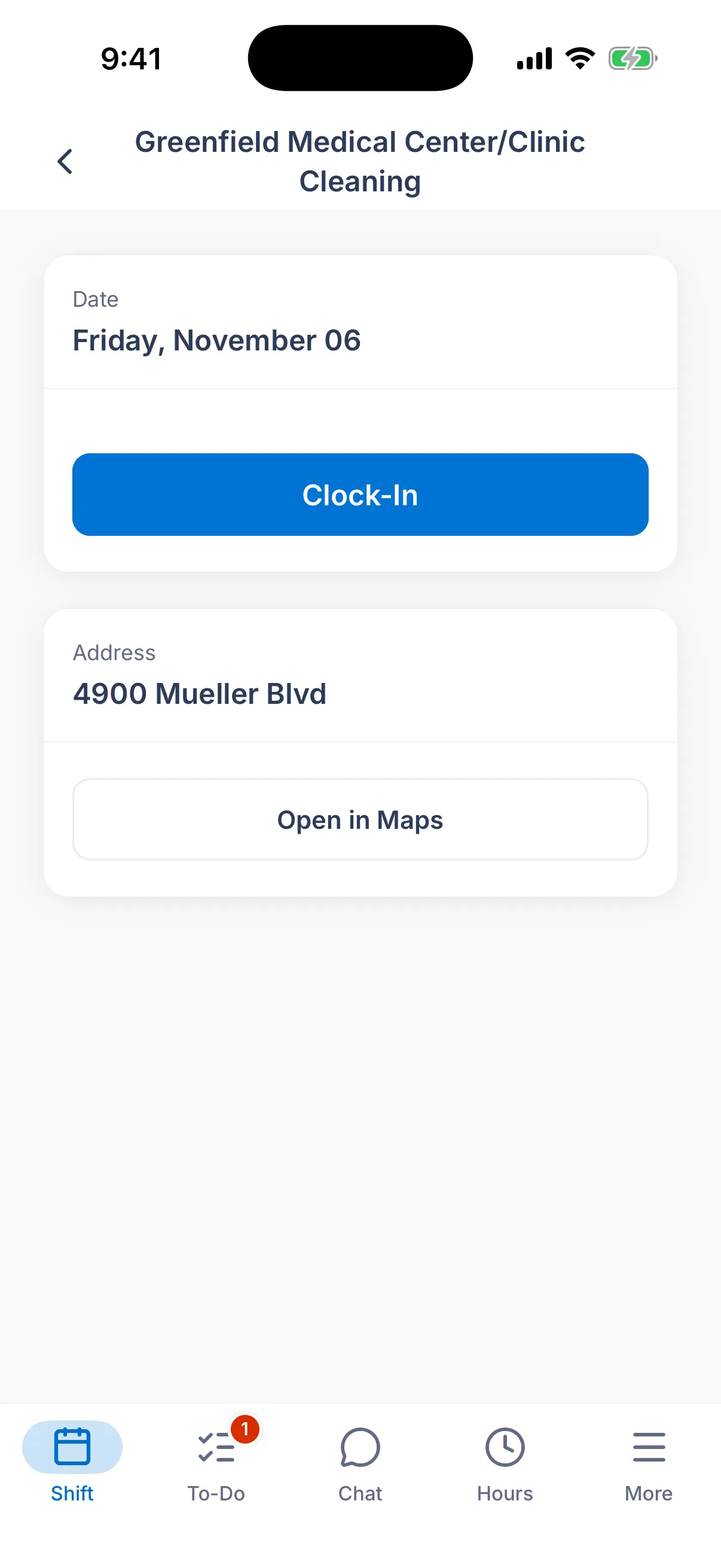
 The visit screen: the address, a button to open it in maps, and one big Clock-In button.
The help article on clocking in with GPS lists the messages an aide may see, such as location services being off, and what to do about each.
When there is no signal
Rural roads and basement apartments have poor coverage. In offline mode, the aide taps Clock-In as usual; the clock-in waits on the phone and keeps the time it actually happened.
The drive between visits
On jobs where you switch on continuous GPS tracking, the app records a route while the aide is clocked in, pausing for breaks. A manager can review it on a map in the web dashboard during or after the shift. On iPhone, swiping the app closed stops the tracking, so tell staff to leave it running.
Use tracking where it earns its keep, for example on visits where a family has disputed times before. Tell your staff what is recorded, when, and why. People who hear it from you first take it as a policy. People who find out later take it as surveillance.
When an aide does not arrive
If an aide has not clocked in for a visit, you get a missed clock-in alert. That is the moment to call the aide, and then the family, before the family calls you.
From visits to payroll
Every visit becomes a shift in the timesheet. At the end of the period, export it for payroll or sync it to your accounting software from the integrations page.
What it does not record
The app records when the aide clocked in and where the phone was. It does not record what care was given, and it is not a clinical record. If you need a visit note, build a short custom form for the aide to fill in on the phone after each visit, and keep anything clinical in the system built for it.
Starting small
Pick the two or three staff who travel the most. Set up their clients as jobs, schedule a week of their visits, and have them clock in at each door. At the end of the week, compare the timesheet with what the notebook would have said. Then add the rest of the team.